Access rights
Access rights decide what each person can see and do in the WMS — which screens open, which records they can read or change, and which warehouses they work with. You set them up in the desktop Client app, under System Administration. (Access rights are configured only in the Client; they are not managed on the ТЗД handheld, although they govern what a user sees there too.)
How access is built up
Access is assembled from three building blocks:
- Profile — a reusable template that says what may be done: for each kind of record, whether the holder can Read, Add, Edit, Delete, or View it. See Profiles.
- Access group — joins a profile to who and where: a list of member users and a list of warehouses. See Access groups.
- User — the person signing in. A user gets access only by being a member of one or more access groups; there is no permission set on the user directly.
In short:
A user can belong to several groups at once. When they do, the groups add up — see Combining groups.
Users and roles
Each user account has a Role and an Enabled switch:
- Role — governs how much the account can do. A User is limited to their access groups; an Admin or Owner has full access regardless of groups or warehouses. See User roles.
- Enabled — turn it off to suspend an account without deleting it.
Membership is managed from either side: a group's Members tab, or a user's Group membership tab.
On the ТЗД
The ТЗД handheld has no access-management screens — you always set access up in the Client. But the same rules follow the user onto the handheld:
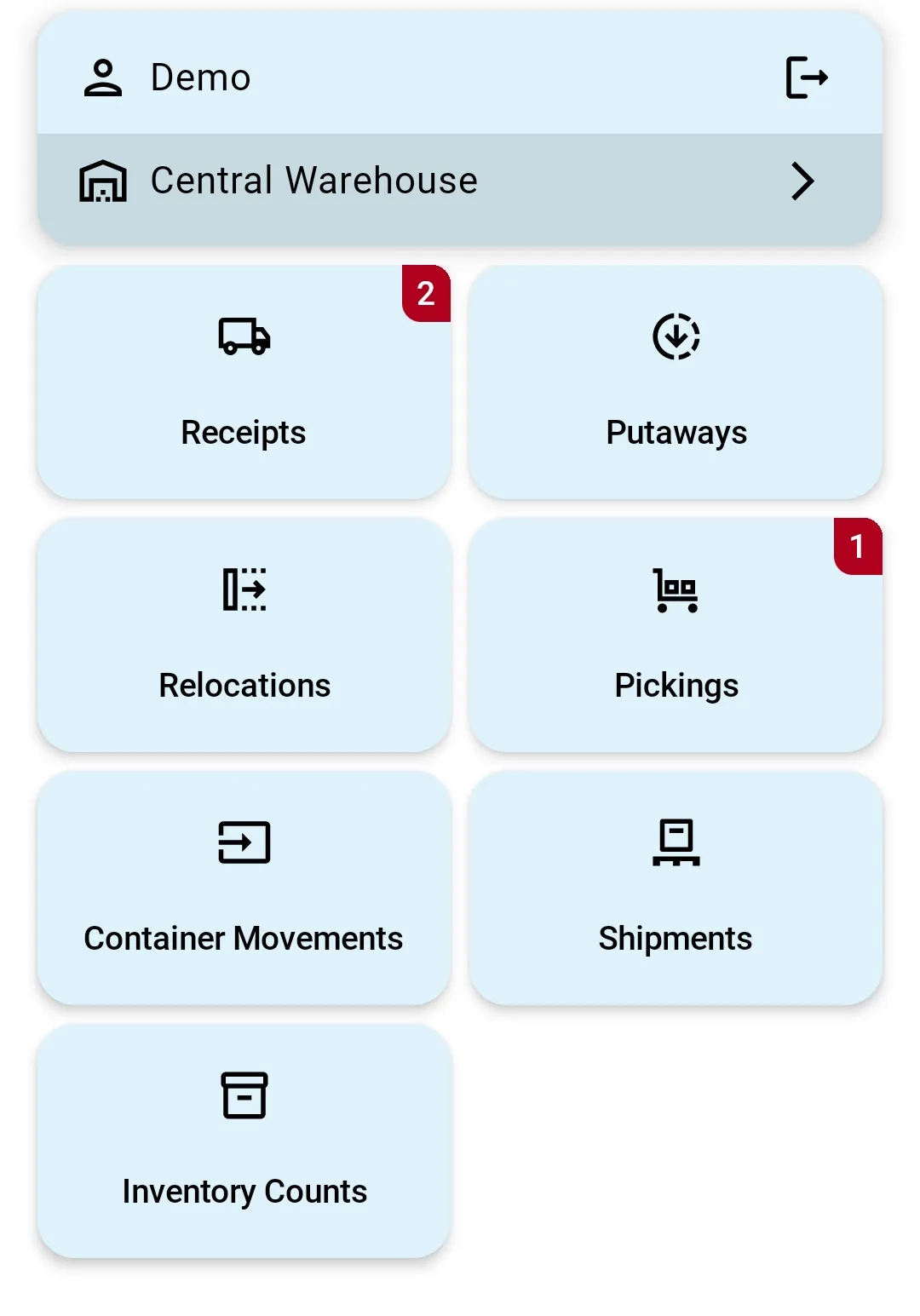
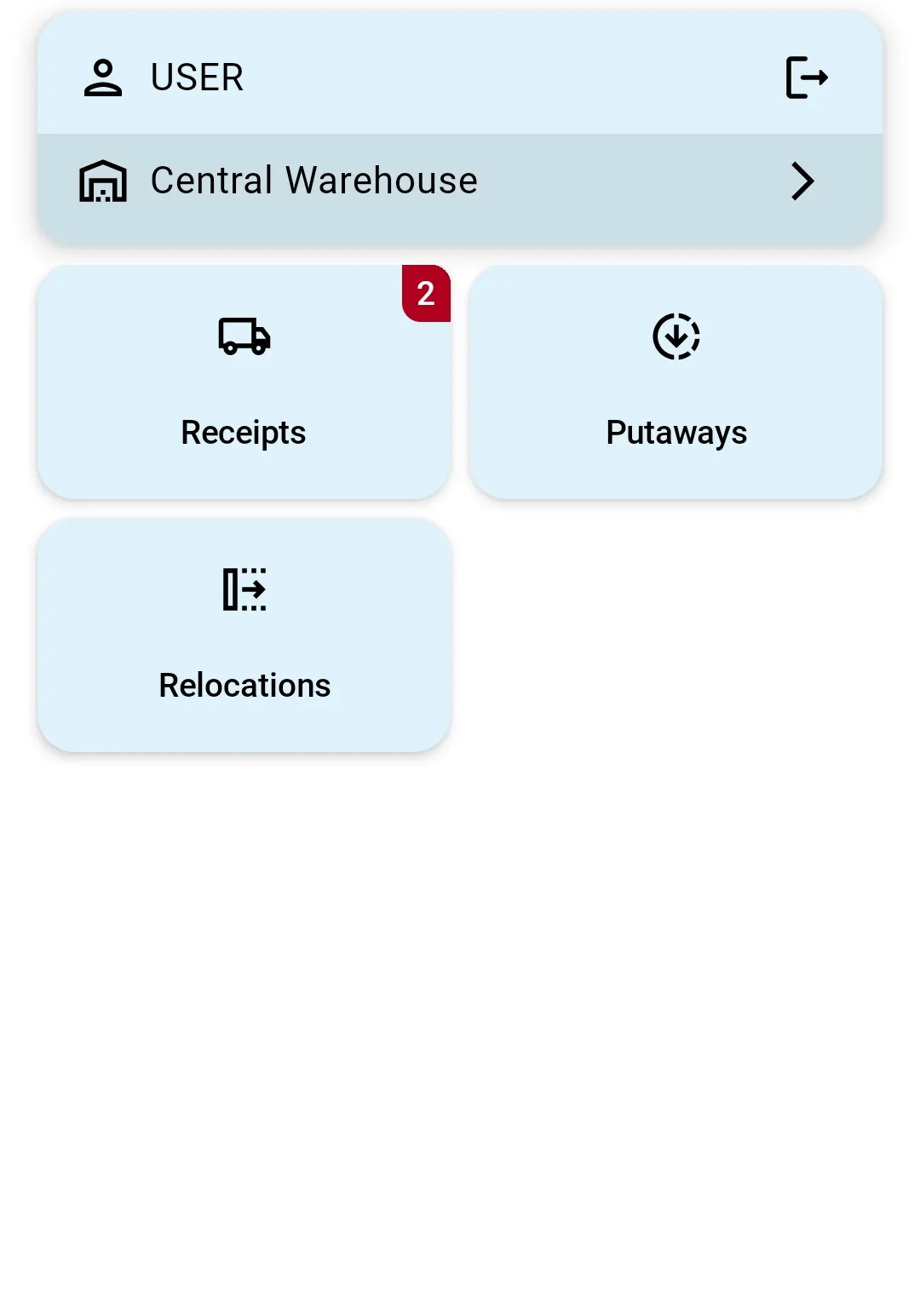
- A User sees and can do, on the ТЗД, only what their access groups grant — the permitted actions, for the warehouses those groups cover. Anything they have no permission for stays out of reach.
- An Admin or Owner works without restriction, the same as in the Client.
- A user who is disabled, or who belongs to no group, can sign in but has nothing to work with — warehouse operations stay unavailable until an access group grants them.
You can see this on the home screen itself — here is the same warehouse opened first by a full-access user, then by a restricted one, who gets only the operations their access groups allow:
How this is set up: Access groups · Warehouse restrictions · Combining groups.
In this section
- Profiles — permission templates
- Access groups — who gets a profile, and in which warehouses
- Warehouse restrictions — limiting a group to certain warehouses
- Combining groups — what happens when a user is in several groups