Unloading and scanning
Unloading the truck happens in parallel with recording into the system. Scanning — both with the camera and with a hardware scanner — works only in the PDT mode of the app, so this part of the phase runs on the handheld terminal (see Receiving on PDT). On the PDT, the receiver:
- scans the barcodes of pallets or cases being unloaded;
- scans the barcodes of products inside;
- enters quantity when the barcode does not carry it (for weight-priced goods the quantity is read automatically);
- captures lot, expiry date, and other product attributes when policy requires.
In real time the system:
- matches scanned lines against the expected lines;
- highlights overages, shortages, and unexpected products;
- calculates the receiving pace — useful for the shift supervisor to see the load on the shift.
Sender container handling
Sender containers accepted for storage
When supplier pallets stay on the warehouse as storage units, before scanning the lines inside, the receiver scans the pallet's barcode. The pallet becomes the target container that the system writes every line into, and it is immediately registered on the warehouse balance.
Sender containers accepted for putaway
When supplier pallets travel into putaway along with the goods, the receiver scans the pallet's barcode before scanning the lines inside. The pallet is registered on the balance and flagged "to putaway"; the system automatically attaches every line to it.
Sender containers for tracking only
When supplier containers are used only as a lot identifier, the receiver scans the container number — the system stores it as a lookup source, but the container itself is not registered on the balance. The lines inside it land either in the receiving zone or in a warehouse container, depending on the receiving container requirement.
Sender containers not used
When the supplier does not use containers, the receiver scans product lines directly. There are no preliminary container scans — each line lands in the system as a separate receipt line.
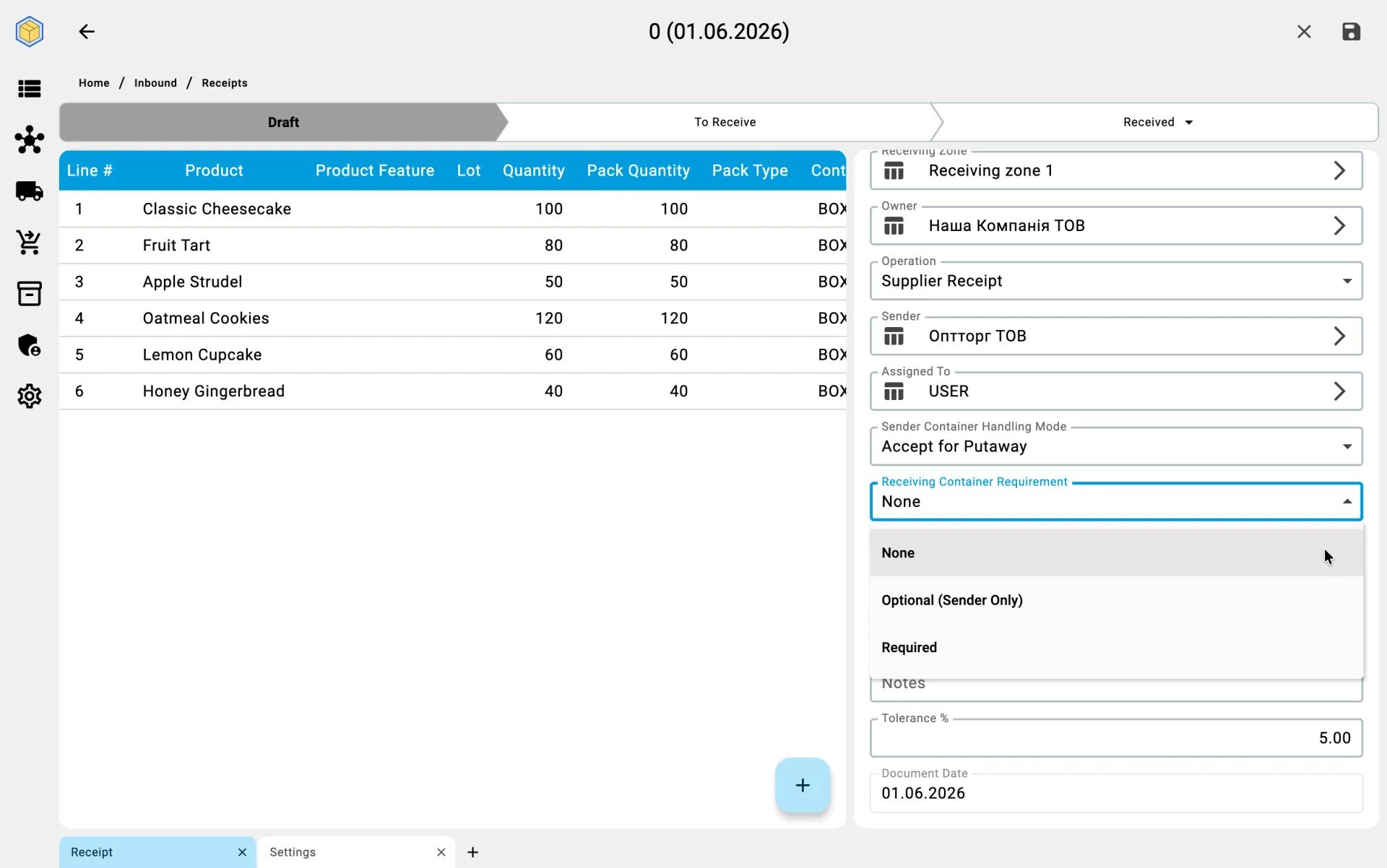
Receiving container requirement
Receiving without a container
When receiving happens without containers, every scanned line is attributed to a specific cell of the receiving zone. The operator names the cell where the goods are physically placed; no container is used as the target.
Receive into sender container if present
When picking a container is not required but receiving into a supplier pallet is allowed, the operator has two options: when a supplier pallet is present and the selected process allows it, lines are stored into it; when there is no pallet, lines go directly into a cell of the receiving zone. Choosing a warehouse or temporary pallet manually is not allowed in this mode.
Container required for receiving
When receiving into a container is mandatory, the operator cannot write a line directly into a cell — they must either pick an existing supplier pallet or create a warehouse or temporary container and scan lines into it. Without a target container the scan is not recorded.
The operator identifies an SKU — the combination of product, product features (if tracked), lot (if tracked), and pack type — by scanning a barcode or by picking it manually from a list. Required attributes depend on the product configuration. How SKU selection works.
Quantities go in the quantity field — set from the barcode, typed by hand, or worked out in the calculator, with − and + to adjust; the pack type sits beside it. How the quantity field works.
Quantity entry mode
Quantity confirmed in form
In the client app the receiver most often works with the receipt-line form: opens a line from the plan, picks the SKU (if it was not auto-matched), enters the actual quantity, the pack type and — when needed — the lot and features, then saves the fact. Every saved fact appears immediately on the Receipts tab with per-line progress.
"+1": quick save on scan
The "+1" quick-save mode belongs to the PDT screen, not the client app: it is switched on with the +1 button in the header of the line list on the PDT receiving screen and is off by default — there is no warehouse setting and no client-side switch for it. With the mode on, a scan saves the fact straight away without opening the form: the quantity is taken from the barcode, or defaults to one. How the mode behaves — the on-screen animation, errors, when it pays off — is described in the PDT phase Record the fact.
On the PDT
On the PDT this phase runs as Fact recording in the Receiving on PDT flow — with the same two quantity-entry modes, but without the tabbed interface of the client app.