Inventory count in the client app
This document covers the end-to-end inventory count from the client side — from deciding what to count through adjusting the stock records. The process is built to minimise the human factor: a blind count hides the expected numbers from the executors, critical discrepancies are recounted, and stock only changes after an explicit approval.
The physical counting itself happens on the terminal — see Counting on the PDT. The four kinds of counts (full, cycle, spot, event-driven) and how to pick one are compared on the section overview.
Phase 1. Planning the count
An inventory count starts in the client app with a planning decision: what exactly gets recounted, and who counts it.
Choosing the scope
The supervisor or stock manager defines the scope of the count. The scope determines which counting tasks the system will create, which parts of the warehouse will be blocked while counting is underway (see Preparing counting tasks), and which results the executors are allowed to enter — a quantity entered for anything outside the scope is rejected.
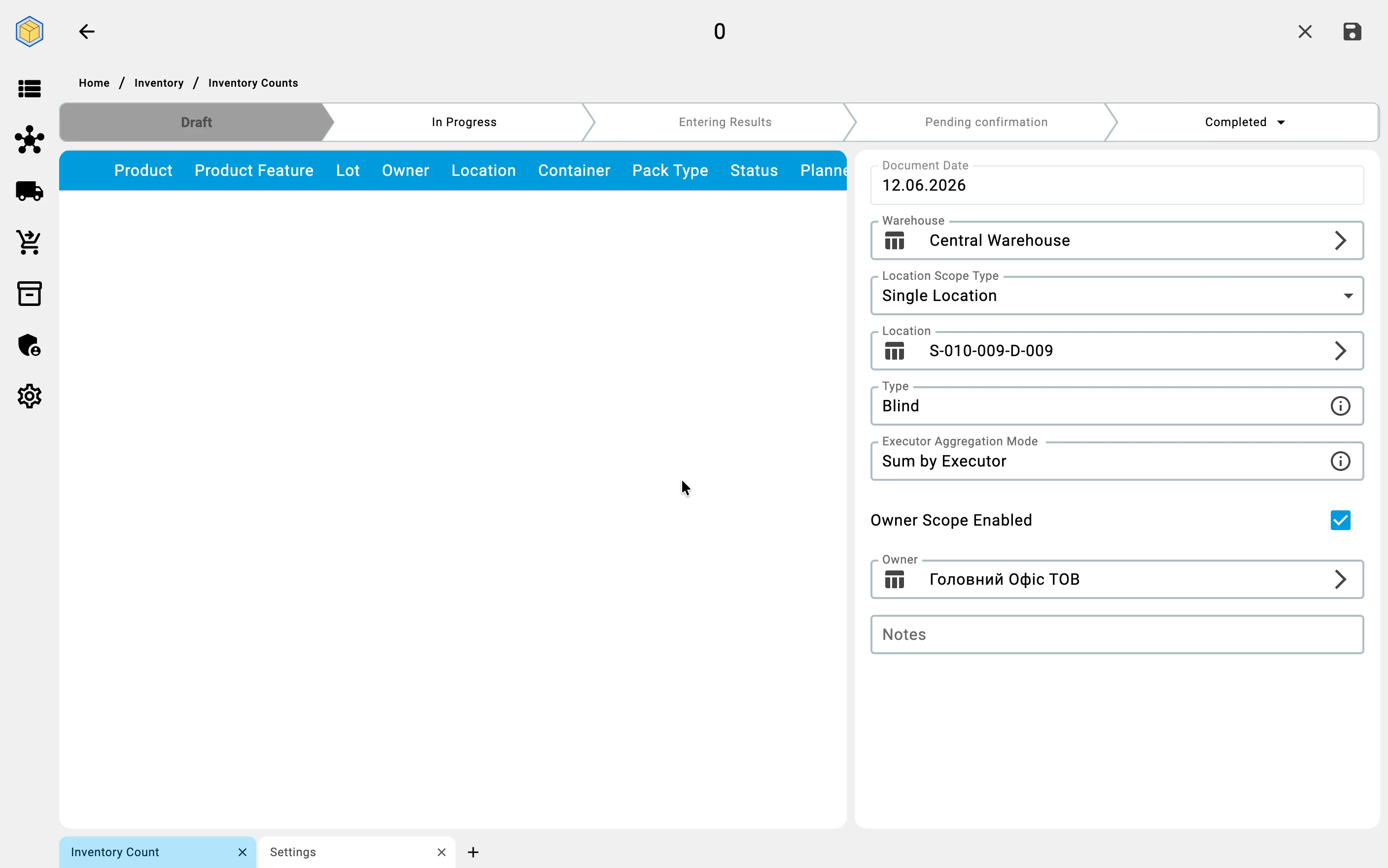
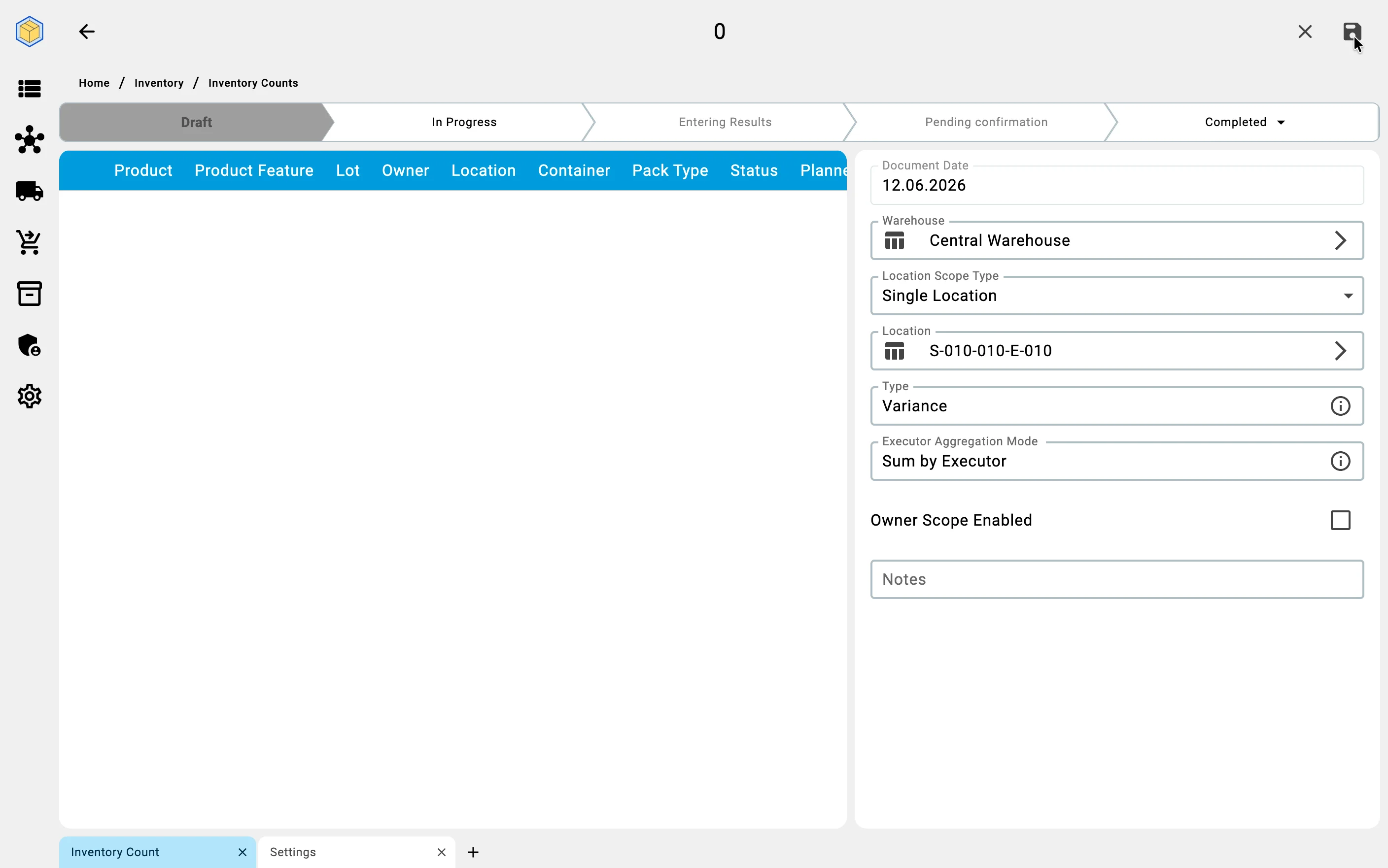
A count always covers exactly one warehouse. Within it, the area to count is set by the Location Scope Type («Тип області локації») field:
- Single Location («Одна комірка») — counting a cell also counts every container that sits in it;
- Single Container («Один контейнер») — only that container; results from other containers or other cells are not accepted;
- Storage Area («Зона зберігання») — every cell of one storage zone;
- Whole Warehouse («Весь склад») — the entire warehouse.
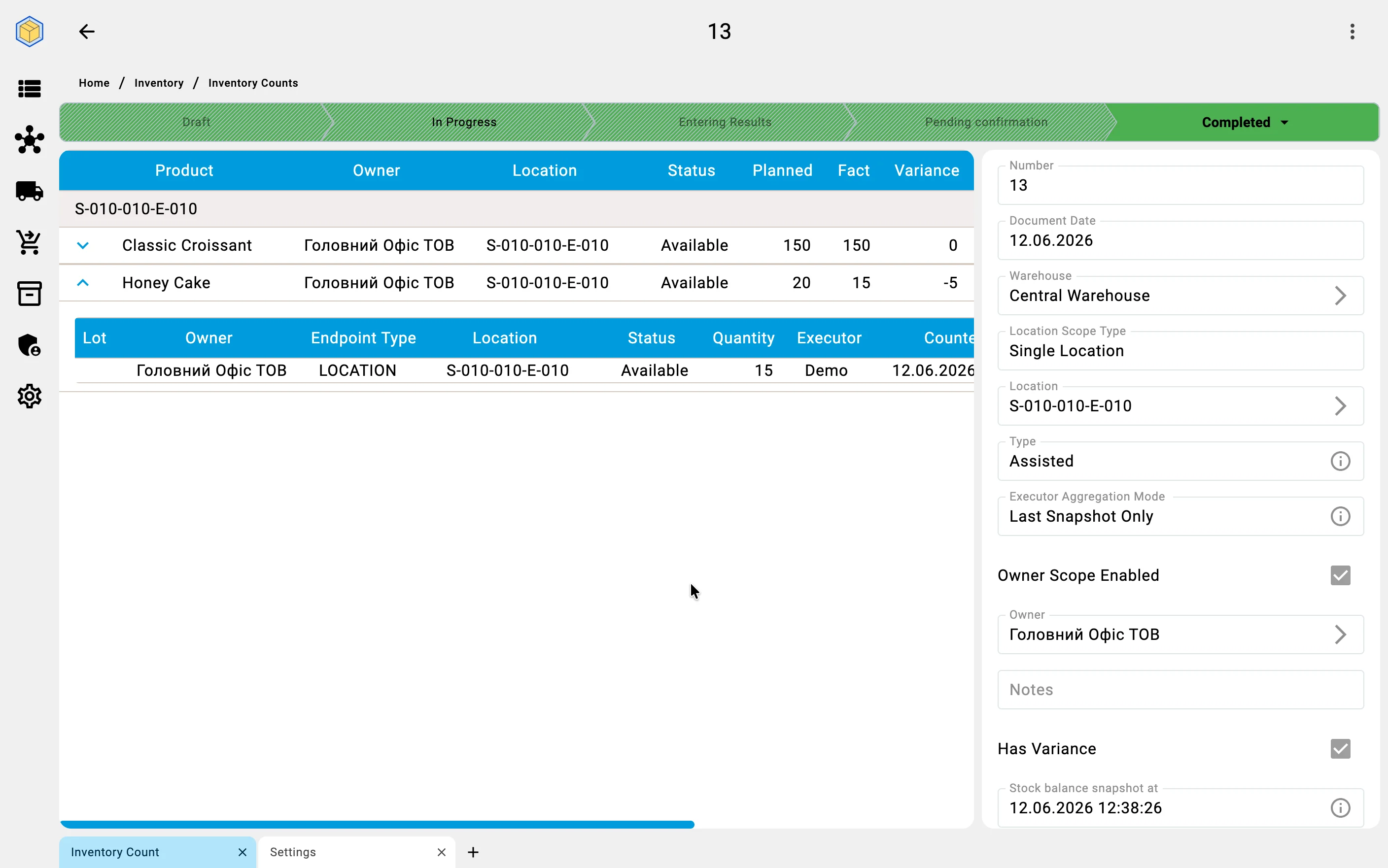
On top of the chosen area, the Owner Scope Enabled («Фільтр по власнику увімкнено») switch narrows the count to the stock of a single owner — every entered result must then belong to that owner ("own goods", with no external owner, is itself a valid choice). The owner filter combines with any of the four area options.
One open count per cell
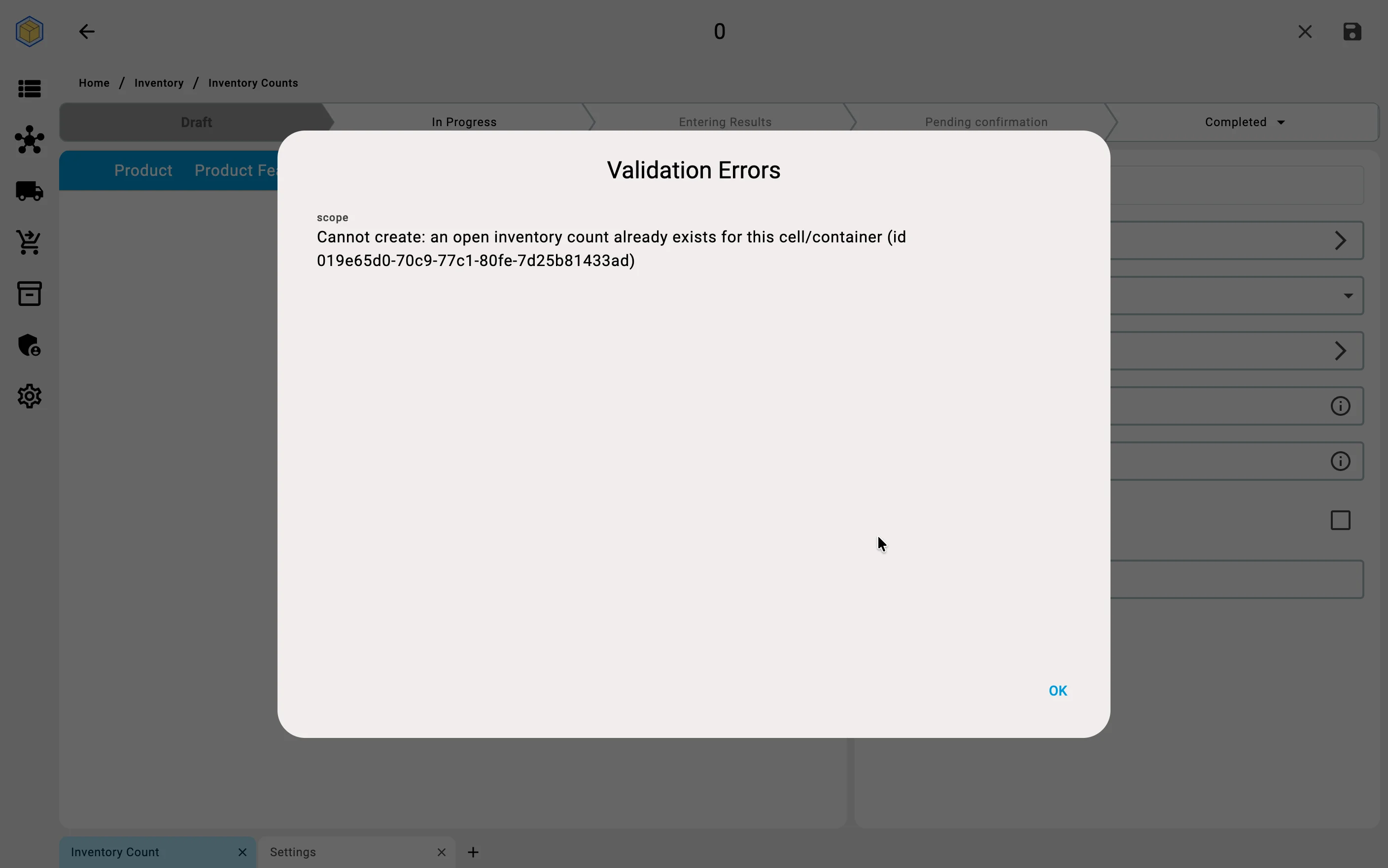
A cell or container can be covered by only one open count at a time. If the chosen scope overlaps a count that is still open, the system rejects the save with a validation error naming the conflicting count — close or cancel that count first, or narrow the scope.
The stock snapshot the count compares against
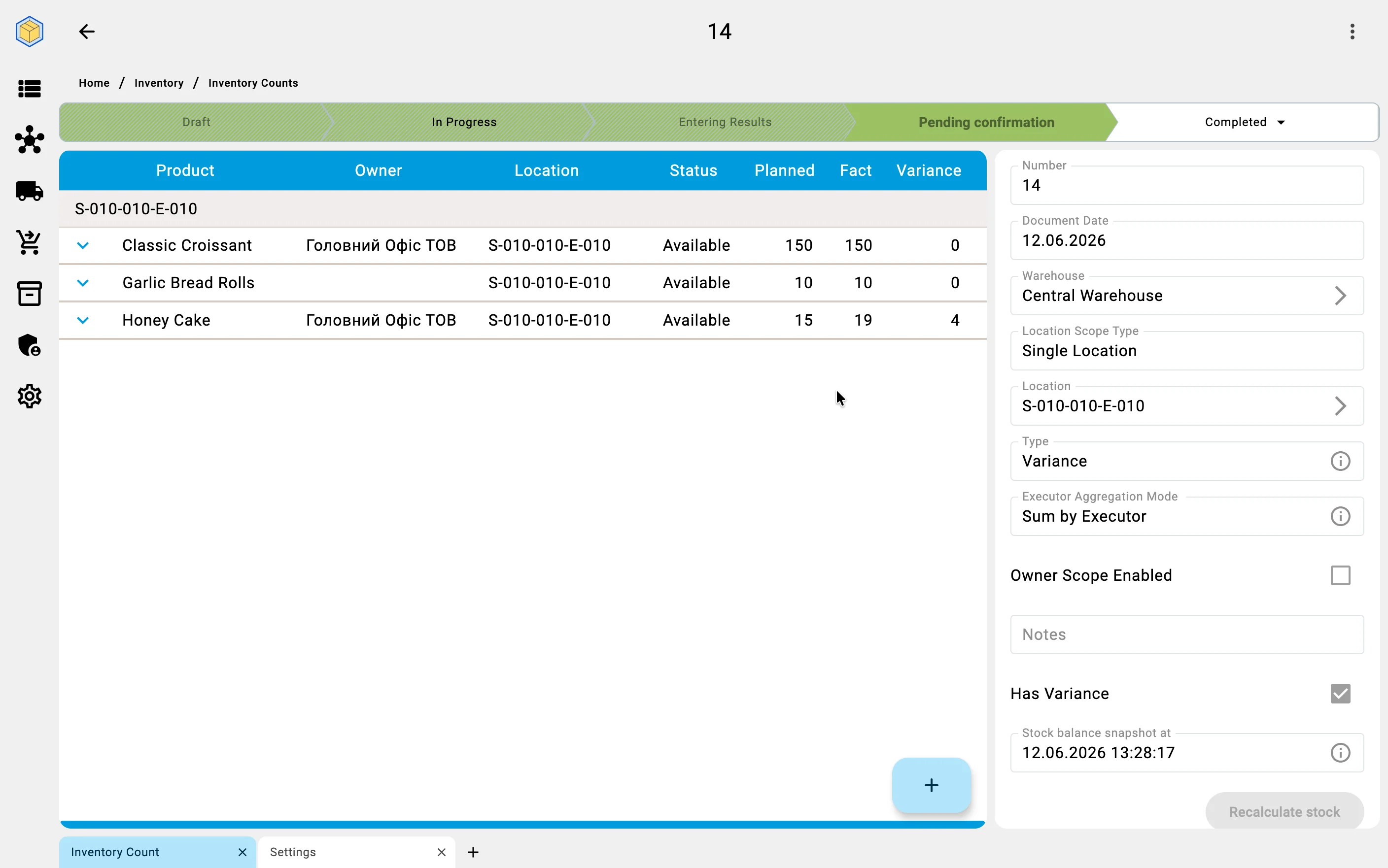
What the entered quantities are compared with is the Stock balance snapshot («Зріз залишків»), built for the chosen scope: the planned quantities show the stock balances as they were at the snapshot's date and time. The snapshot refreshes automatically at every status change on the way to completion (completing or cancelling the count never rebuilds it), and the completed count shows the moment it ended up checked against — Stock balance snapshot at («Зріз залишків на»).
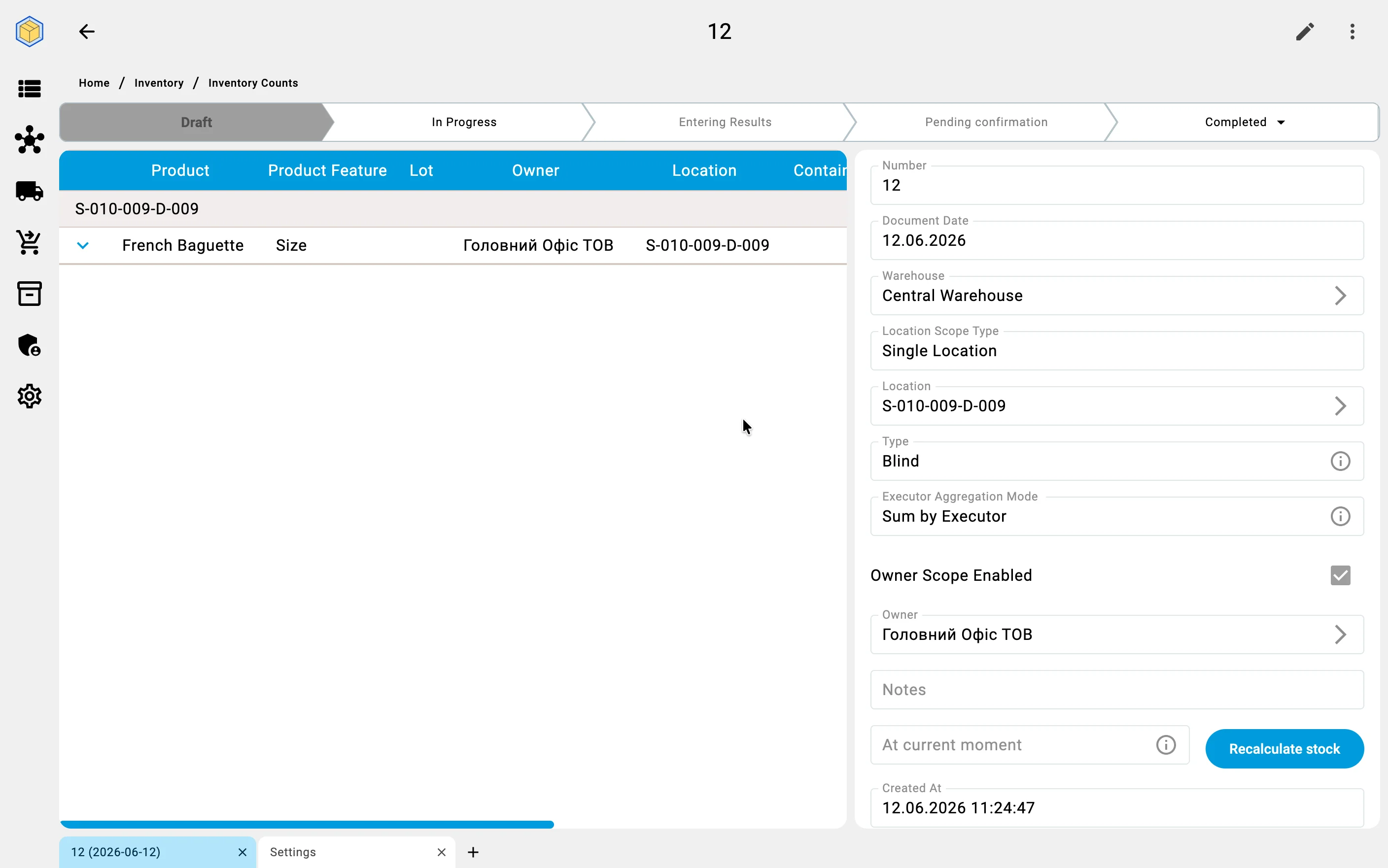
The snapshot can also be rebuilt on demand: pick the moment in the At current moment («На поточний момент») field and press Recalculate stock («Перерахувати залишки») — for example, to compare the entered facts against yesterday evening's balances. Corrections made by this same count are ignored during the rebuild, so recalculating never distorts the count's own baseline. The rebuild is available while results are still being entered — once the count is waiting for confirmation, Recalculate stock is disabled and the snapshot stays frozen. The snapshot moment is not an accounting date — it only sets the point in time the count checks against.
Assigning executors
The planner assigns the executors who will do the physical counting. For a large count the work is split between several counting groups, so different zones can be counted in parallel.
When several executors enter results in the same count, the Executor Aggregation Mode («Режим агрегації виконавців») setting decides how their numbers combine:
- Sum by Executor («Сума за виконавцями») — the results of all executors are summed: if several executors count the same item, their quantities add up into the total fact. The right choice when the goods are physically split between the counters.
- Last Snapshot Only («Лише останній знімок») — only the most recent entry counts; earlier entries by other executors are ignored. The right choice when a later pass is meant to override an earlier one.
Either way, what counts per executor is their current total for the position — a fresh snapshot of the cell, not a history of additions. How that total is built up on the terminal is described in Counting cells.
How each kind of count gets planned
- Full counts are planned in advance — the date is set ahead of time and the staff are informed, because operations in the covered areas usually stop for the duration.
- Cycle counts come from a recurring plan rather than a one-off decision. The system builds the plan from rules you configure — for example an ABC split: A-goods counted monthly, B-goods quarterly, C-goods once a year. Tasks are handed to operators as part of the normal working day, and the rest of the warehouse is never interrupted.
- Spot counts are created manually the moment a doubt arises — for example, picking could not find part of the goods in a cell. The scope is just the doubtful cell or group of cells.
- Event-driven counts are created by the system itself, with no planning step at all: completing a large receiving, handing a cell over to a different product, or moving a pallet between zones can each trigger a background recount of the affected cells.
Inventory count type
A count carries a type setting that controls what the operator sees on the PDT during counting:
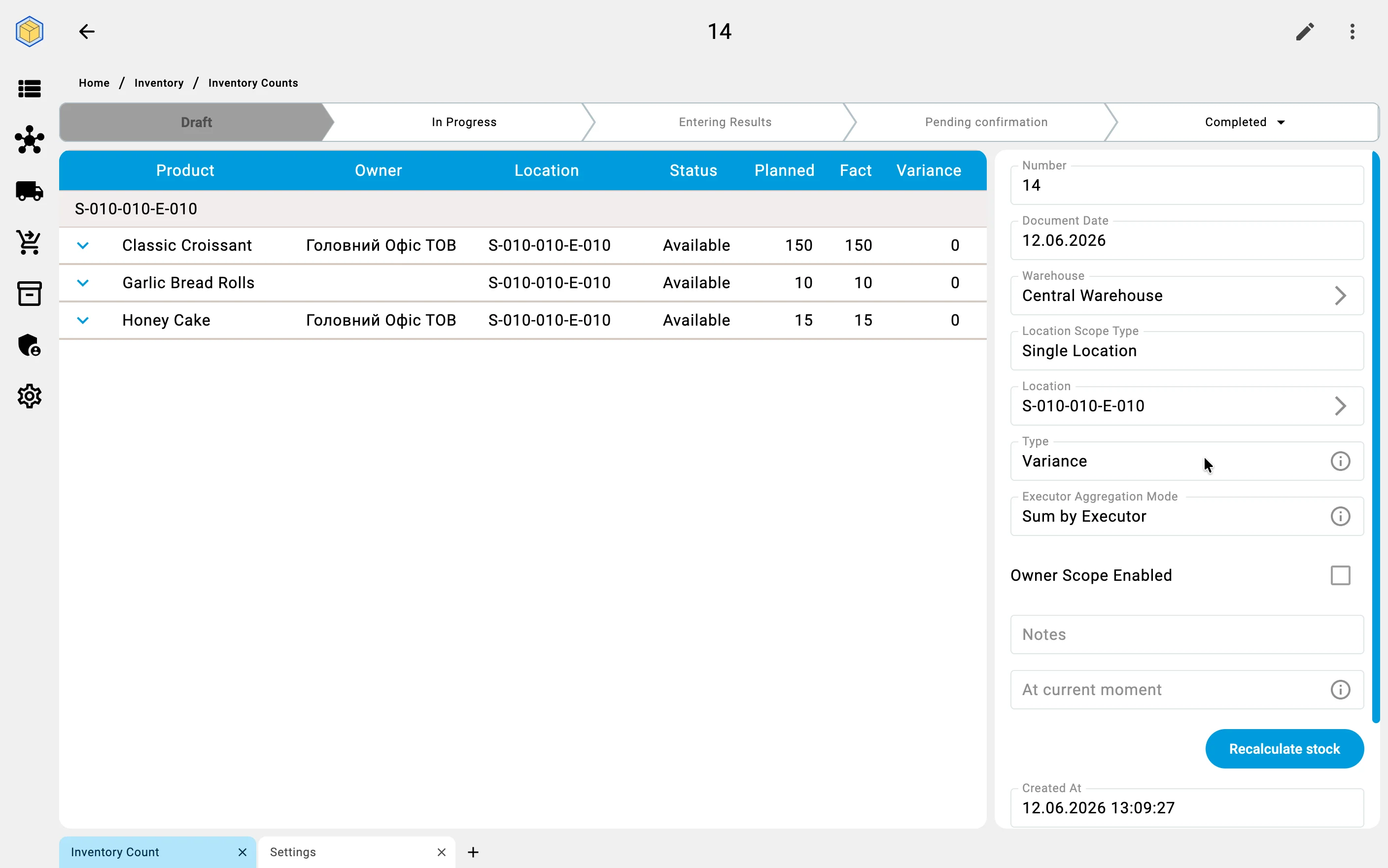
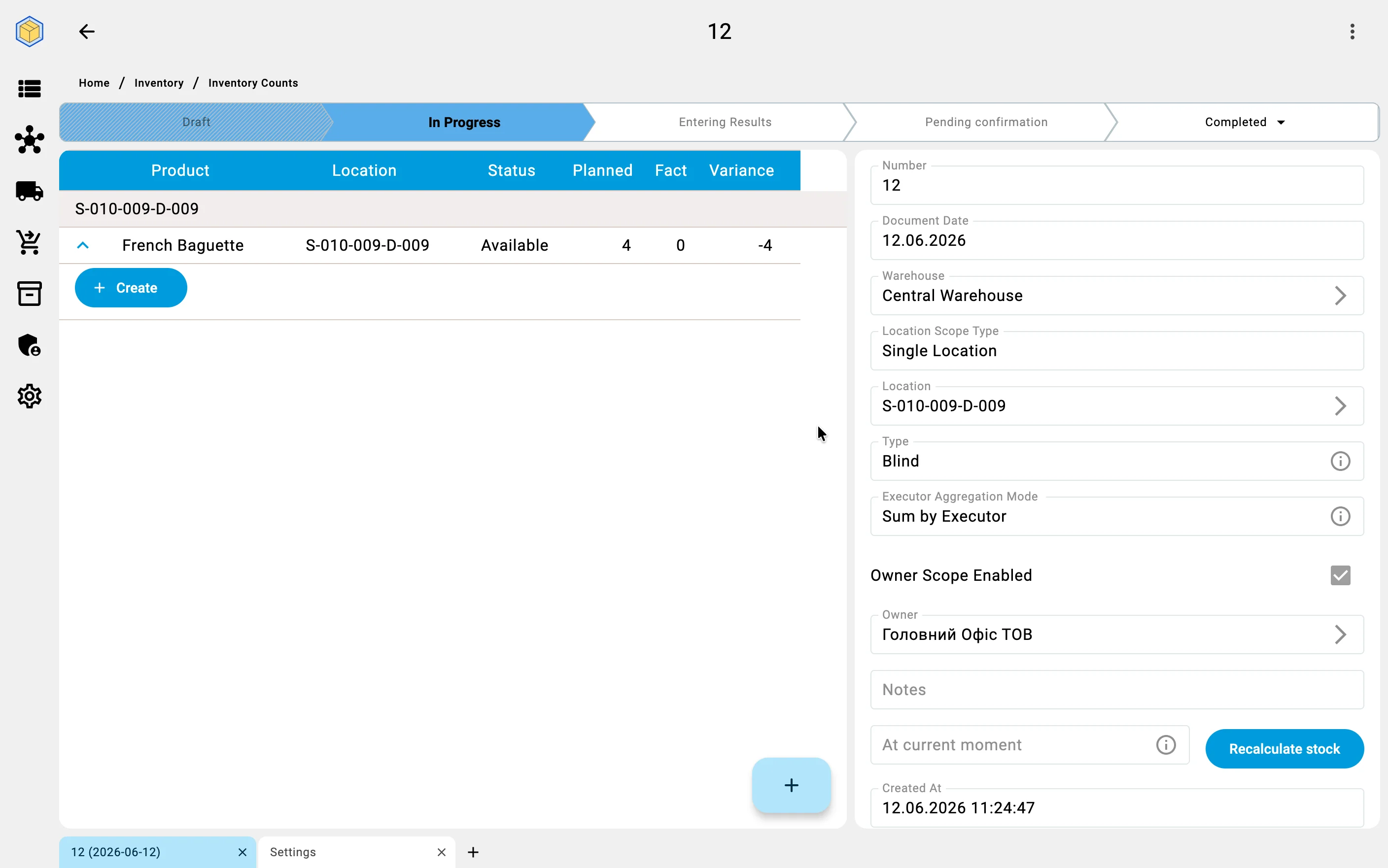
- Blind — the executor does not see the planned quantity before entering the fact. Reduces the risk of biased counting; the default choice for trustworthy results.
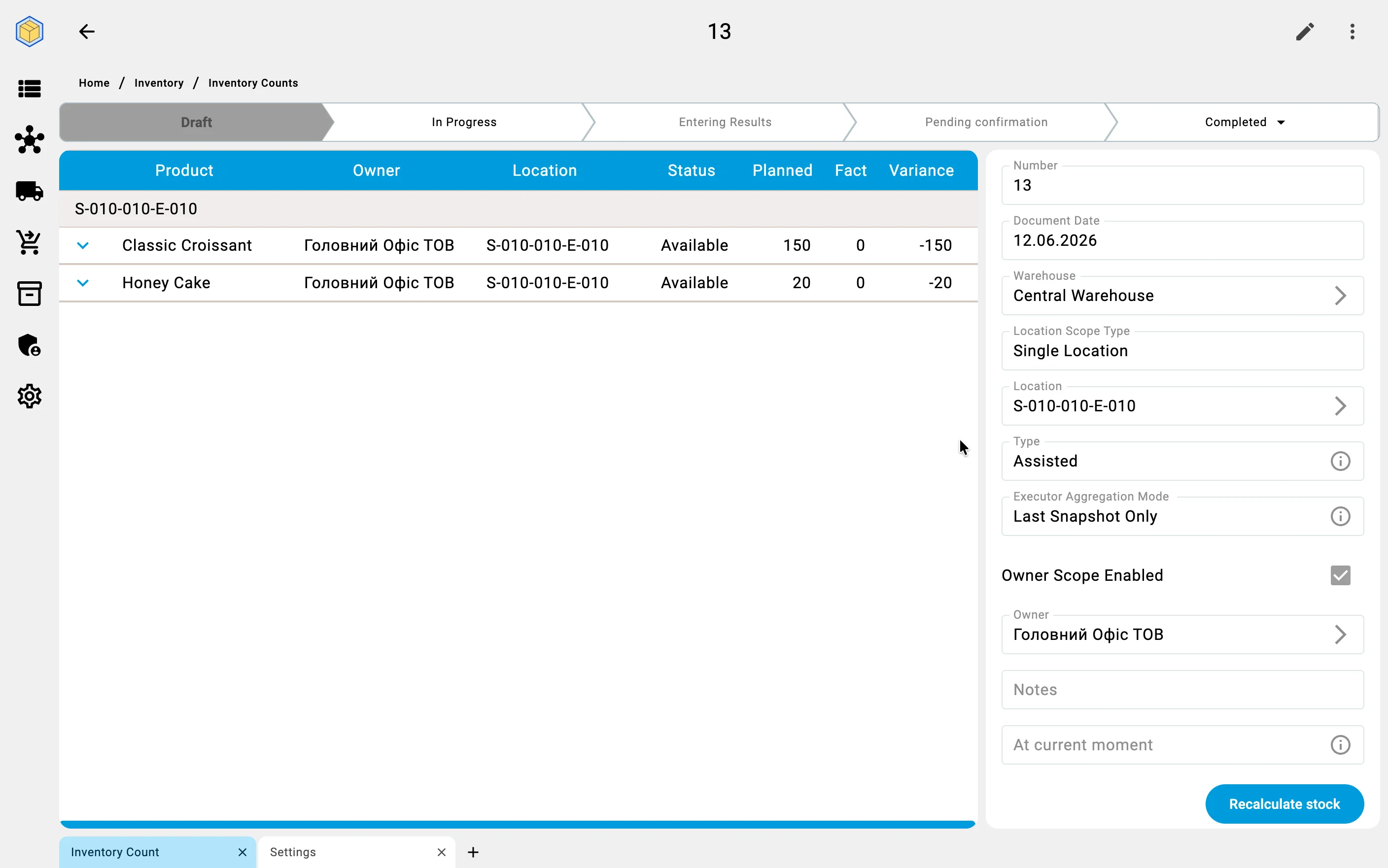
- Assisted — the planned quantity is shown during counting. Suits a quick inventory with hints.
- Variance — the fact arrives pre-filled with the recorded quantities, and the executor corrects only the positions where reality differs; a position left untouched goes into the result at its recorded quantity. Suits a follow-up pass over known problem spots rather than a full re-walk.
The effect on the counting screen is described in Counting cells.
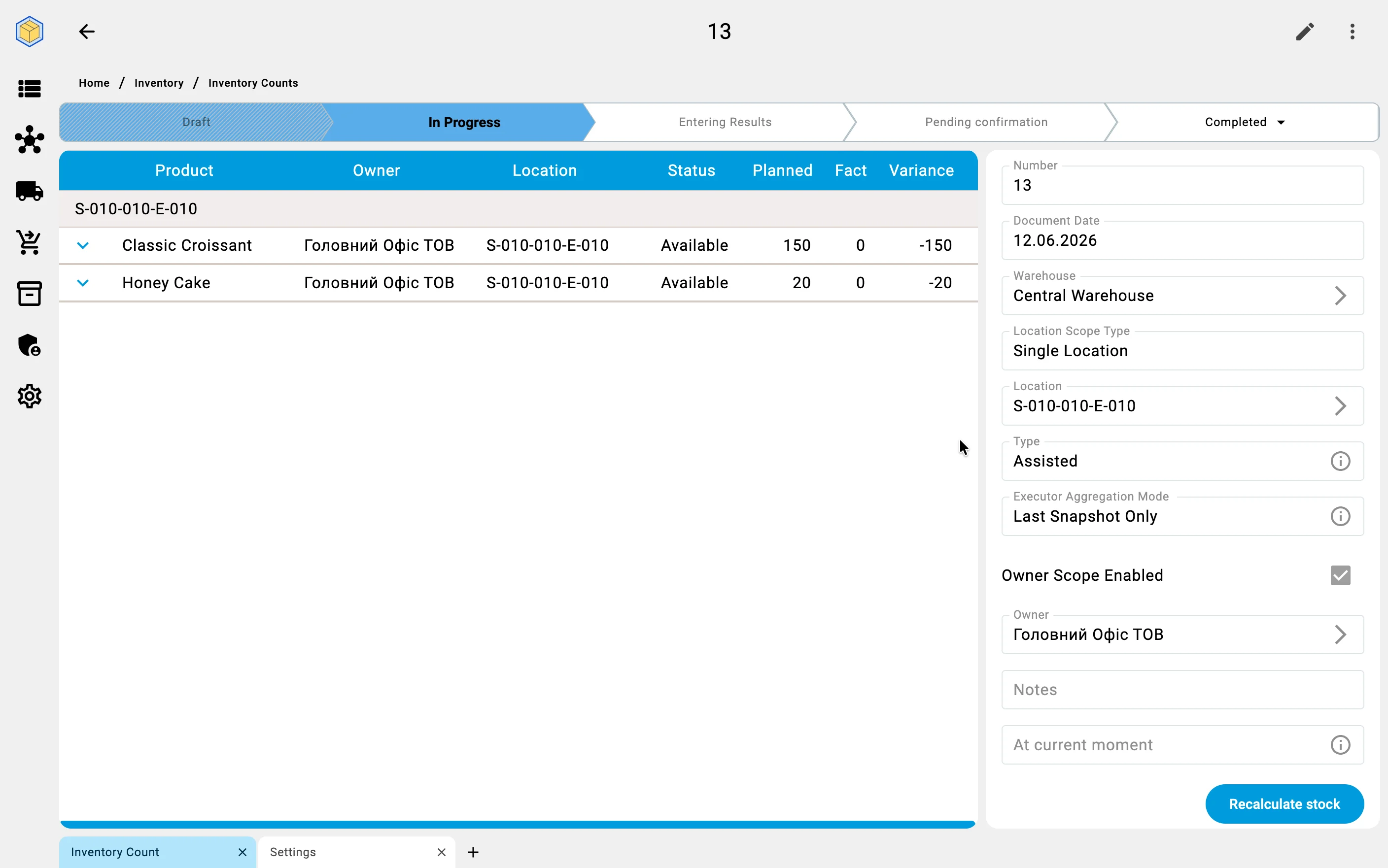
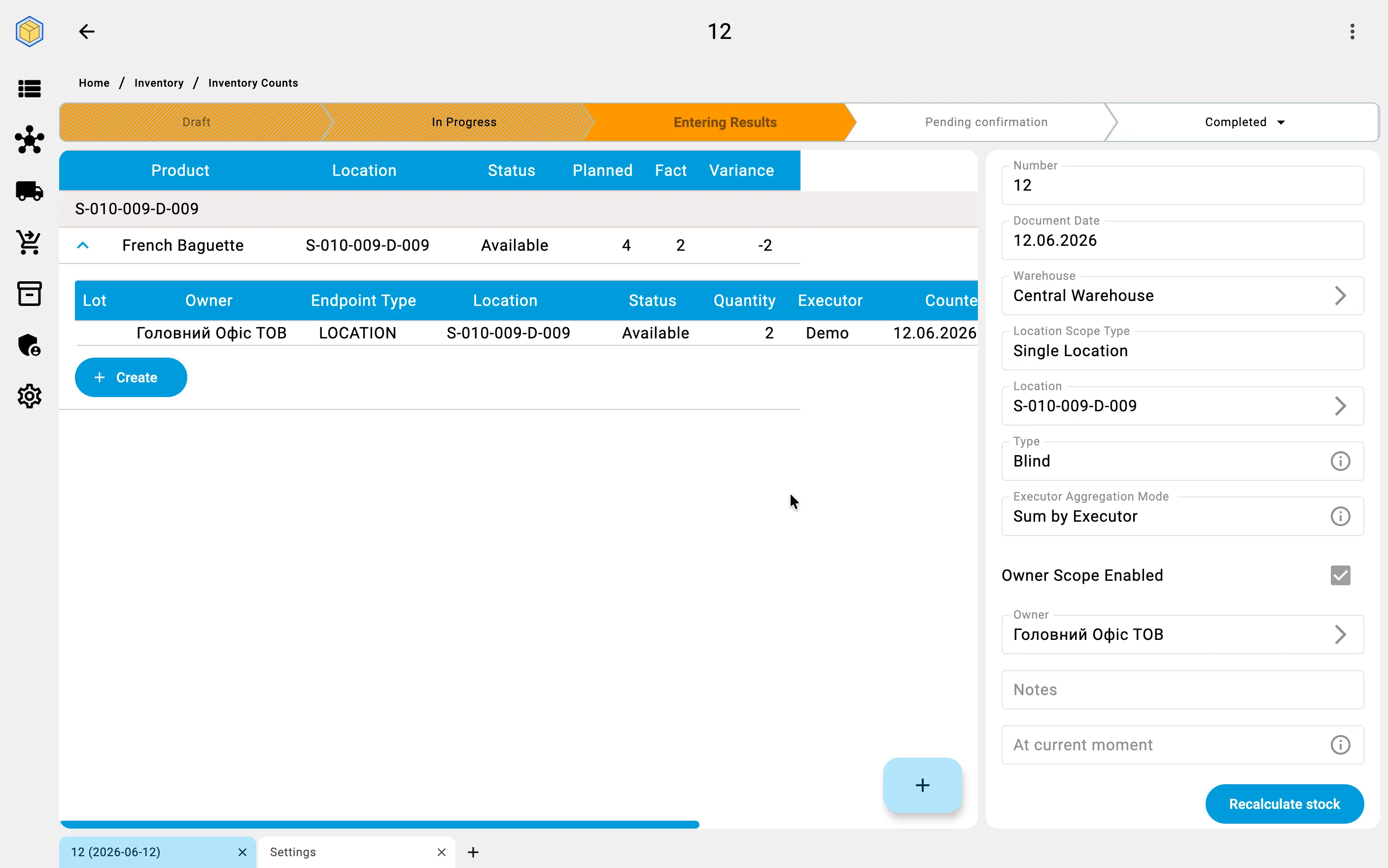
How planning looks on the screen — a blind count and a variance count, from the form to the saved draft:
Phase 2. Preparing counting tasks
Once the scope is set and the executors are assigned, the system prepares the actual work.
Counting tasks
For every executor the system builds a counting task — the list of cells that executor has to recount. Along with the list, the system suggests a recommended route through the warehouse, so the operator walks the cells in an efficient order instead of criss-crossing the aisles. Each group works its own zone, which is what makes parallel counting possible.
The tasks appear on the executors' terminals — from this point the work continues on the PDT (see Counting on the PDT).
What gets blocked while counting
The warehouse keeps working during a count — receiving and shipping continue in the zones the count does not cover. To keep the numbers trustworthy, the system:
- blocks operations only in the zones that are being counted;
- does not allow moving goods in the covered cells while counting is underway — otherwise the same goods could be counted twice or missed entirely;
- lifts the blocks automatically as soon as the count completes, and normal work resumes without any manual step.
What happens on the PDT
Between preparation and discrepancy review, the executors work through their counting tasks on the terminals — walking the recommended routes, scanning cells and products, and entering the actual quantities.
On PDTCounting on the PDTOpening the task, counting cells, and completing the task with the discrepancy confirmation.
Phase 3. Reviewing discrepancies
As counting tasks complete, the system compares every entered quantity with the records. Where the numbers match, there is nothing to do. Where they differ, the system records a discrepancy — the cell, the product, the recorded quantity, and the counted quantity.
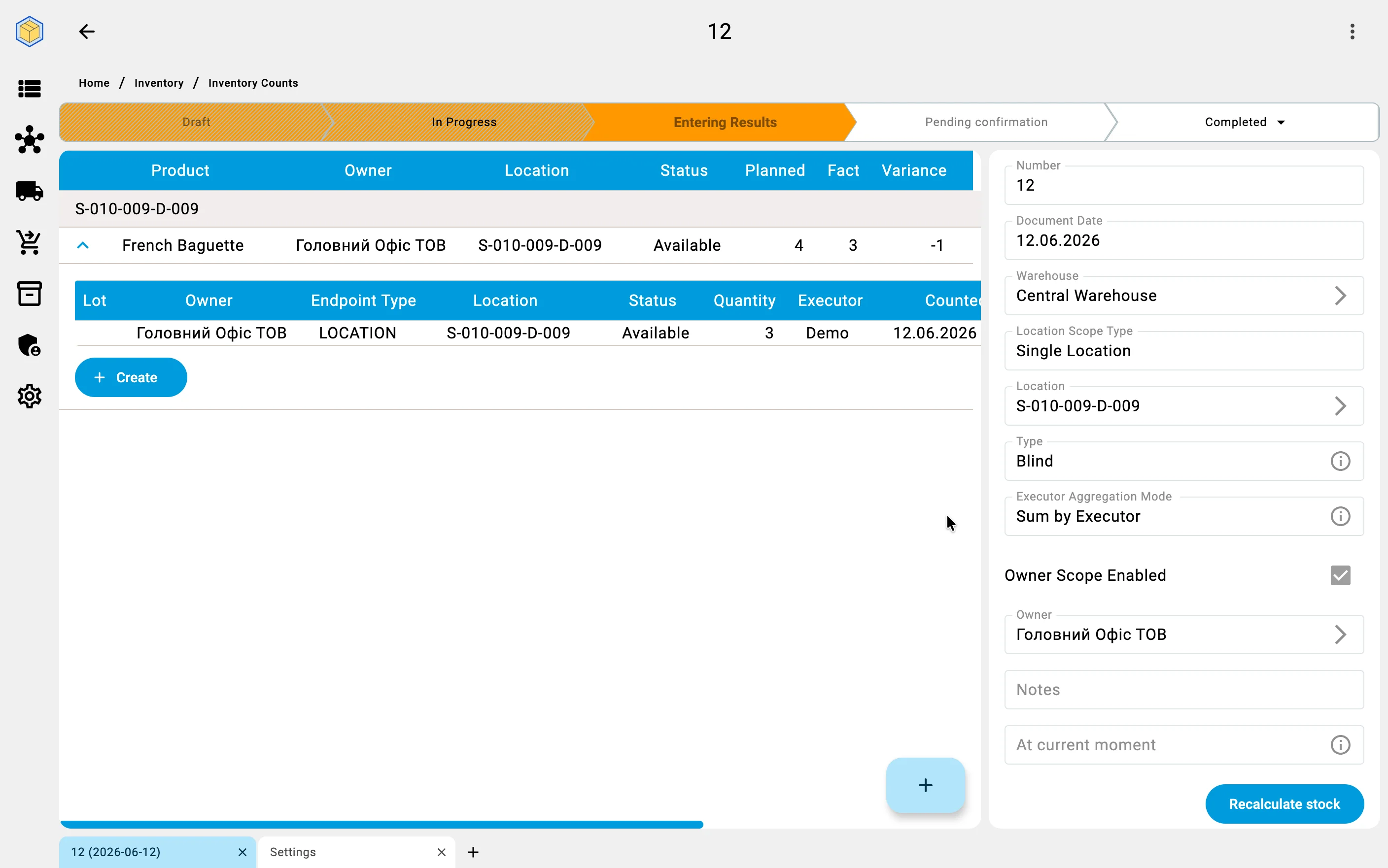
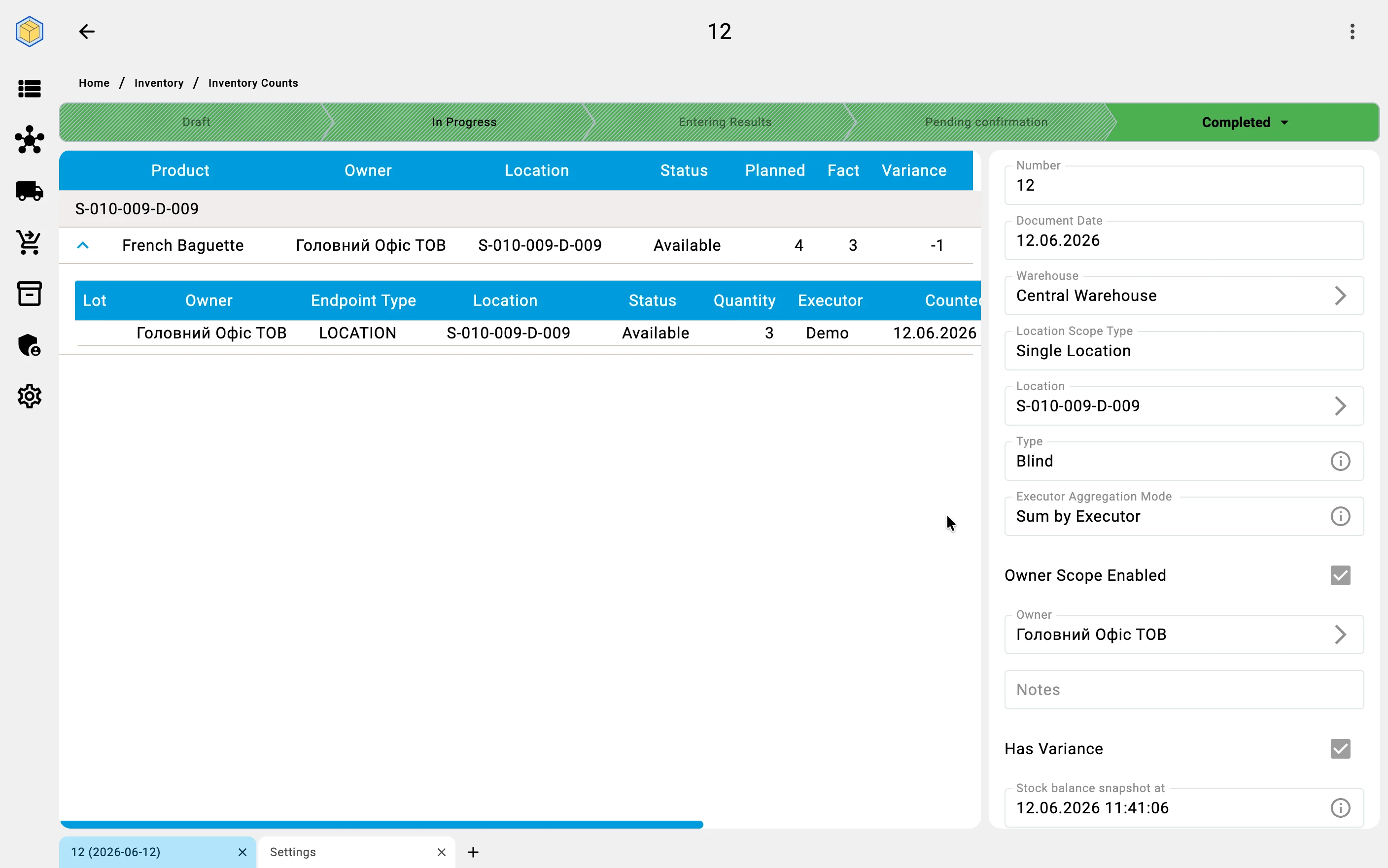
In the count document the differences show in two places: every item line carries the Planned («Заплановано»), Fact («Факт»), and Variance («Розбіжність») columns, and a count that completes with differences gets the Has Variance («Має розбіжності») mark — see Count statuses.
Automatic recount
A discrepancy is not corrected blindly. For critical discrepancies the system can automatically assign a recount — a second counting task for the same cells, which lands in the task list on the PDT like any other and may be given to a different operator. Only a discrepancy confirmed by the recount moves on to approval.
Finding the cause
A discrepancy is more than a number — it is a potential signal of a problem: theft, an operator mistake, regrading, or a wrong entry made back at receiving. To help find the cause, the system:
- keeps the history of all discrepancies over a period, so problem zones, products, or shifts stand out;
- lets you comment every discrepancy with its probable cause;
- builds discrepancy reports that can be handed to management and to security;
- integrates with the quality module — if the cause is damaged goods, a quality incident can be raised at the same time as the discrepancy is processed.
Phase 4. Approving the results
Counted results do not change stock by themselves — a person stays in control of the final decision.
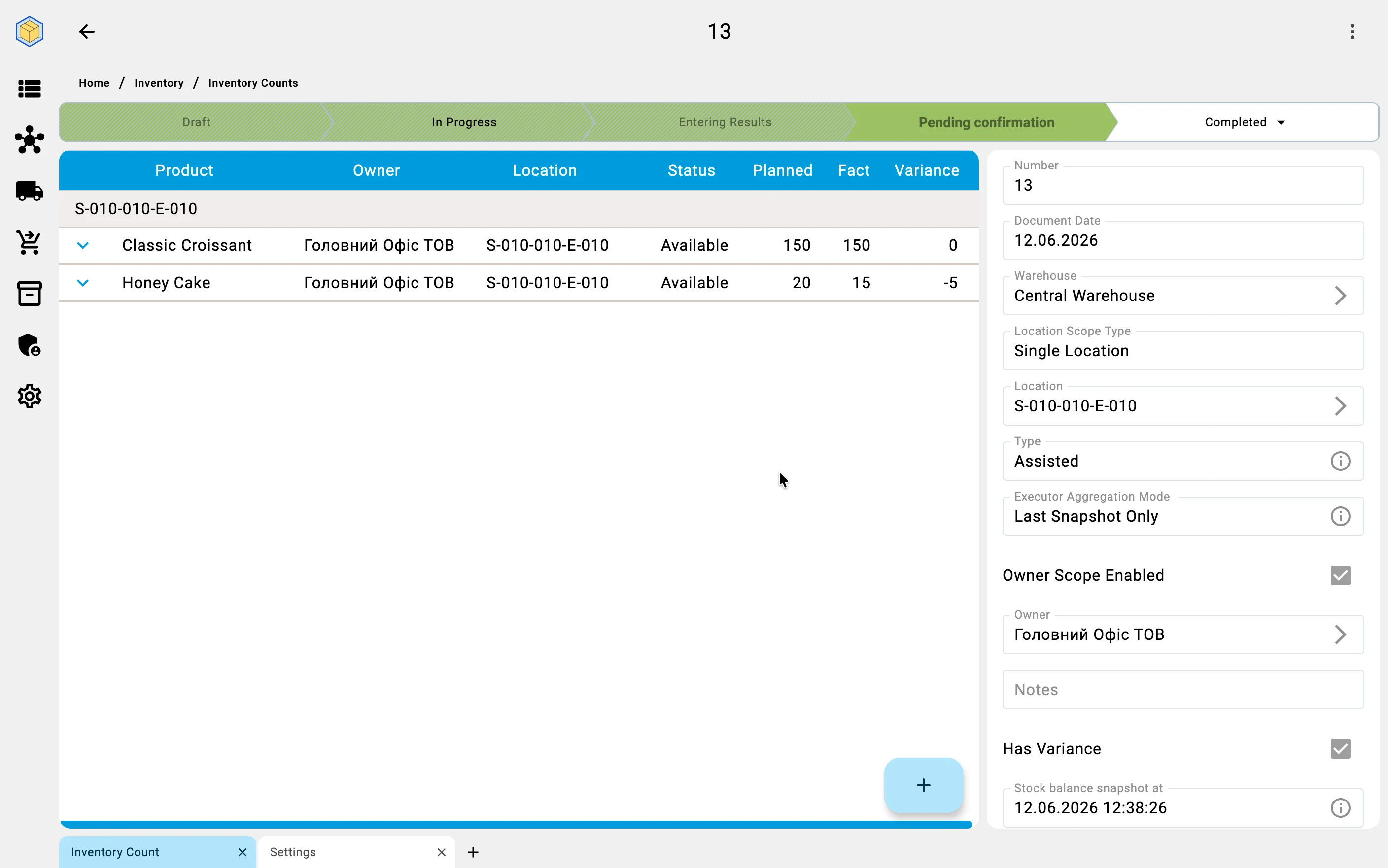
The supervisor reviews the list of discrepancies, weighs the probable causes (using the comments and the recount results from the previous phase), and approves the corrections. Approval works two ways:
- In one batch — approve the whole list at once when the discrepancies are small and unsurprising.
- Position by position — go through the list line by line, approving the routine entries and holding back the doubtful ones for investigation.
Until a discrepancy is approved, the stock records stay untouched.
When completion is refused
Completing a count that fully covers its cells — one scoped to a single cell or a storage area, with no owner narrowing — is the system's statement that those cells are verified as of the count's stock-snapshot moment. To protect fresher data, the system refuses to complete such a count if any covered cell has meanwhile been counted by a more recent count. The way out: rebuild the stock snapshot to the present moment (see Planning the count), re-check the positions the rebuilt comparison flags, and finish again — or cancel the count.
Phase 5. Adjusting stock and reporting
Approved discrepancies adjust the stock automatically — no manual stock edits are involved.
How the adjustment is recorded
On completion the system settles the final plan-against-fact comparison in one go: every shortage is written off and every surplus is posted. Each correction is a regular stock operation written to the movement journal under the double-entry principle: every entry has a source and a destination, so the sum of all movements always reproduces the current stock exactly. A later audit can therefore trace what changed, when, by whom, and on the basis of which count.
The cells are marked as counted
When the count fully covers its cells — scoped to a single cell or a storage area, with no owner narrowing — completion also sets every covered cell's count status to Count completed («Інвентаризацію завершено») and records the cell's last-count date (see Cell state). These statuses are what cycle counting reads: the last-count date decides when the cell comes round again. (A count narrowed by owner changes no status: it verified part of the cell's stock, not the cell.)
Documents the count produces
When the count closes, the system assembles the paperwork:
- a discrepancy report — the products, the quantities, and the responsible persons;
- adjustment acts for the stock corrections;
- a historical reference kept for later internal and external audits, including tax inspections;
- data handed to the ERP or accounting system through the standard integration.