Putaway in the client app
This document covers the end-to-end putaway process as it runs in the client app — on a workstation, typically used by a shift supervisor. It covers the full lifecycle: planning the document, reviewing the plan, recording placement facts when necessary from the workstation, and closing the document.
For the handheld-terminal walkthrough see Putaway on PDT. Putaway is a downstream process of receiving — it operates on goods that have already arrived in receiving cells.
Phase 1. Applicability context
Putaway moves goods from the receiving area (cells of type "receiving") into storage. A putaway document is created for goods that remain in the receiving area after the receiving process has finished — either loose in a receiving cell, or inside closed containers that are scheduled to be unpacked. The system tracks the planned and actual placement separately.
Putaway is not created in two cases. First, for receipts marked as cross-dock — those goods are placed into a special cross-dock zone and handled by a separate process. Second, when the warehouse setting "Sender container handling" is configured to accept containers as storage units (variation Sender containers accepted for storage) — in that case, the supplier containers become storage entities directly, and putaway is replaced by container-relocation tasks. See the unloading and scanning phase for the receiving-side context of this setting.
The putaway document is created by a client-app user — typically the shift supervisor — based on the goods currently sitting in receiving cells. The creation flow is described in the next phase, "Creating a putaway plan".
Phase 2. Creating a putaway plan
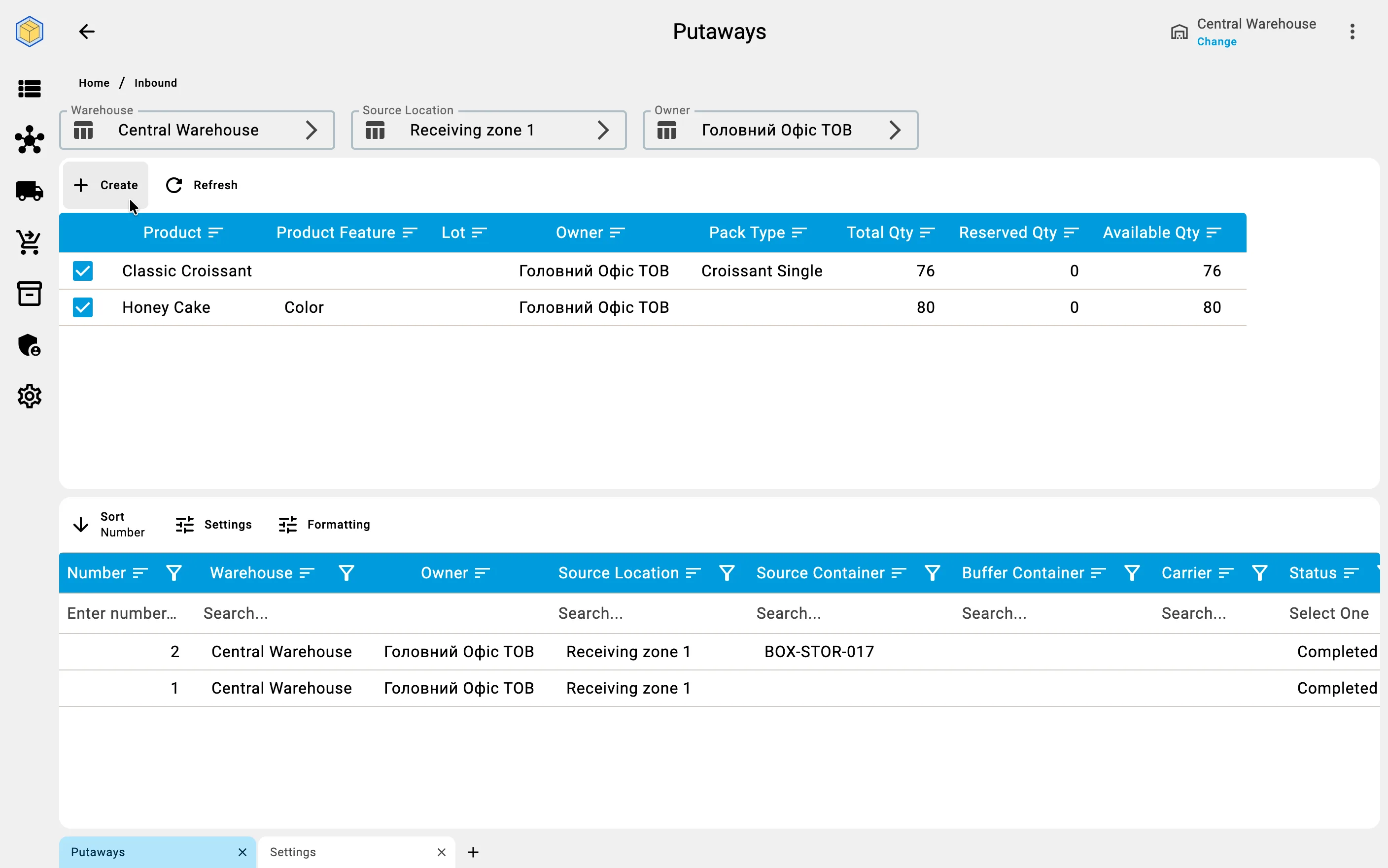
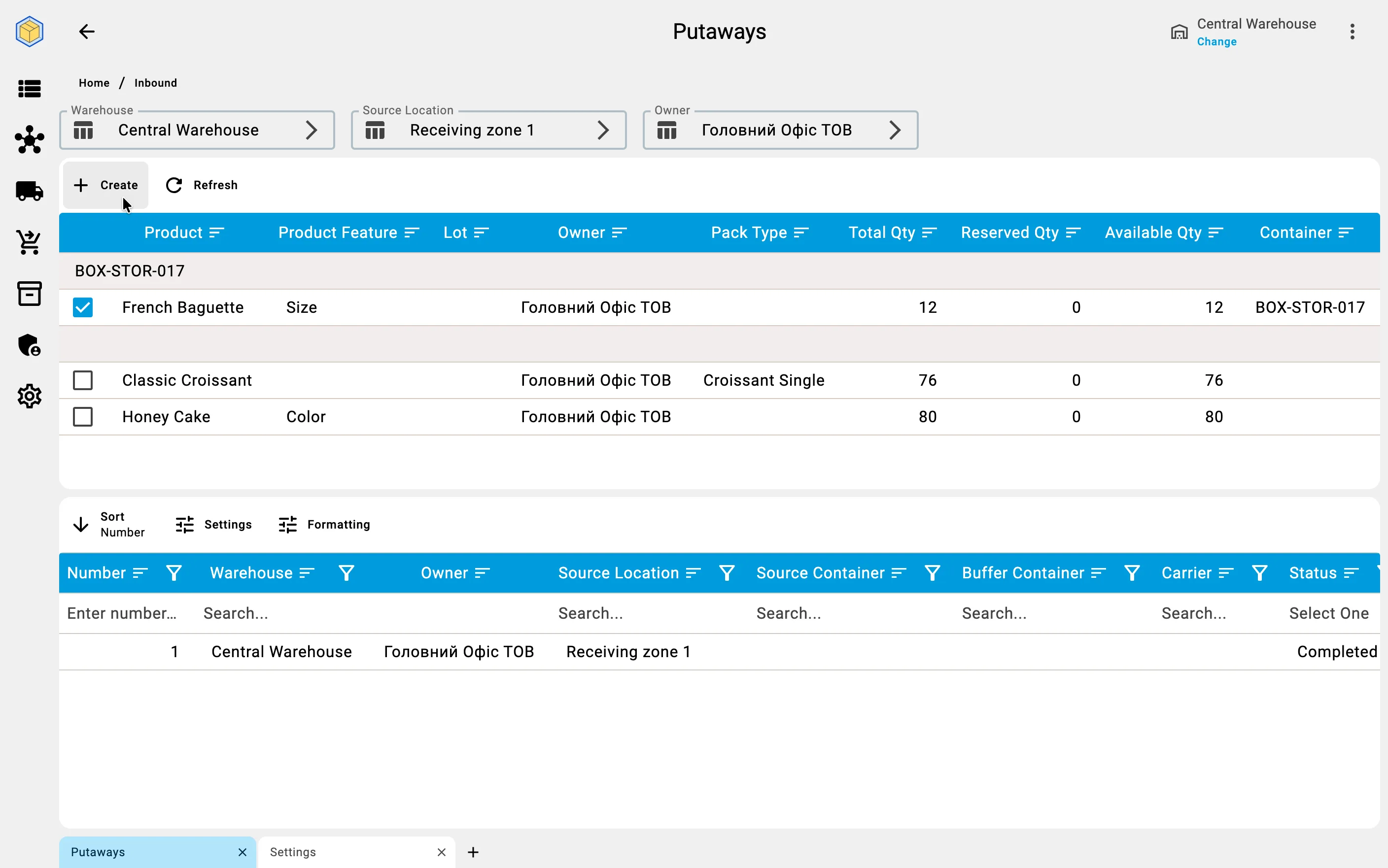
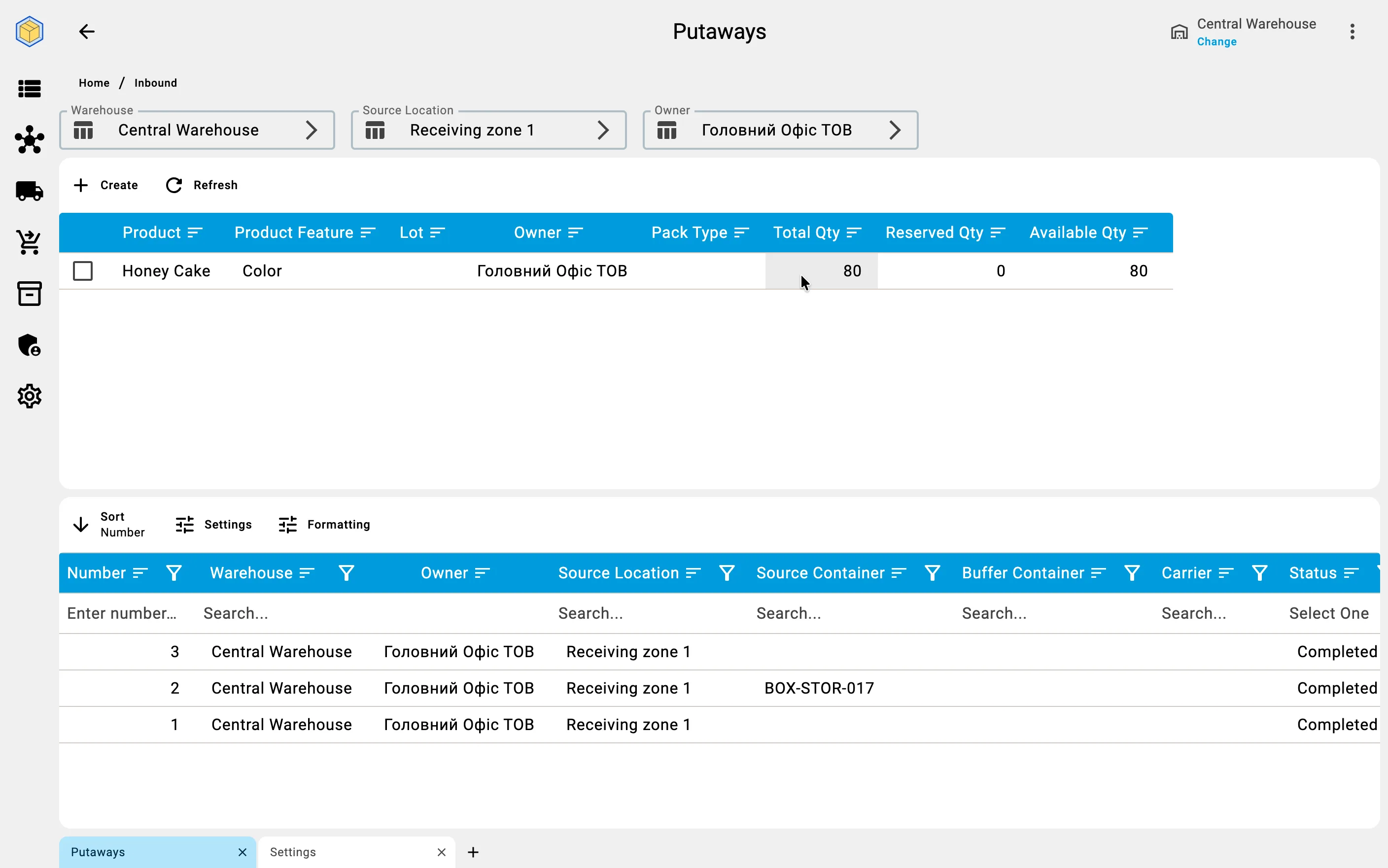
Putaway planning starts from the pending-putaway list. The "Create" action opens a planning form that shows everything currently sitting in receiving cells, ready to be moved into storage. The list is split into two groups: loose goods (a position-by-position list) and closed containers eligible for unpacking. For each row the system shows the total available quantity, how much of it has already been planned for other putaway documents, and how much remains for new planning.
Goods that are not in an AVAILABLE state — for example, items on quality hold or in quarantine — do not appear in this list at all. They cannot be planned for storage until quality control releases them.
Putaway source
From a receiving cell
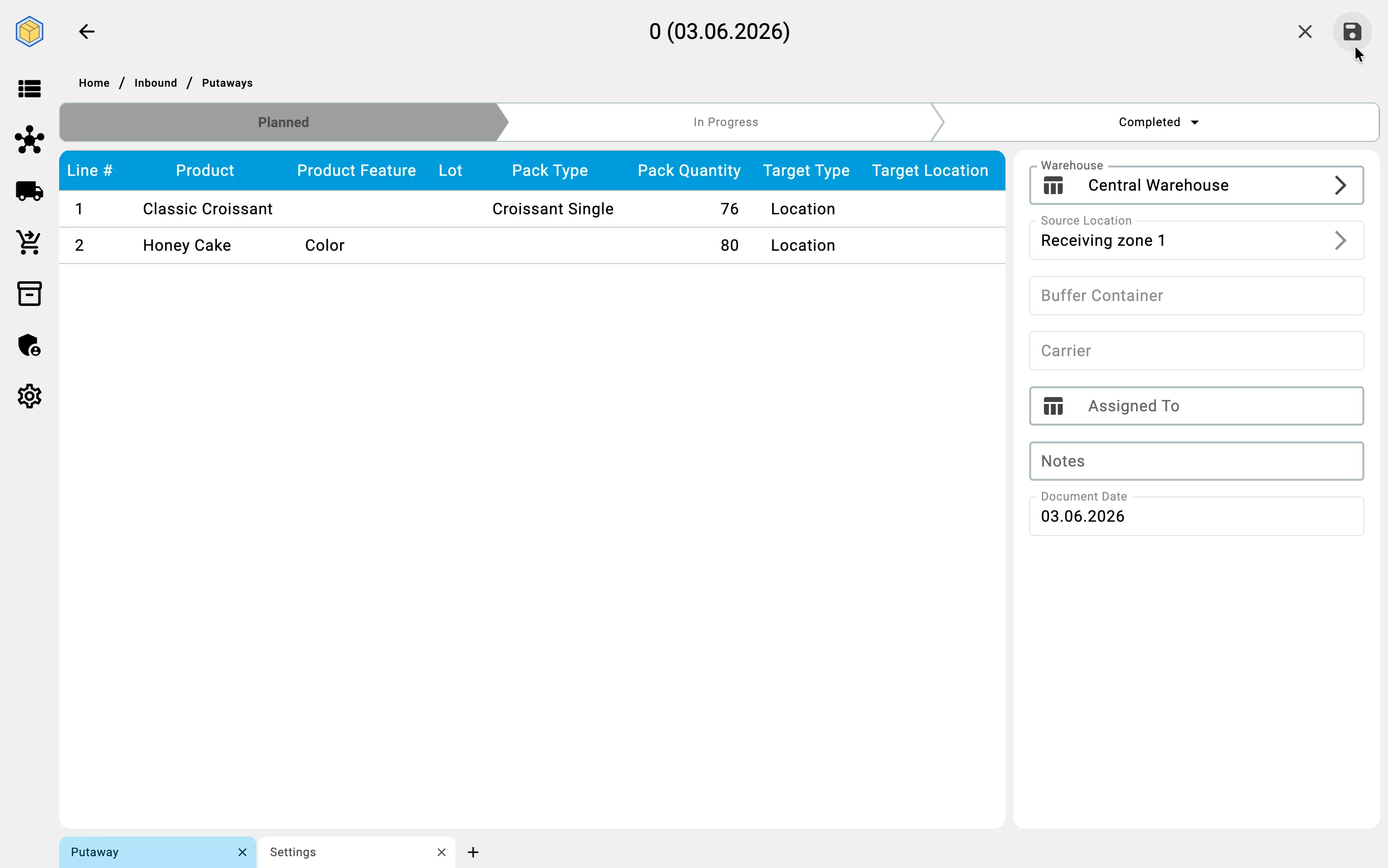
The planner picks individual product rows from the loose-goods group and enters either a specific quantity or accepts the full available remainder. The system then shows a preview of the new putaway plan: which products, in what quantities, from which receiving cell. The planner confirms, and the system creates the document with status Planned. Target cells (where each item should land) may be pre-filled by the warehouse's placement rules; if no rules are configured, the target column is empty and the operator will choose at execution time.
From a sender container
The planner picks one closed supplier container. The entire container becomes the source of one putaway operation — its contents are scheduled to be unpacked and distributed.
A restriction applies: a container can be picked only if every stock position inside it has the AVAILABLE state. If even one position is on hold or in quarantine, the system blocks plan creation and shows the reason. The planner has to wait for quality control to release the position, or pick a different container.
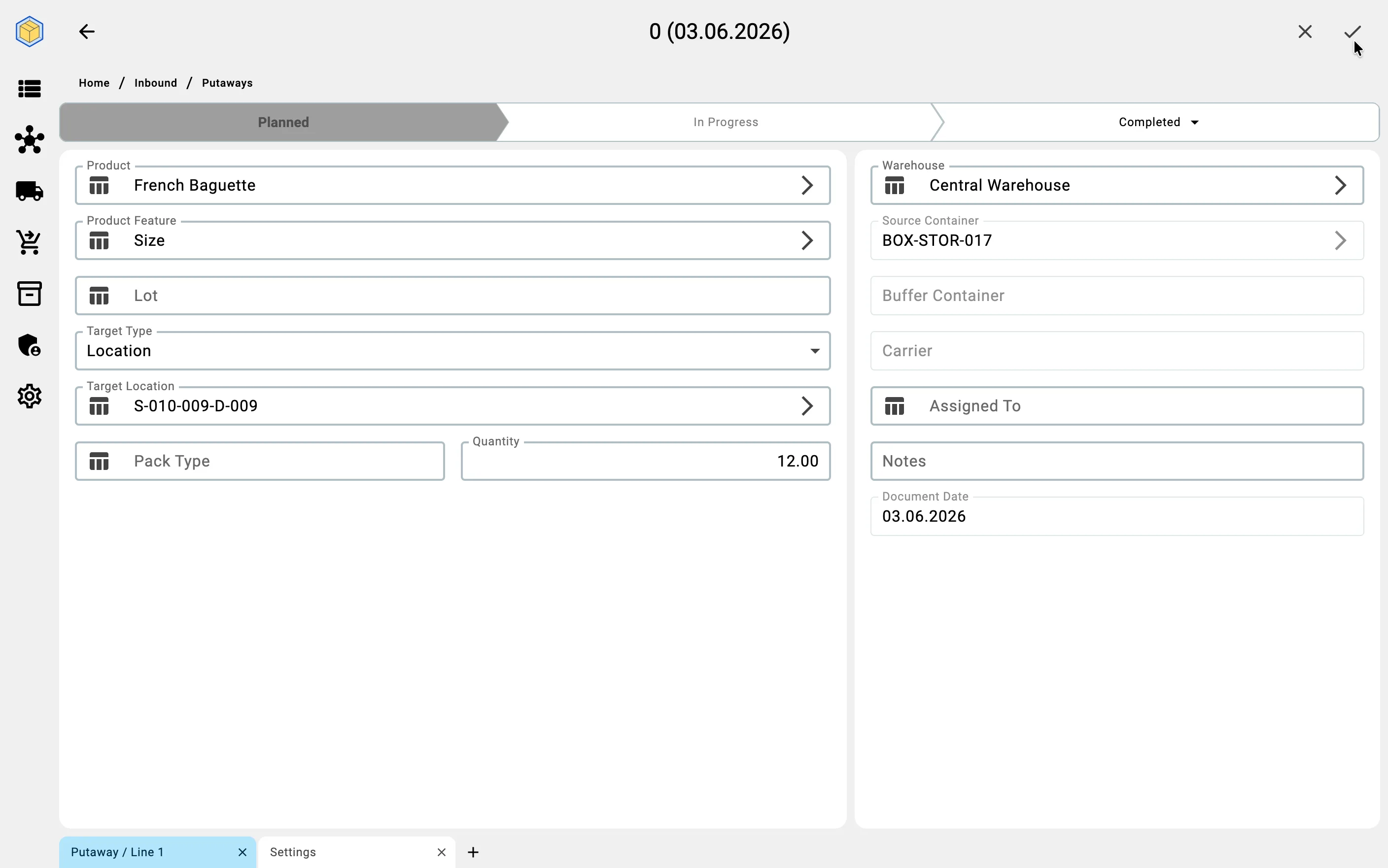
Container-source planning does not allow partial quantity selection — the whole container is scheduled to be drained. Target cells may again be pre-filled by placement rules or left empty.
Phase 3. Reviewing the plan
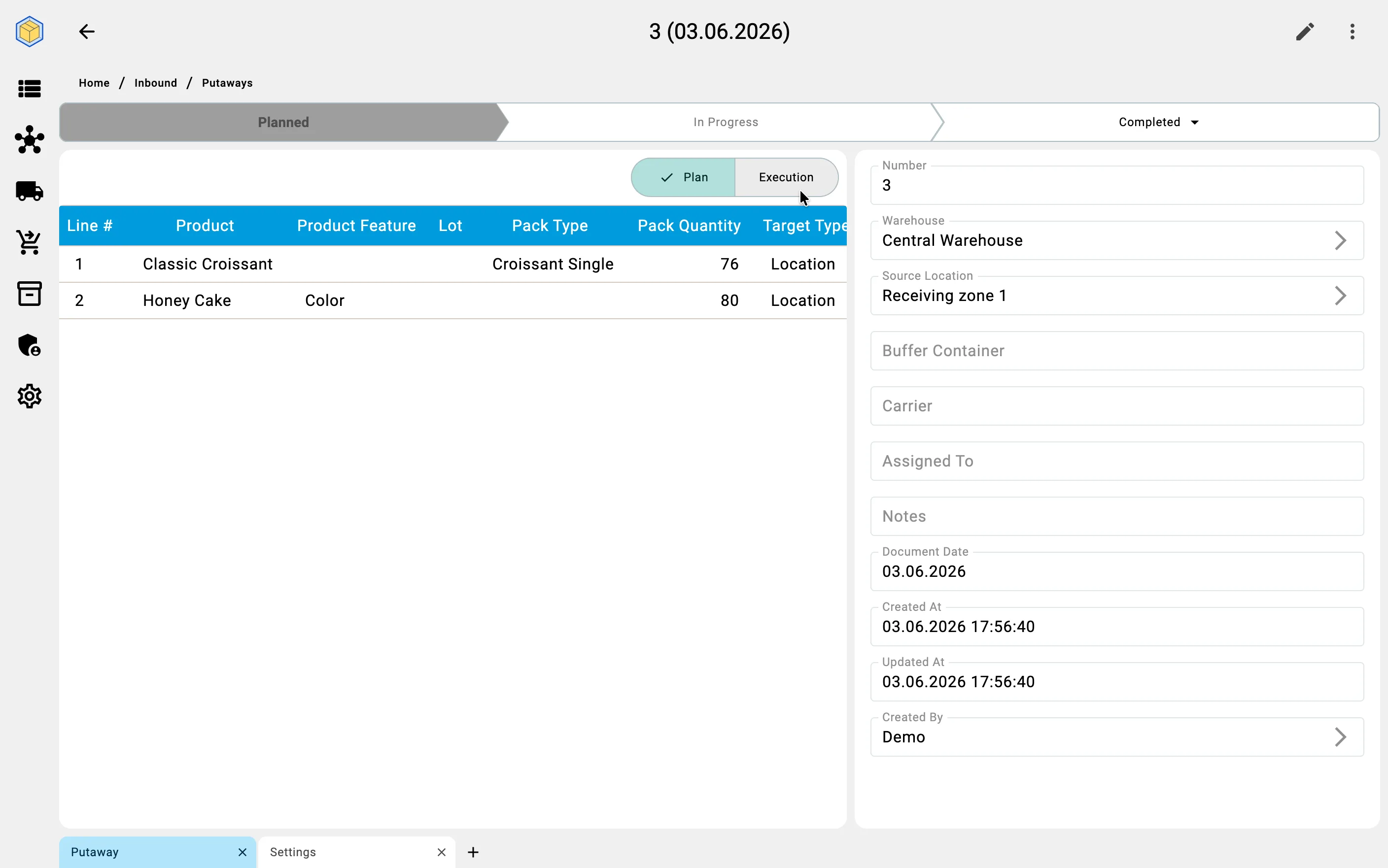
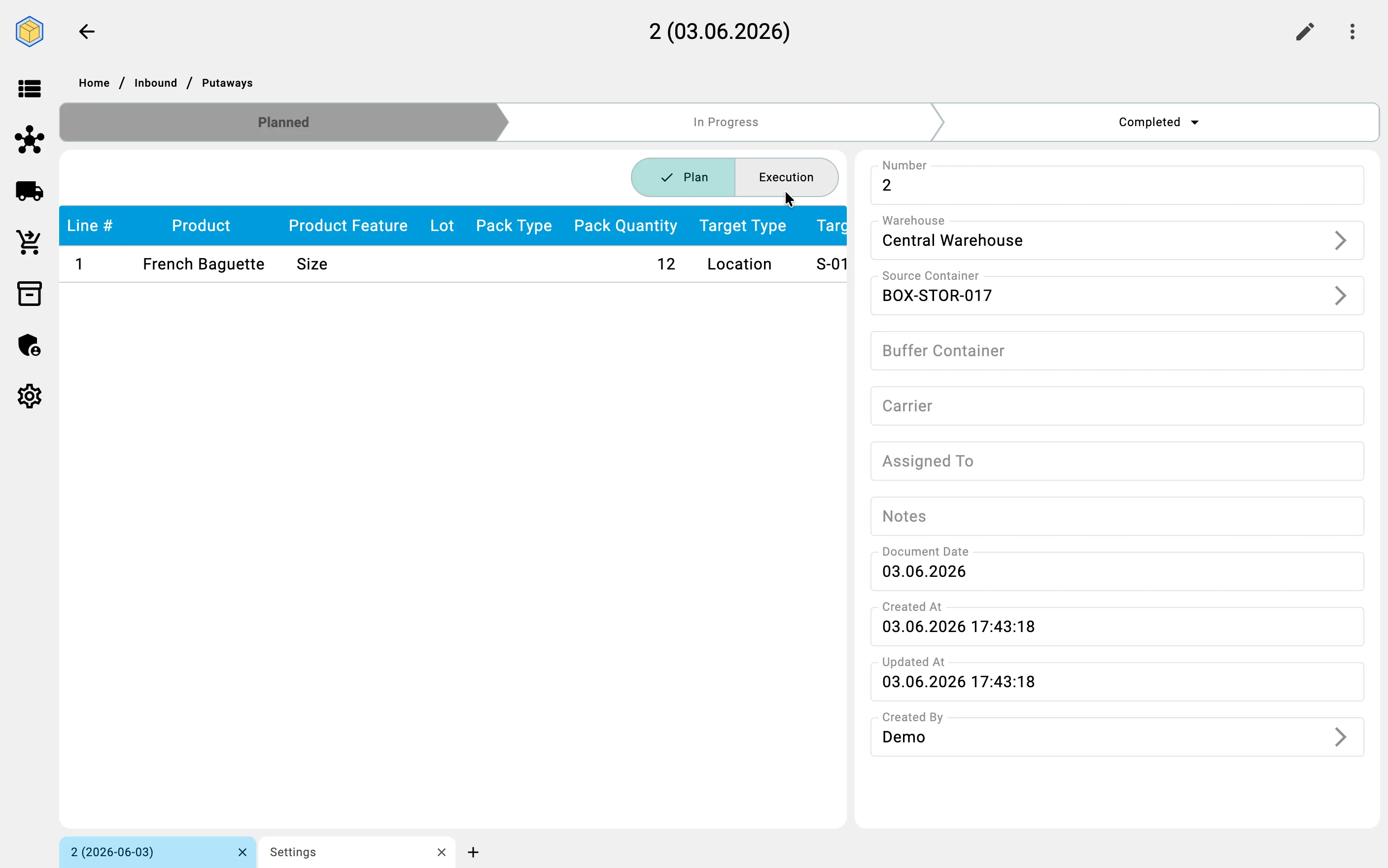
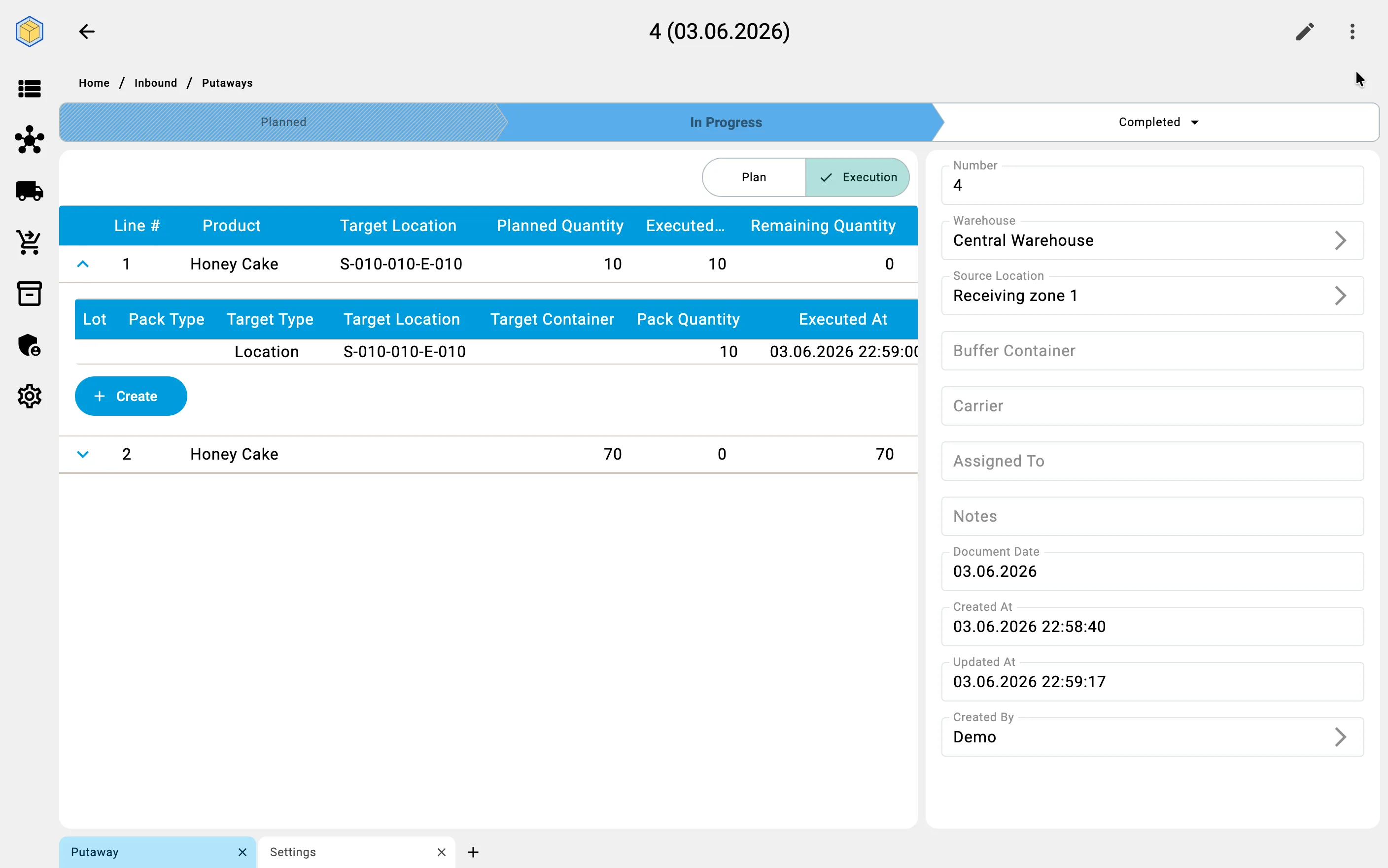
Once the document is created, the operator can review and adjust the plan on the "Putaway" tab. The tab shows a single unified list: one row per plan line, with separate columns for the planned quantity, the executed (fact) quantity, the executor, and the timestamp of the last fact. The status of each line — fully placed, partially placed, not placed — is visible at a glance.
Target cells appear in the planned column either pre-filled (when the warehouse has placement rules configured for the products in question) or empty (when no rules apply or none are configured). The operator can always override the suggested target — placement is never forced. The target can be either a storage cell or a container designated for storage.
While the document is in status Planned, the operator can edit plan-line quantities inline. Source rows (which receiving cell or supplier container the plan draws from) are shown on the "Sources" tab as read-only. Document metadata — who created it and when, the current status, the assigned carrier, and any system-managed buffer container — is shown on the "General" tab.
If the operation is carried out with a carrier (a trolley), the system shows a "Buffer container" field on the "General" tab. The operator does not manage this field — the buffer container is a system-managed accounting entity that holds the unplaced remainder while goods are in motion. The carrier field is also read-only on this tab; carrier assignment happens on the PDT during execution.
Phase 4. Recording placement facts
On the Client side, fact recording is typically done by a supervisor working from the workstation — for cases where stock has been physically moved without the PDT, or to correct a fact recorded on the PDT. Operators recording placement on the move use the PDT (see Putaway on PDT for that path).
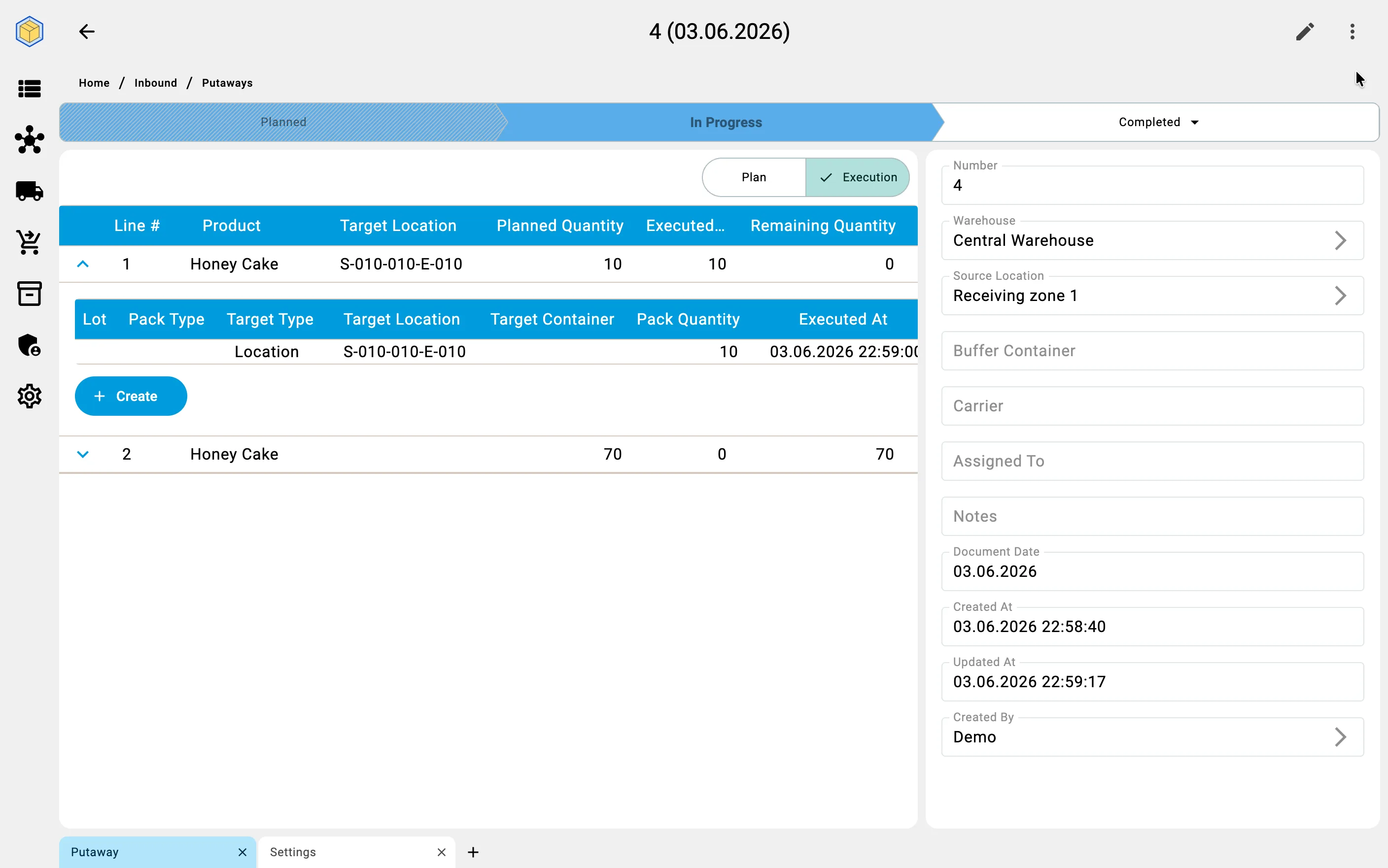
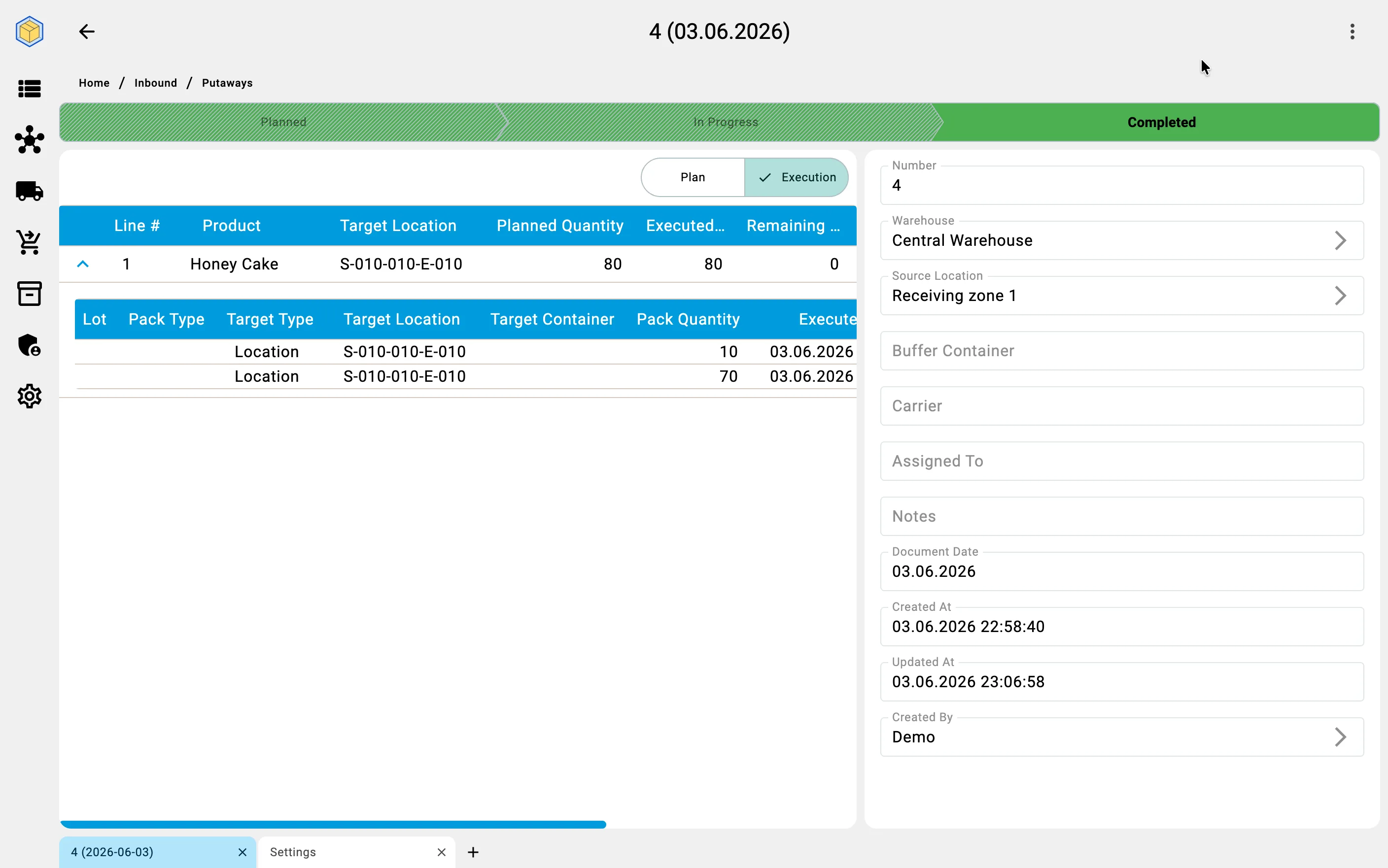
The fact-recording dialog accepts a target type (Cell or Container), the specific target, and the quantity. Saving the fact transitions the document from Planned to In progress on the first fact. Running totals on the "Putaway" tab update immediately: the executed column grows, the remaining quantity per line shrinks.
Putaway source
From a receiving cell
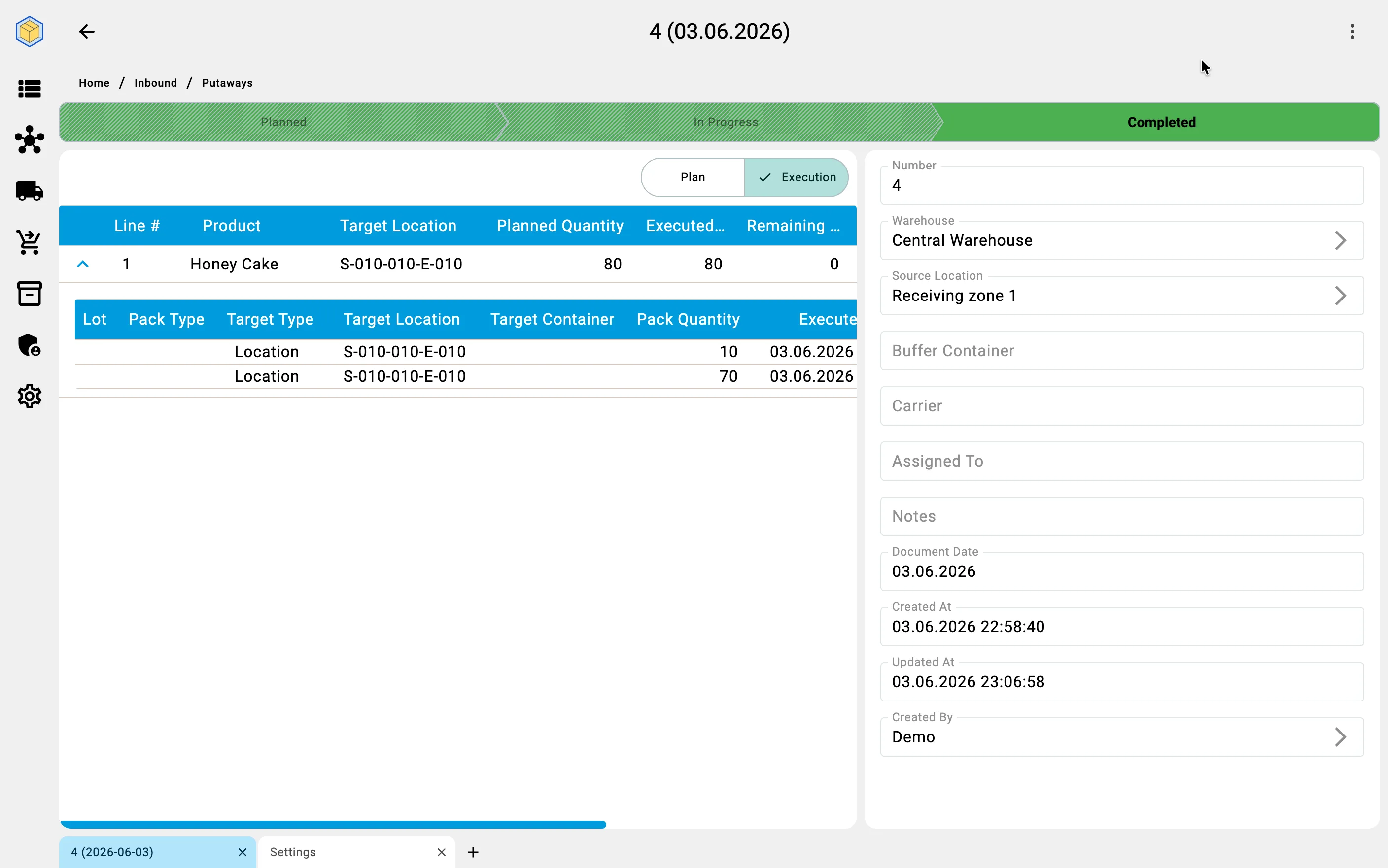
For location-source plans the operator picks any planned product row, fills the target cell or container, sets the quantity, and saves. Multiple facts per planned line are allowed — the operator can split a planned quantity across several target cells (for instance, when one cell only fits part of the batch).
From a sender container
For container-source plans the operator drains the source container line by line. Each fact identifies one product line from the container, a target cell or container, and a quantity. The source container itself is implicit — the document is bound to it. The operator does not re-select the source on every fact.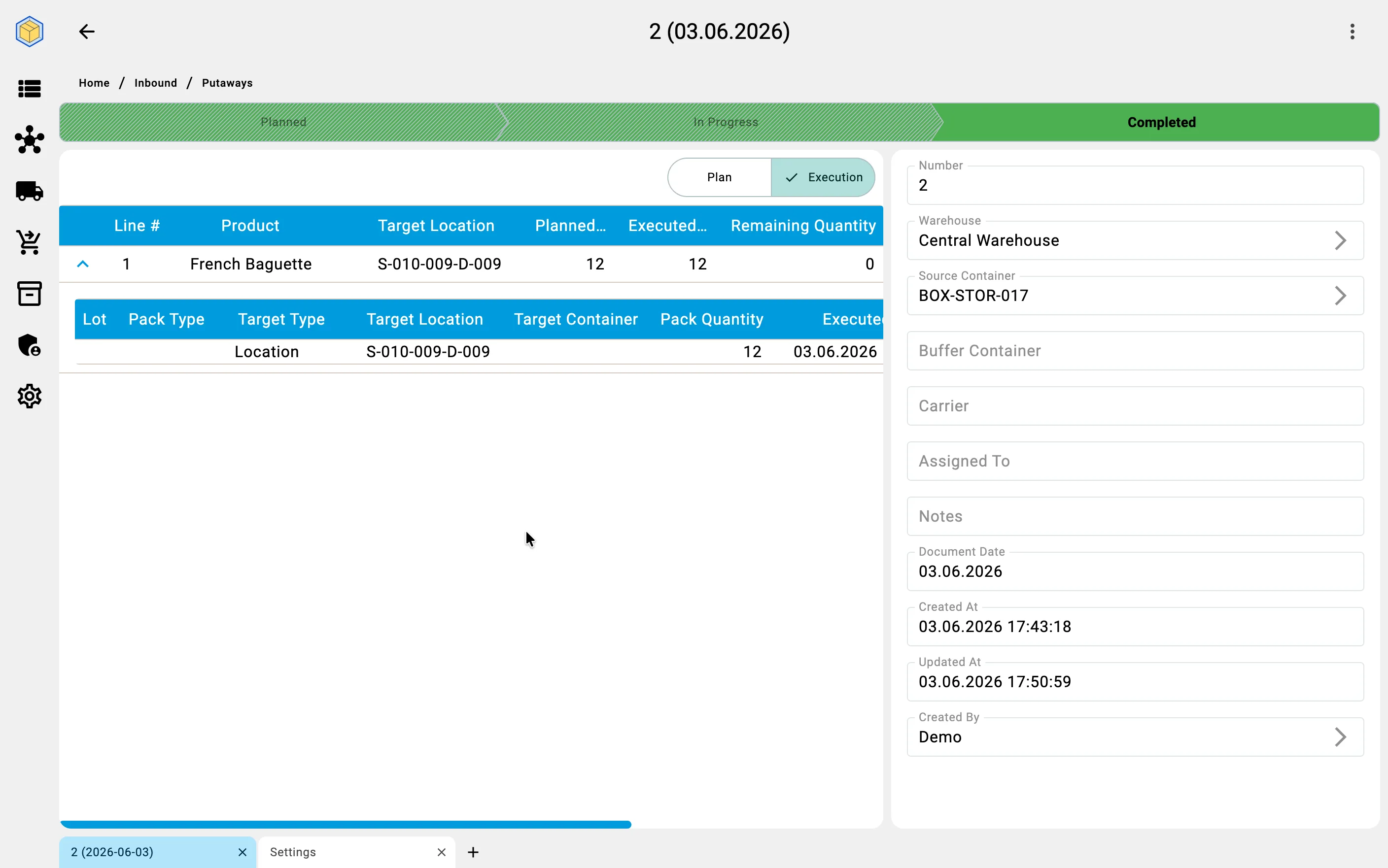
Phase 5. Closing the putaway document
A putaway ends in one of three terminal statuses. Two of them you choose; the third the document reaches on its own.
Full completion takes no action at all. The moment the last fact brings every plan line to its planned quantity, the document moves to Completed: all reservations are now zero and the planned movement counts as fully realized. There is nothing left to confirm.
Close with remainder — available when at least one fact has been recorded but not everything is placed. The document transitions to Closed with partial completion. The remainder physically stays where it currently is — in the receiving cell, in a buffer container on a carrier, or inside the supplier container. The system automatically releases the reservations that covered the unplaced part of the plan.
Cancel — available only before the first fact has been recorded. The document transitions to Cancelled and all reservations are released. Once even a single fact exists, this action is no longer available — use "Close with remainder" instead.
For more on each status and the transitions between them, see the Putaway statuses reference.
Business value
Faster picking. A thoughtful putaway shortens the distance the picker walks; the system can suggest target cells that minimize travel for the products in question.
Independence from tribal knowledge. The placement rules live in the system, not in the head of a senior storekeeper. New operators reach productivity faster.
Better use of space. Capacity-aware suggestions reduce the number of "dead" zones — cells that are full of one product when adjacent cells of the same type sit empty.
Flexibility on growth. Adding a new zone, a new product category, or a new placement rule does not require rewriting the existing process.