Creating and editing the plan
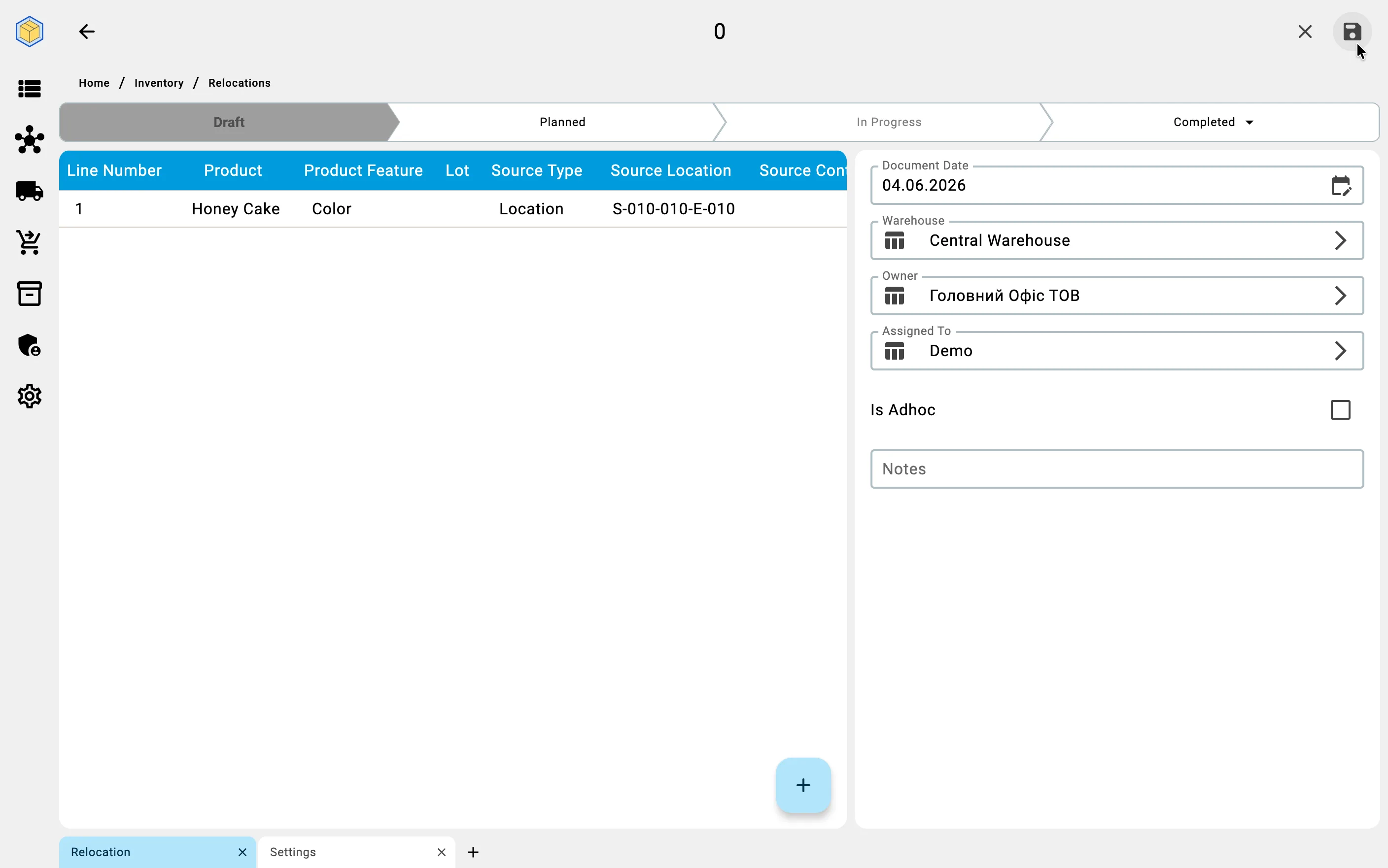
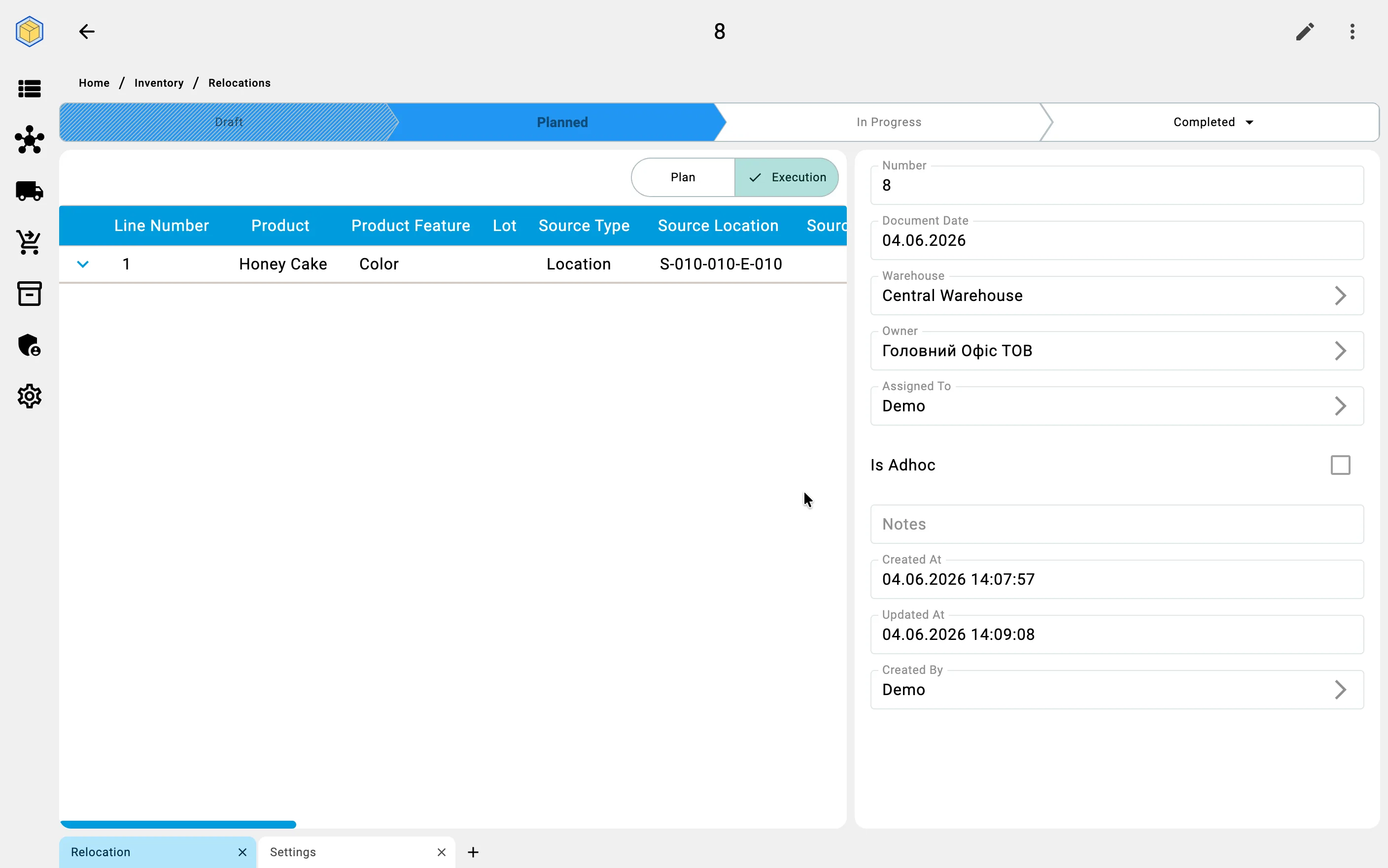
The planner starts from the Relocations list and presses the + floating action button — the detail screen opens in Add mode.
General tab
On the General tab the planner fills the warehouse, optionally an executor and notes, and a document date. The Ad-hoc checkbox must stay unchecked — leaving it checked produces an ad-hoc document instead, with no plan.
Adding rows
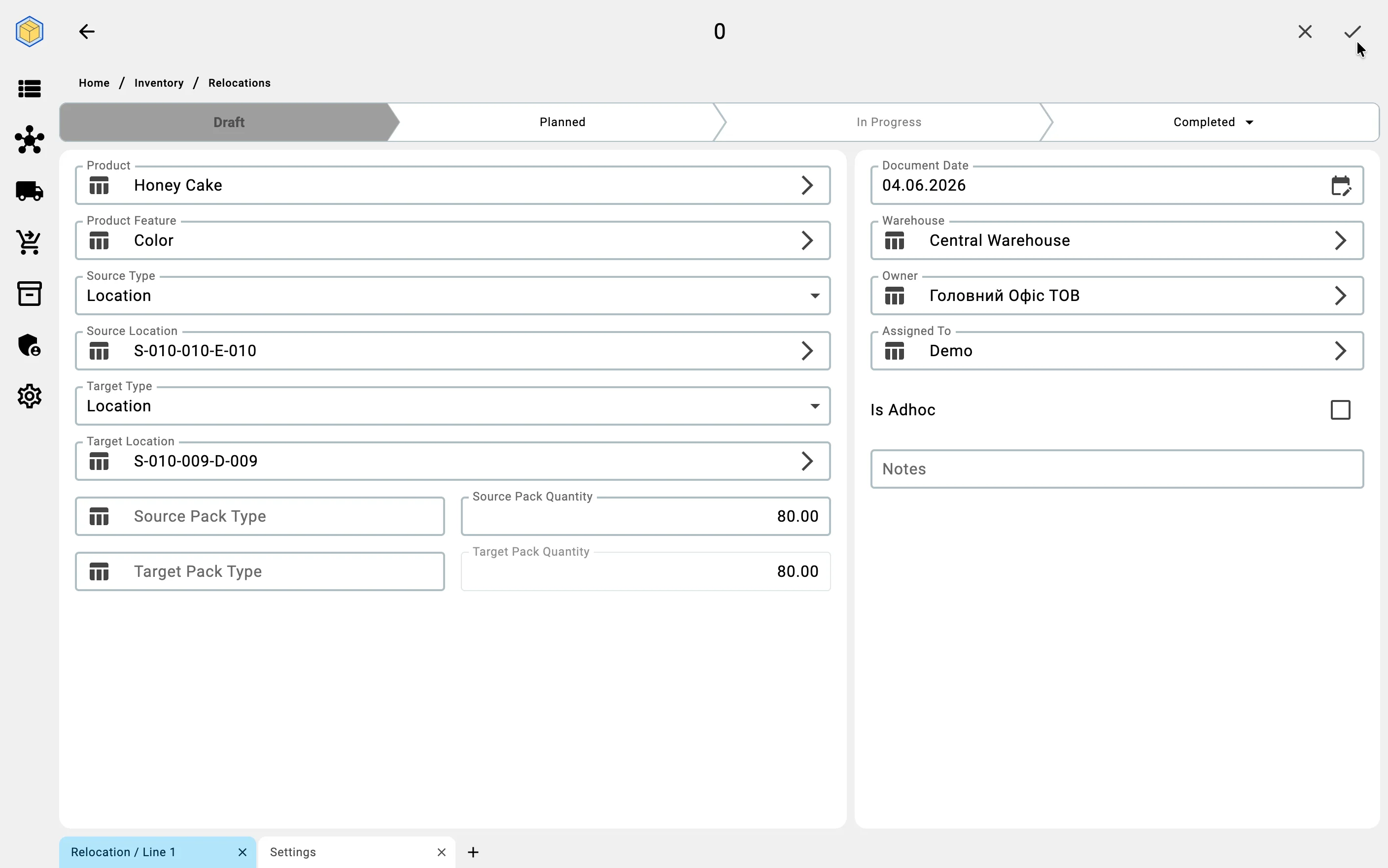
On the Plan tab the planner adds rows one by one. Each row carries: the source (kind + cell or container), the target (kind + cell or container), the product, optional product feature and lot, and the quantity. If the goods need a pack-type change, the planner sets a different target pack type — see below.
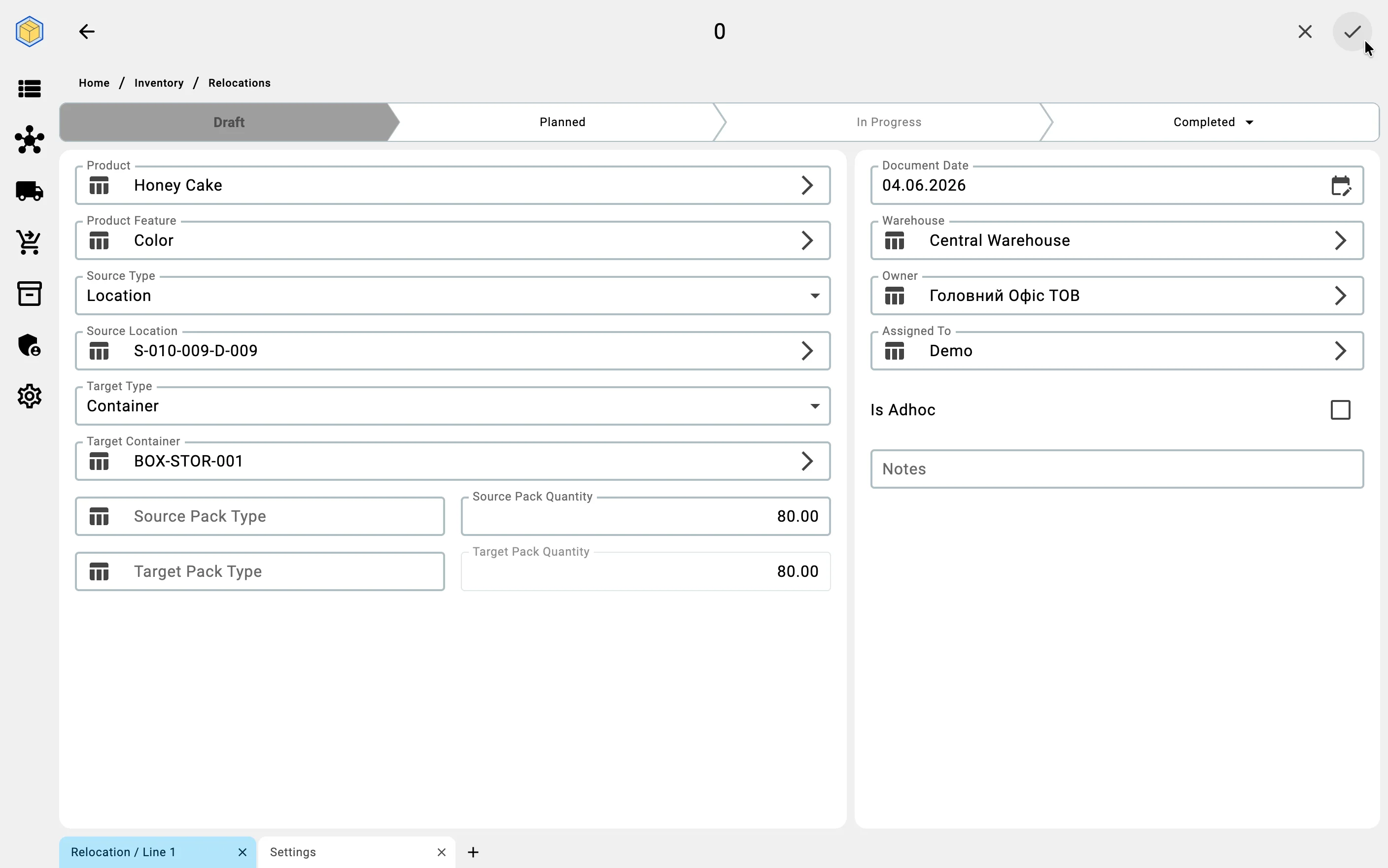
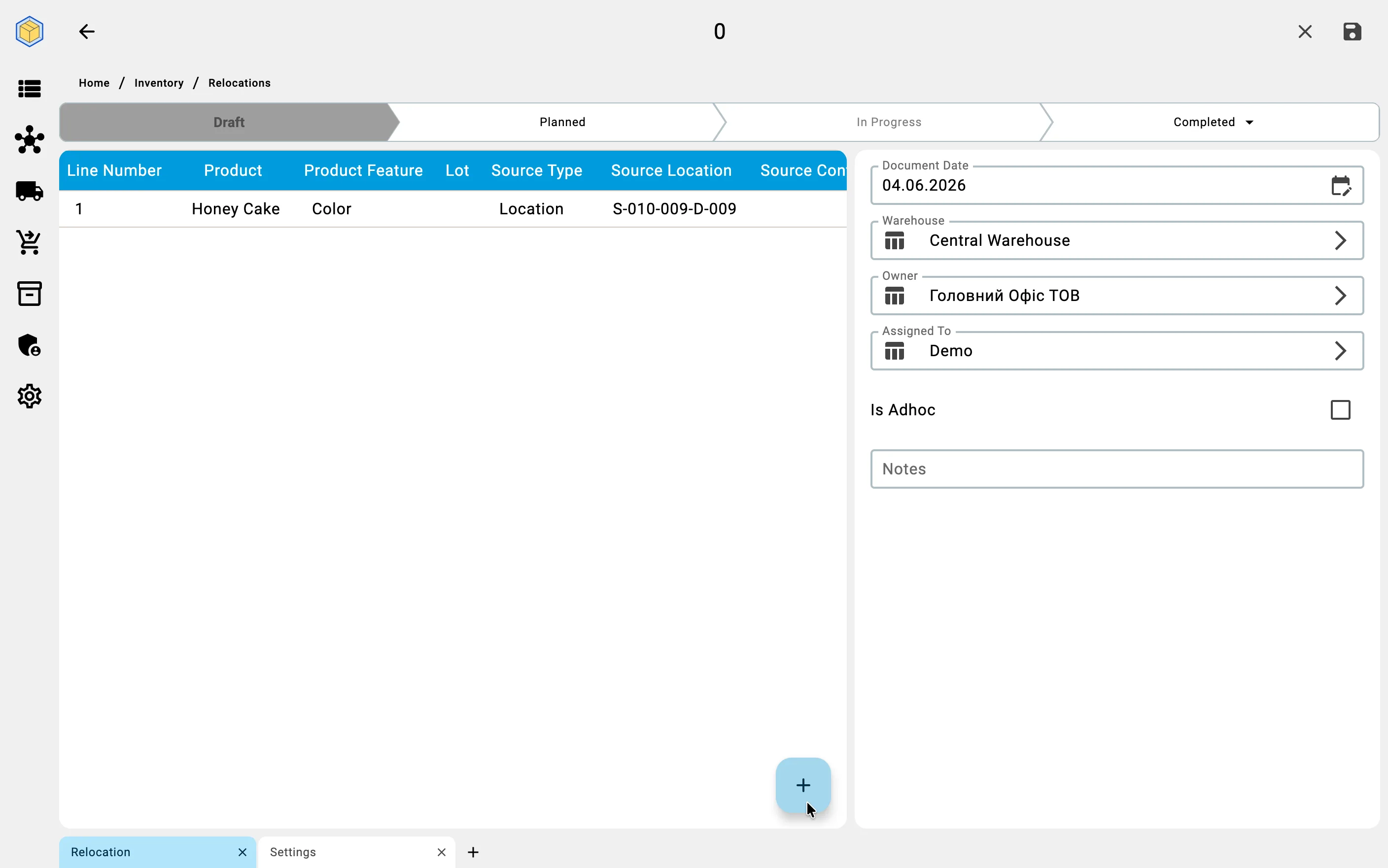
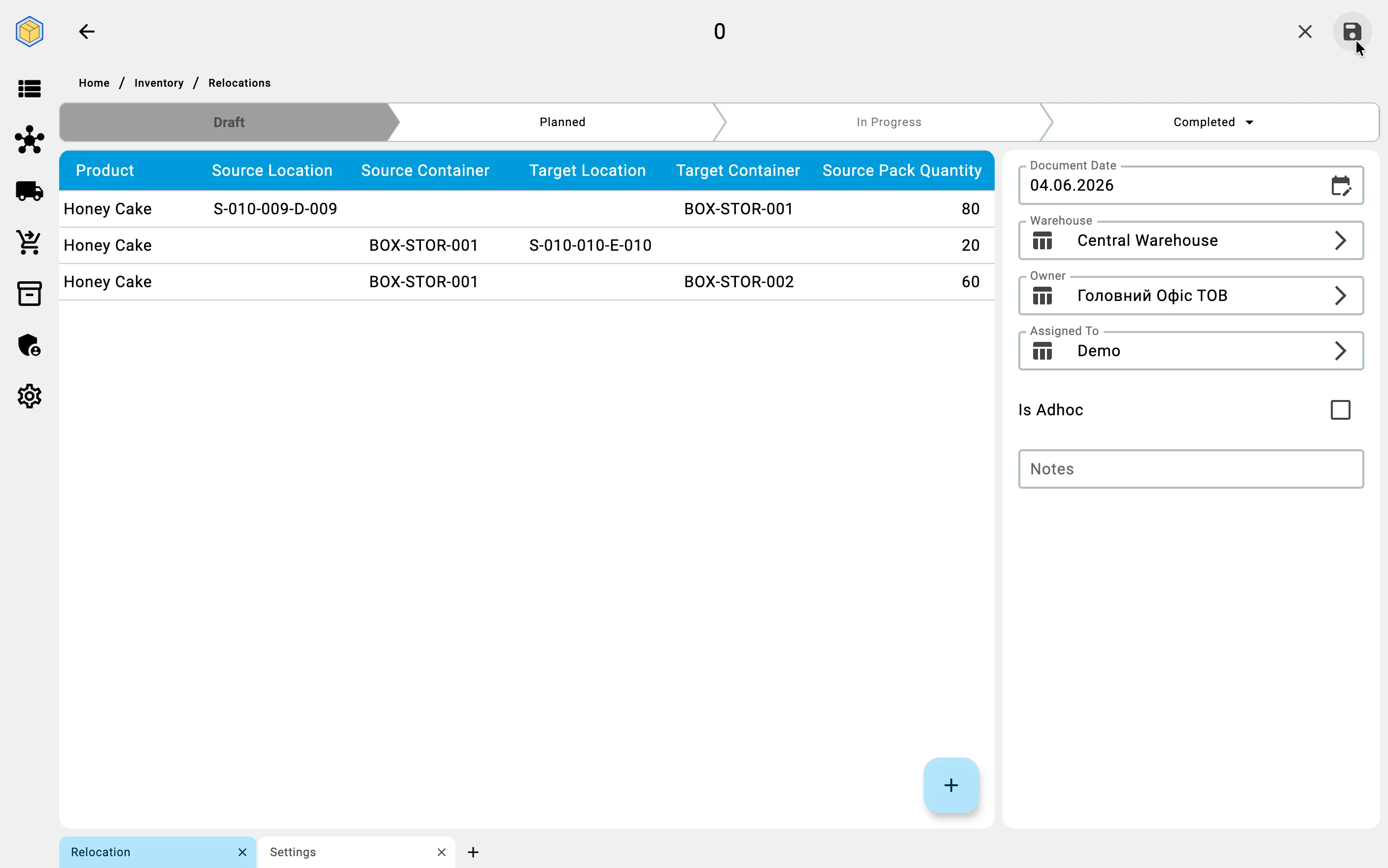
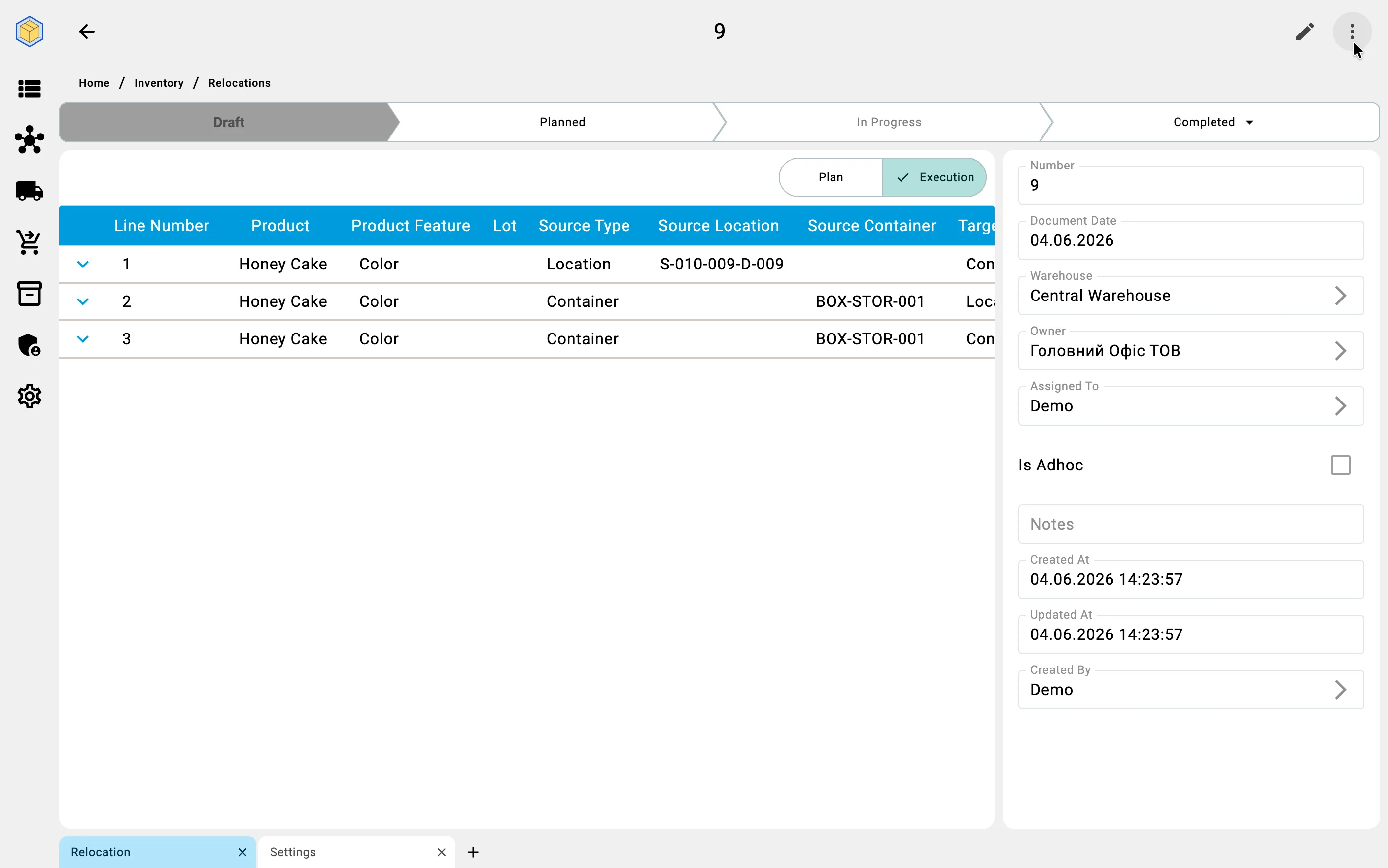
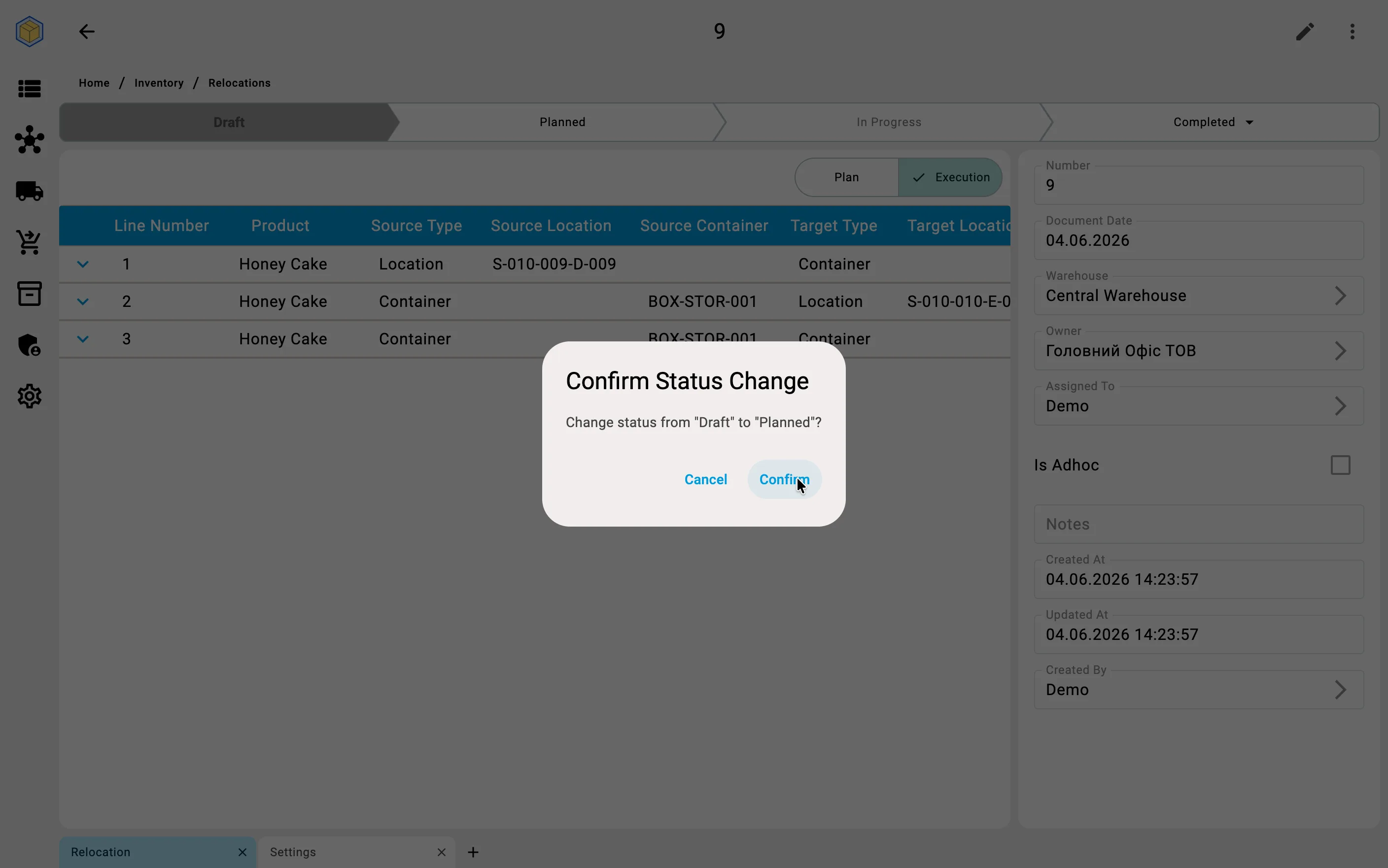
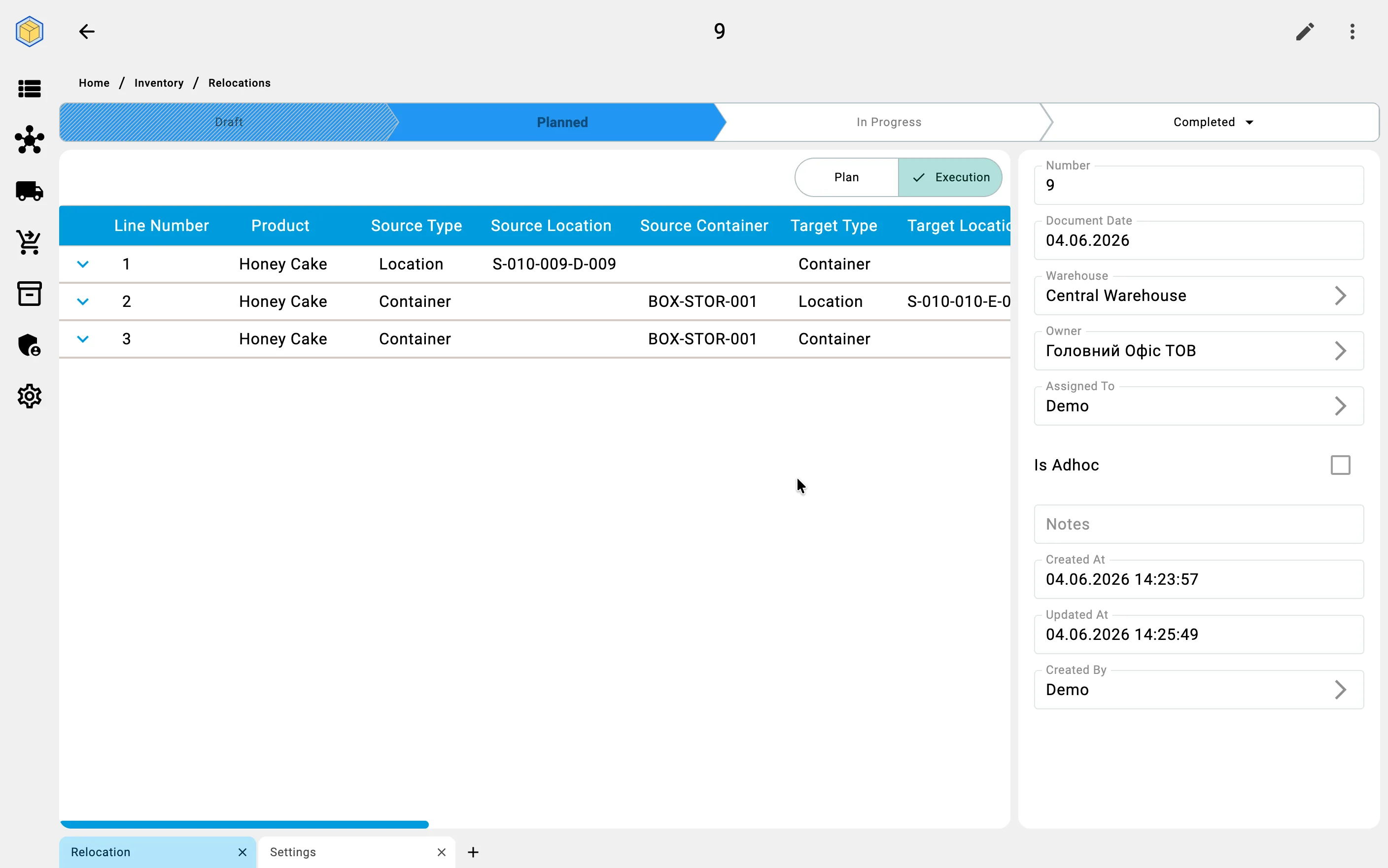
Each relocation row describes what, from where, and where to you move.
The source and target of a row are each one of two kinds — a cell or a container — giving four combinations:
Cell → Cell — the most common case: moving goods between storage areas (for example, consolidating partial pallets from a pick face into a reserve aisle).
Cell → Container — packing goods from a cell into a container (for example, to stage a shipment or to move loose goods on a carrier).
Container → Cell — unpacking a container into storage cells (for example, breaking down a received pallet onto the rack).
Container → Container — moving the contents from one container to another (for example, consolidating two half-full bins).
Pack-type change (repack)
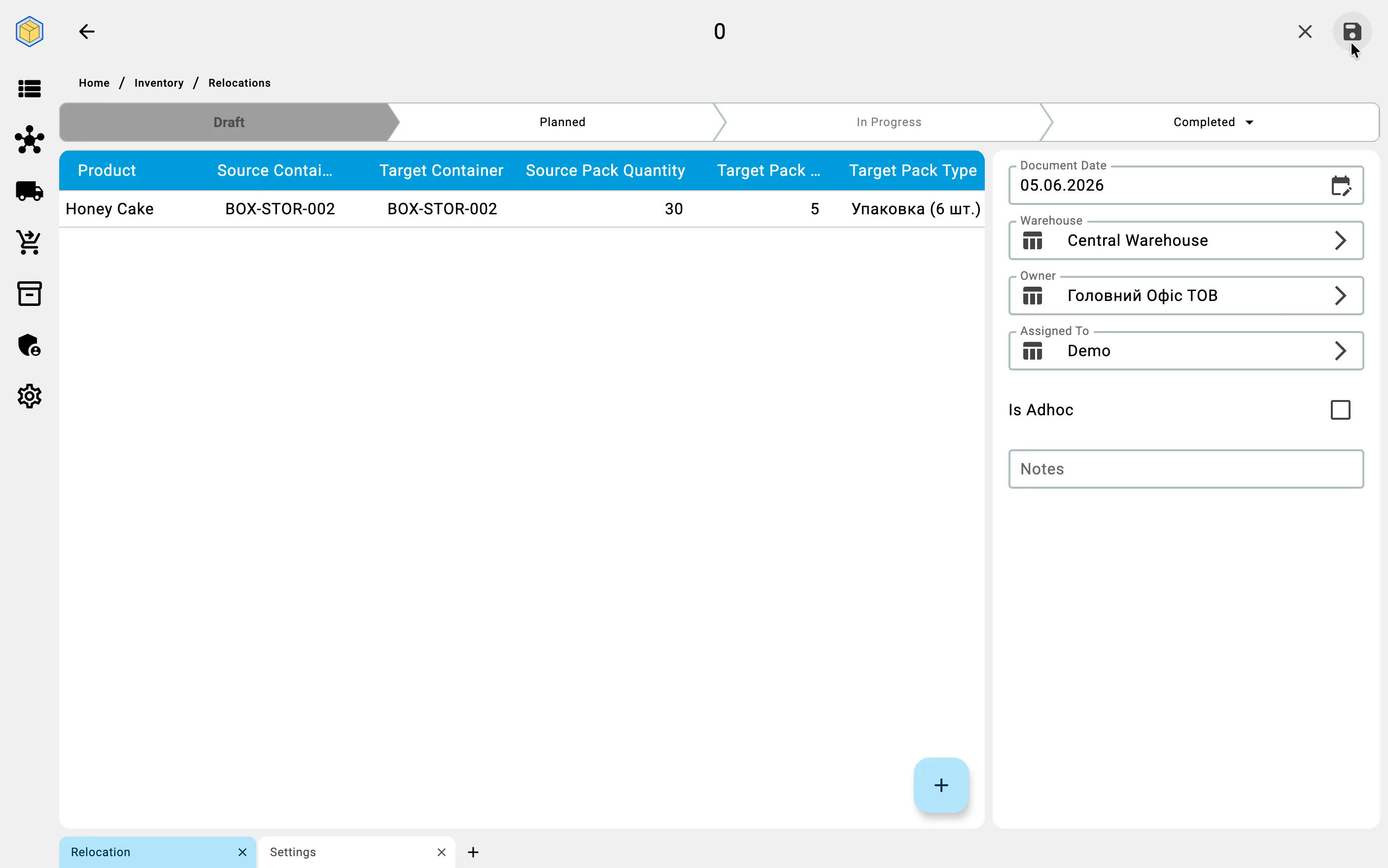
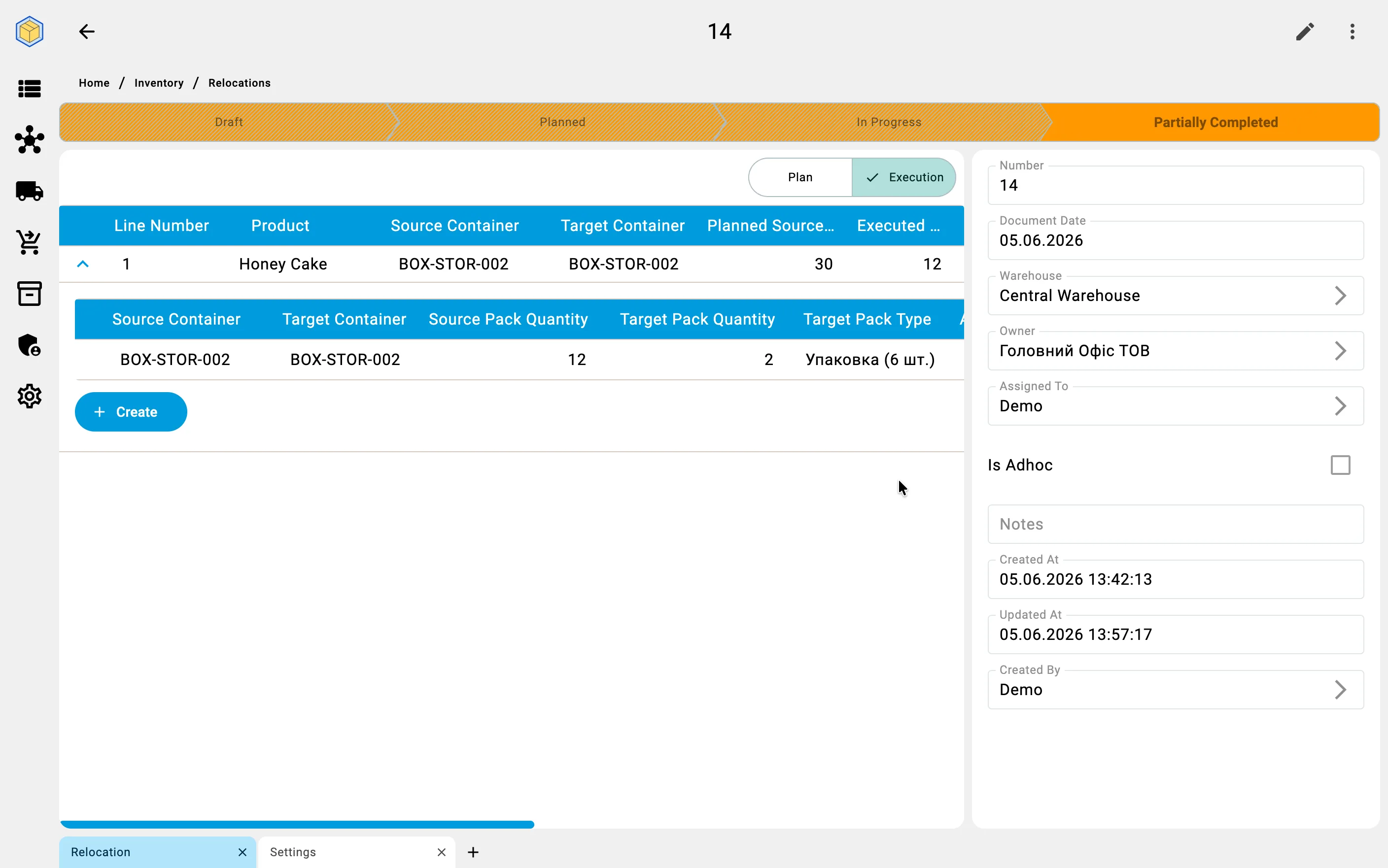
A row may also change the pack type of the goods: the source pack type and the target pack type differ, while the quantity in the base unit of measure stays exactly the same.
Example: a product is stored as cases of 12 units. You want to put it on pallets of 144 units. In a single row you set the source pack as "case" (source quantity = 12 cases), the target pack as "pallet" (target quantity = 1 pallet), and the base quantity stays 144 units.
Repack is available in both planned and ad-hoc scenarios — it is a property of an individual row, not of the document.
What saving does
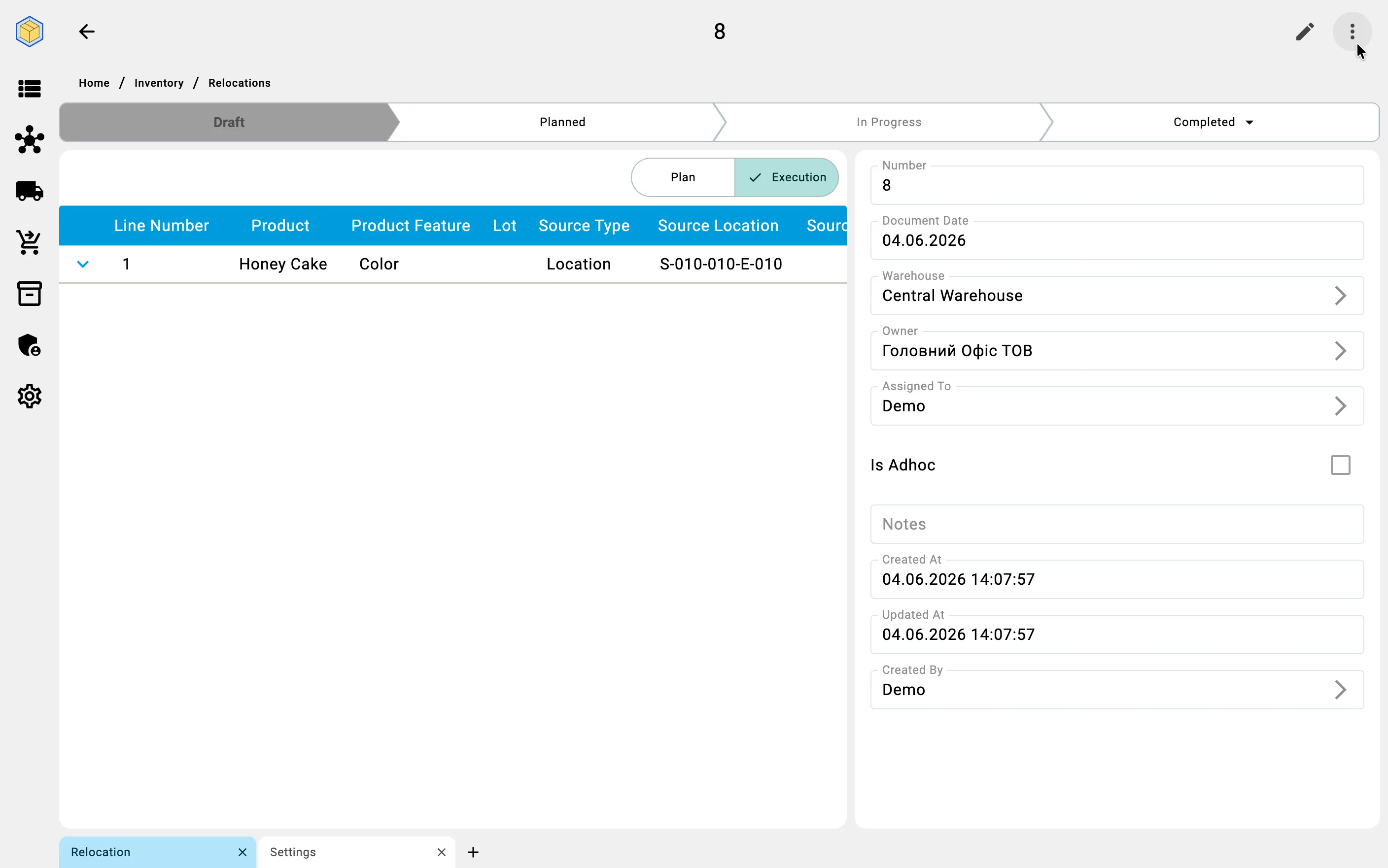
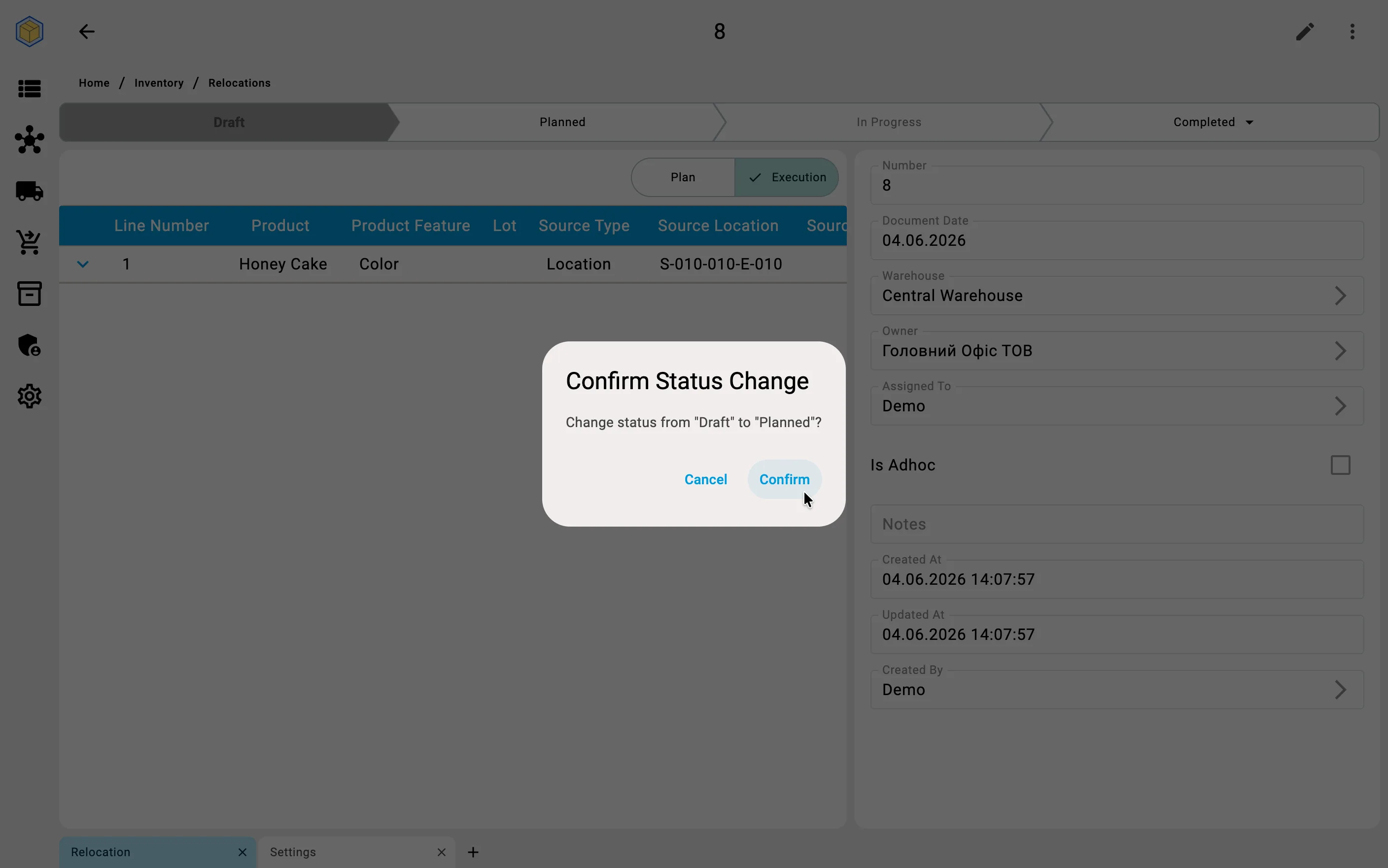
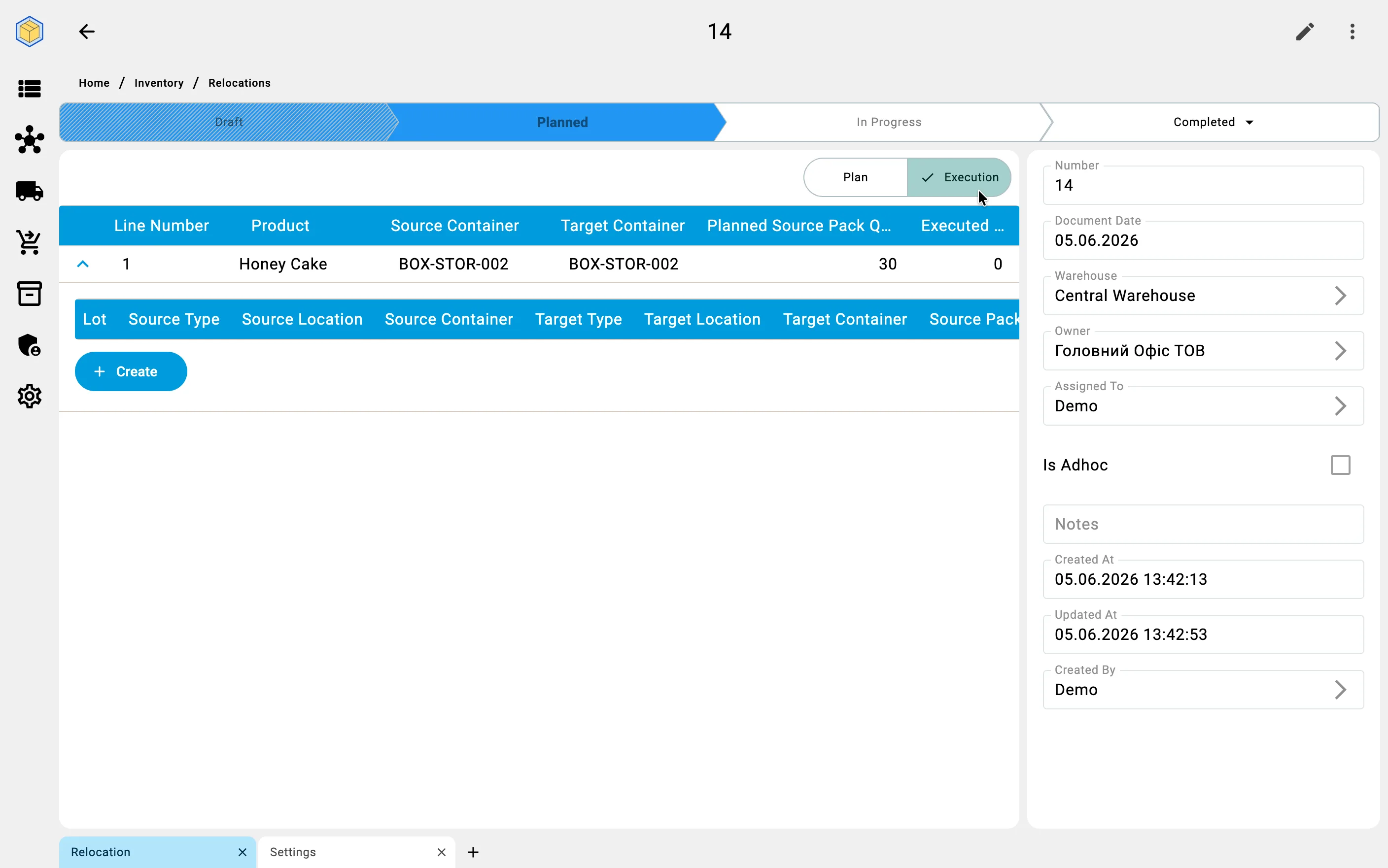
When the planner saves the document into the Planned status, the system:
- Reserves the row quantity at each source — so other operations cannot consume the same goods until this relocation is closed or cancelled.
- Creates an incoming-stock record at each target — so other operations know the target cell or container has goods en route.
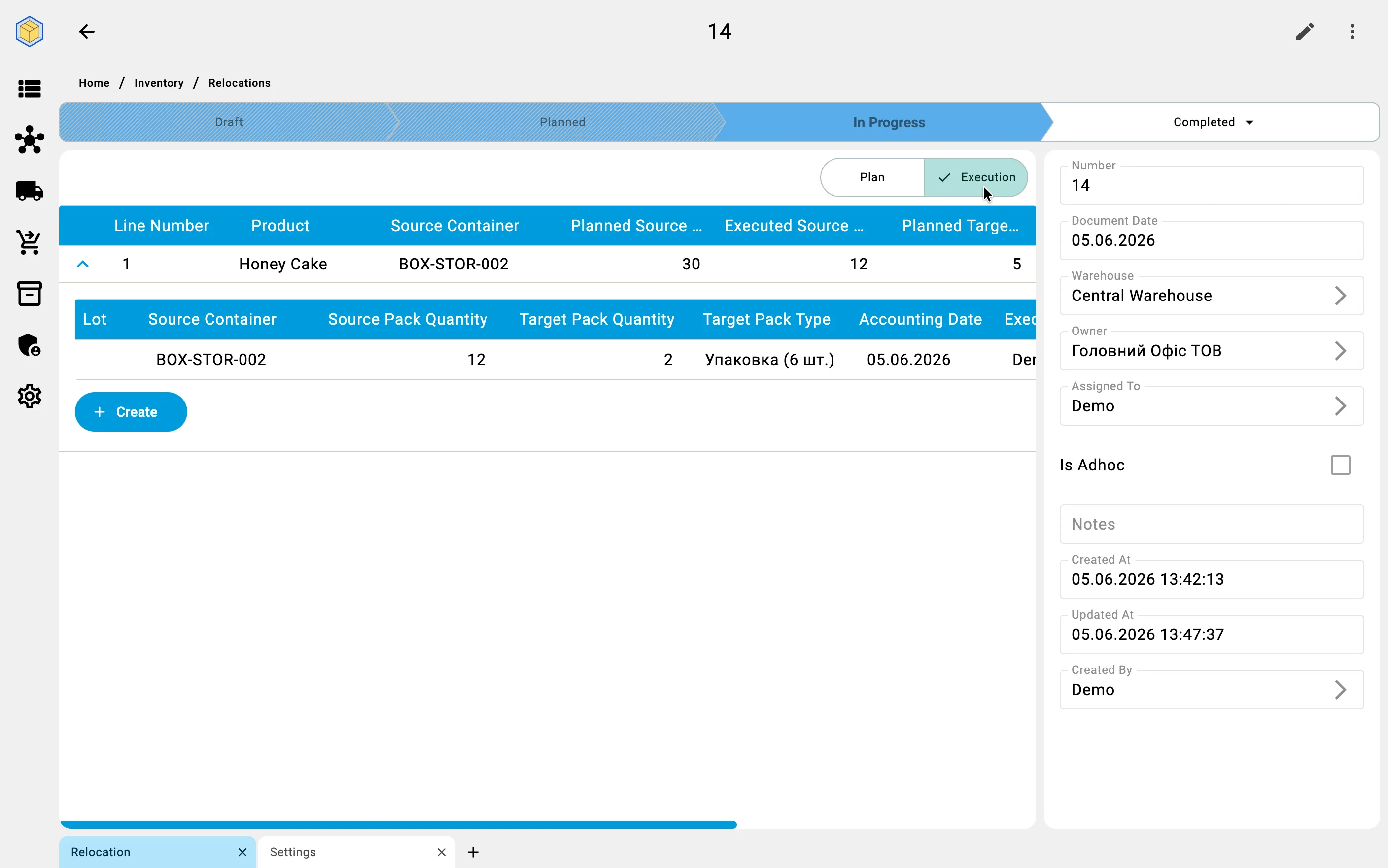
These bookkeeping records are released as facts accumulate against the plan (see Recording move facts) and on document closure (see Closing the document).
Editing the plan after save
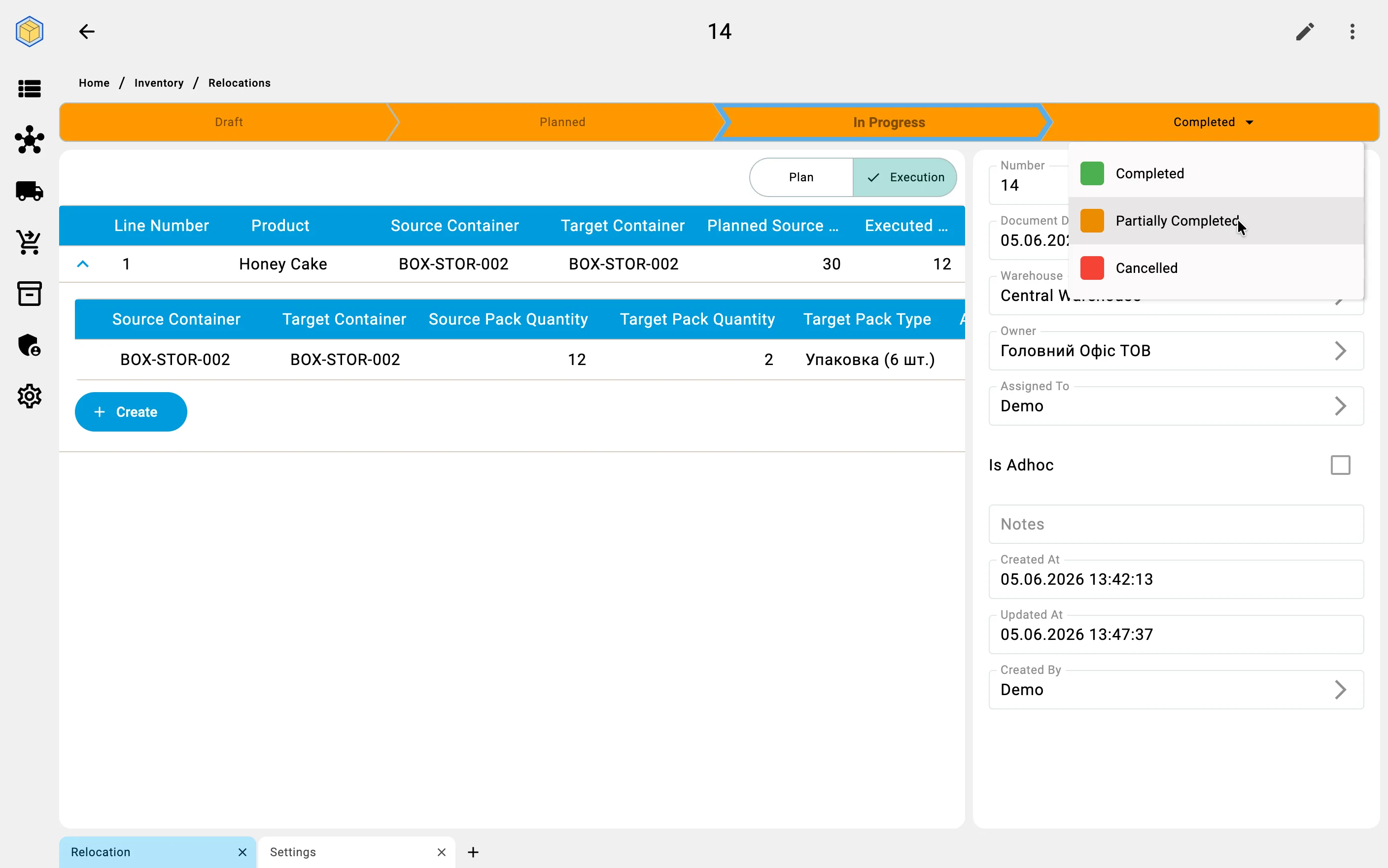
While the document is in Draft or Planned status, the planner can re-enter Edit mode from the detail screen and modify rows, change the assigned executor, or update notes. Once the first fact is recorded the document moves to In progress — at that point row-level editing is no longer possible; only assignment and notes can still be updated.