Record the fact
This is the core loop of the operator's work on the PDT. For each line in the document the operator identifies the SKU, sets the quantity, and saves the fact. The loop repeats until no unreceived lines remain.
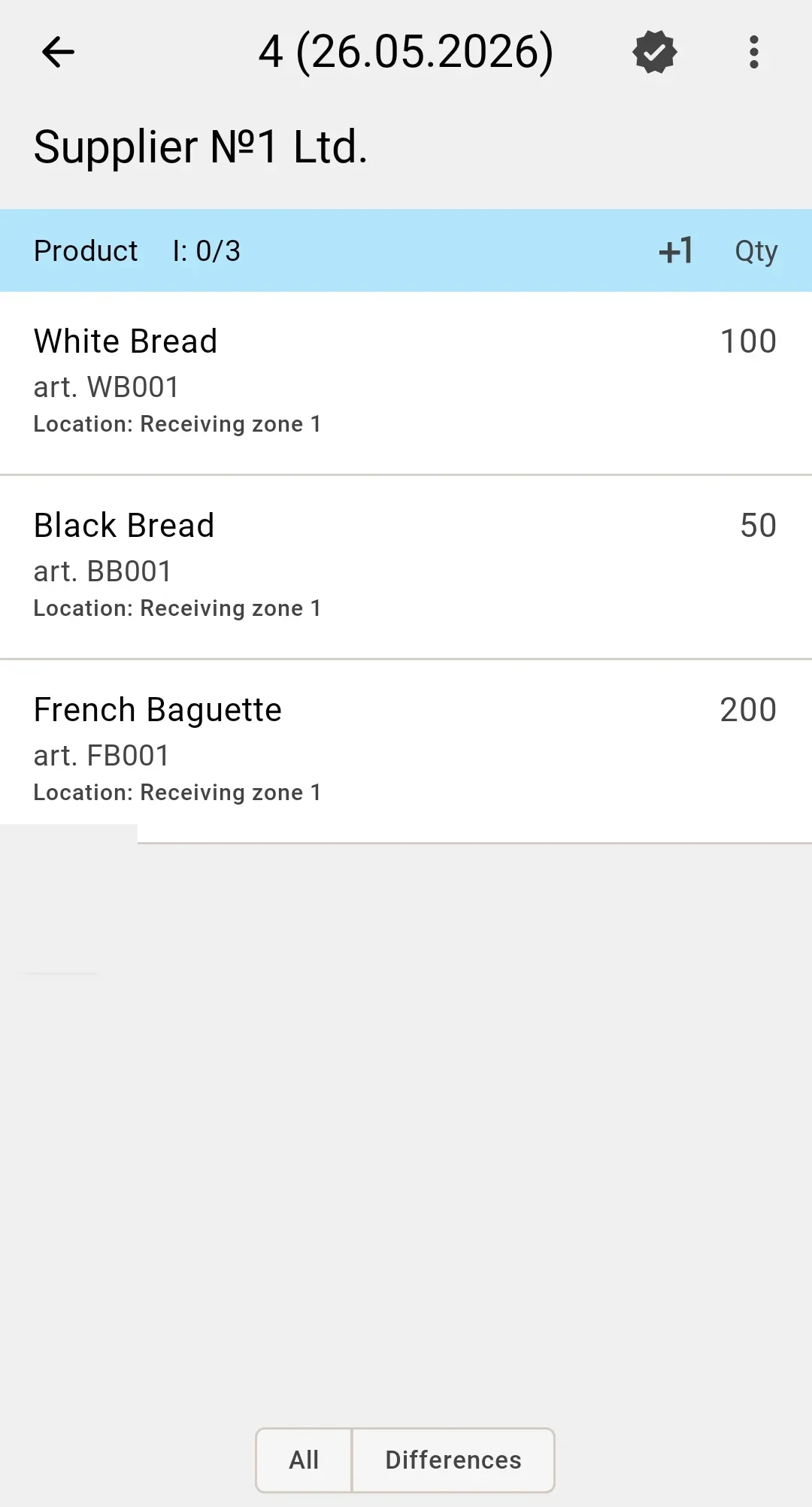
The operator identifies an SKU — the combination of product, product features (if tracked), lot (if tracked), and pack type — by scanning a barcode or by picking it manually from a list. Required attributes depend on the product configuration. How SKU selection works.
When the barcode is not found in the system, matches several variations, or the scanned line is not in the receipt, the operator sees a dialog. What to do in each case is described on the Barcode resolution page.
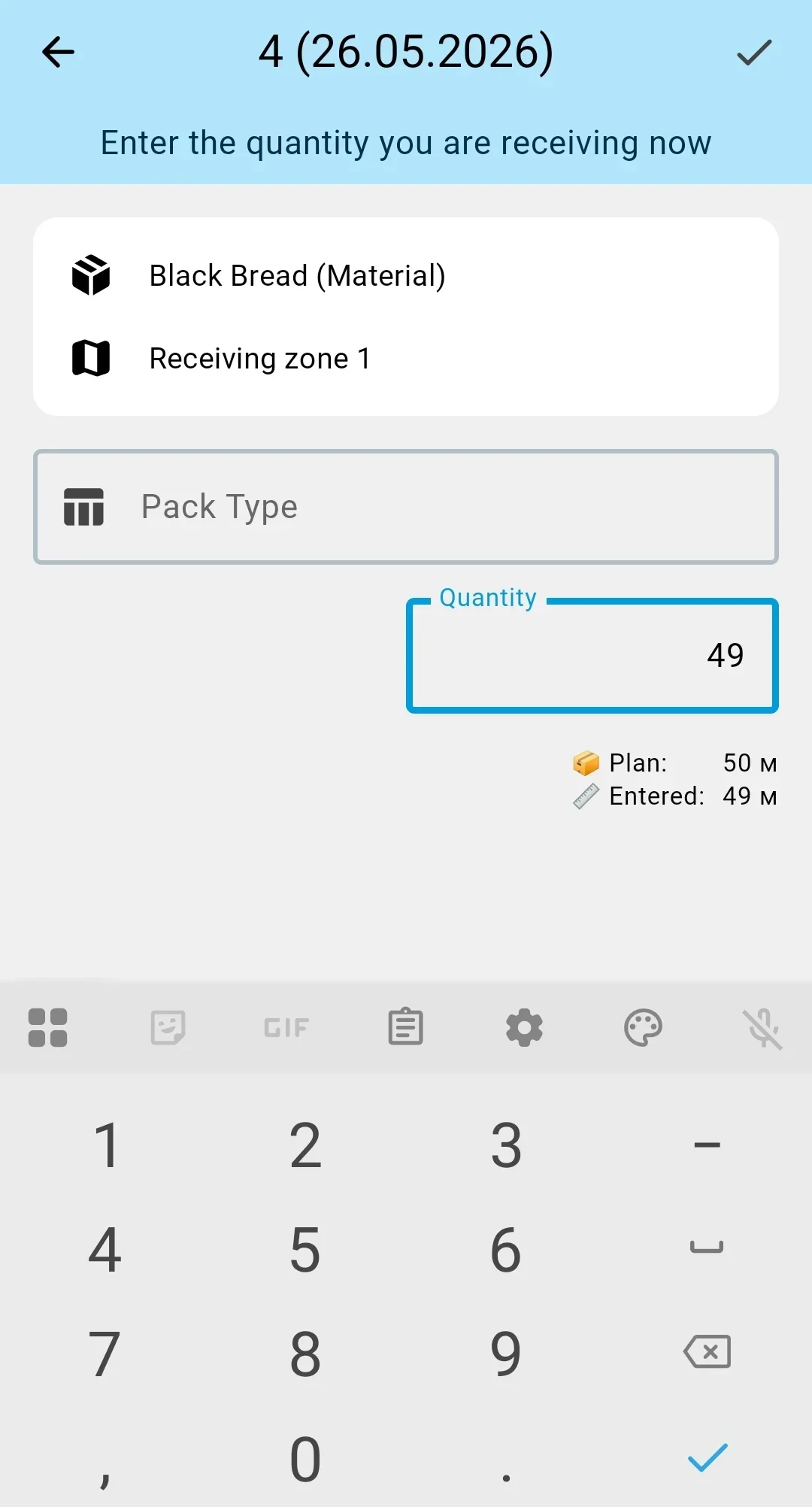
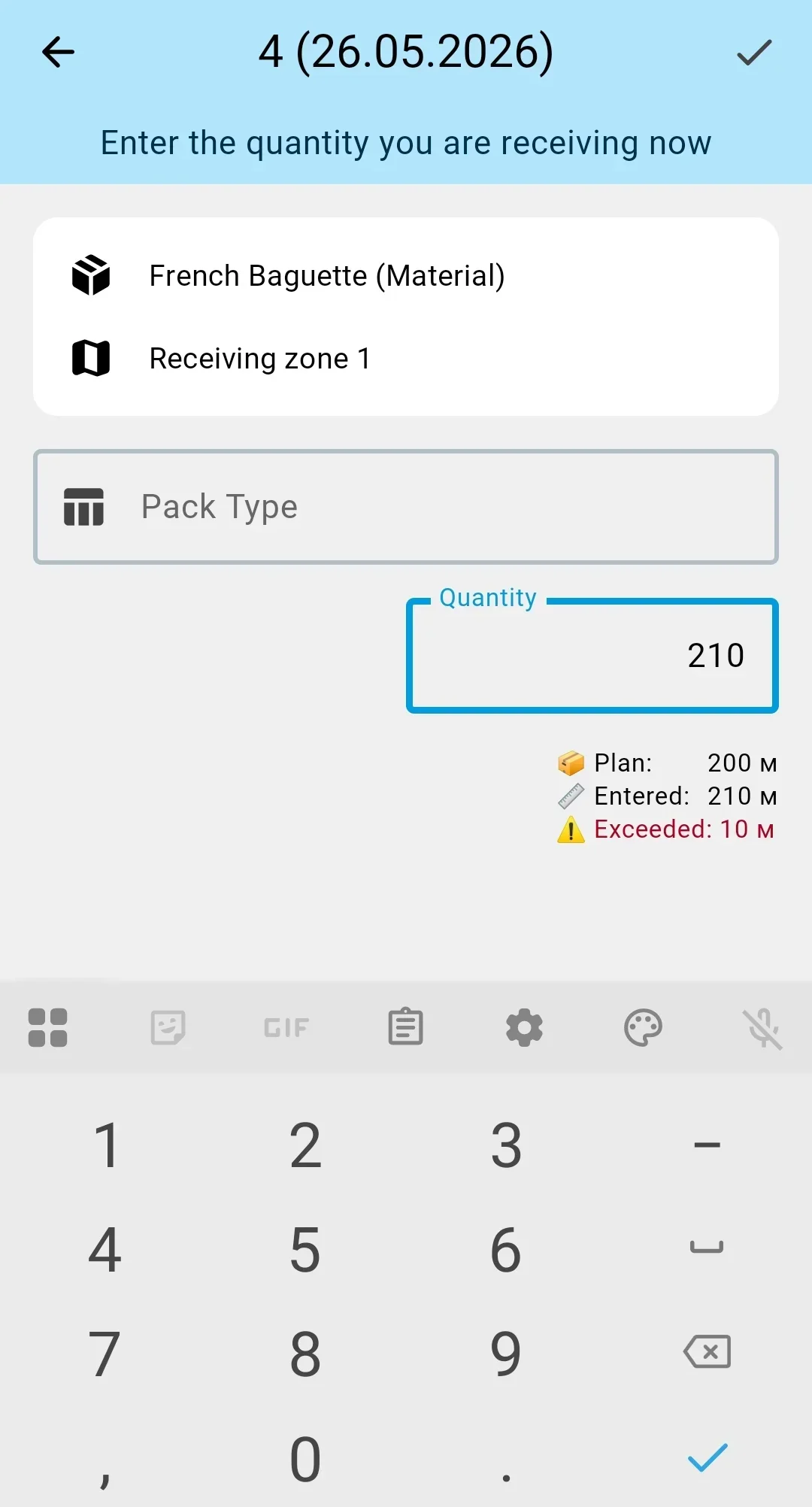
Quantities go in the quantity field — set from the barcode, typed by hand, or worked out in the calculator, with − and + to adjust; the pack type sits beside it. How the quantity field works.
Quantity entry mode
Quantity confirmed in form
In the confirm-on-save mode every barcode scan opens the fact form, showing the identified SKU (product, features, lot, pack type) and the quantity field. The operator sets the quantity and confirms.
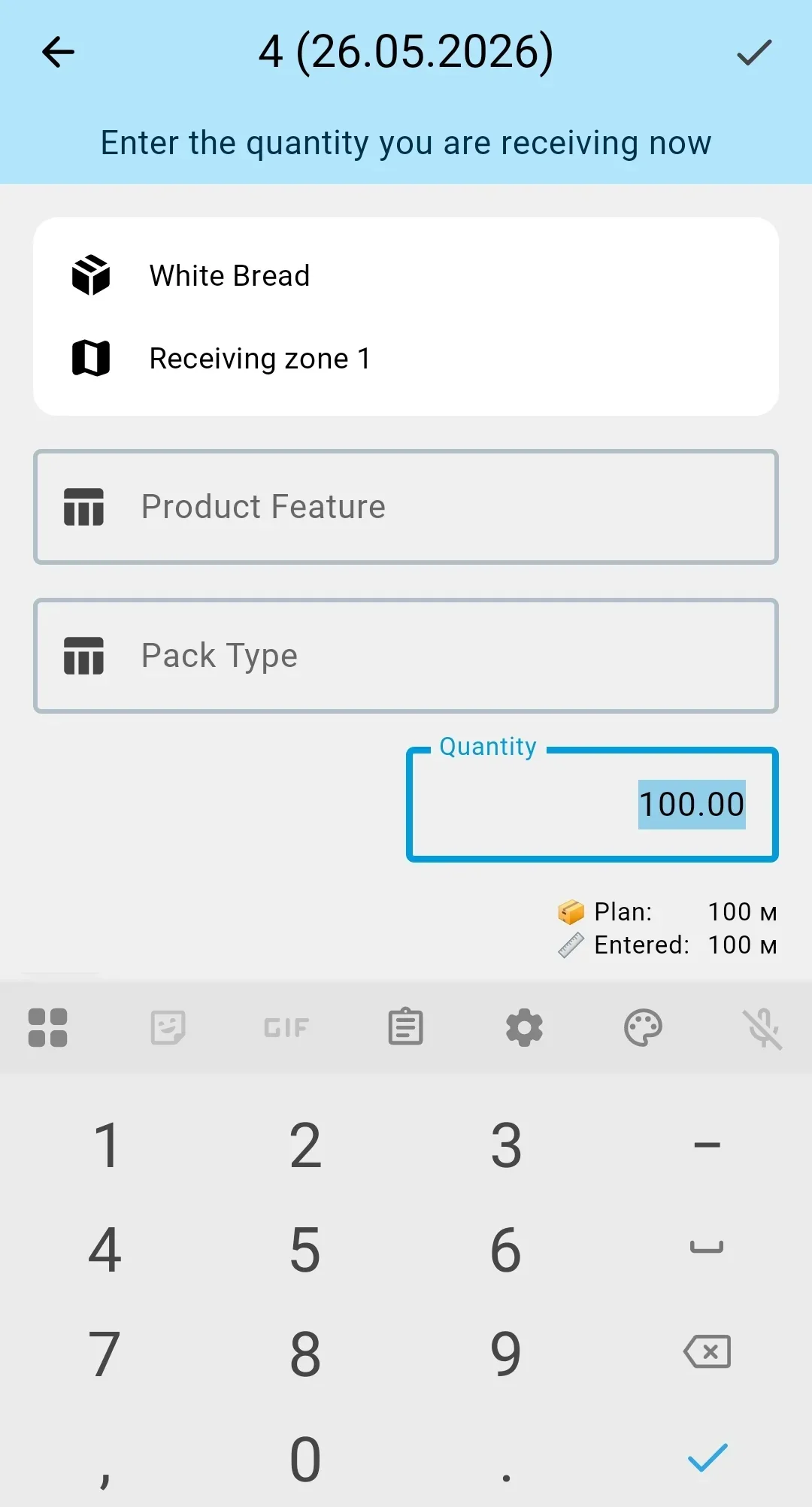
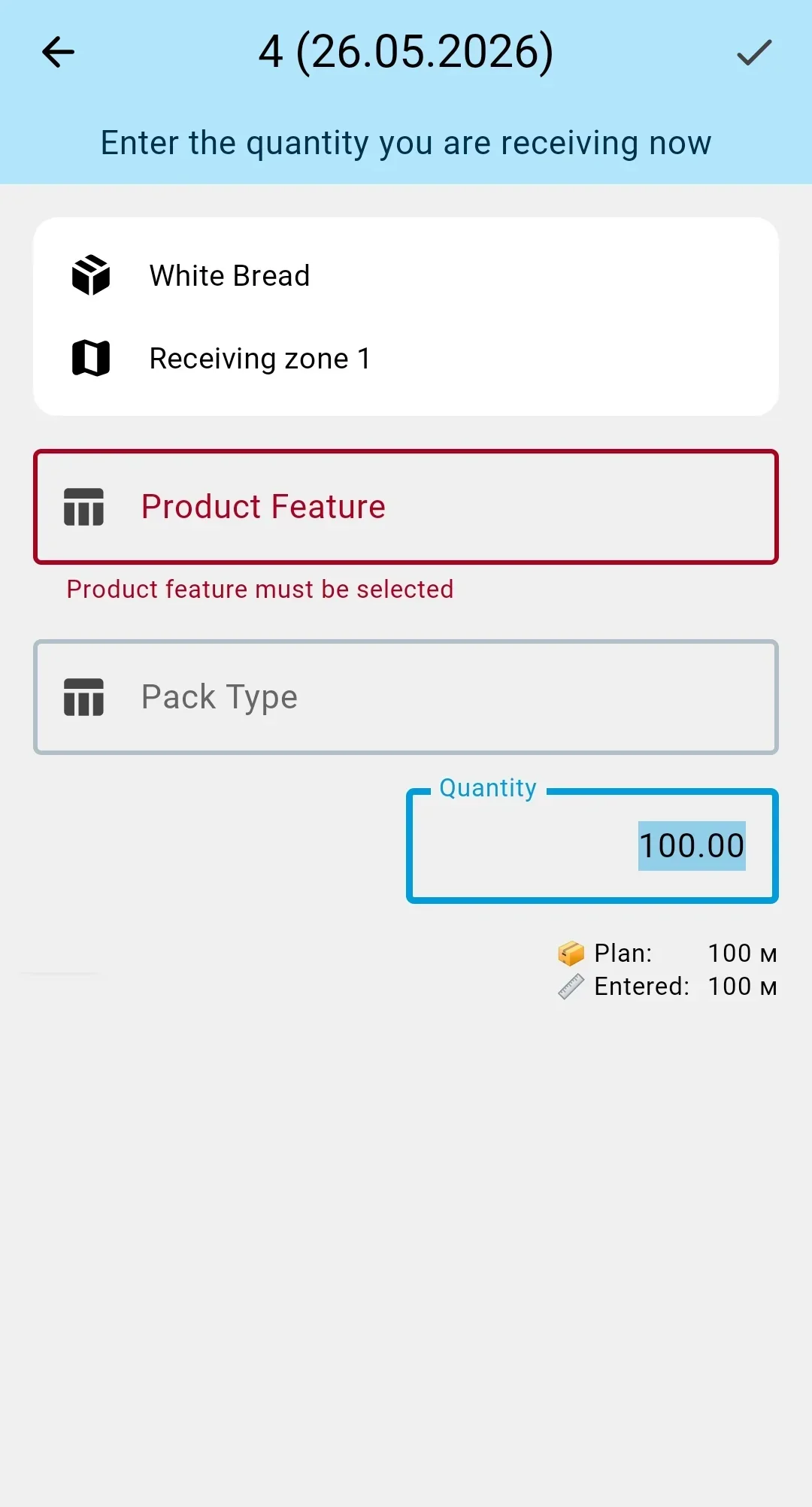
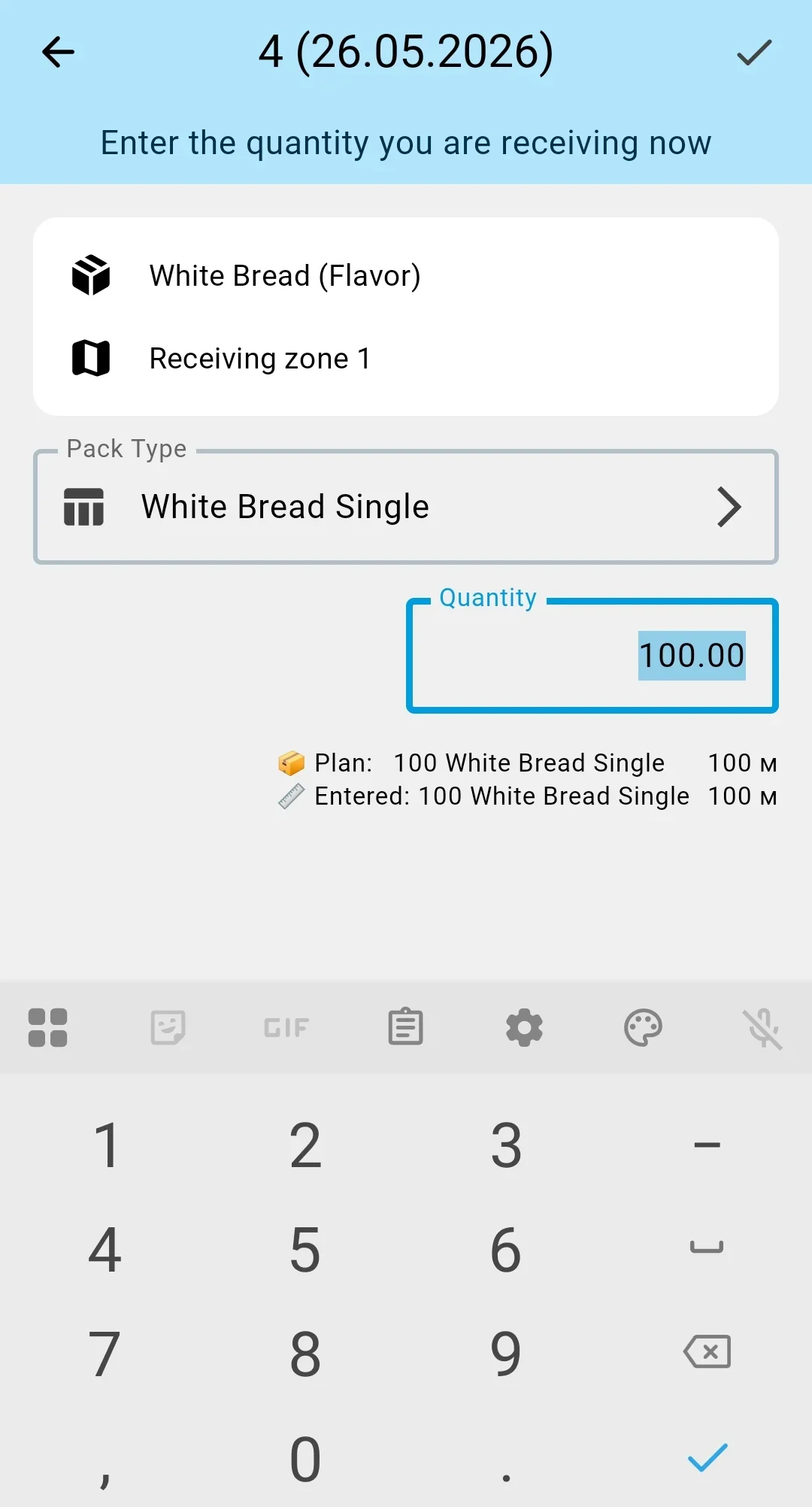
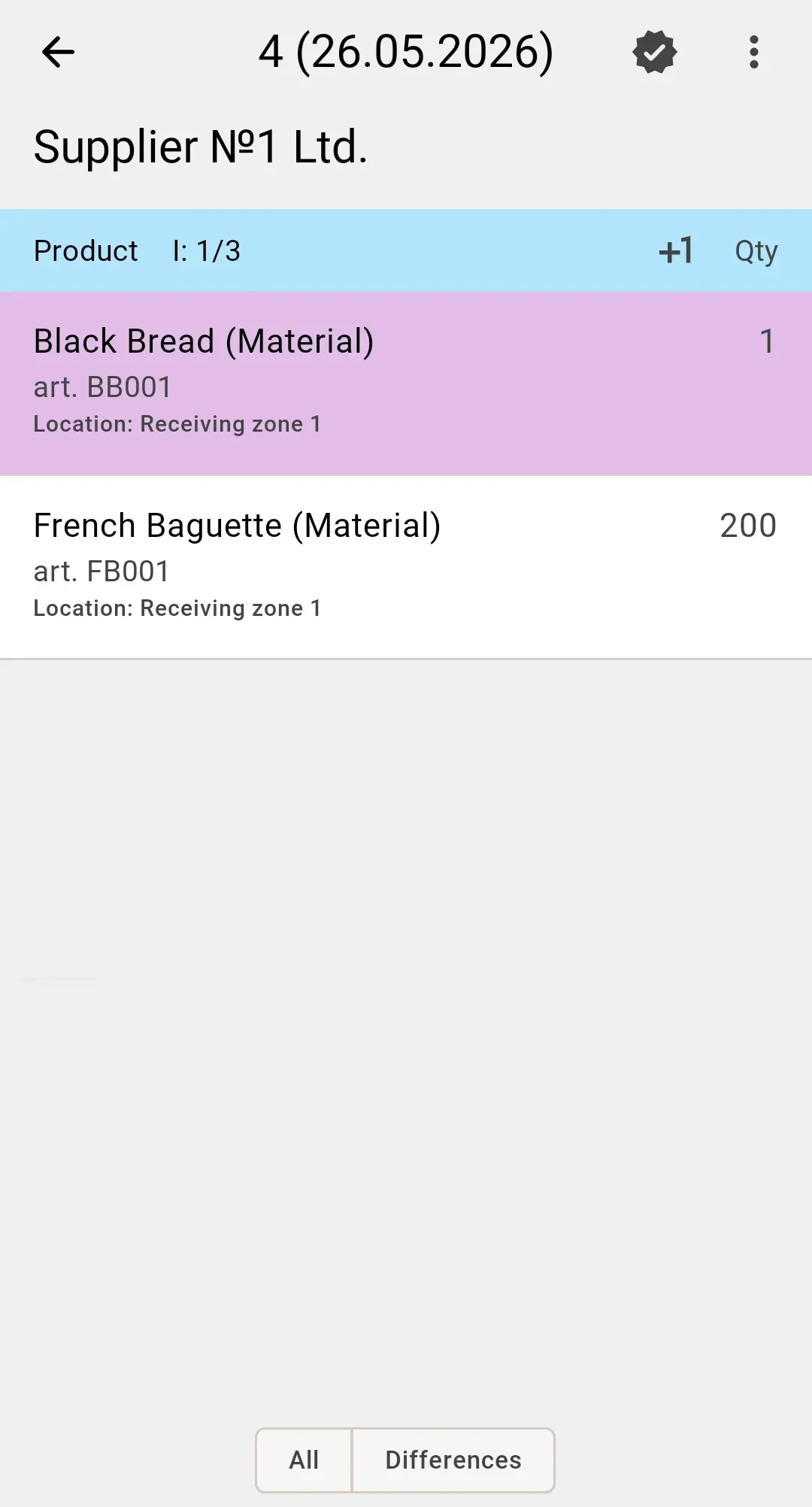
After confirmation the fact is saved, the form closes, and the screen returns to the line list. Line progress updates: the row shows how much of the expected quantity has already been received.
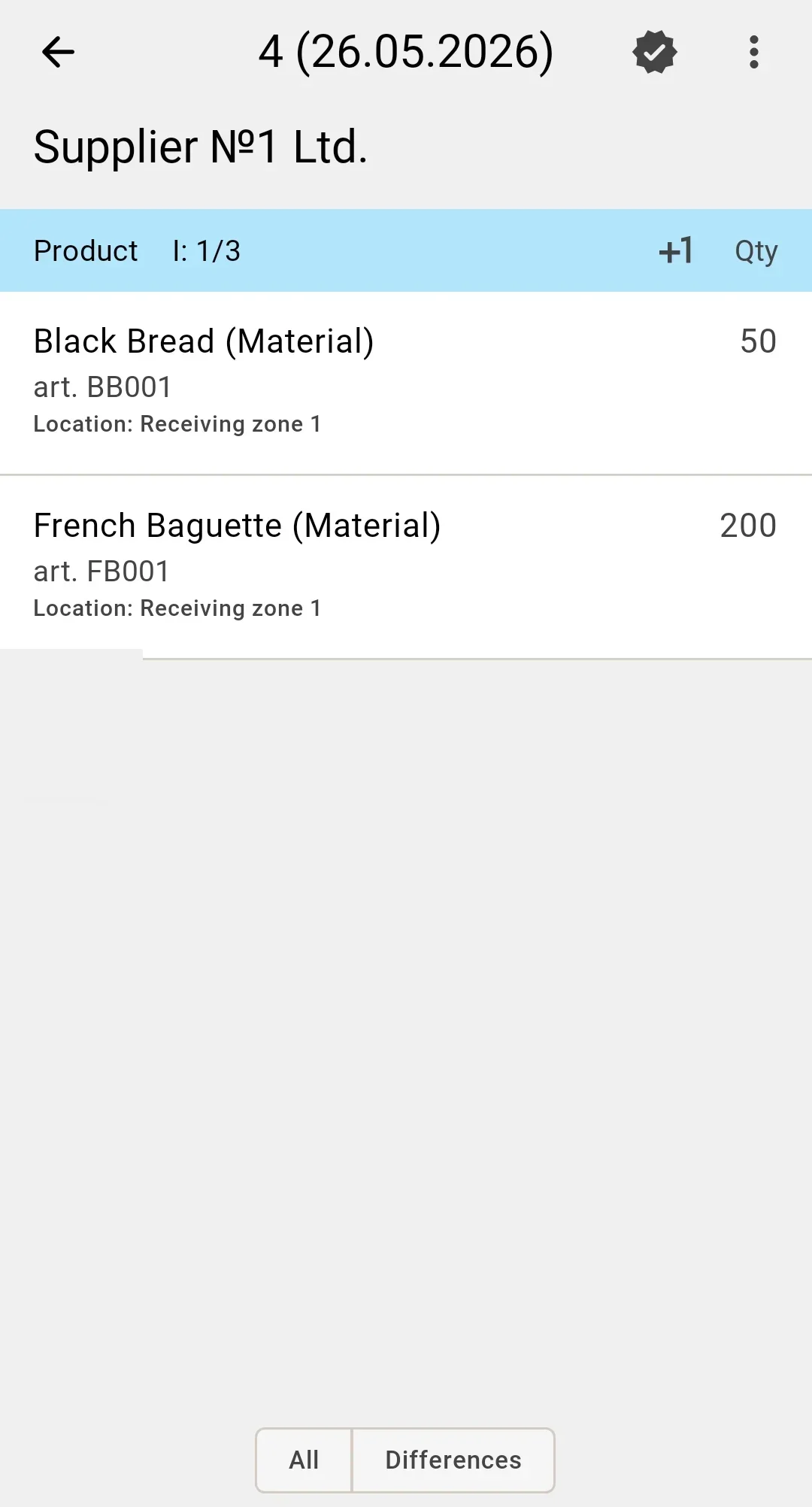
"+1": quick save on scan
In the +1 mode the form does not open — scanning saves the fact immediately. The saved quantity is:
- taken from the barcode when it carries a value;
- otherwise equal to one.
After a successful save a short animation showing the quantity just added pops up on the screen (for example "+1" or "+12.5"). When the server does not accept the fact (for example, because it would exceed the allowed quantity), the same animation slot shows an error mark, and the operator has to switch to the confirm-on-save mode to sort it out.
The mode speeds the work up noticeably when the operator is scanning identical lines one after another — for example, a long run of identical packs from a pallet.
After every saved fact the line list updates in real time: the per-line progress bar moves, overages are highlighted in a different colour, unreceived lines stay visible in the list. The Confirm the completion button becomes available once the operator has recorded at least one line.