Close the receipt
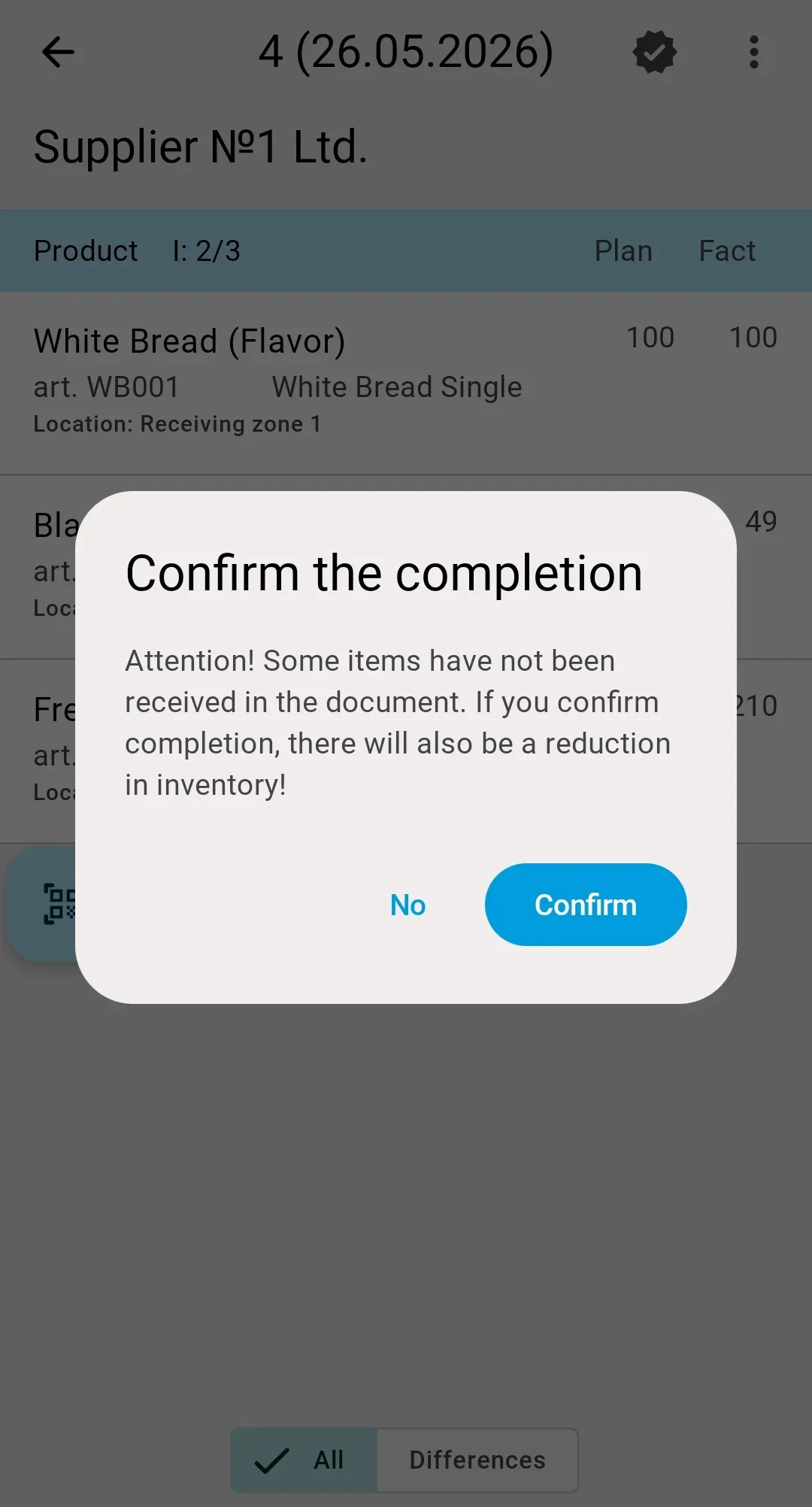
When every line has been processed — or the operator finishes work on the document early — they tap Confirm the completion, and the document moves to Received. At least one fact has to be recorded first: confirming an empty receipt is blocked with a prompt to receive at least one product. If a receiving container is still open, the confirmation button opens that container for closing first, and only then can the document be completed.
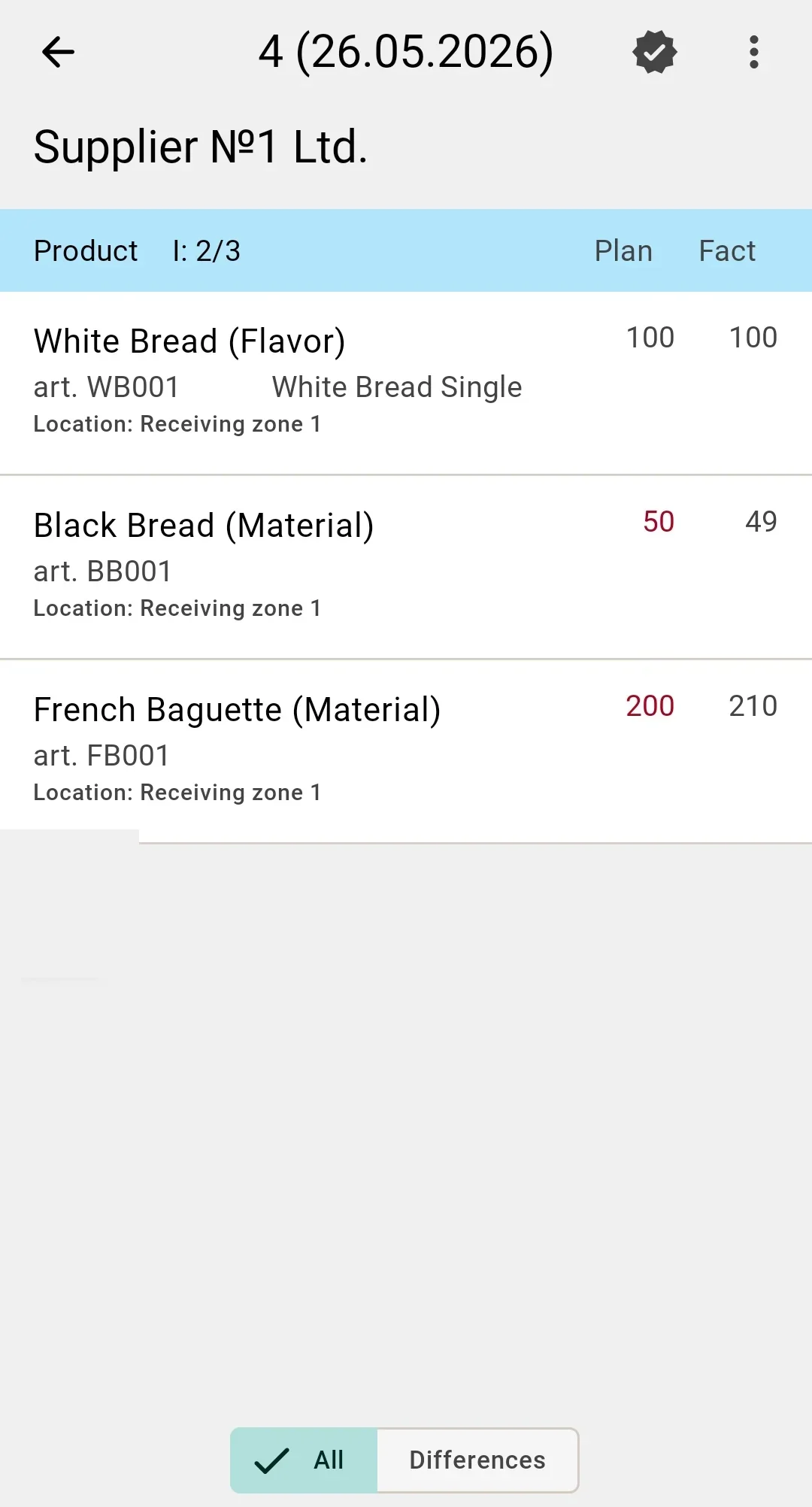
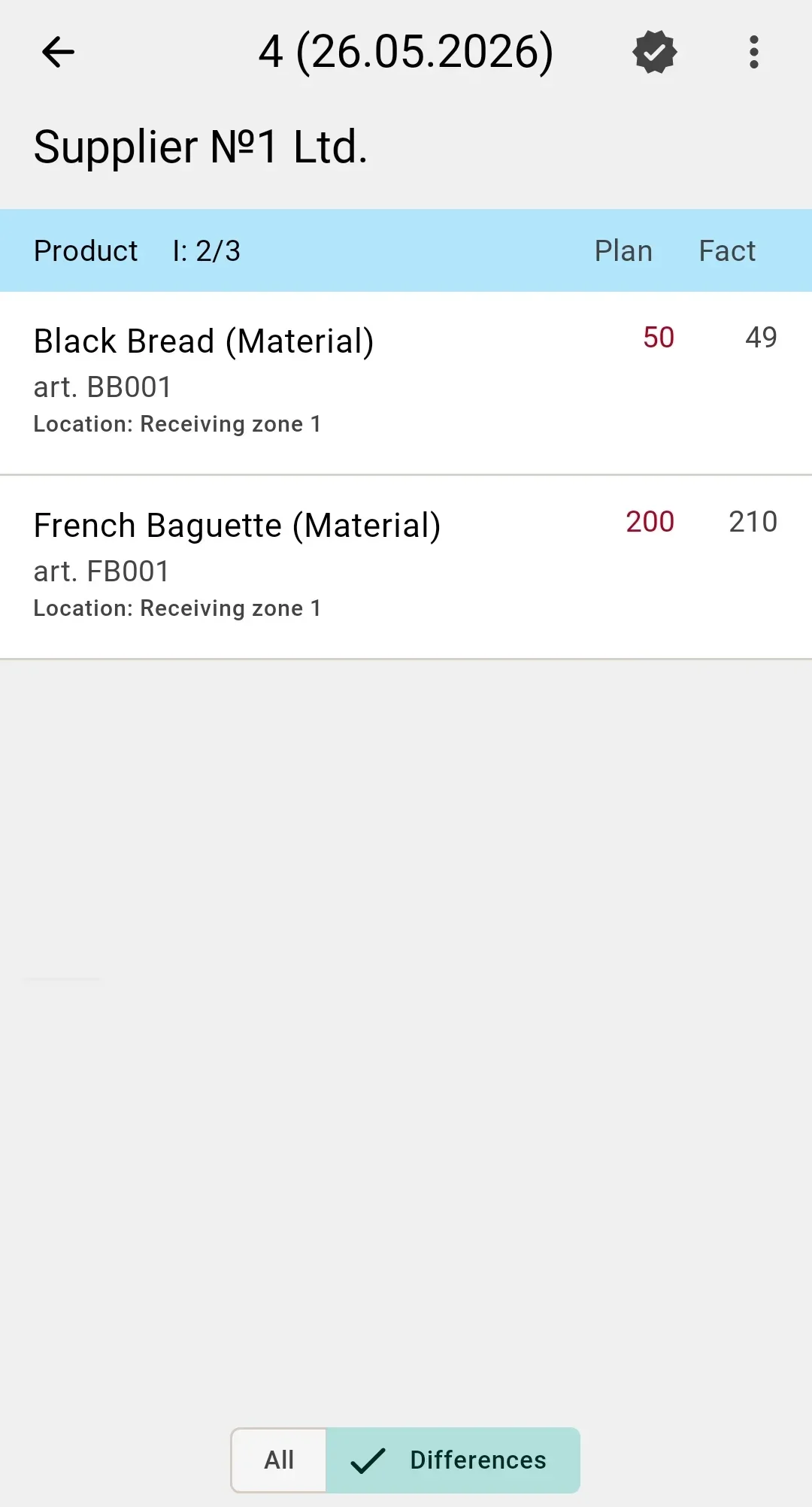
When unreceived lines remain in the document, the system first shows a warning dialog: confirming the completion will reduce the accounted receipt. The operator can go back and scan those lines or confirm as is. No separate shortage records are created — discrepancies are worked out in the client app.
After closure, downstream work — quality control (when enabled for the product category), discrepancy resolution, handoff to putaway — happens off the PDT. The PDT operator hands the document on and can pick up the next one.