Counting on the PDT
On the PDT, the operator executes counting tasks prepared in the client app — opening an assigned task from the list, walking the recommended route cell by cell, scanning and entering the actual quantities, and completing the task. Planning, discrepancy review, and approval all happen in the client app (linked below).
What happens outside the PDT
Steps performed before the counting task reaches the PDT operator:
Step 1. Opening the counting task
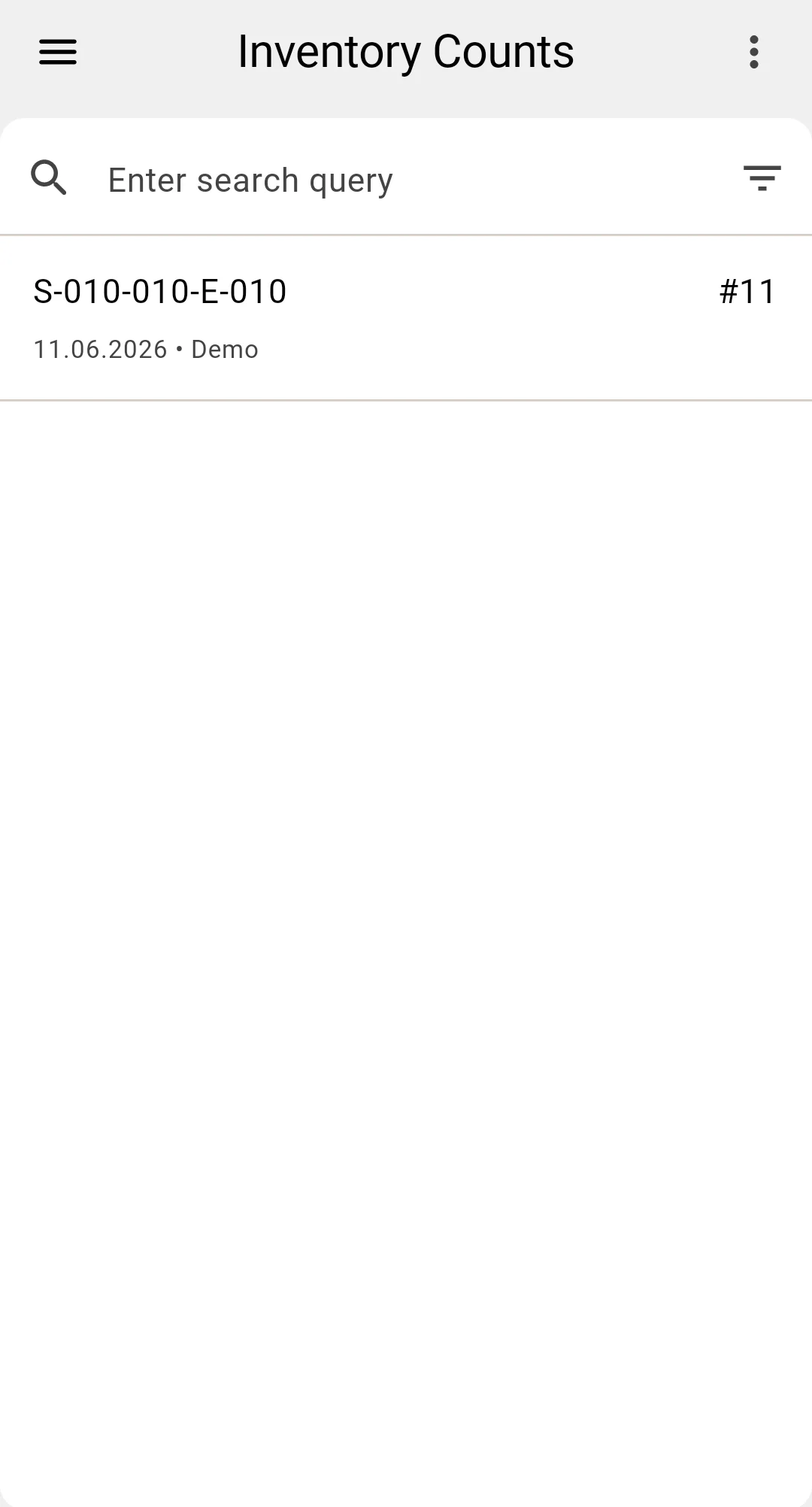
The operator opens the counting-task list on the PDT. The list shows the tasks assigned to this operator — each one created in the client app when the count was planned.
A task is a list of cells to recount, arranged along a recommended route so the operator walks the warehouse in an efficient order instead of criss-crossing the aisles. Several operators can work their own tasks in parallel — each task covers its own zone.
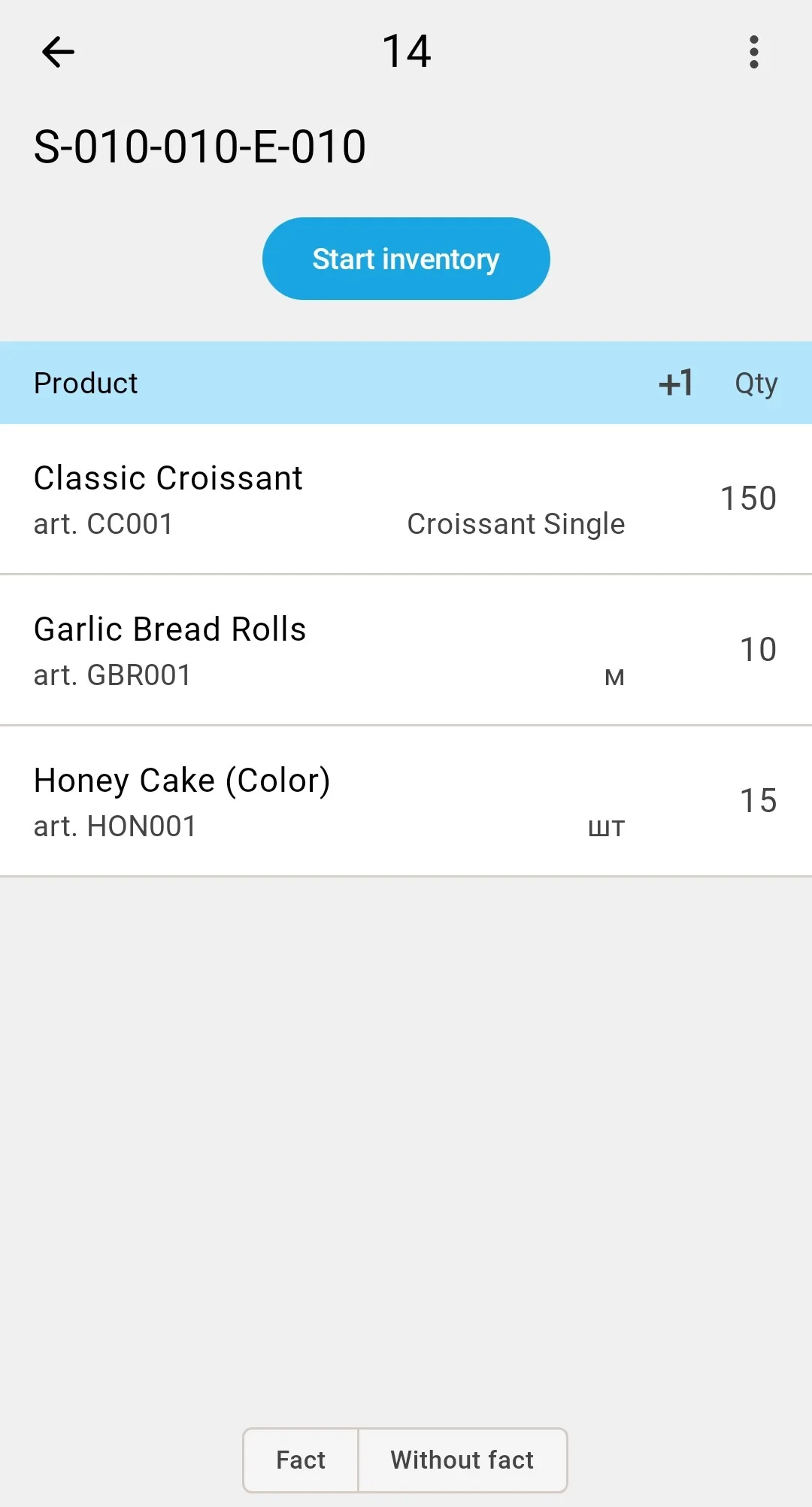
To start counting, the operator opens a task and presses Start inventory («Почати інвентаризацію») — the count moves to the In Progress status (see Count statuses), and the screen moves to the first cell on the route, described in the next step.
What the opened task shows next to each position depends on the inventory count type chosen at planning:
Inventory count type
Blind
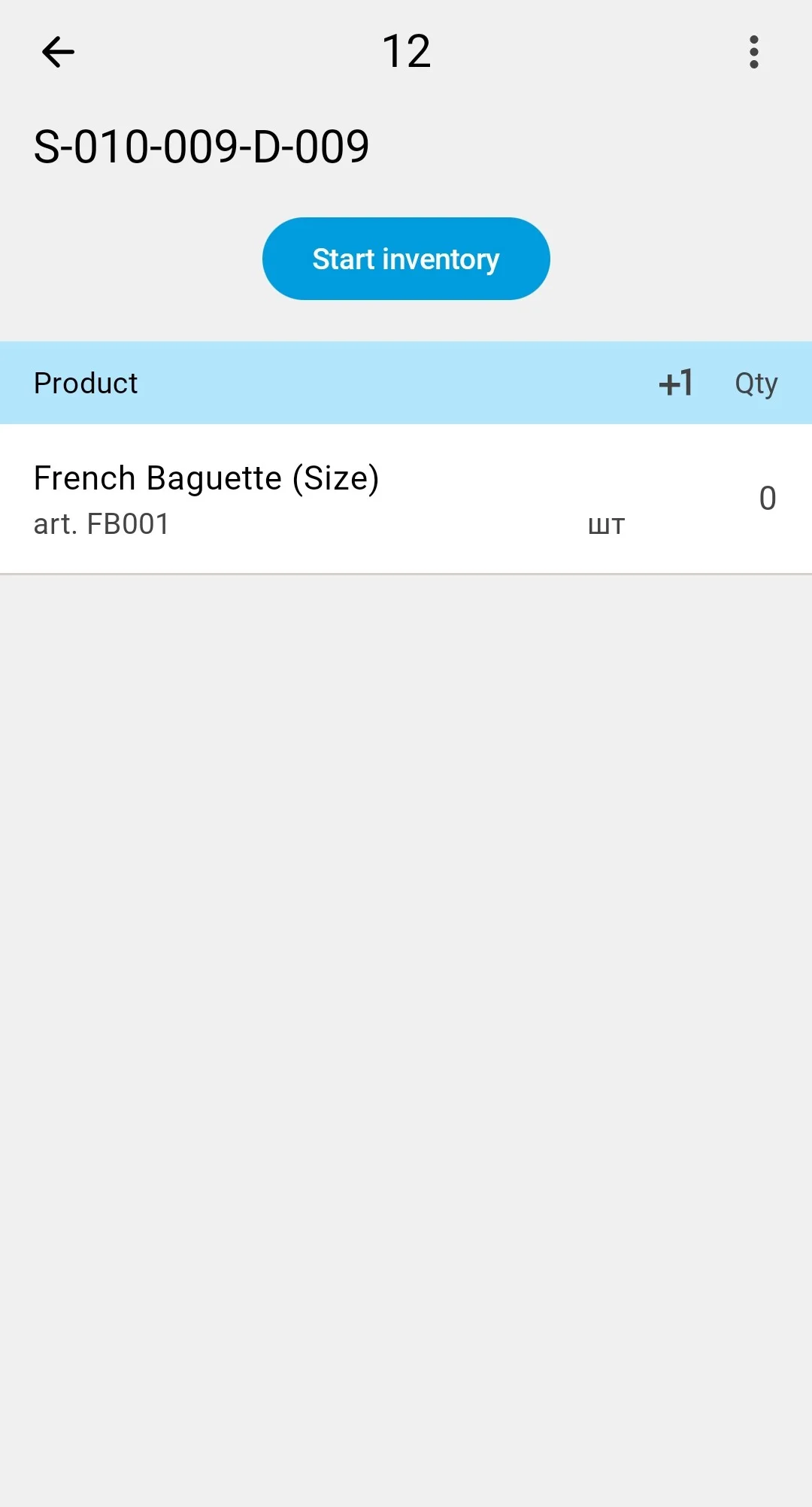
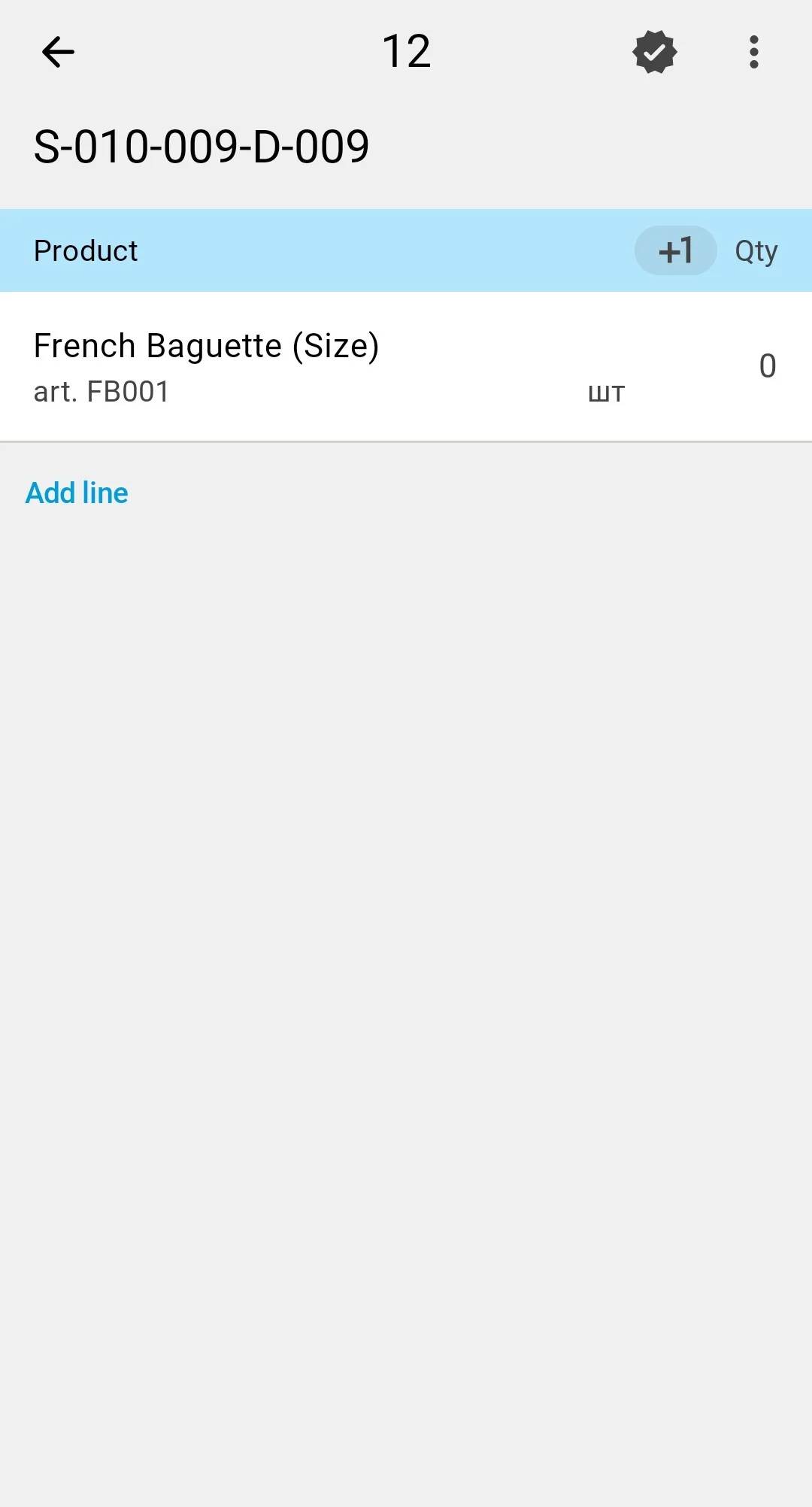
Assisted
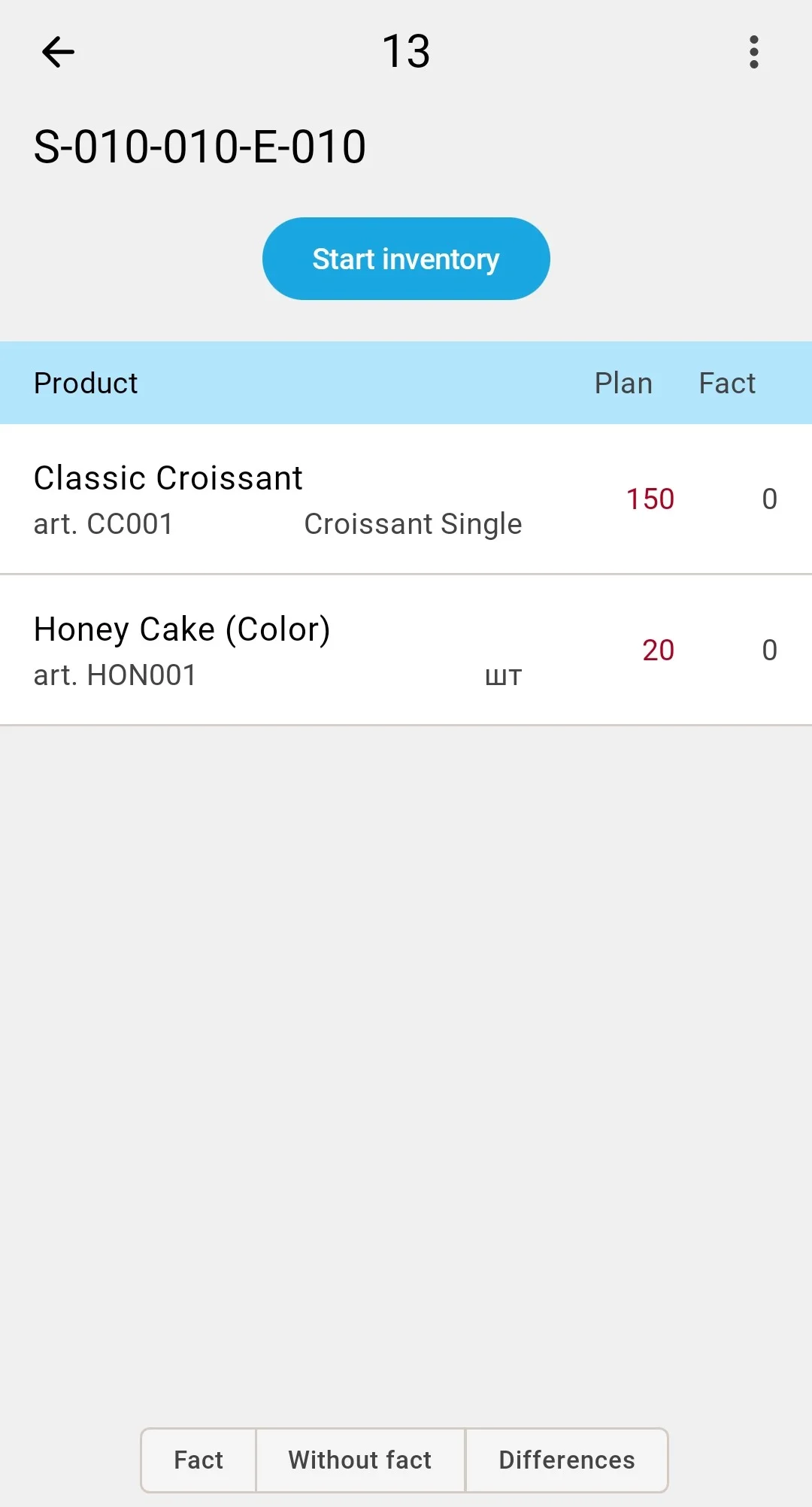
Variance
Step 2. Counting cells
Counting is a short cycle repeated for every cell on the route:
- Walk to the cell and scan the cell barcode — this confirms the operator is physically at the right location; quantities cannot be entered against a cell that hasn't been scanned.
- Scan the barcode of each product found in the cell.
- Enter the quantity actually counted, and confirm.
The first entered quantity moves the count to the Entering Results status (see Count statuses).
The on-screen scanner button speeds up data entry — a single scan drops into whichever field is active (source, target, product, or pack type), resolved by context. How scanning works.
Quantities are operator-entered (a calculator helper is available for awkward math — say, 14 full boxes of 12 plus 7 loose pieces).
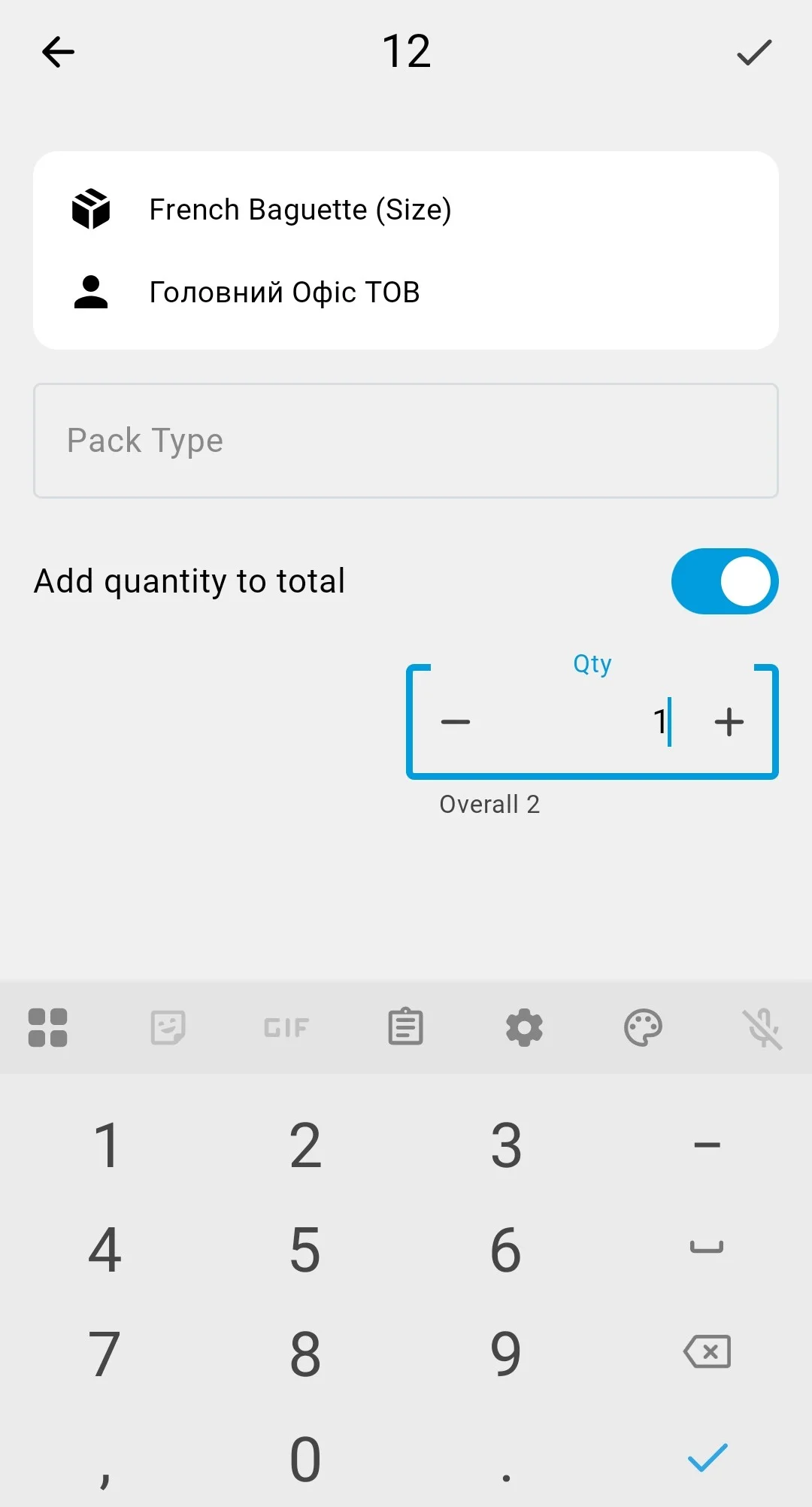
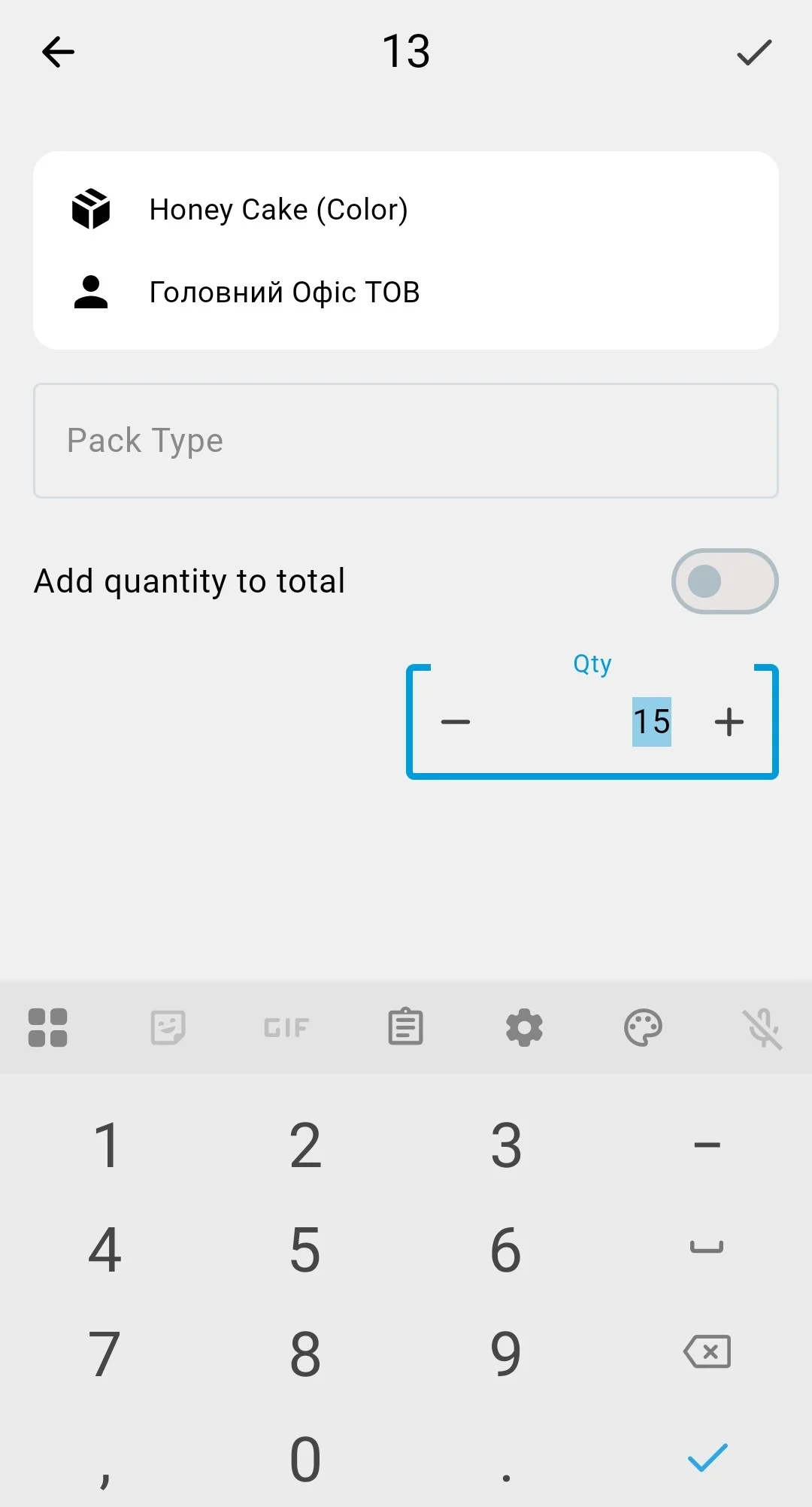
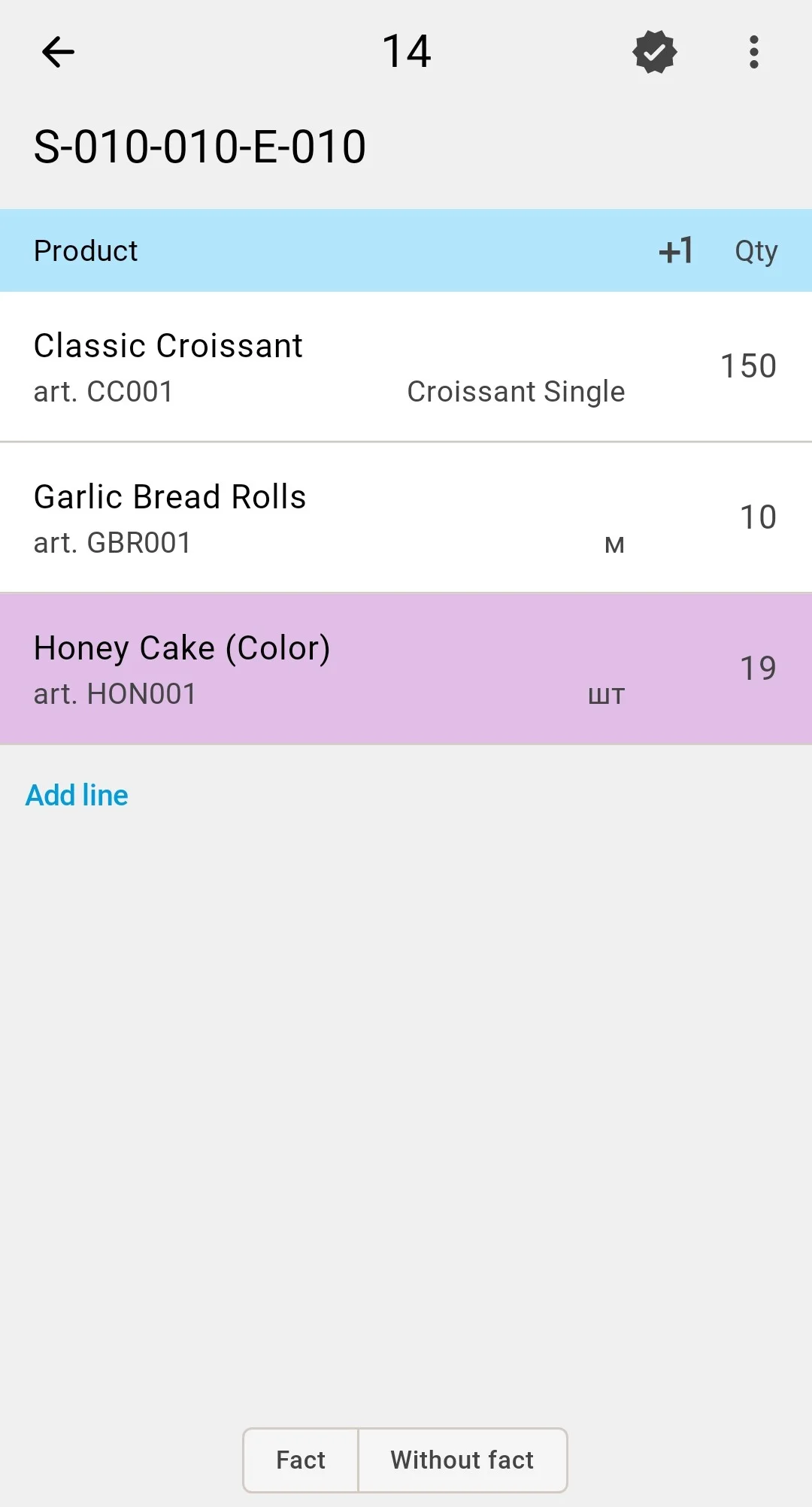
Each entry builds the operator's running total for the position: the quantity form shows the total so far (Overall N, «Загалом N») and carries the Add quantity to total («Додавати кількість до загальної») switch — with it on, the entered number is added to the total, which suits counting shelf by shelf. What the system stores is the operator's current total — a fresh snapshot of the position, not a history of additions. When several operators count in the same count, its settings decide whether their totals are summed or only the most recent one wins — that choice is made at planning.
What the operator sees next to each counted line depends on the inventory count type chosen when the count was planned:
Inventory count type
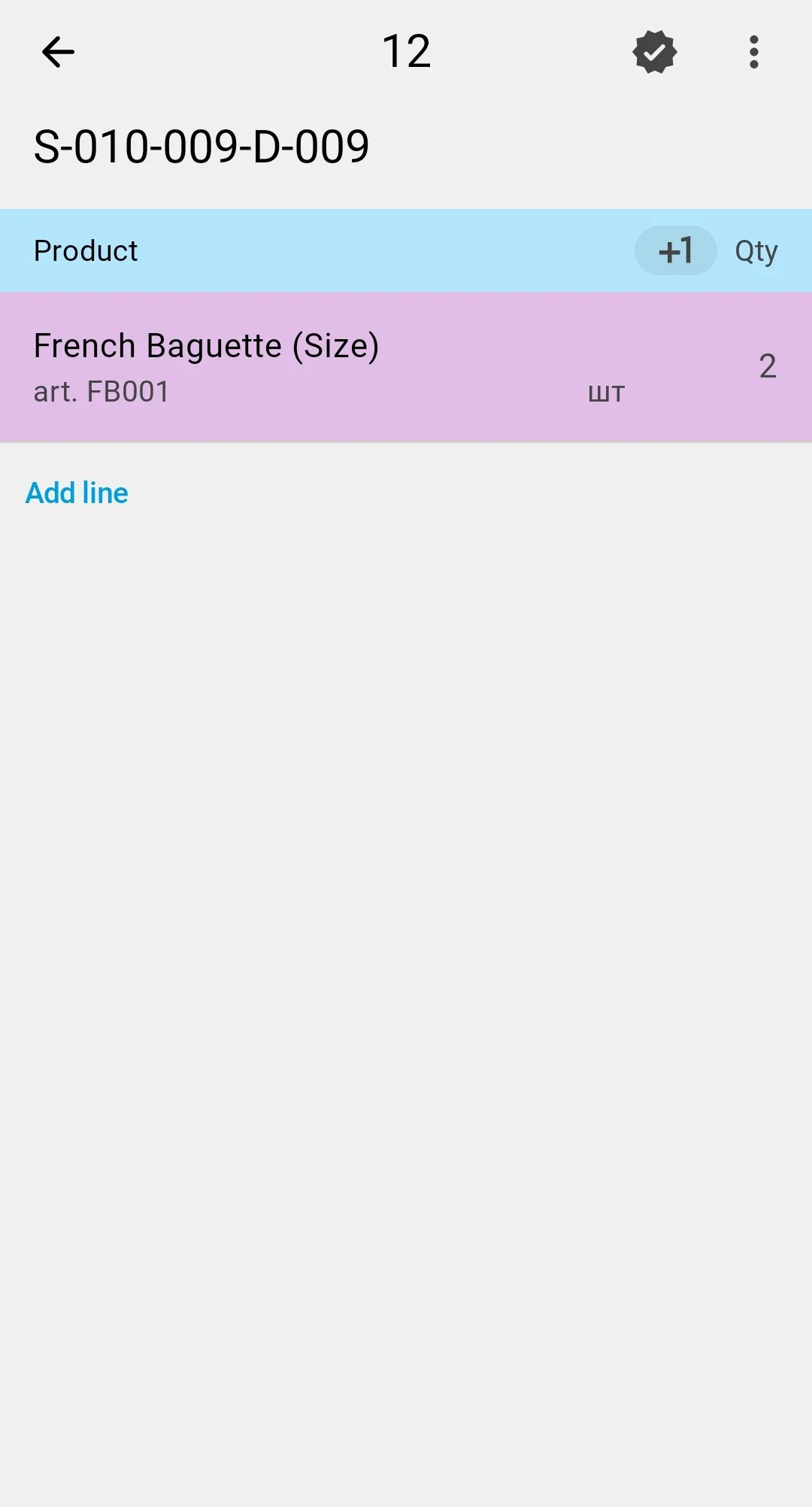
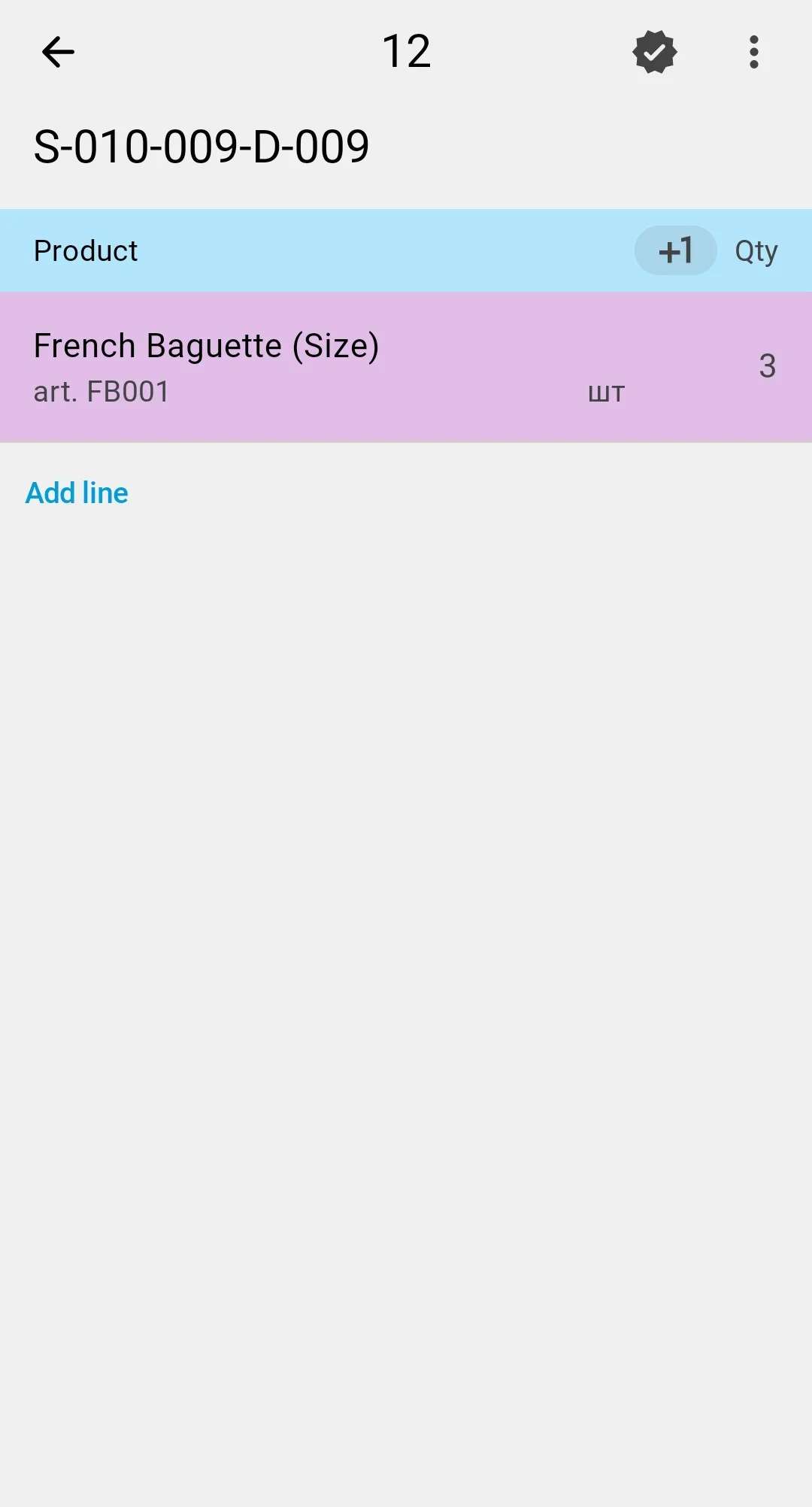
Blind
The PDT does not show the planned quantity before the fact is entered. The operator enters only what they actually see in the cell — there is nothing to "fit" the count to, which reduces the risk of biased counting.
Assisted
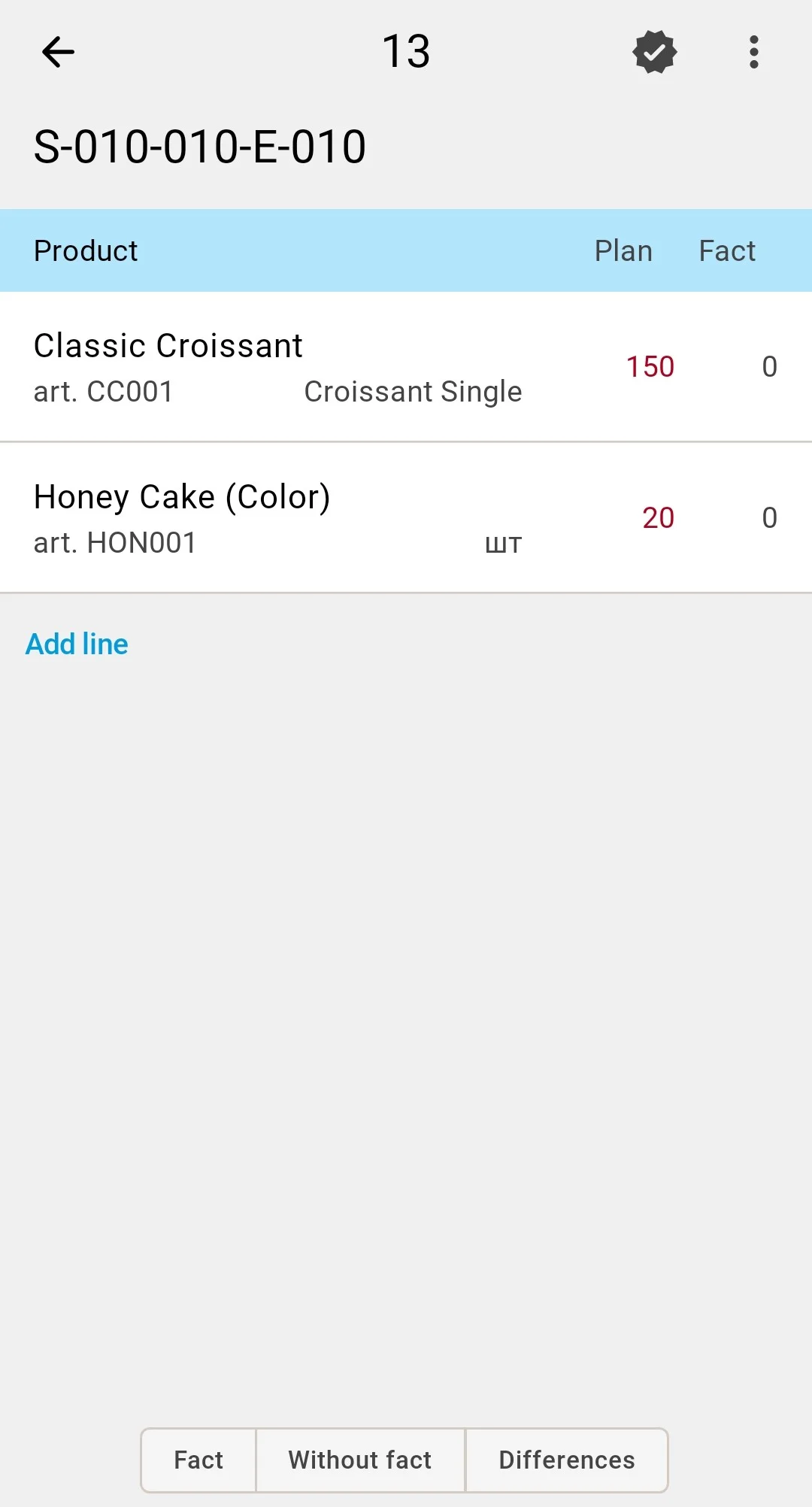
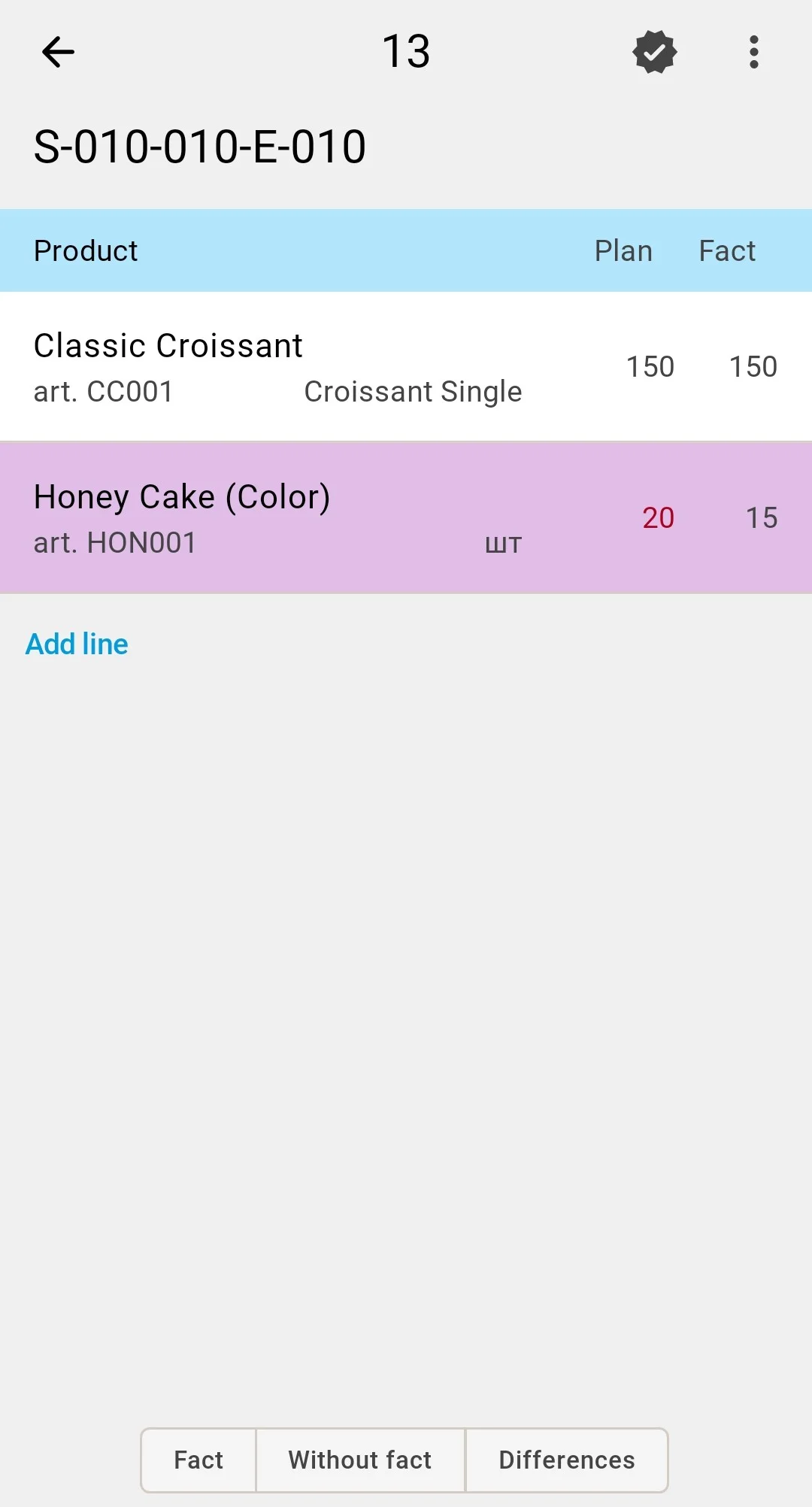
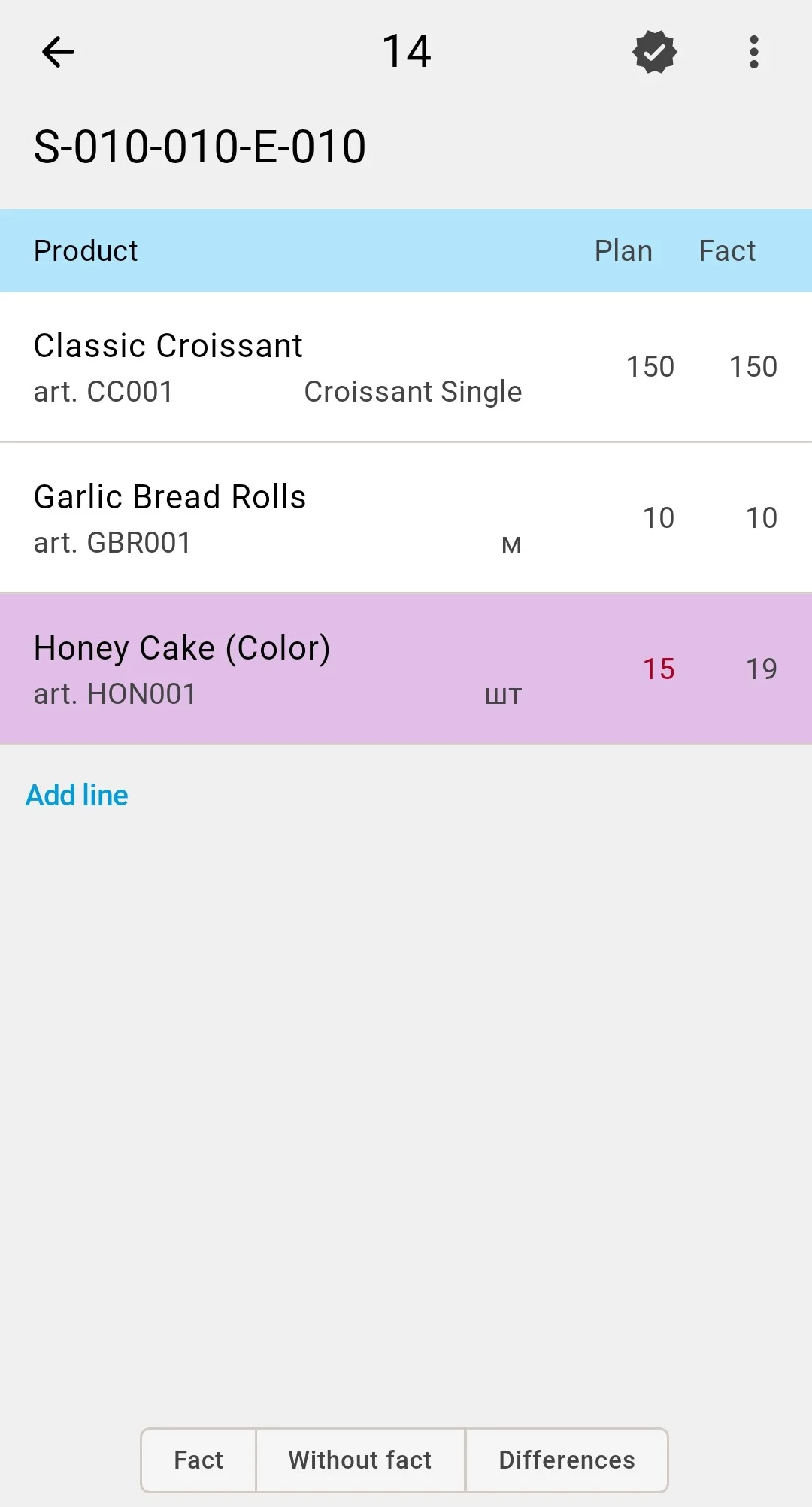
The planned quantity is visible from the moment the task opens — a Plan («План») column right next to Fact («Факт»), its figure highlighted until the entered fact matches it. The operator checks the cell against it and confirms or corrects. Suits quick counts with hints, at the cost of the operator knowing the "expected" number.
Variance
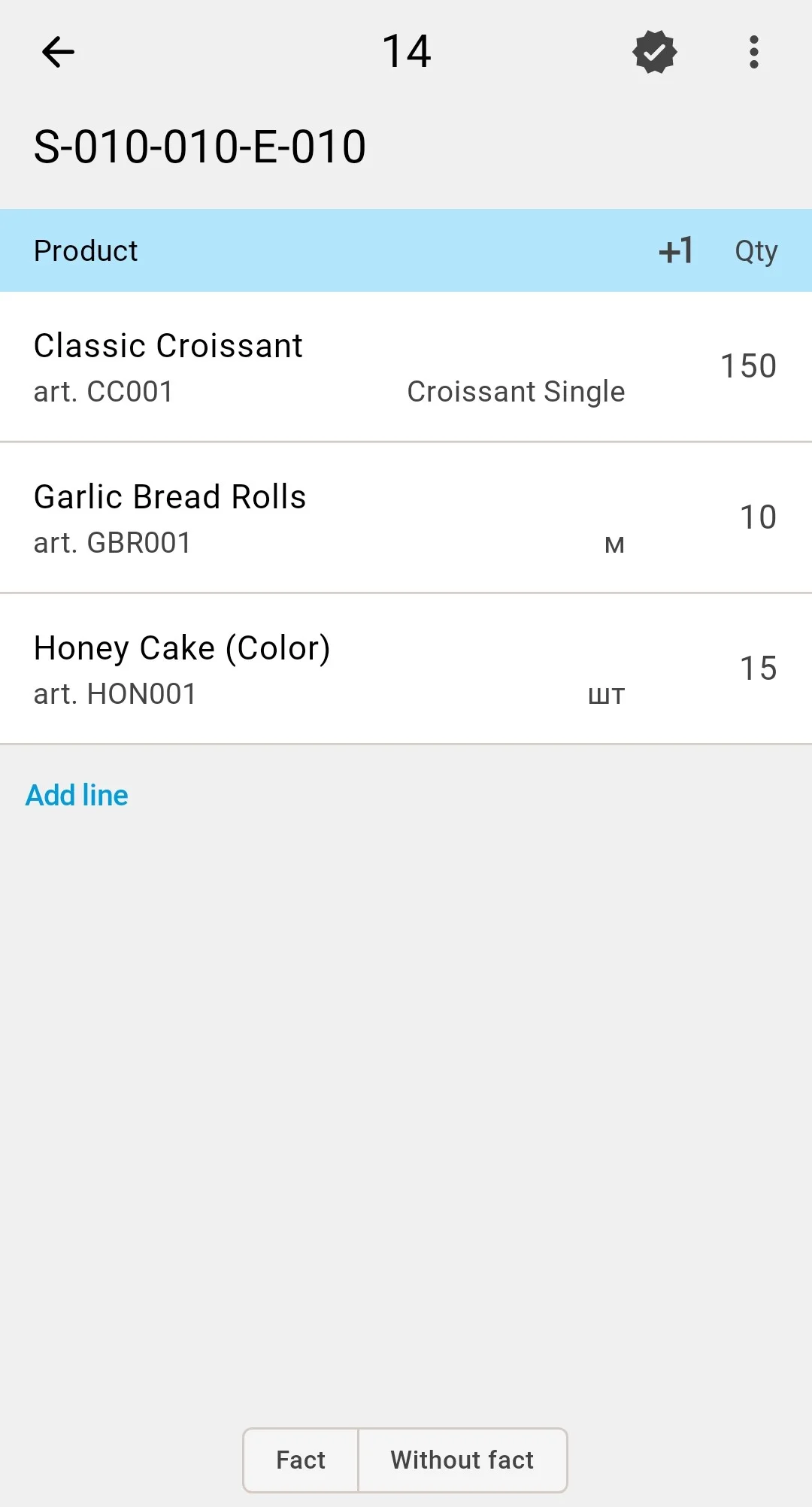
The fact arrives pre-filled with the recorded quantities: the operator corrects only the positions where what is in the cell differs from what the records say, and a position left untouched goes into the result at its recorded quantity. When a correction creates a deviation, the line is highlighted, and the Differences («Розбіжності») tab collects such positions — there every deviating line shows its Plan/Fact pair. The attention goes to the differences rather than to a full re-walk of the scope.
While a cell is part of an active count, goods in it cannot be moved — putaway, picking, and relocations touching the covered cells are blocked until the count completes, so nothing is counted twice or missed.
Step 3. Completing the task
When the last cell on the route has been counted, the operator presses the finish button — the white check mark in a black circle at the top right of the screen («Завершити приймання»). What happens next depends on the inventory count type chosen at planning:
Inventory count type
Blind
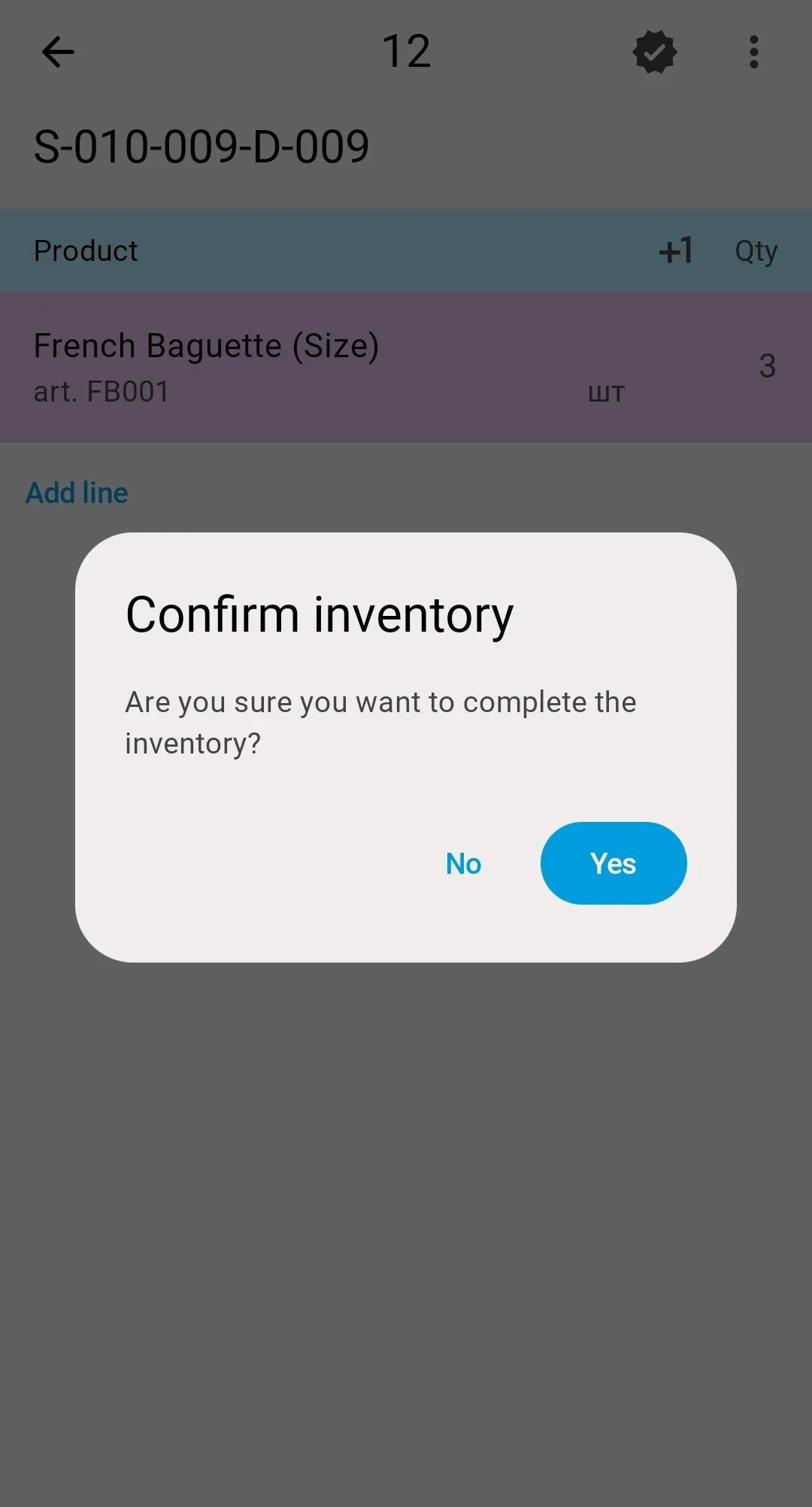
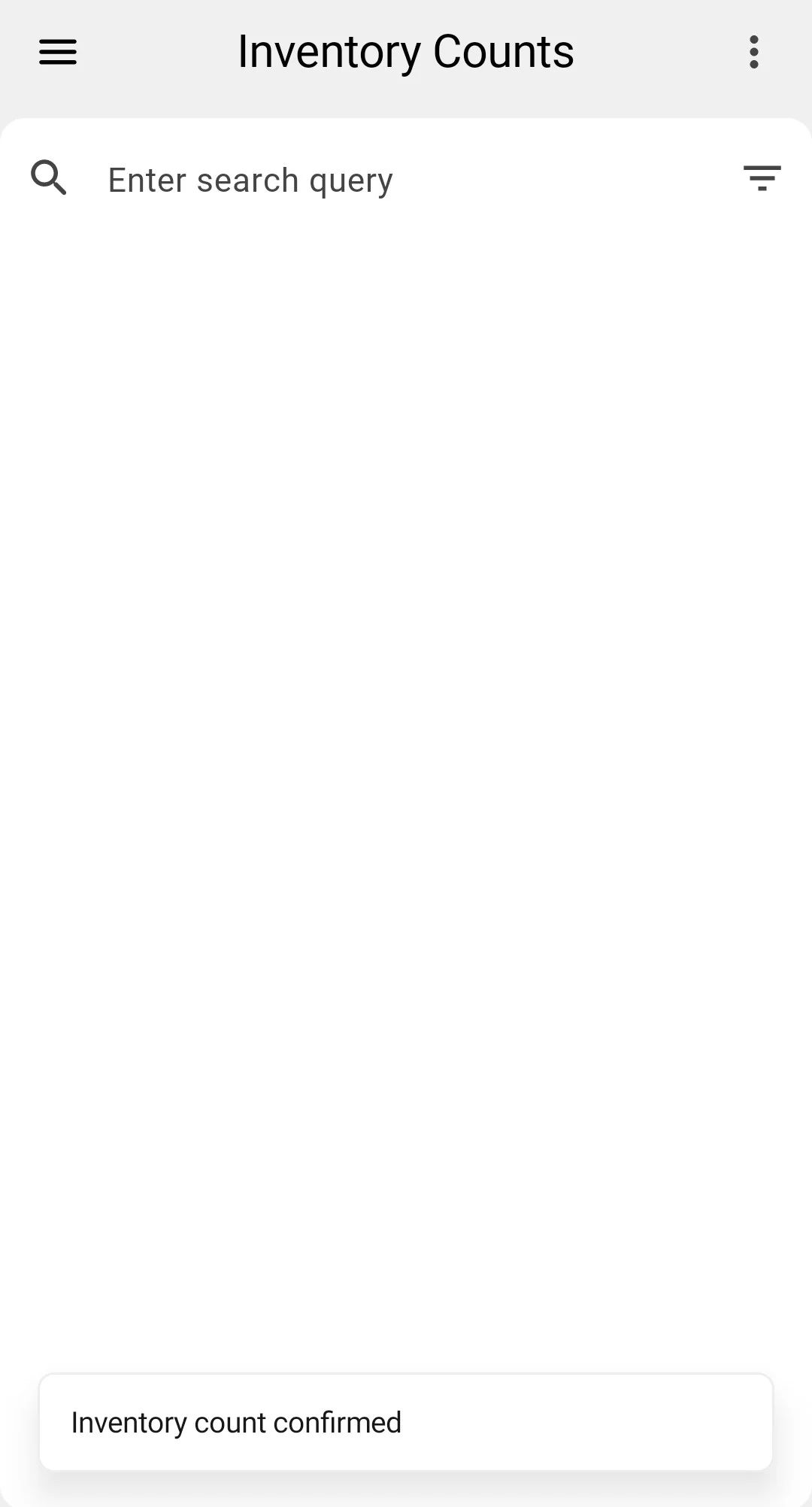
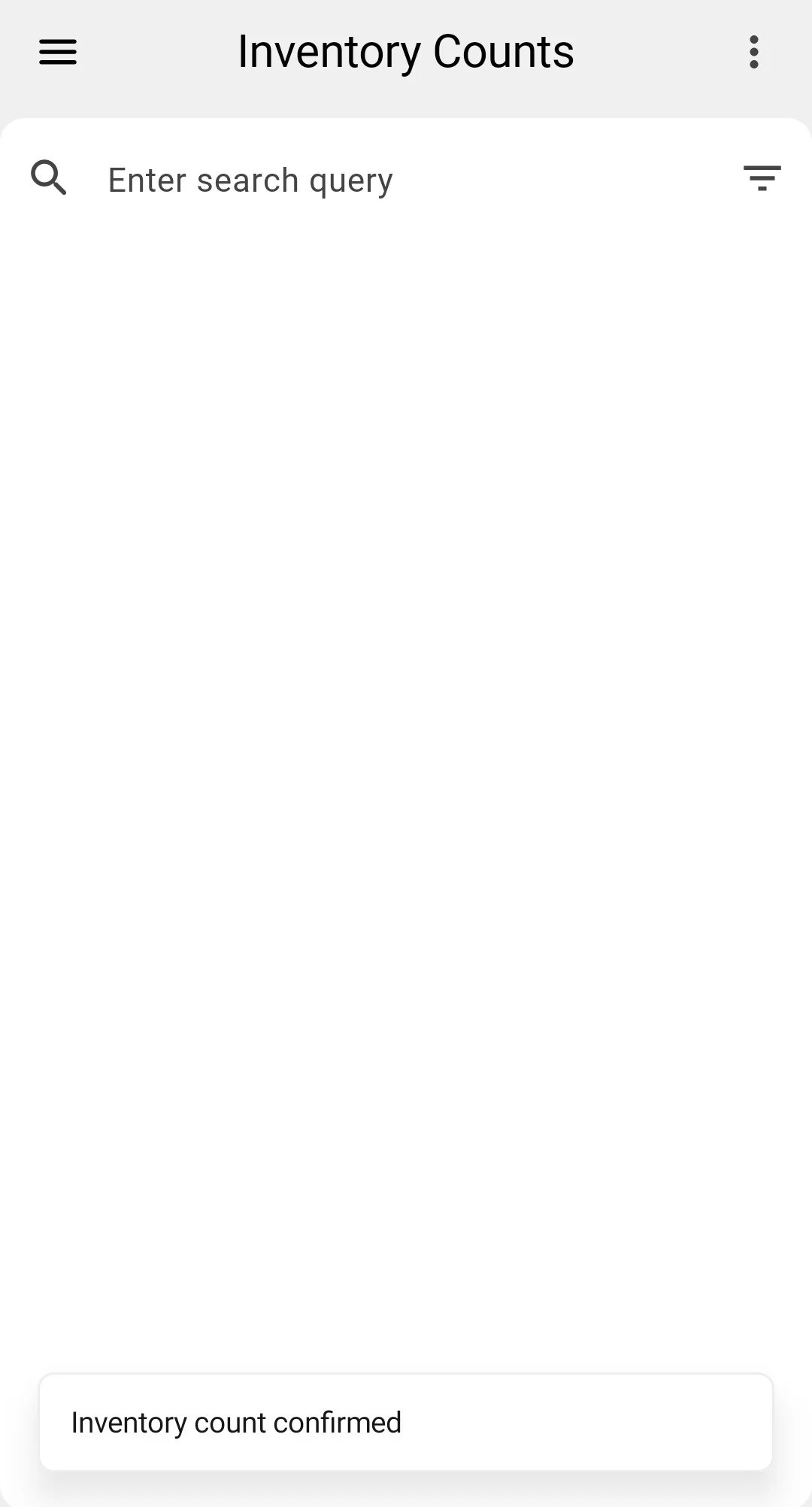
The PDT asks a single «Підтвердіть інвентаризацію» ("Confirm inventory") question — "Ви впевнені, що хочете завершити інвентаризацію?". Answering Yes closes the count straight into Completed, even when the entered quantities differ from the records: the operator never saw the expected numbers, so there is nothing to re-check on the spot. The differences surface in the client app — the Variance column and the Has Variance mark (see Reviewing discrepancies). The closed count leaves the PDT list, which confirms with the «Інвентаризацію підтверджено» ("Inventory count confirmed") message.
Assisted
- No differences — the count closes straight into the Completed status.
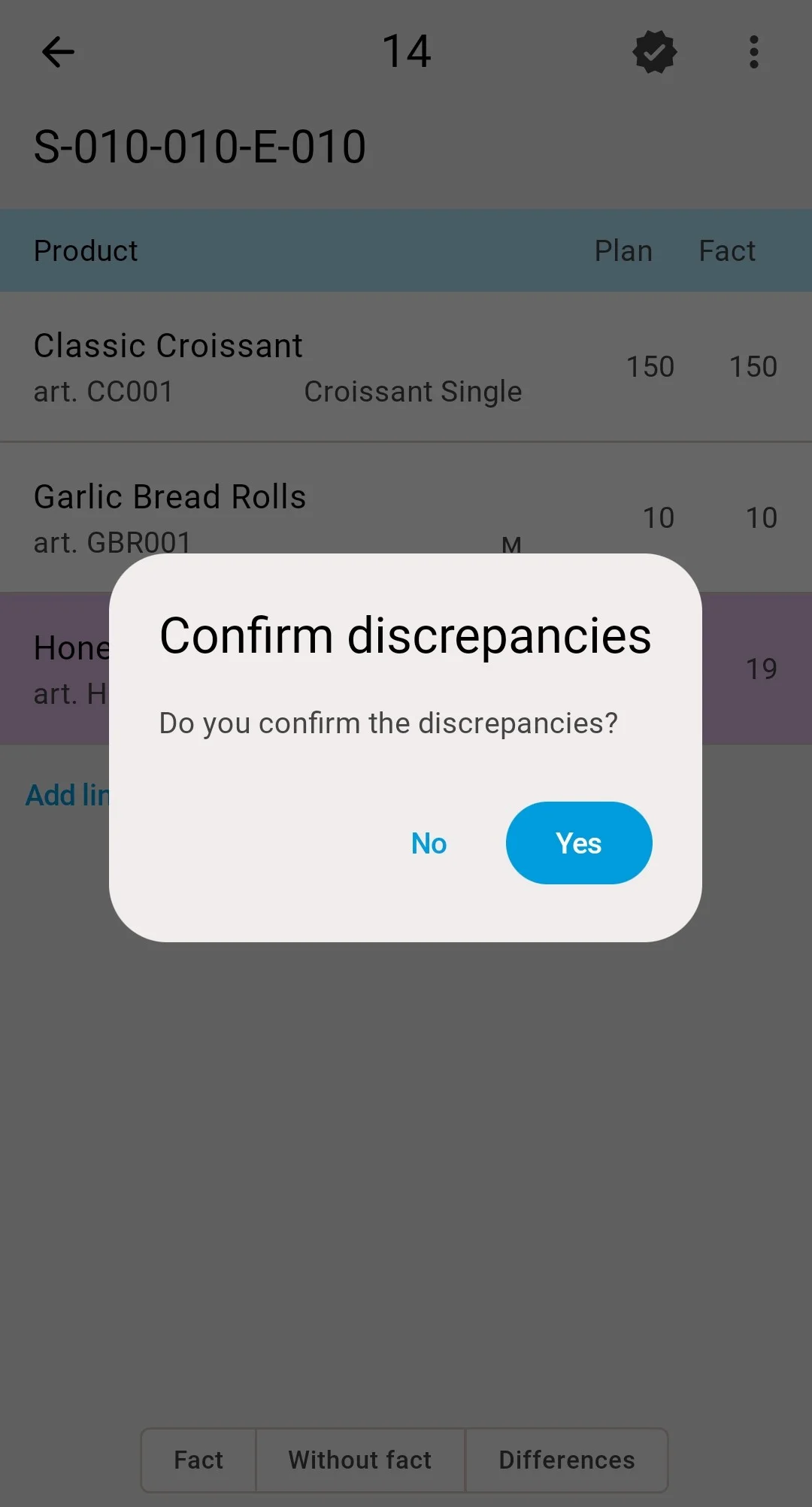
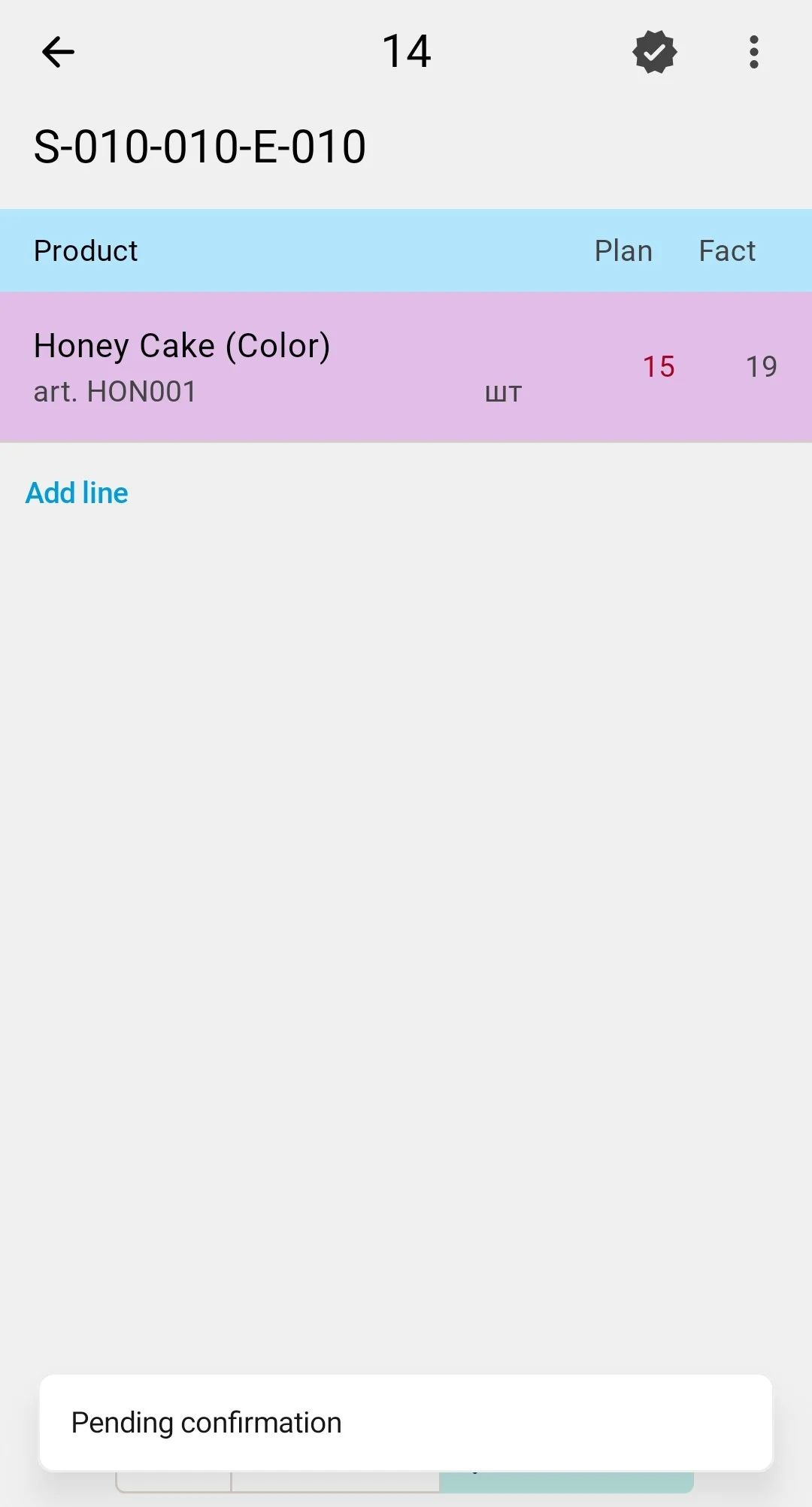
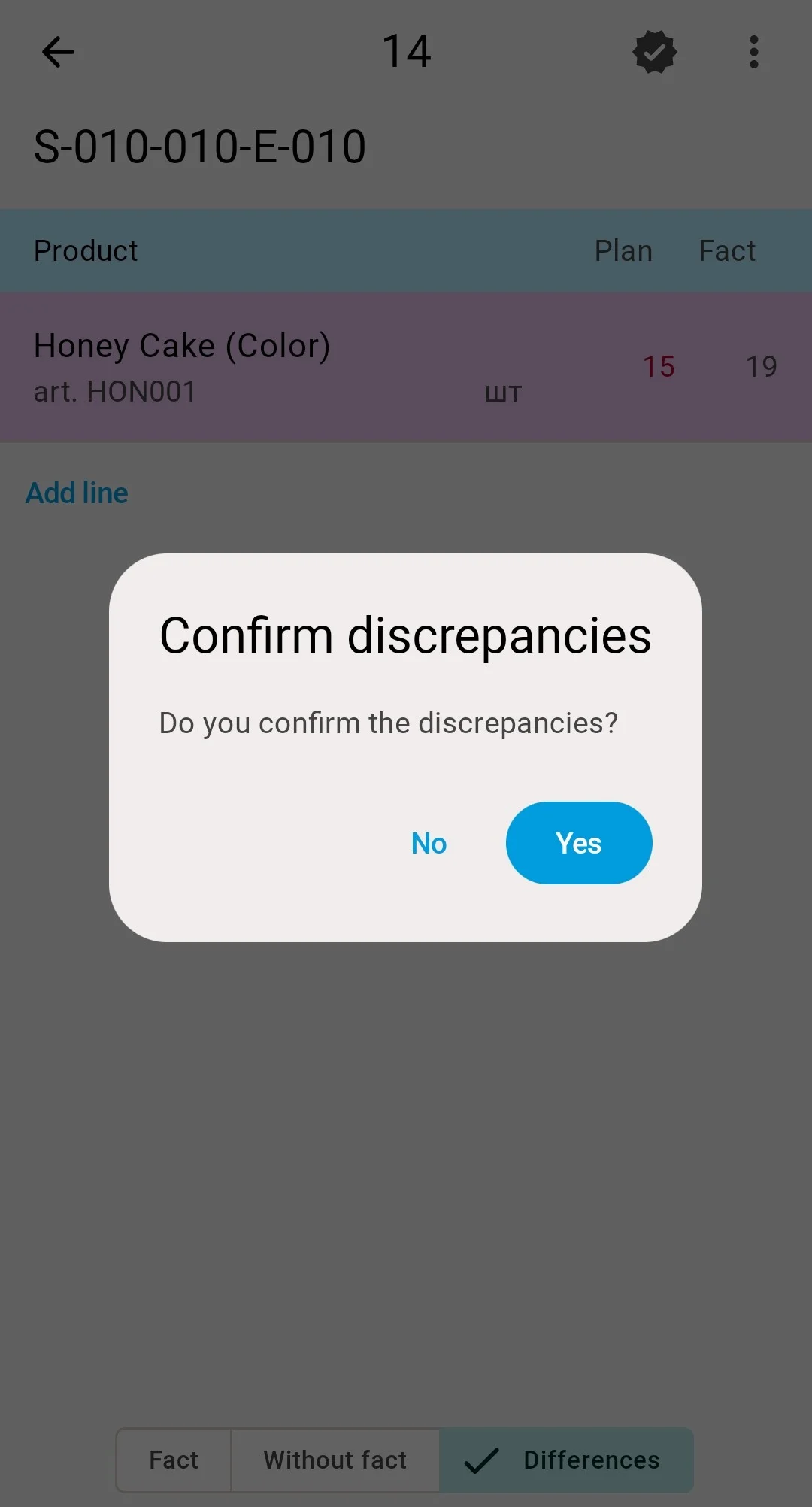
- There are differences — the PDT shows the «Підтвердіть розбіжності» ("Confirm discrepancies") prompt. Answering Yes moves the count to Pending confirmation, where the discrepancy list waits for the final decision. Returning to a position with a deviation drops the count back to Entering Results — finish again to repeat the cycle. Confirming the discrepancies a second time closes the count into Completed — the count leaves the PDT list with the «Інвентаризацію підтверджено» ("Inventory count confirmed") message.
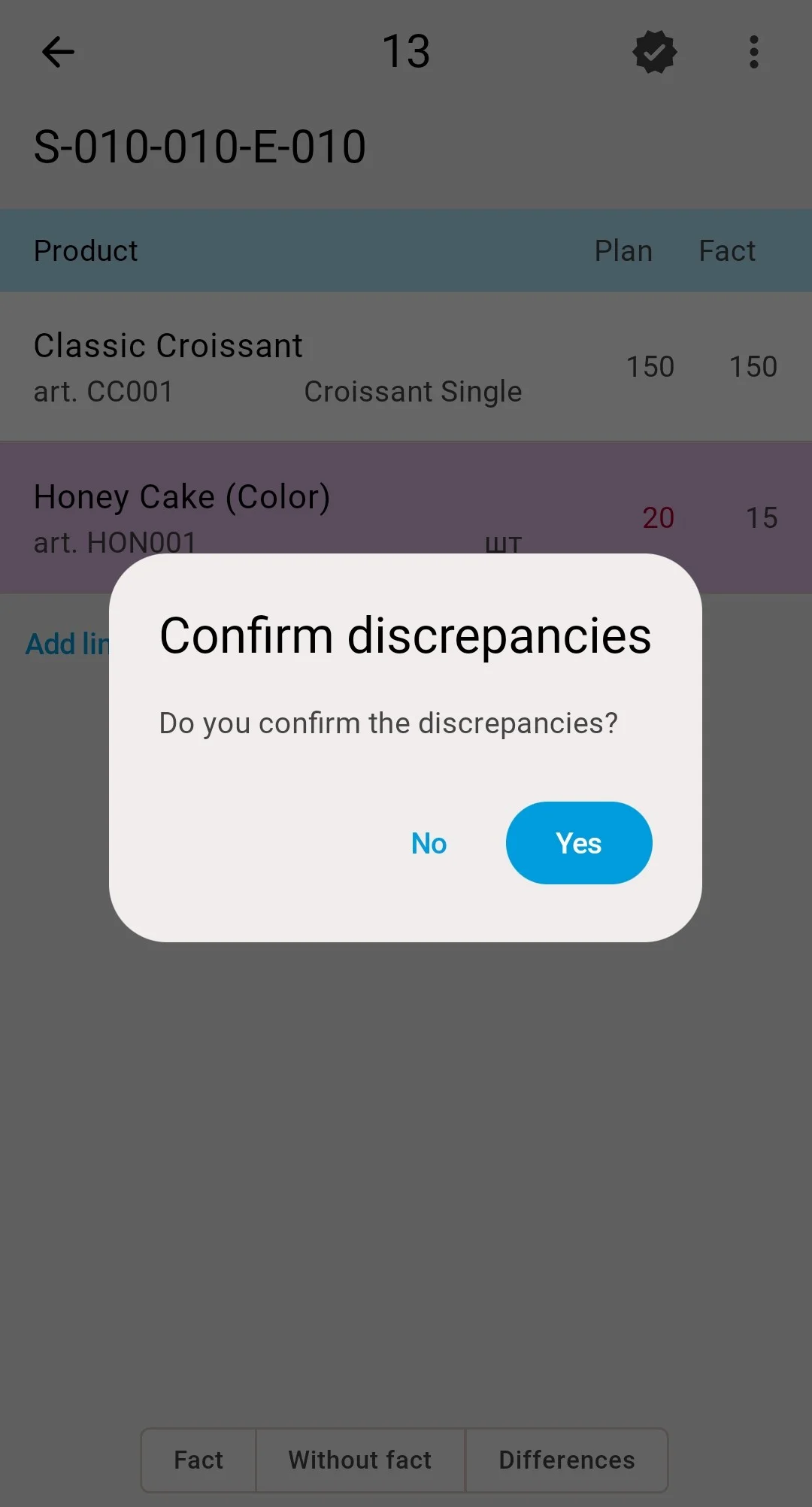
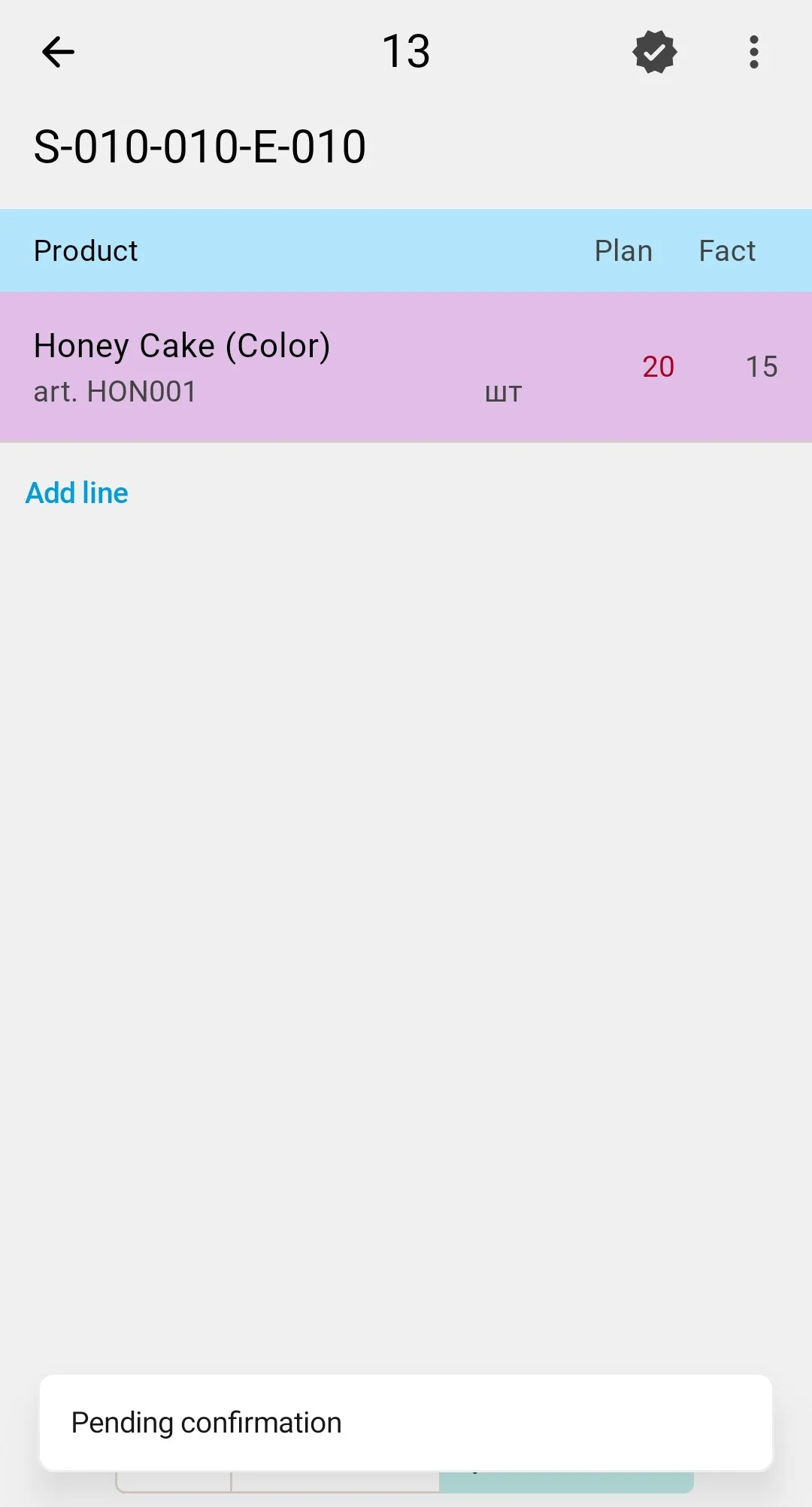
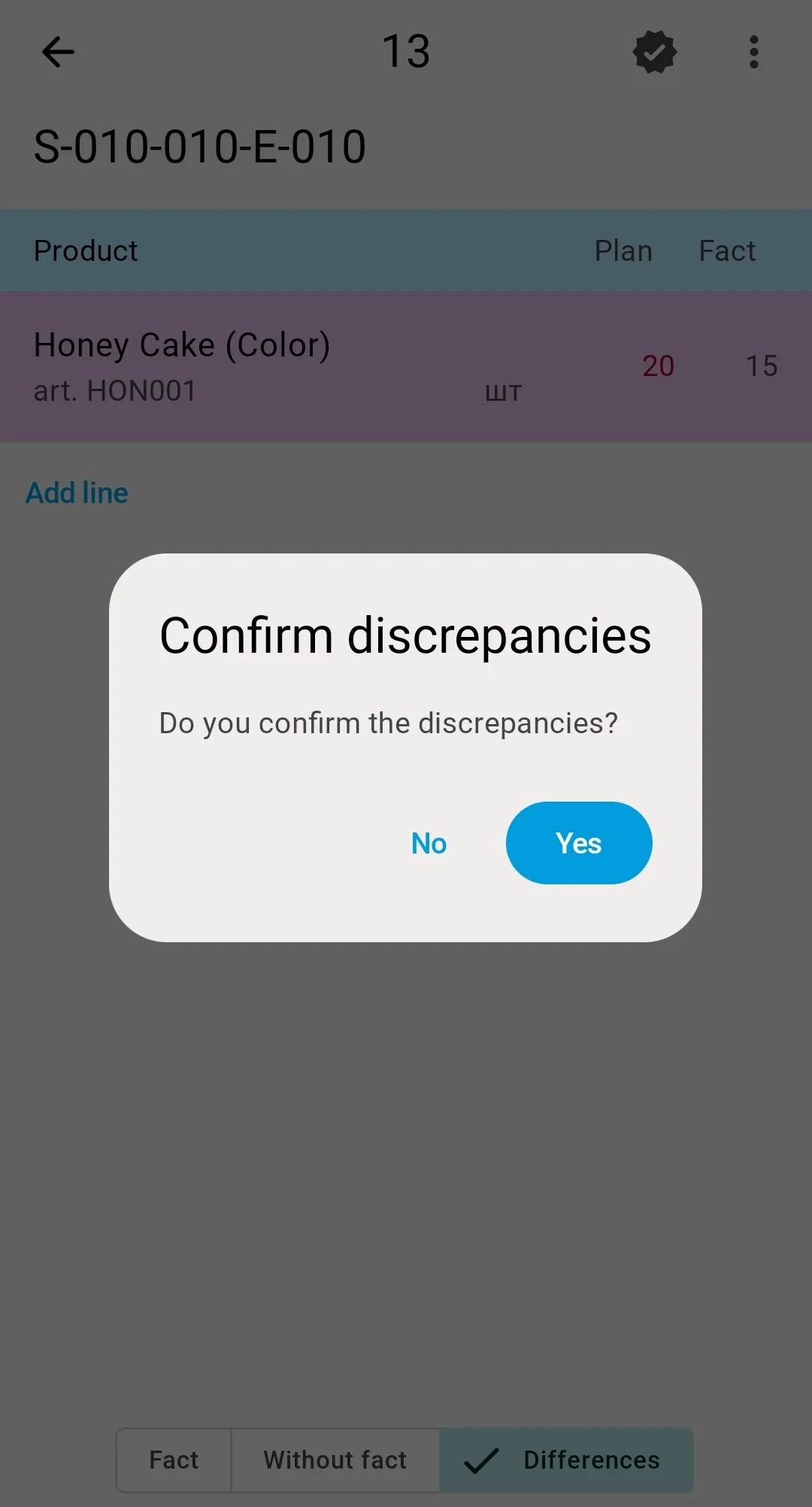
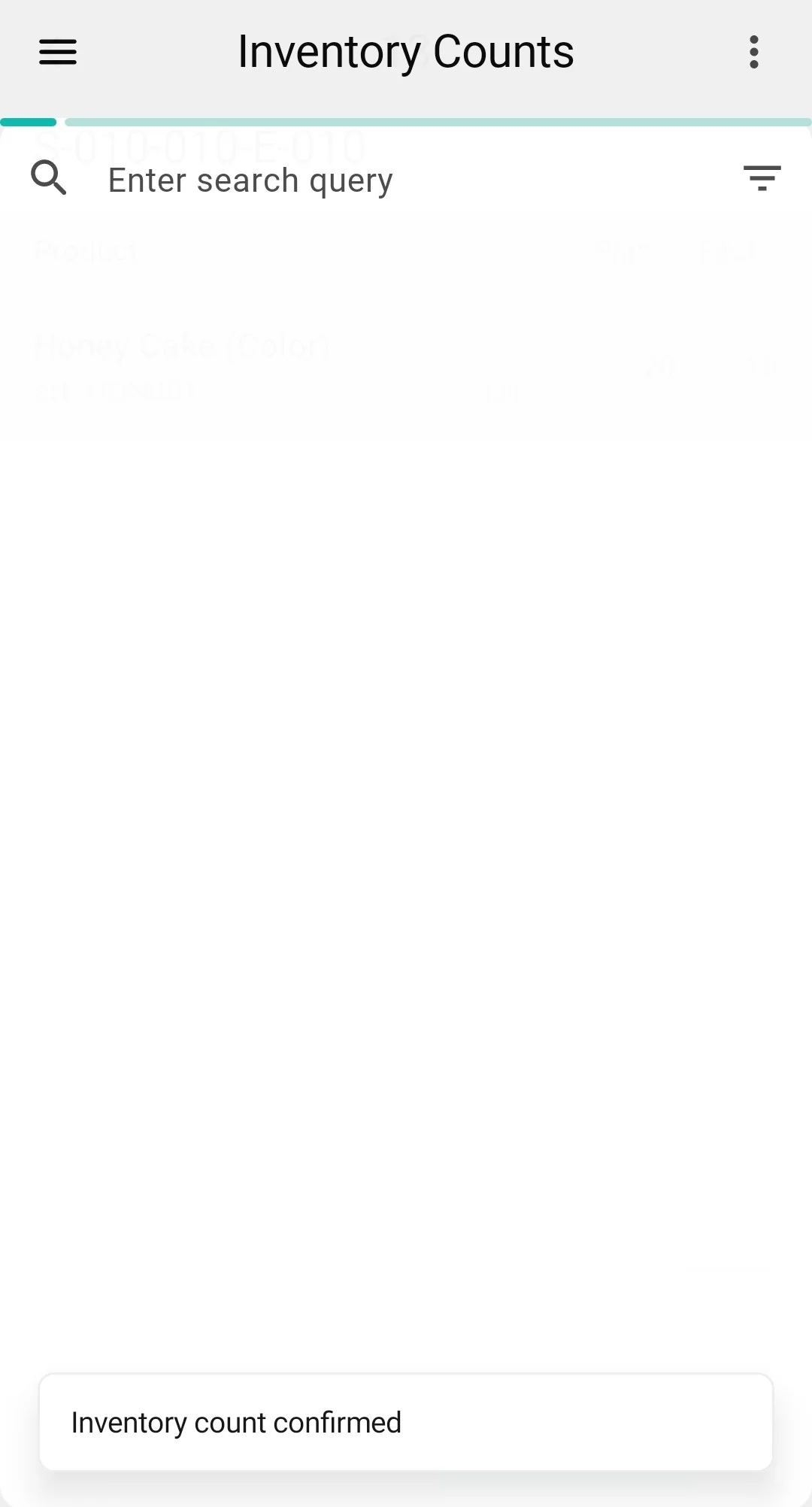
Variance
Positions the operator never touched count as confirmed at their recorded quantity, so all that is left to review are the lines the operator actually changed. With no changed lines the count closes straight into Completed. With deviations the PDT runs the same two-step confirmation as the assisted count — the «Підтвердіть розбіжності» ("Confirm discrepancies") prompt, answered Yes, moves the count to Pending confirmation, and the deviating lines gather under the Differences («Розбіжності») tab for the final check on the spot. Finishing again repeats the prompt; the second Yes closes the count into Completed, and it leaves the PDT list with the «Інвентаризацію підтверджено» ("Inventory count confirmed") message.
Even a completed count can still be cancelled — see Count statuses for the full map.
The final confirmation can also be refused: if one of the covered cells has meanwhile been counted by a fresher count, the system will not close this one over it — the rule and the way out are described in Approving the results.
Recount tasks
If the comparison finds critical discrepancies, the system can automatically create a recount task for the affected cells. It arrives in the counting-task list like any other task — possibly assigned to a different operator, so the second pair of eyes is independent of the first — and is executed exactly the same way: scan the cell, scan the products, enter the quantities.
The blocks on the counted cells are lifted automatically once the count completes — no manual unblocking is needed before normal work resumes in the zone.
What happens after completion
What happens after the operator completes the task: