Unplanned picking on the PDT
This flow covers issuing goods out of the warehouse without an order, a wave, or any planning — a manual pick the operator records on the spot. It runs only when the warehouse has unplanned picking turned on.
There are no prepared pick lines: the goods always go to an external location, and the document records only what is actually taken. On the PDT the operator is self-sufficient — open or create the document, record each pick, and complete it. The same document can also be created and worked in the client app, where cancelling and full status control live.
Step 1. Opening the picking
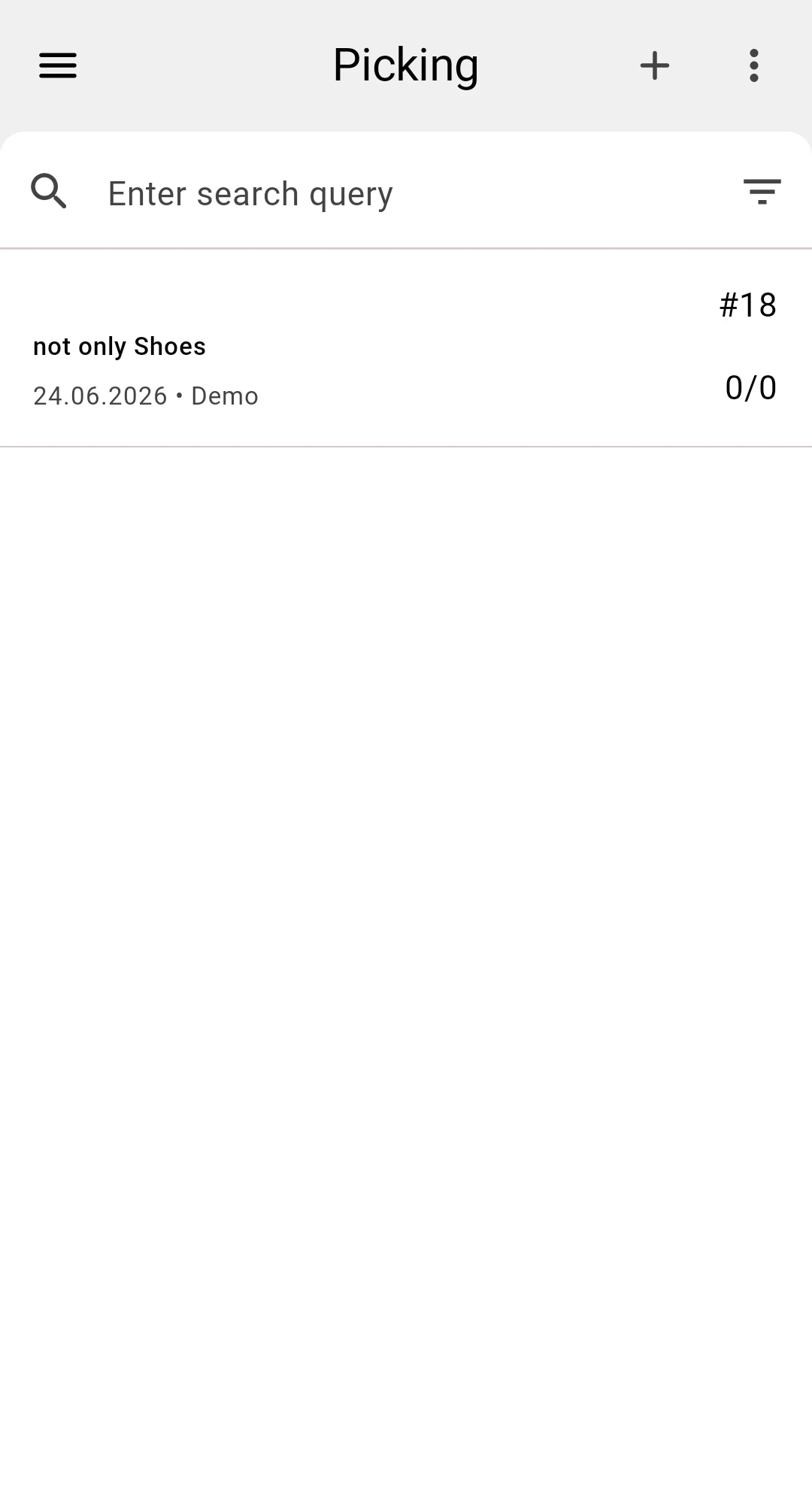
On the PDT the operator opens the picking list and taps an unplanned picking to work it. An unplanned picking can be created in the client app, or — when the warehouse has unplanned picking turned on and the operator is allowed to — started right here on the PDT with the add action on the list. Its type is shown as Unplanned, which sets it apart from tasks that come from a wave or from direct planning.
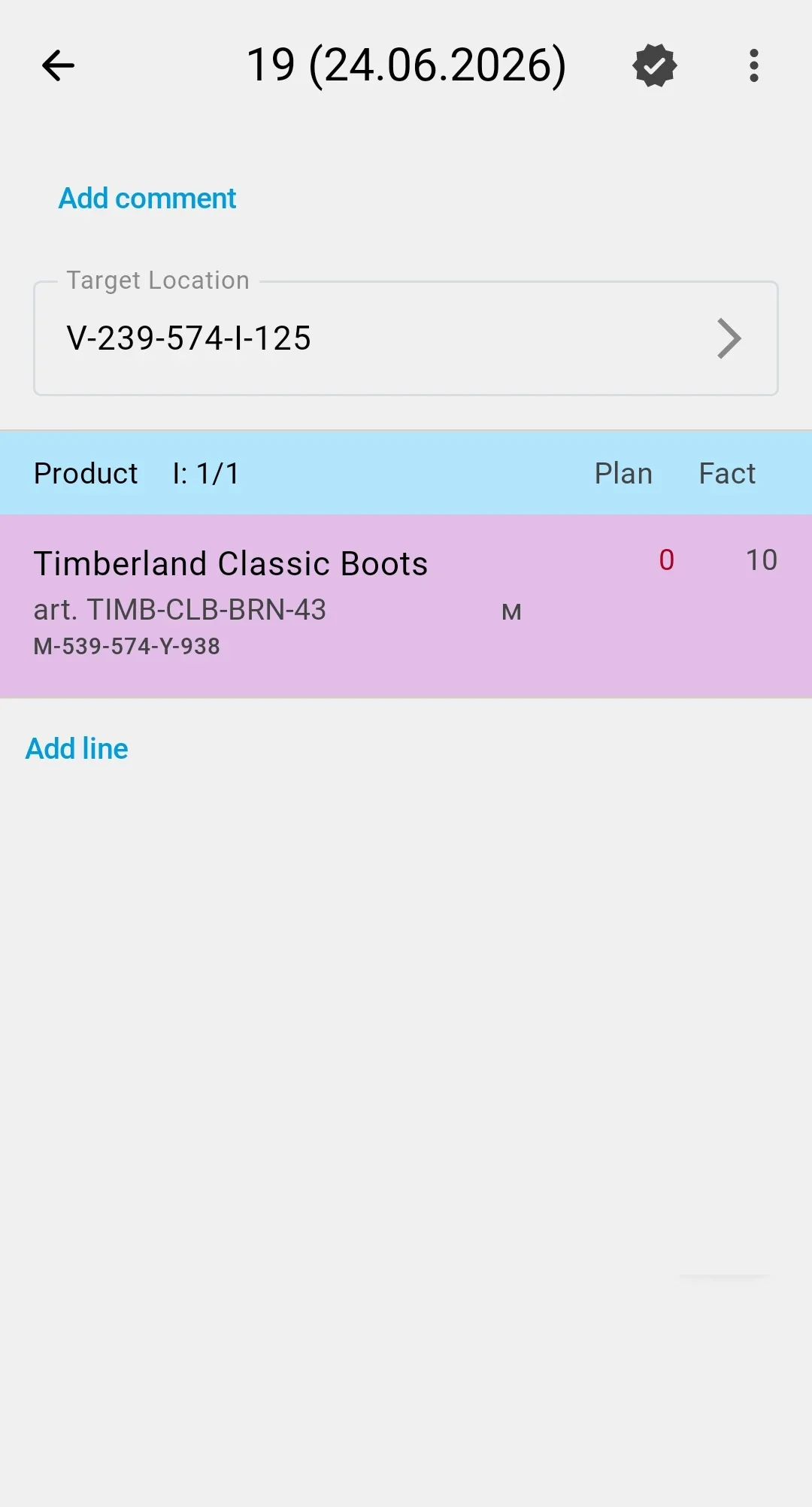
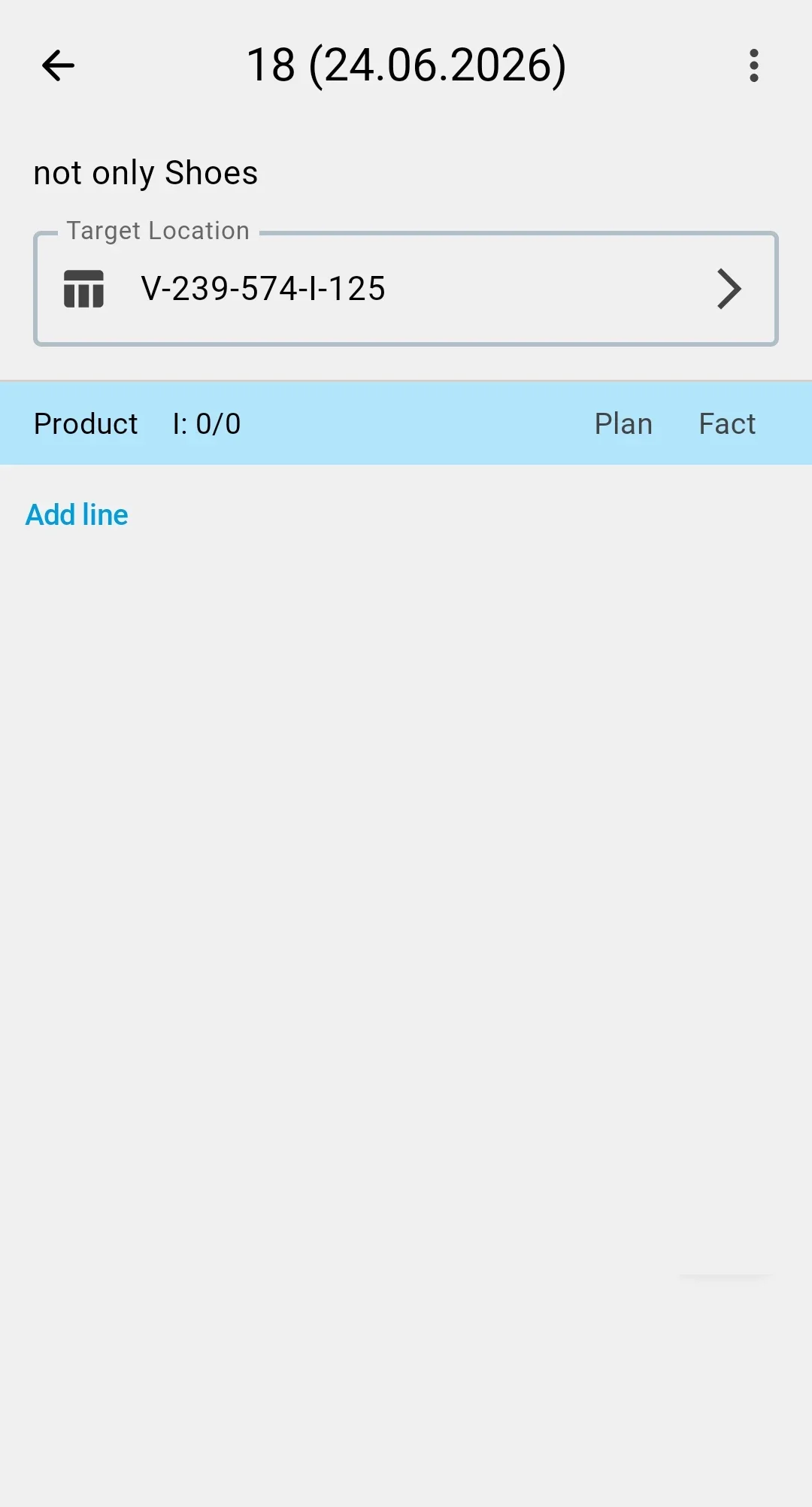
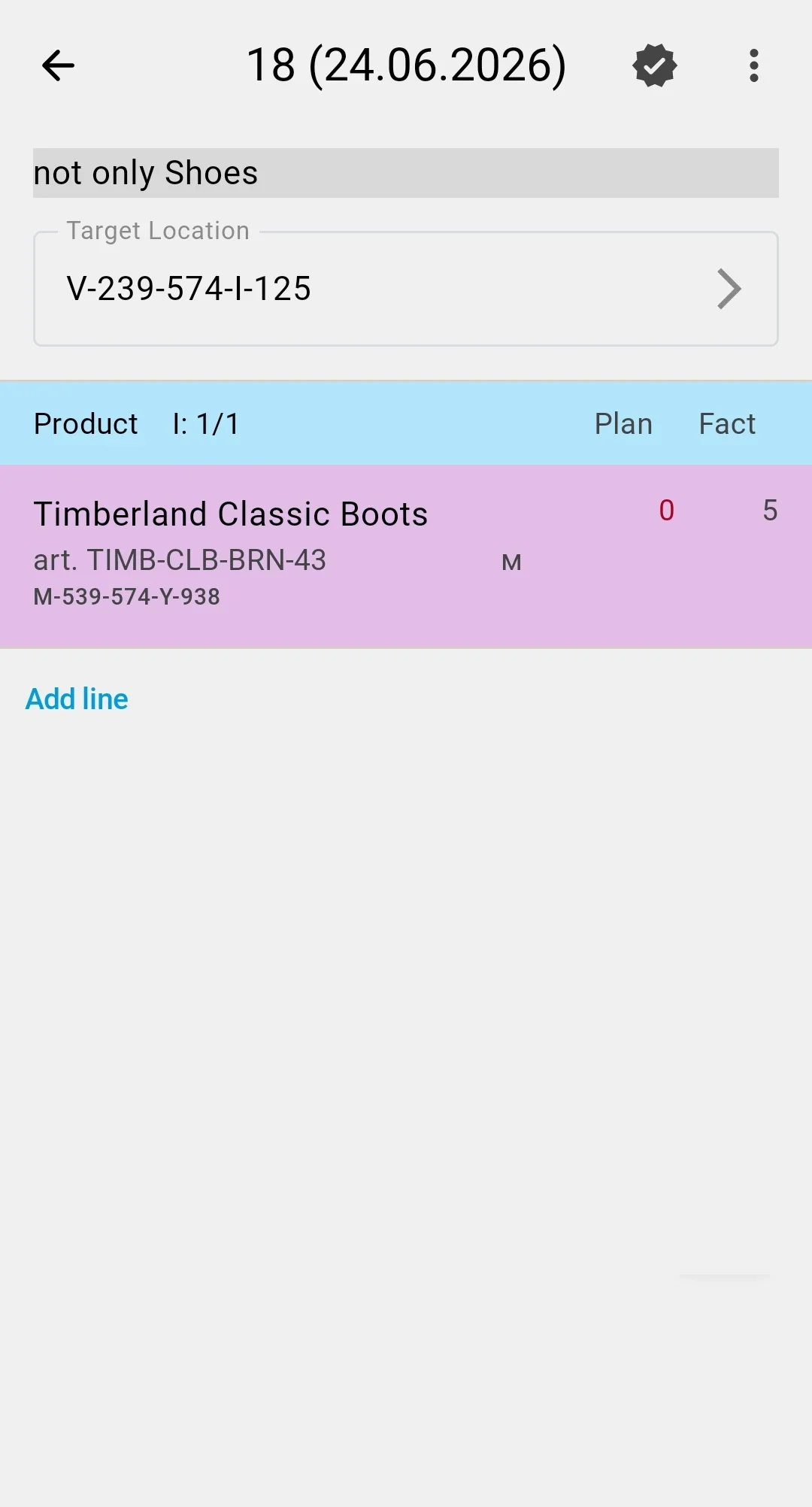
Unlike a planned task, there are no prepared lines to walk — the document records only what is actually taken. Before recording anything, the operator sets the Target Location: the external location the goods leave the warehouse through. Only external locations can be chosen. Once the first pick is recorded the target is fixed and can no longer be changed. The operator can also add a note.
The document is ready to work as soon as it is opened (Planned) — there is no draft to clear first.
Starting a fresh unplanned pick on the PDT — tap the + on the list, then add lines:

Step 2. Recording picks
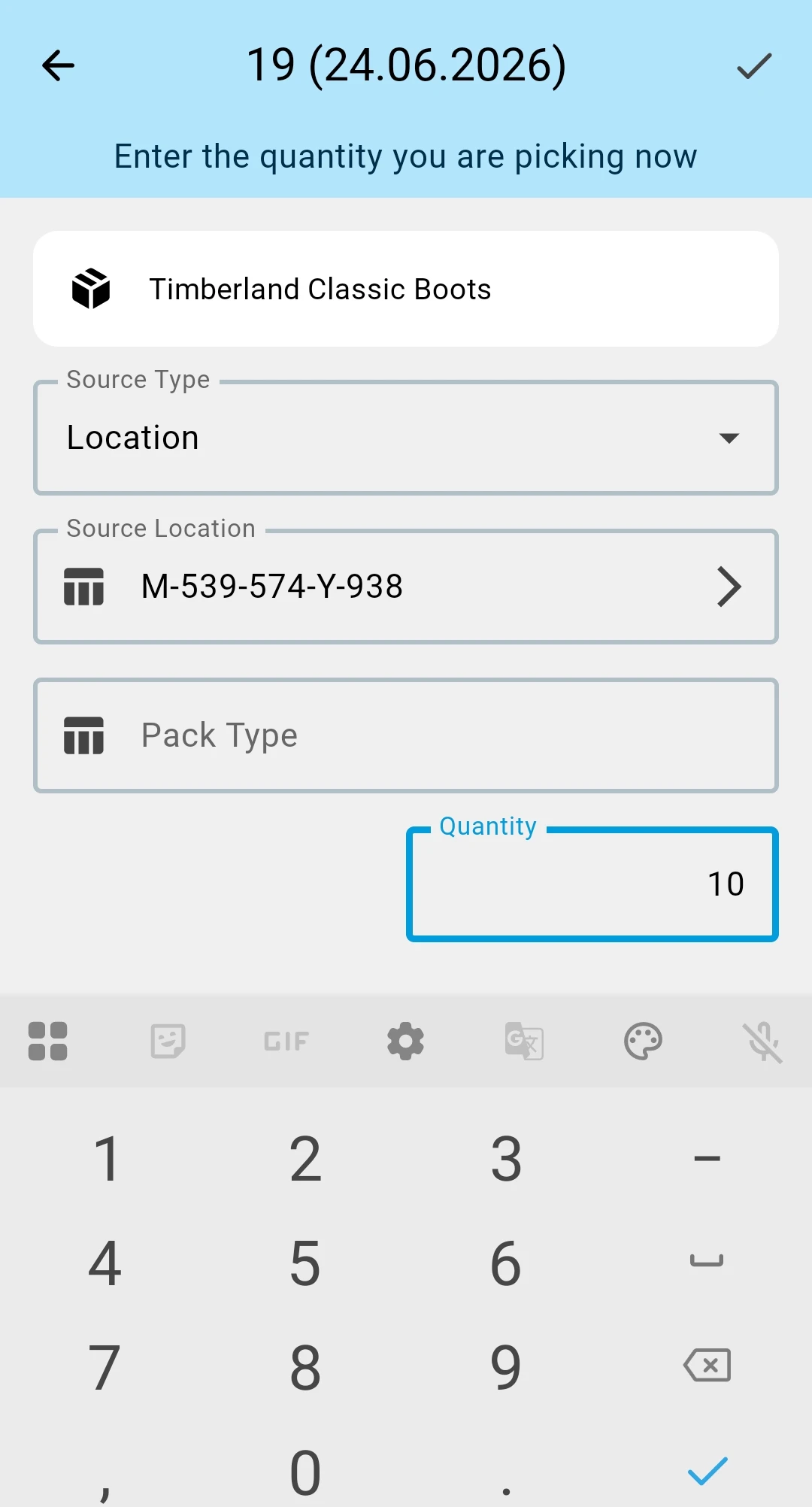
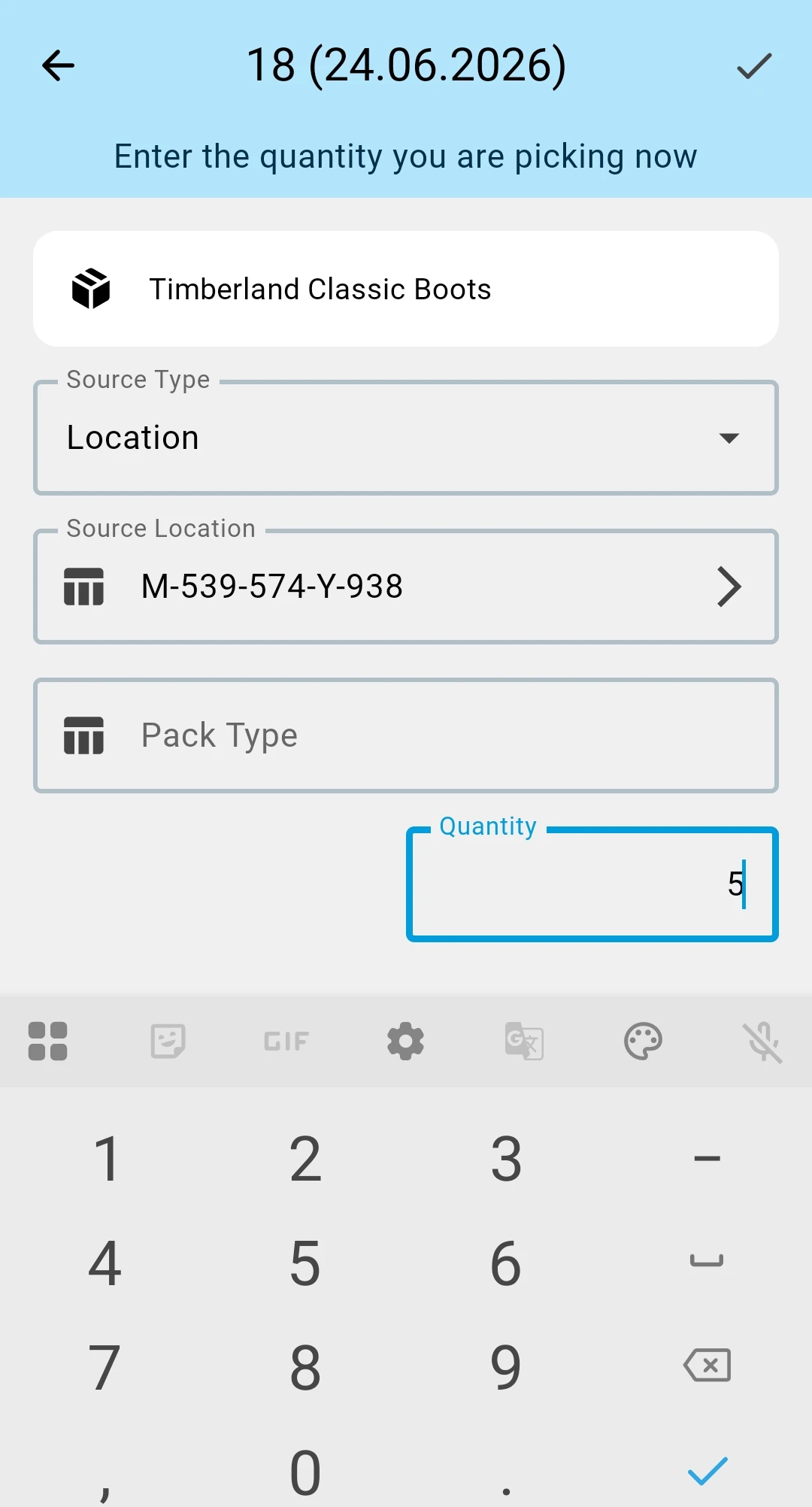
There is no prepared list of lines. For each pick the operator adds an entry by hand: tap Add line and fill in what was taken. (If no target location is set yet, the PDT asks for one first.) On the entry screen the operator sets:
- The Product — scan or select it; if the product is tracked by Product Feature or Lot, set those too.
- The Source Type — Location (a cell) or Container — and scan or select the source being picked from.
- The Pack Type — the packaging unit being taken, for example a case or a pallet.
- The Quantity, then save with the checkmark button. There is no planned amount to match — the operator enters what was actually taken. The quantity field offers quick plus/minus buttons and a calculator; see Entering quantities and Scanning for how the fields behave.
The first saved pick moves the document to In Progress. Each saved pick appears in the list with its running total; the goods leave their source and move to the target external location. They are not tied to the document — they simply sit in that external location; what the document holds is the reserve, which stays alive until the document is completed.
If the target location limits which products may go to it, a pick of a product that is not allowed there is refused the moment it is saved — see external location restrictions. To remove or correct a pick beyond editing its quantity, use the client app.
A pick created in the client and opened on the PDT — the empty document, then a line added and saved:
Step 3. Completing the picking
When everything has been picked, the operator confirms the document with the checkmark button. It moves to Completed and becomes read-only on the PDT — the picked goods are issued out of the warehouse. A document confirmed with less than first intended is still Completed; whatever was not picked is simply left out of the result.
A safeguard: an empty document cannot be confirmed — if no picks have been recorded, the PDT blocks the action.
The PDT can complete the document, but it cannot cancel it: cancelling, and any other status change, are done in the client app. For what completing versus cancelling means for the stock, see the client-side unplanned picking flow and the picking statuses reference.
Business value
Issue goods straight from the floor. When something must leave the warehouse outside the normal order flow, the operator records the pick on the handheld with no order or wave to set up first.
Honest stock as it happens. Each pick is recorded on the spot, and the goods sit in the external location until the document is completed, so what has been moved and what has been issued are always distinct.