Putaway on PDT
On the PDT the operator performs the physical placement: opens a planned document, verifies the source, records fact-by-fact movement of items into storage cells or containers, and closes the document. Plan creation itself happens in the client app.
What happens outside the PDT
Steps performed before the PDT operator opens the putaway document:
Step 1. Opening the putaway document
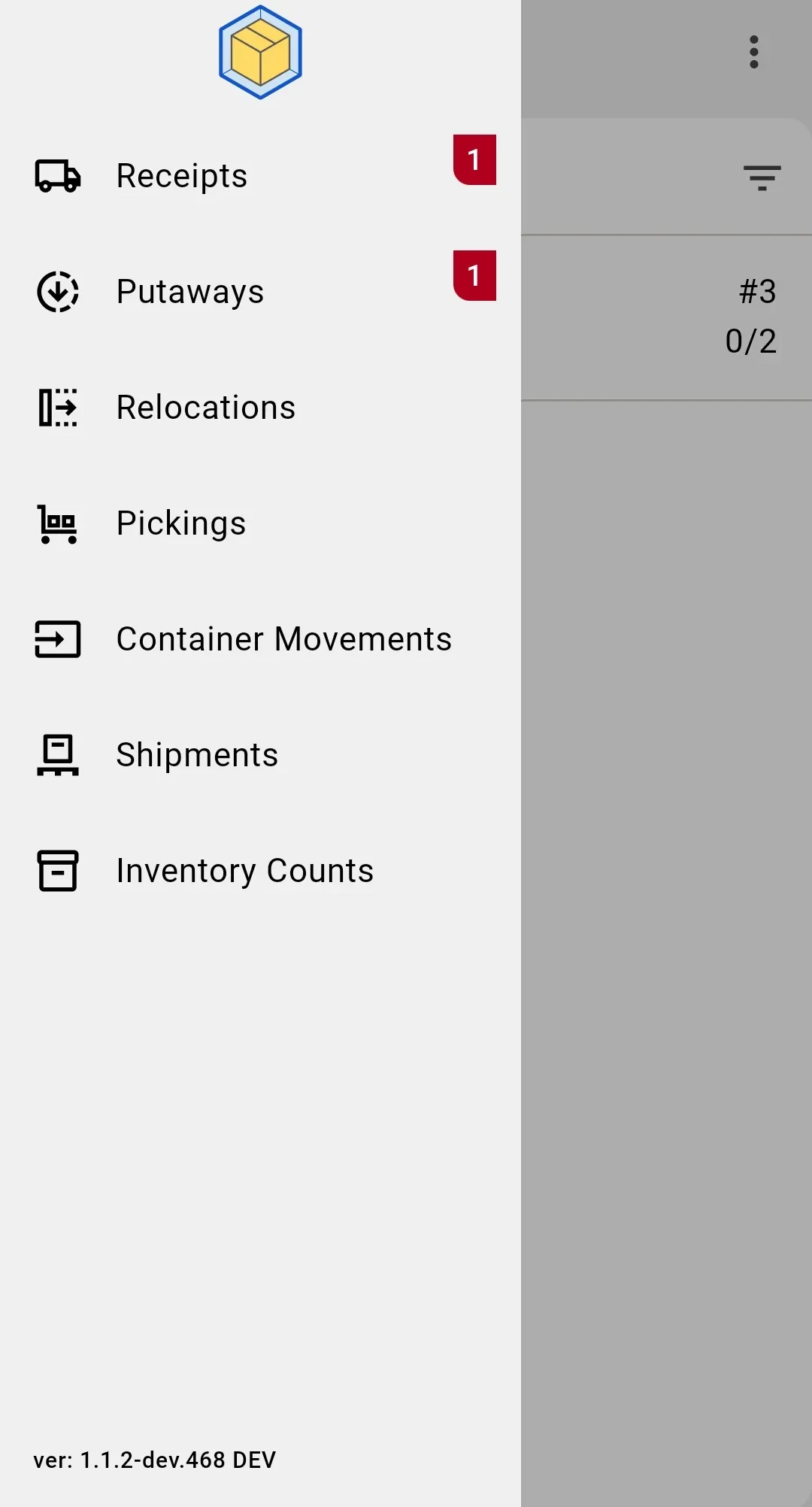
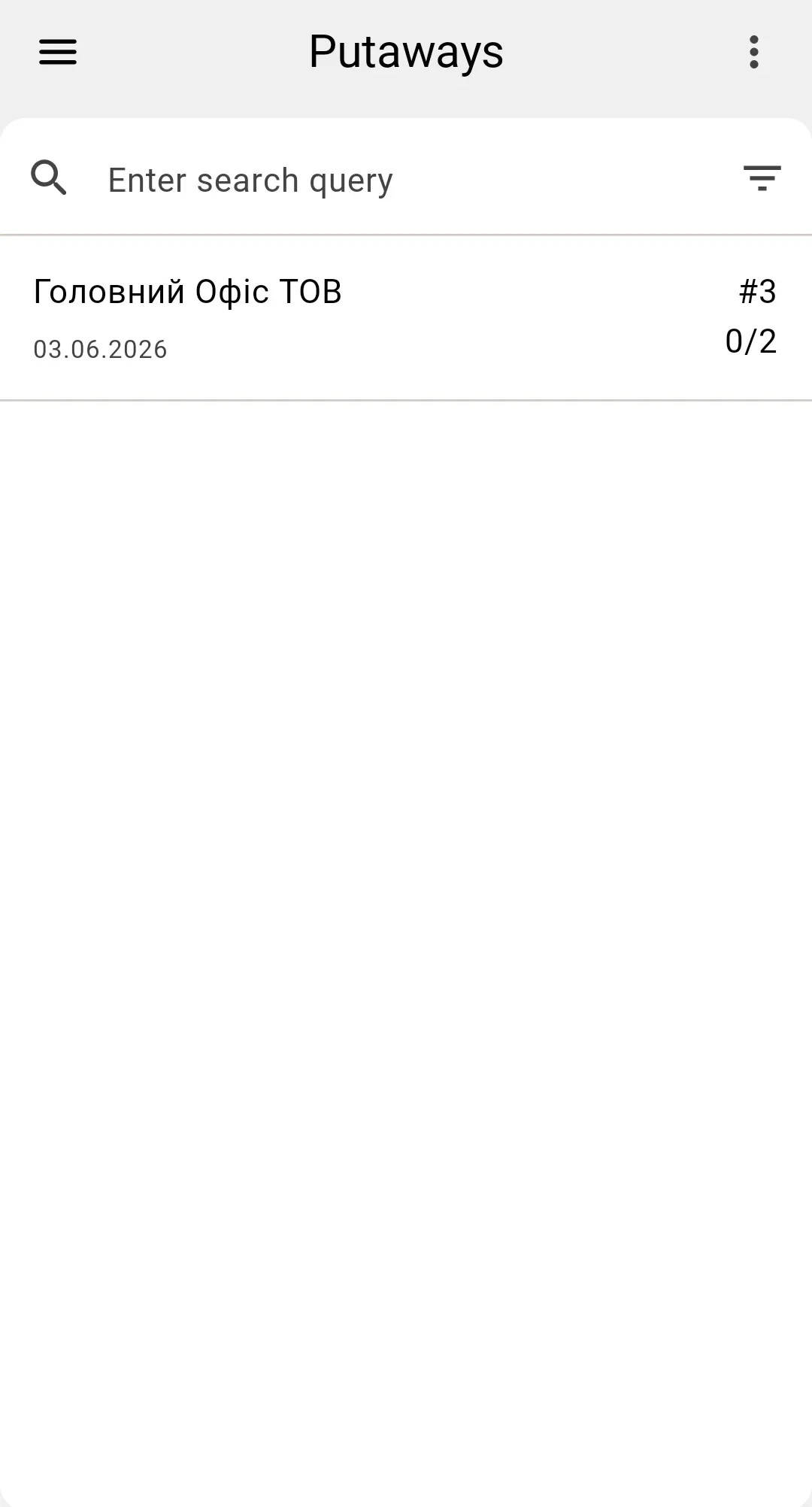
On the PDT, the operator opens the putaway list — the screen shows pending putaway documents visible to the operator (status Planned and In progress). The operator taps a row to open one document; the screen switches to the single-document view.
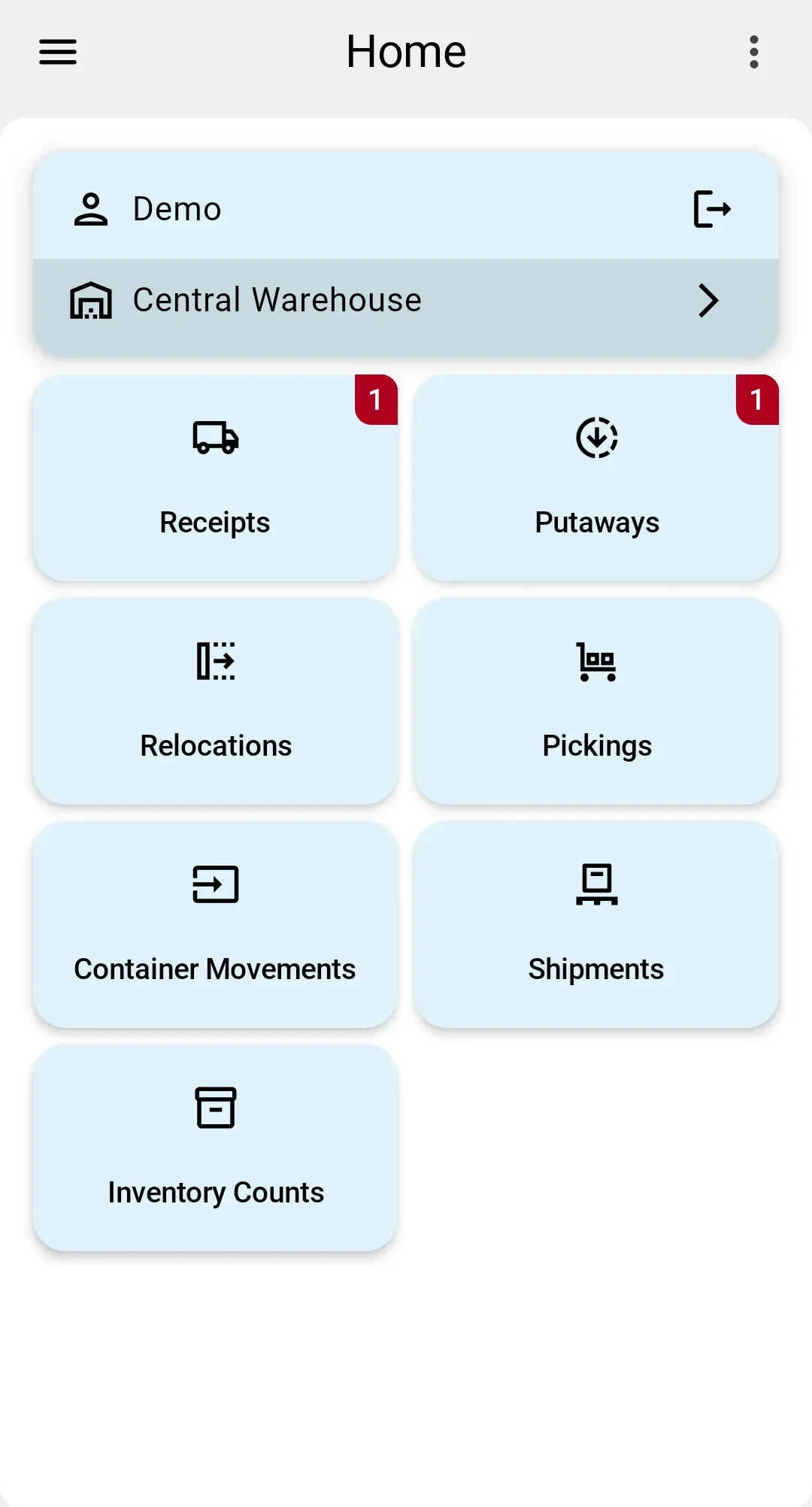
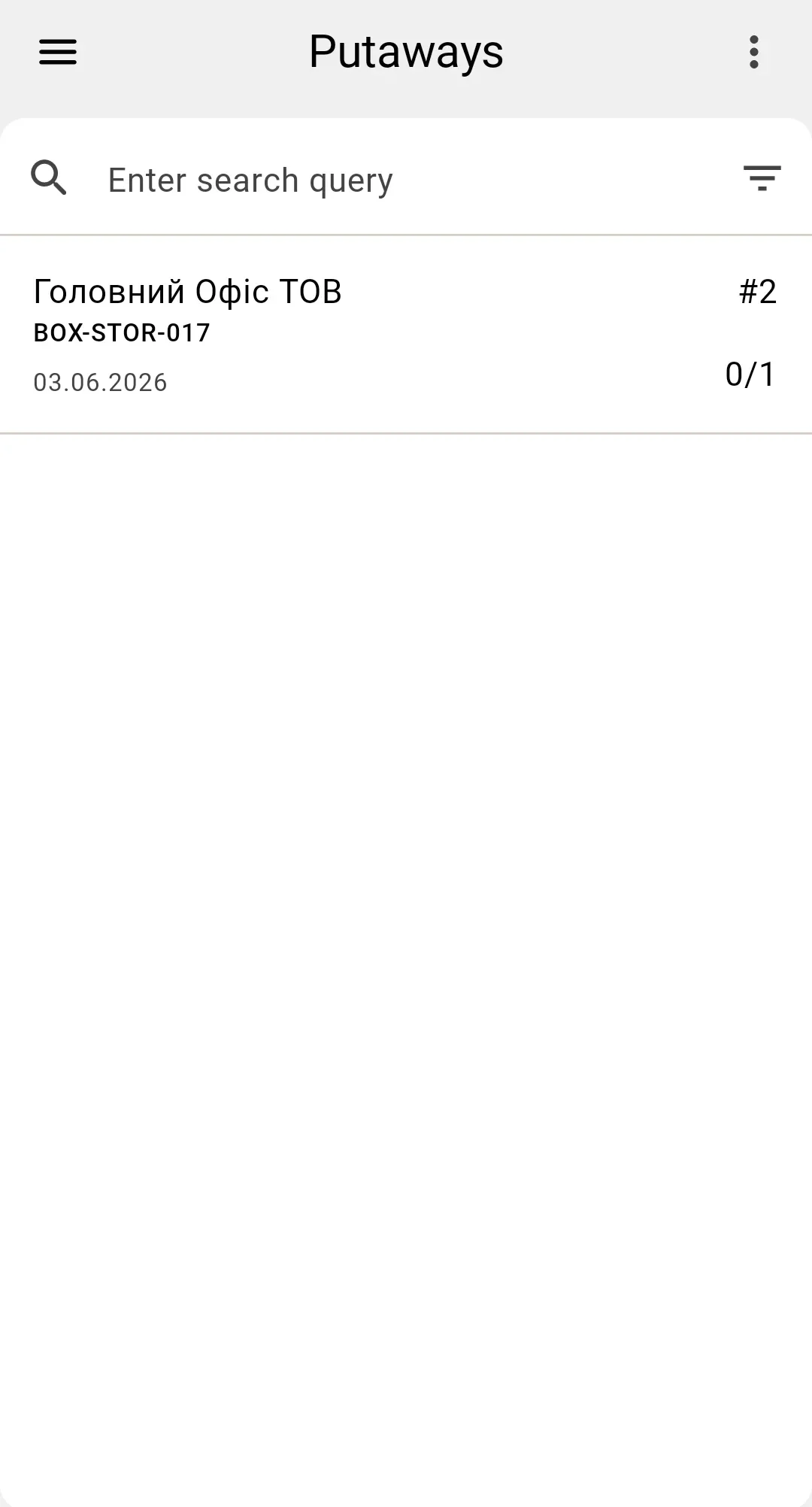
Note: on the PDT the operator does not create the putaway document. Documents are created in the client app (see the Plan creation phase) and arrive on the PDT ready to be executed.
Step 2. Source verification
Before recording any placement fact, the PDT requires the operator to confirm the source — to verify physical co-location with what the document describes. The verification screen prompts the operator to scan the source code.
Putaway source
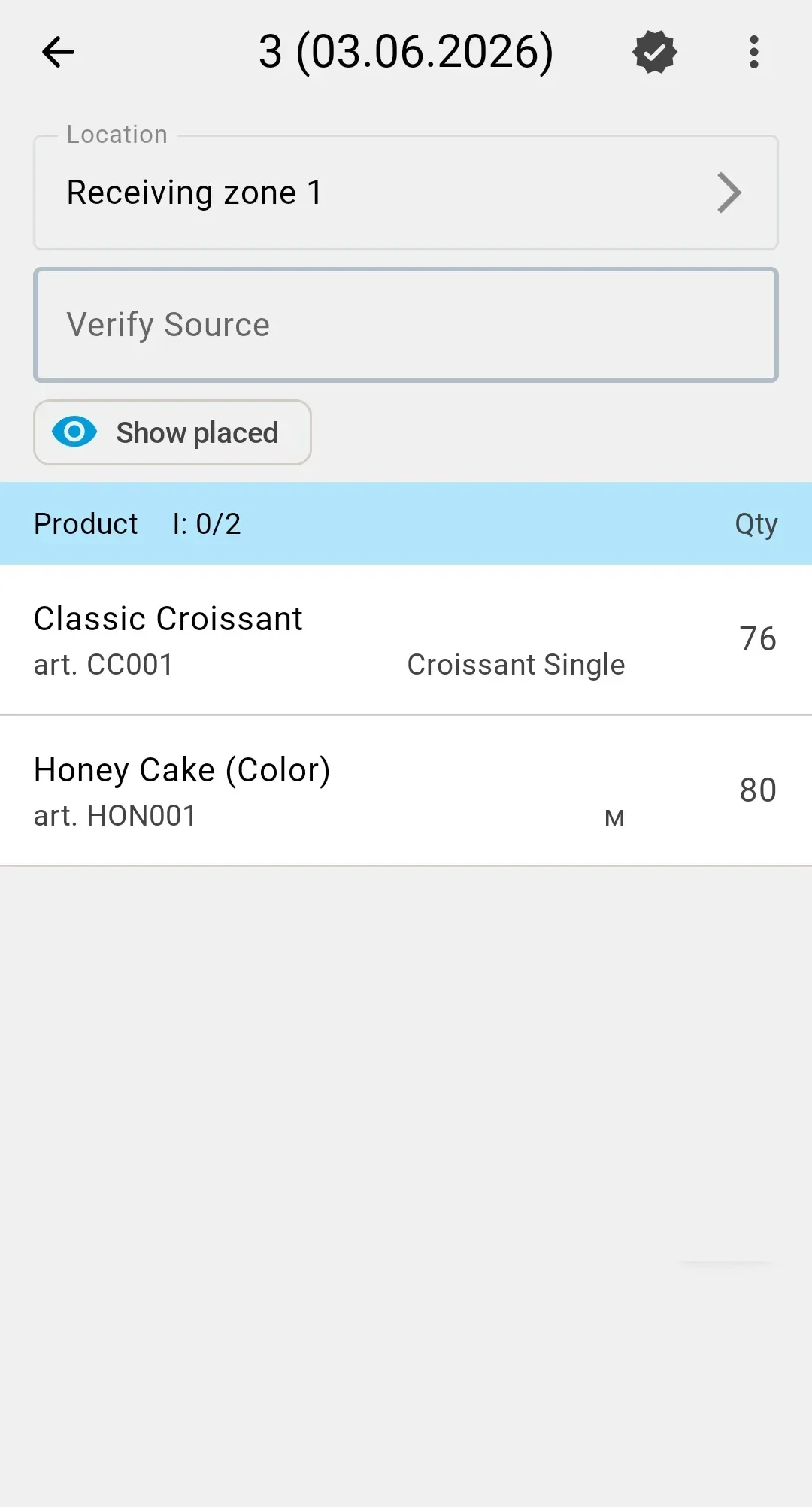
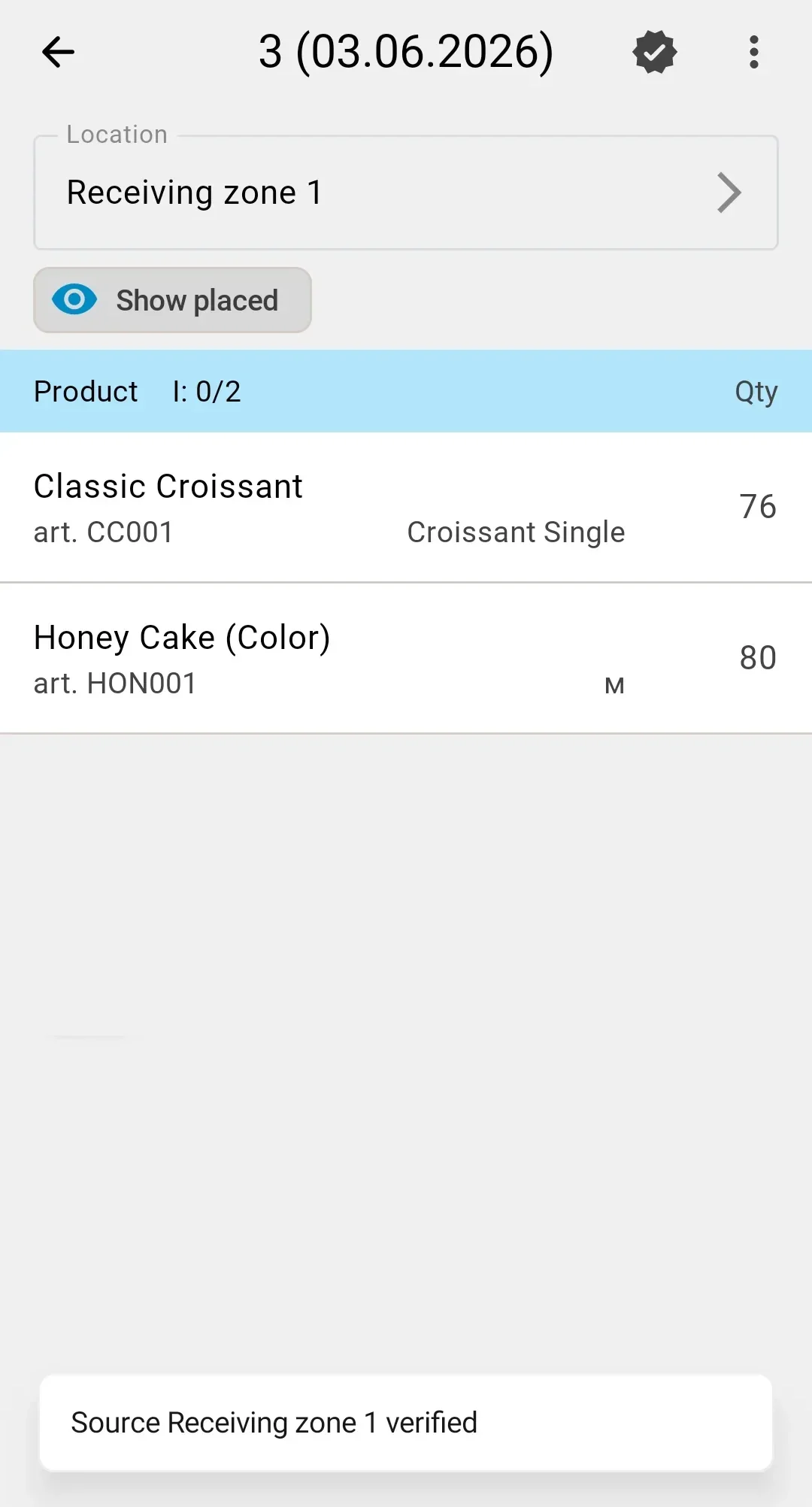
From a receiving cell
The operator scans the code of the receiving cell that holds the goods to be placed. The PDT shows the prompt Scan the cell code. On a match the screen advances to fact recording; on a mismatch the PDT shows an error and stays on the verification screen.
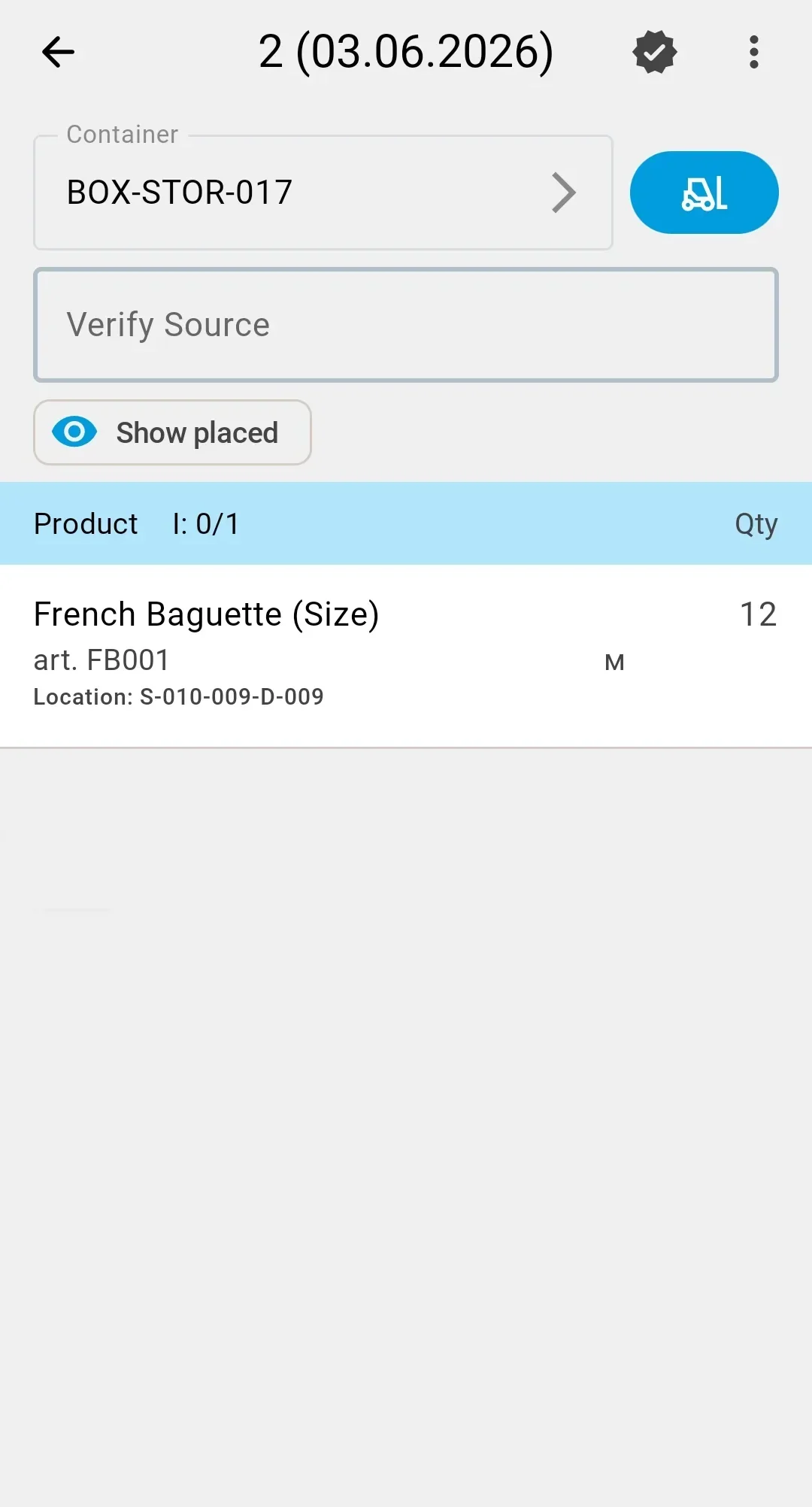
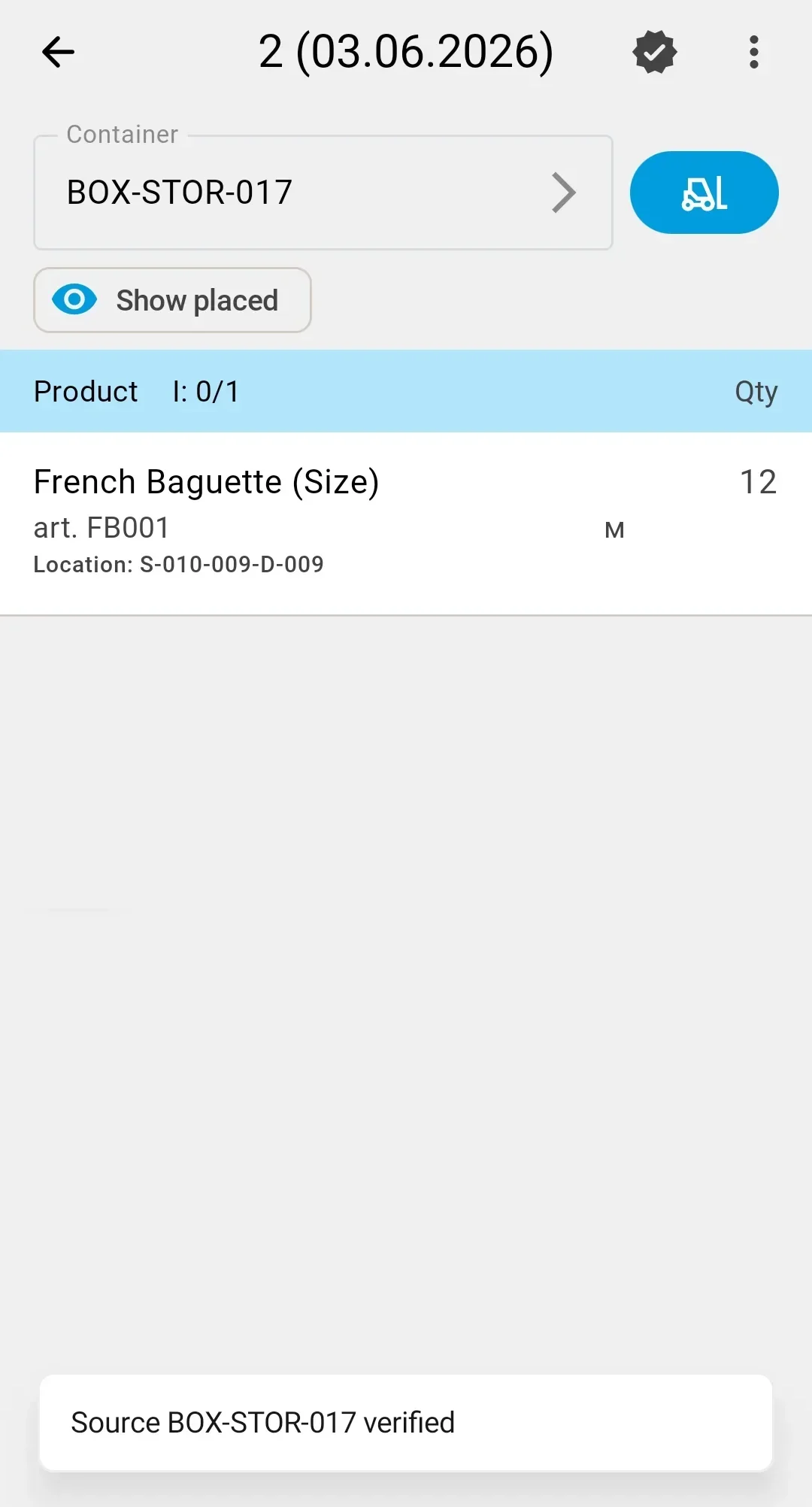
From a sender container
The operator scans the code of the source supplier container. The PDT shows the prompt Scan the container code. On a match the screen advances to fact recording; on a mismatch the PDT shows an error and stays on the verification screen.
Step 3. Recording placement facts
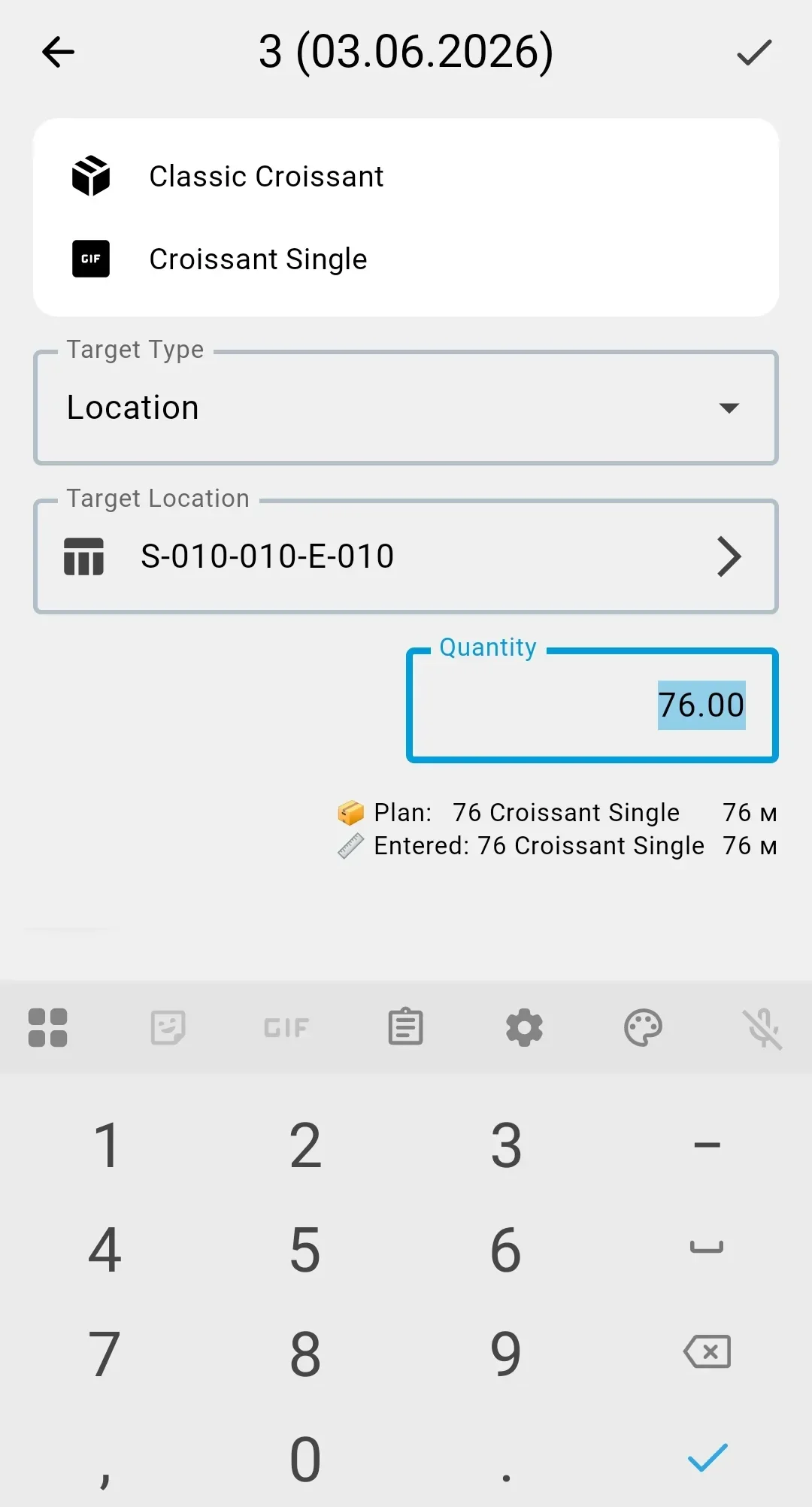
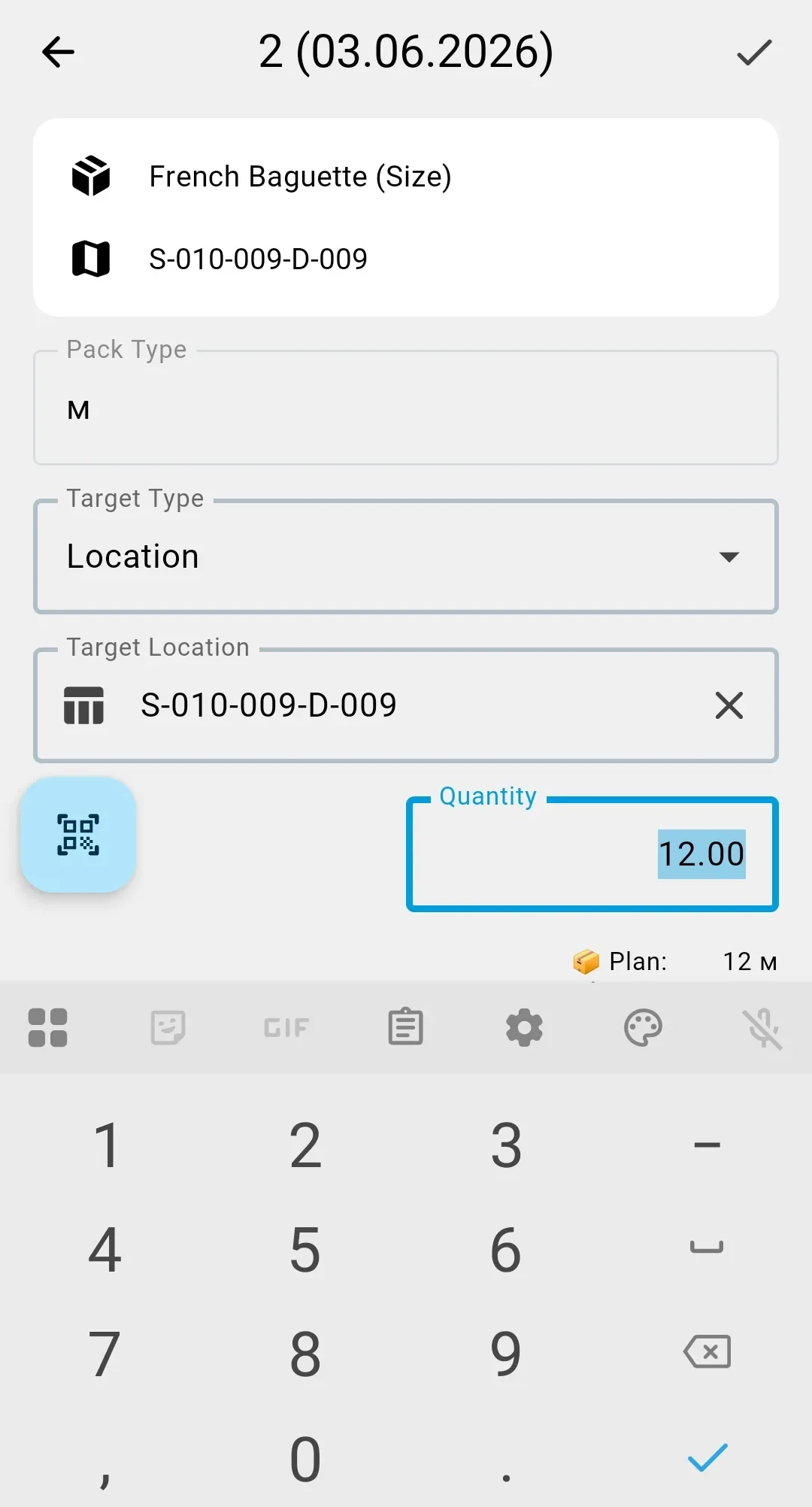
After source verification the operator records one placement fact per item movement. The cycle is short: pick a planned product line, choose the target type (Cell or Container), scan or select the target, enter the quantity, save with the checkmark button. The saved fact appears on the document screen as part of the running totals; the operator advances to the next line.
When the document is in Planned status, the first saved fact automatically transitions it to In progress.
Putaway source
From a receiving cell
The operator works directly from the source receiving cell. Each fact debits from that cell. The PDT shows the planned product lines for this document; the operator picks one, sets the target and quantity, and saves.
From a sender container
The operator works from the source supplier container. The PDT shows the lines for the products inside that container; each saved fact debits from the container, not from a receiving cell.
Attaching a carrier (trolley)
For multi-drop operations the operator can attach a carrier to the document at any point during fact recording — the carrier button on the screen opens a picker dialog. This is optional; documents can be completed without ever attaching a carrier.
When the source is a receiving cell (the location variation above): on the first carrier attachment the system automatically creates a buffer container — a system-managed accounting unit that takes over from the receiving cell as the source of unplaced stock. The remainder is now accounted for on the buffer container; subsequent facts debit from the buffer container rather than from the receiving cell. Physically, the operator transfers goods from the receiving cell into a physical container on the carrier — that physical container is what the system records as the buffer container. Reservations move automatically.
When the source is a supplier container (the container variation above): attaching a carrier does not create a buffer container. The supplier container itself remains the accounting source. The carrier is used as a means of physical transport between cells.
The carrier and the buffer container are not the same thing. The carrier is equipment (a trolley). The buffer container is an accounting unit on it. Changing the carrier later in the operation does not change the buffer container — it stays bound to the document for the rest of execution.
Step 4. Closing the document
When the operator places the last item, the document finishes on its own: registering the final fact completes the putaway and returns the operator to the document list. On full execution there are no buttons or dialogs to deal with.
The confirmation button exists for one case — closing a document that still has an unplaced remainder. What happens next depends on whether the document uses containers:
- Putaway without containers. The PDT shows the Confirm placement completion dialog with a warning: the document will be closed with no way to continue, and the unplaced goods will remain in their current location. Confirming closes the document as Closed with partial completion; backing out returns to placing.
- Putaway with containers. A document with a remainder cannot be closed: the PDT warns that unplaced positions remain and closing is impossible. The only way to finish such a putaway is to place everything.
The empty-document safeguard still applies: until at least one fact is recorded, the PDT shows You are about to confirm an empty placement and blocks the close action.
A closed document leaves the PDT: the list shows only putaways that are Planned or In progress. A finished document can be reviewed in the client app. For what each terminal status means and what happens to remaining stock, see the Putaway statuses reference.
What happens after closure
What happens after the PDT operator closes the document: