Ad-hoc relocation on the PDT
Ad-hoc relocation on the PDT records a movement that has already happened — no upfront plan, no reservation, no incoming-stock expectation. It uses a dedicated 2-tab screen reached from the "+" button on the relocations list. For movements known in advance, see Planned relocation on the PDT.
Step 1. Opening the ad-hoc form
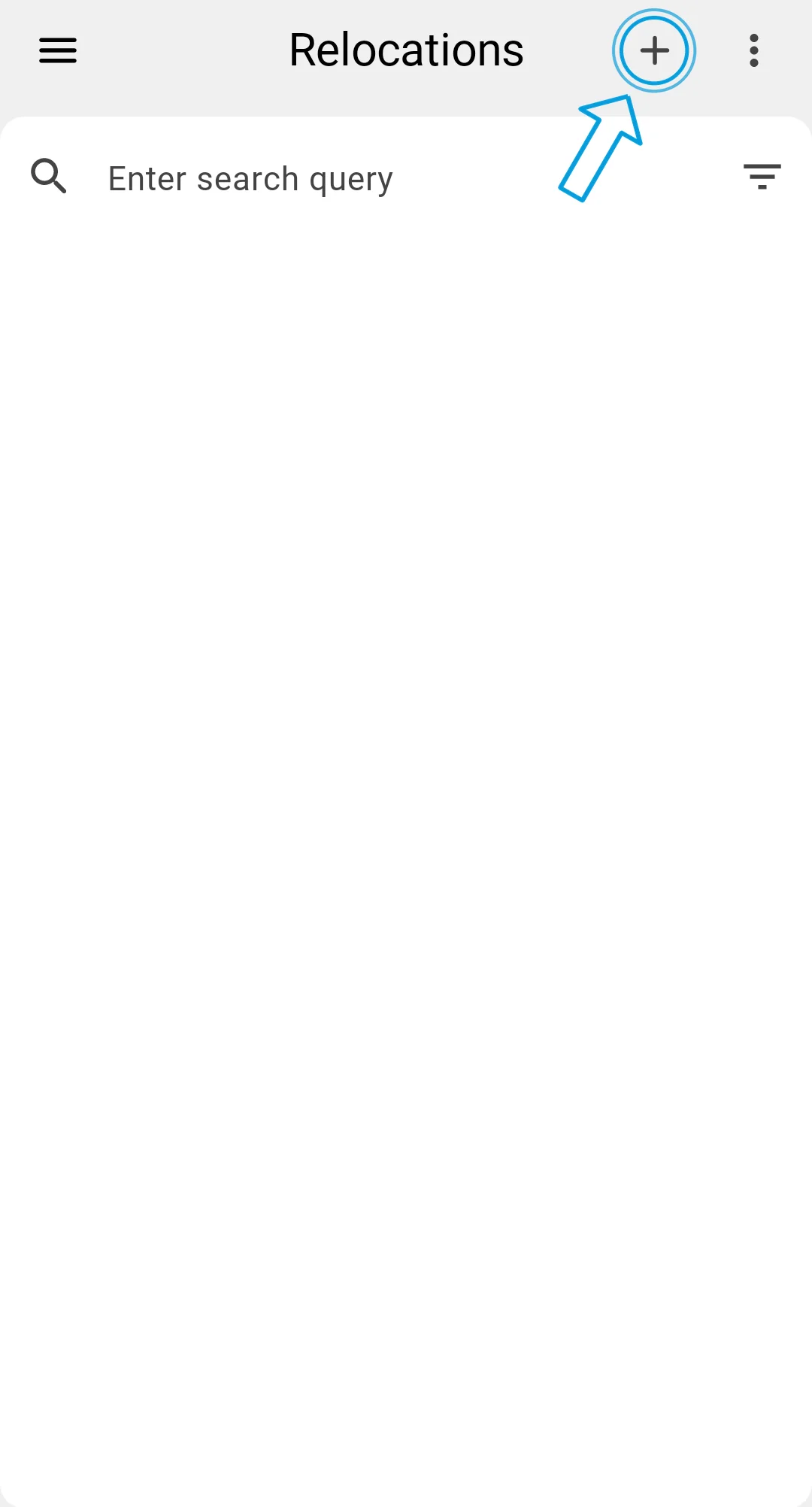
From the Relocations list (which is the same starting point as a planned relocation), the "+" button in the top bar opens the Manual relocation screen. The button is gated by the table's add-permission, so operators without that permission won't see it.
The screen has two tabs:
- ADD — the entry form for a new fact (default tab).
- LIST — a history of ad-hoc facts you've already saved.
The top bar shows the screen title, a ✓ save button (visible only on the ADD tab), and the barcode-scanner button (also ADD-only).
Step 2. Recording a fact
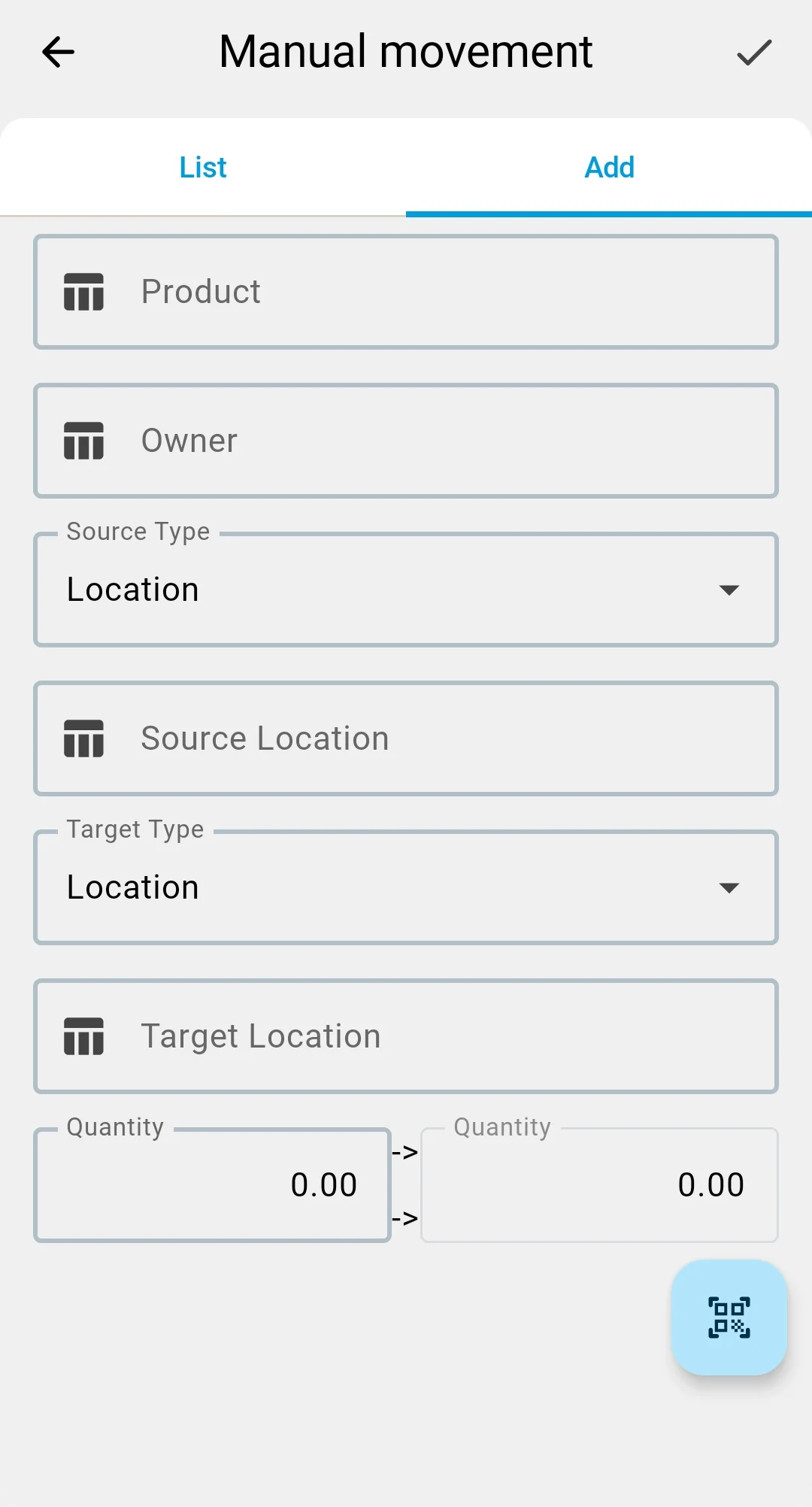
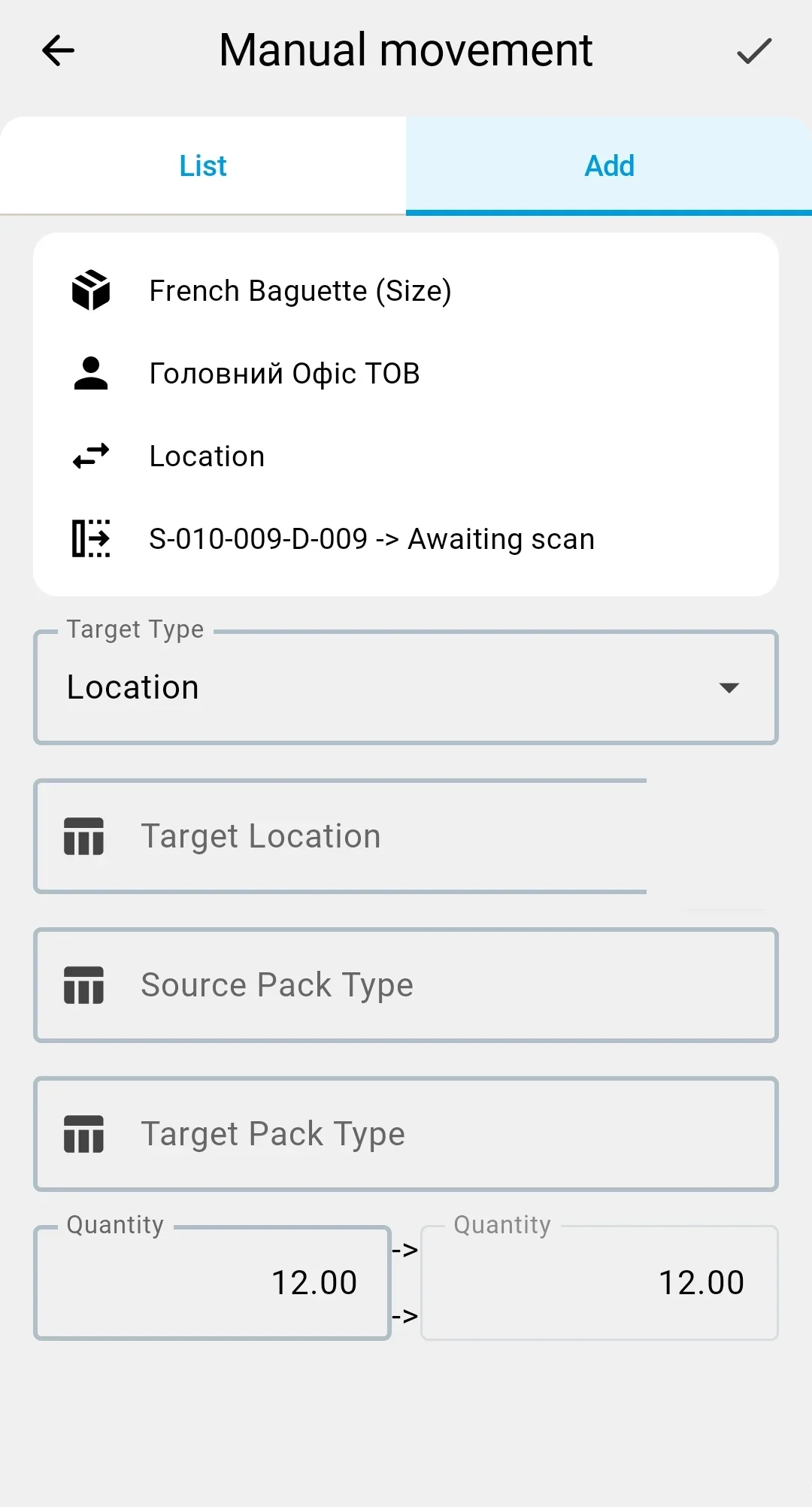
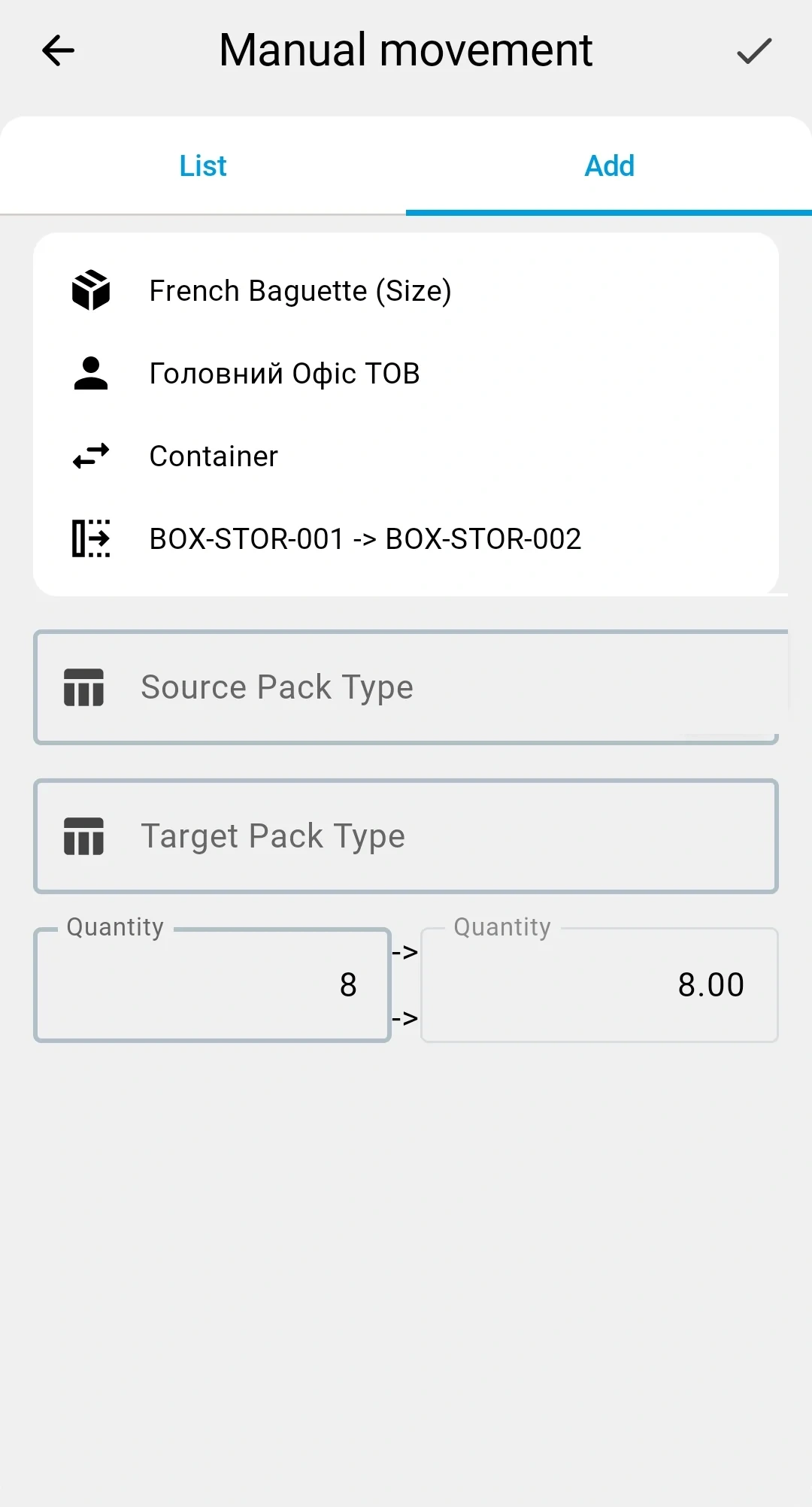
The ADD tab of the manual relocation screen is where you enter one ad-hoc fact at a time. The layout has a summary card on top — the product (and any feature, lot, or owner) — followed by two zones with an arrow between them: the picking zone on the left (source) and the placement zone on the right (target).
Unlike planned execution, nothing is pre-filled — the operator enters the product, source, target, pack types, and quantity from scratch.
The on-screen scanner button speeds up data entry — a single scan drops into whichever field is active (source, target, product, or pack type), resolved by context. How scanning works.
The lot field shows up (and becomes required) depending on the product. There's a brief loading state when switching products; if it doesn't clear, the field can be refreshed.
The ✓ button on the top bar saves one fact.
On save, the server verifies that the source actually has enough stock. If it doesn't, the fact is rejected with a localised error and isn't saved.
Each relocation row describes what, from where, and where to you move.
The source and target of a row are each one of two kinds — a cell or a container — giving four combinations:
Cell → Cell — the most common case: moving goods between storage areas (for example, consolidating partial pallets from a pick face into a reserve aisle).
Cell → Container — packing goods from a cell into a container (for example, to stage a shipment or to move loose goods on a carrier).
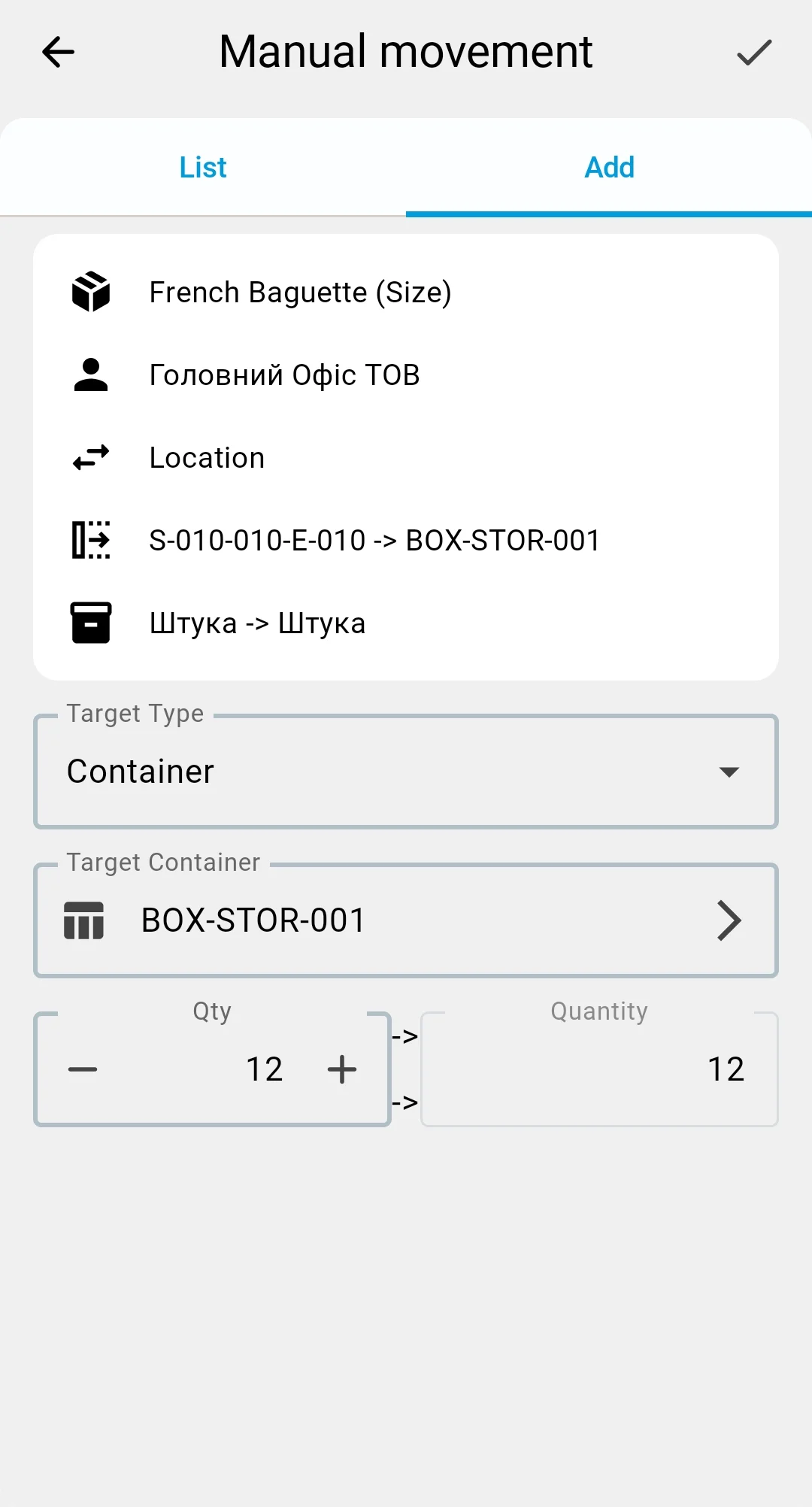
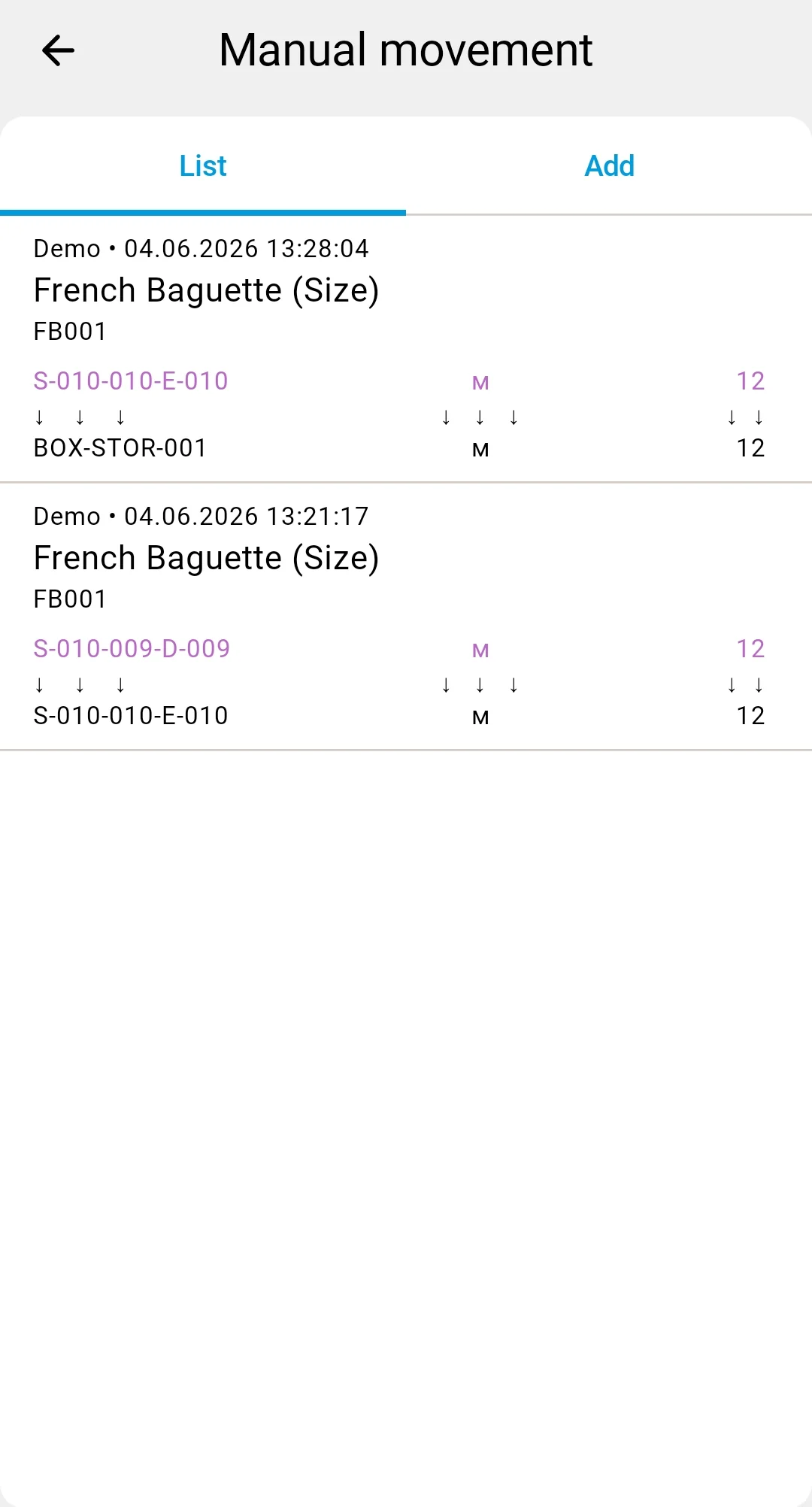
Container → Cell — unpacking a container into storage cells (for example, breaking down a received pallet onto the rack).
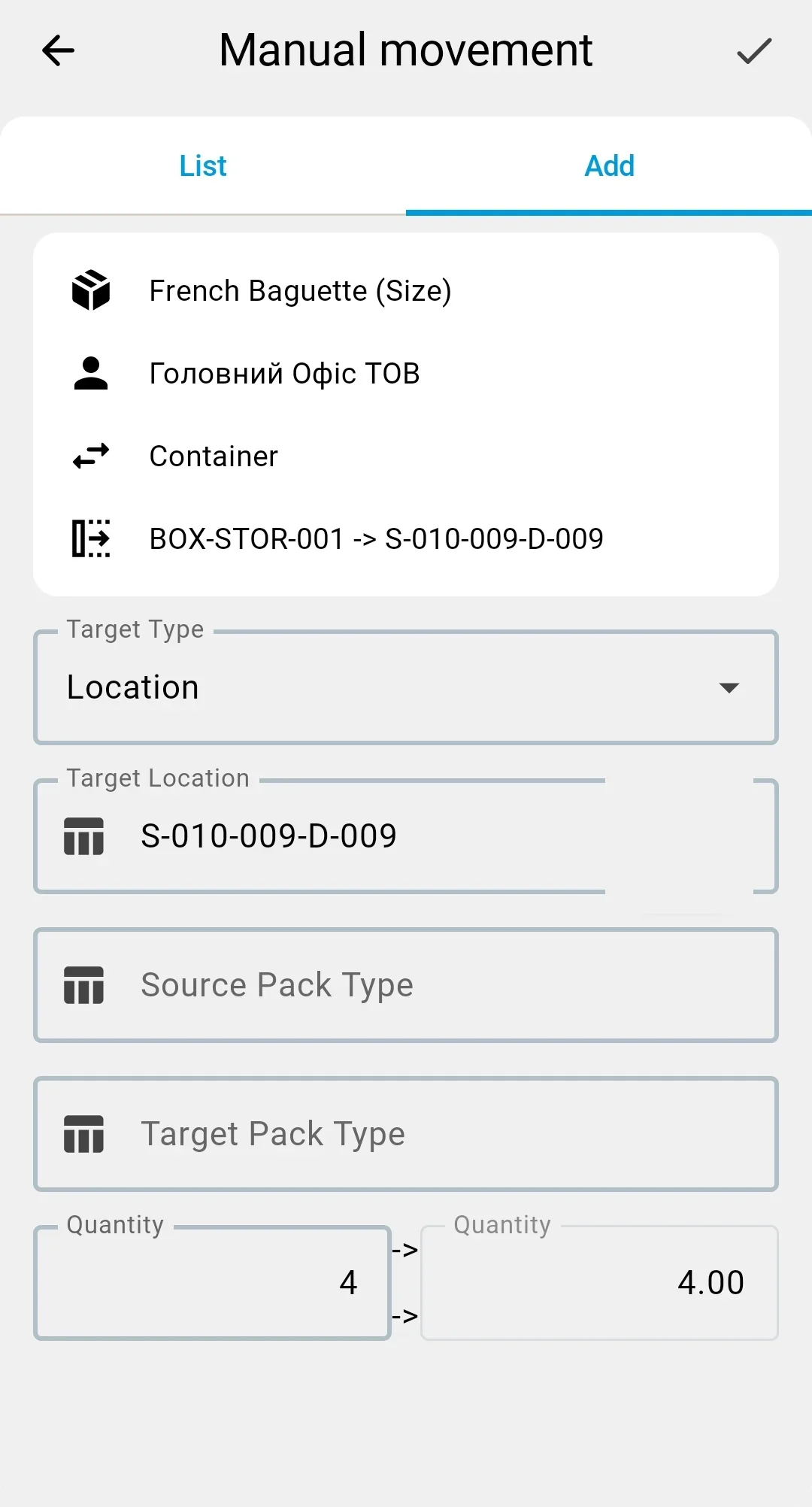
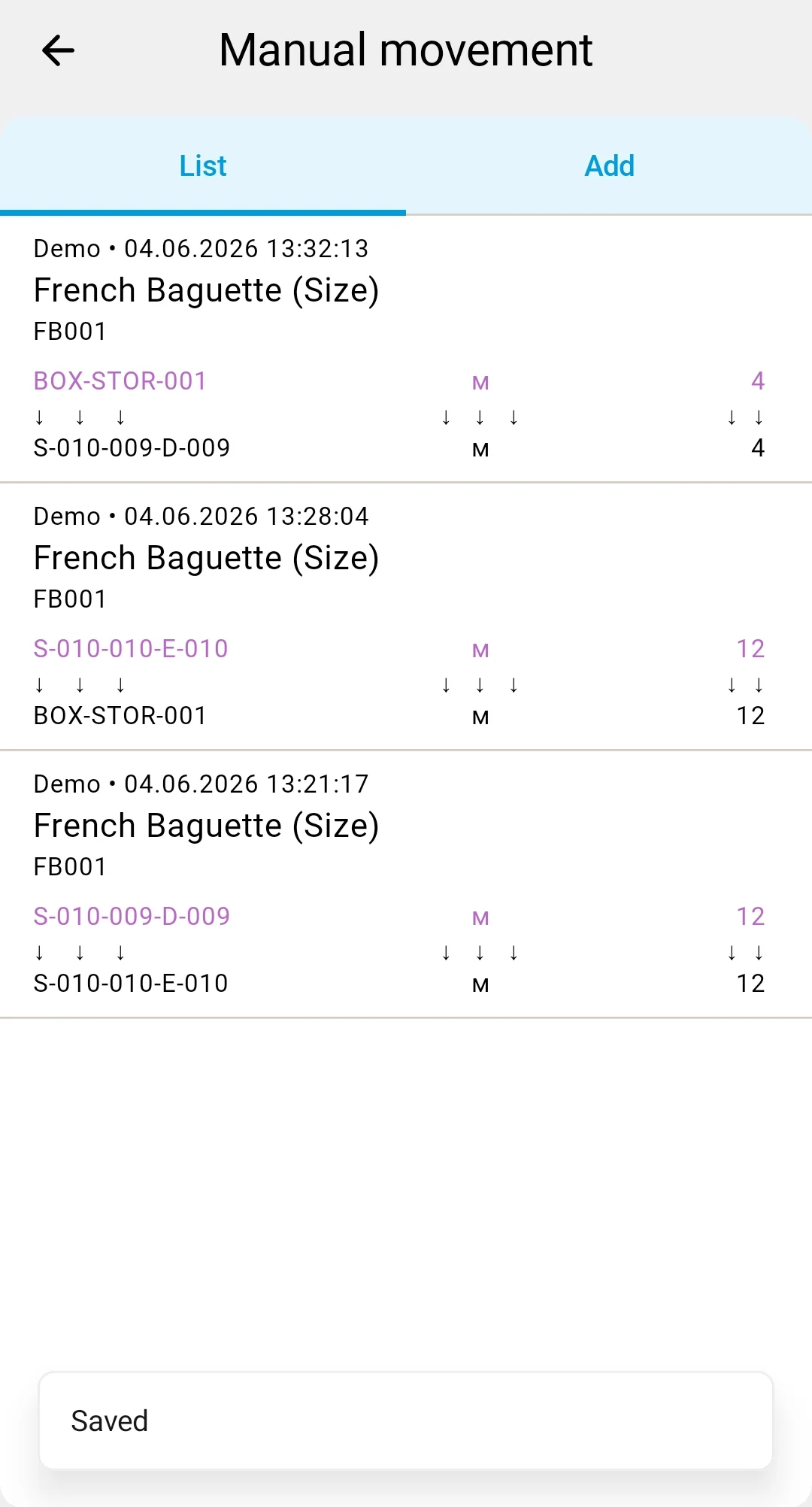
Container → Container — moving the contents from one container to another (for example, consolidating two half-full bins).
Pack-type change (repack)
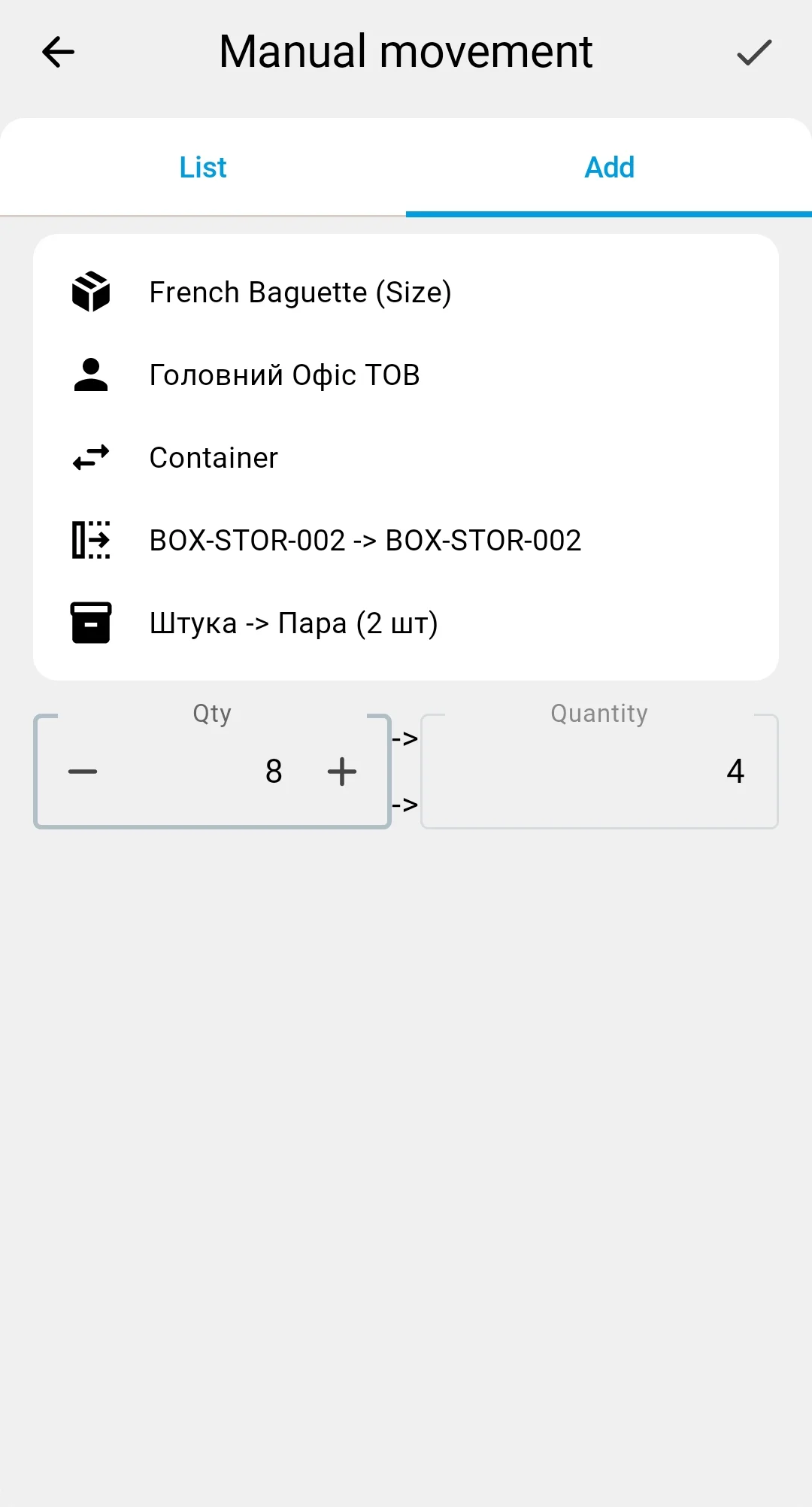
A row may also change the pack type of the goods: the source pack type and the target pack type differ, while the quantity in the base unit of measure stays exactly the same.
Example: a product is stored as cases of 12 units. You want to put it on pallets of 144 units. In a single row you set the source pack as "case" (source quantity = 12 cases), the target pack as "pallet" (target quantity = 1 pallet), and the base quantity stays 144 units.
Repack is available in both planned and ad-hoc scenarios — it is a property of an individual row, not of the document.
Step 3. Reviewing saved ad-hoc facts
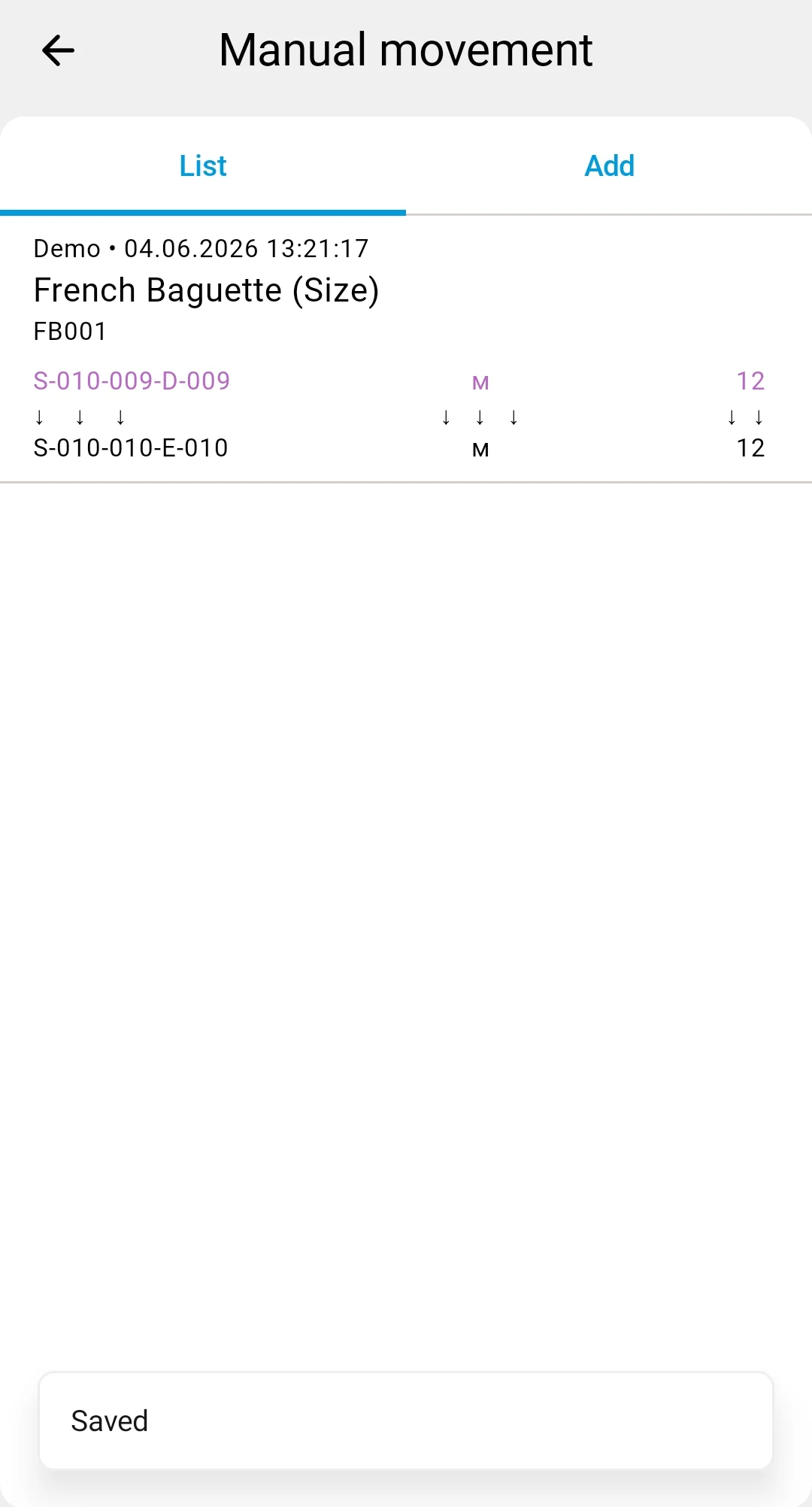
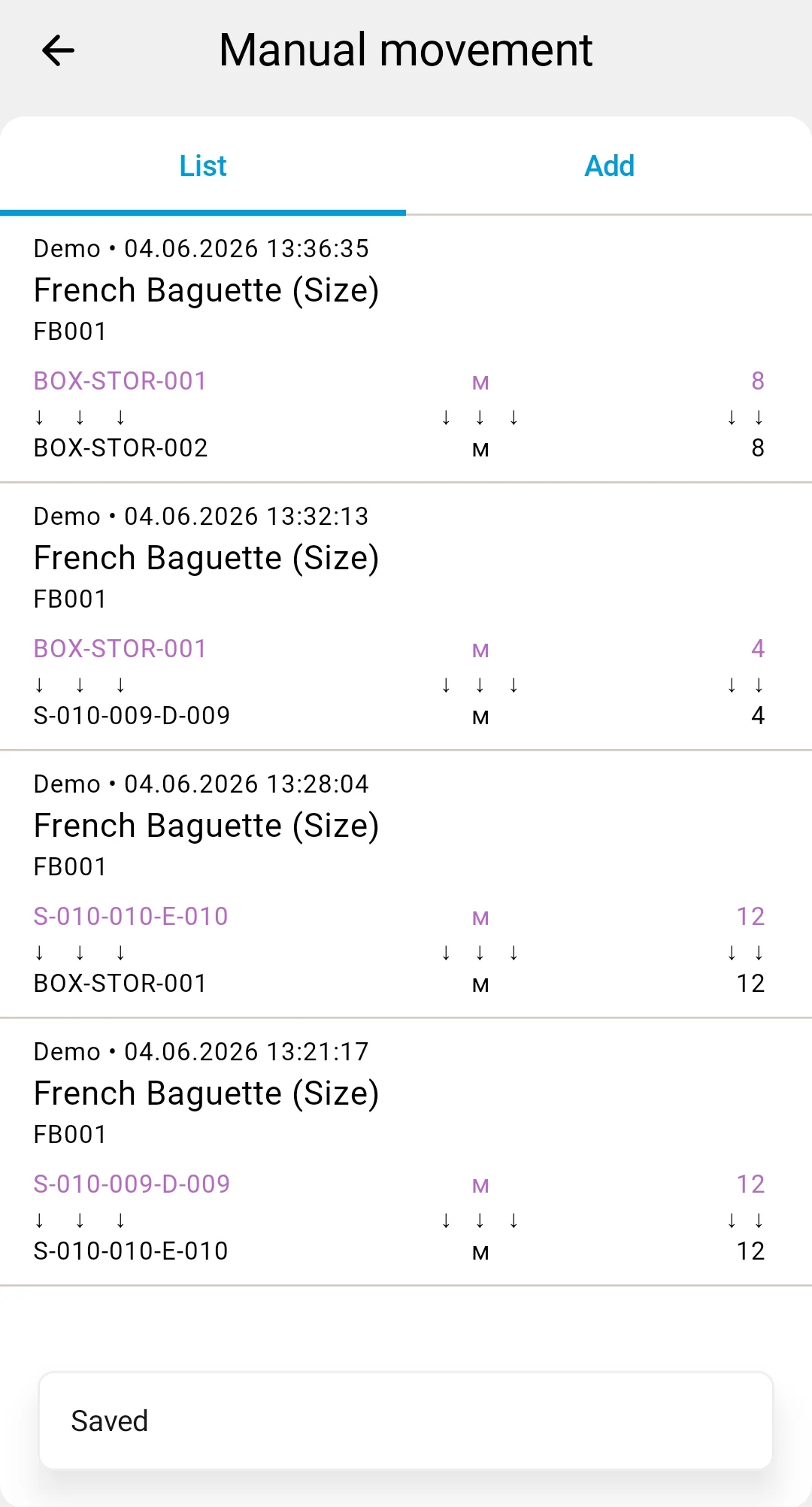
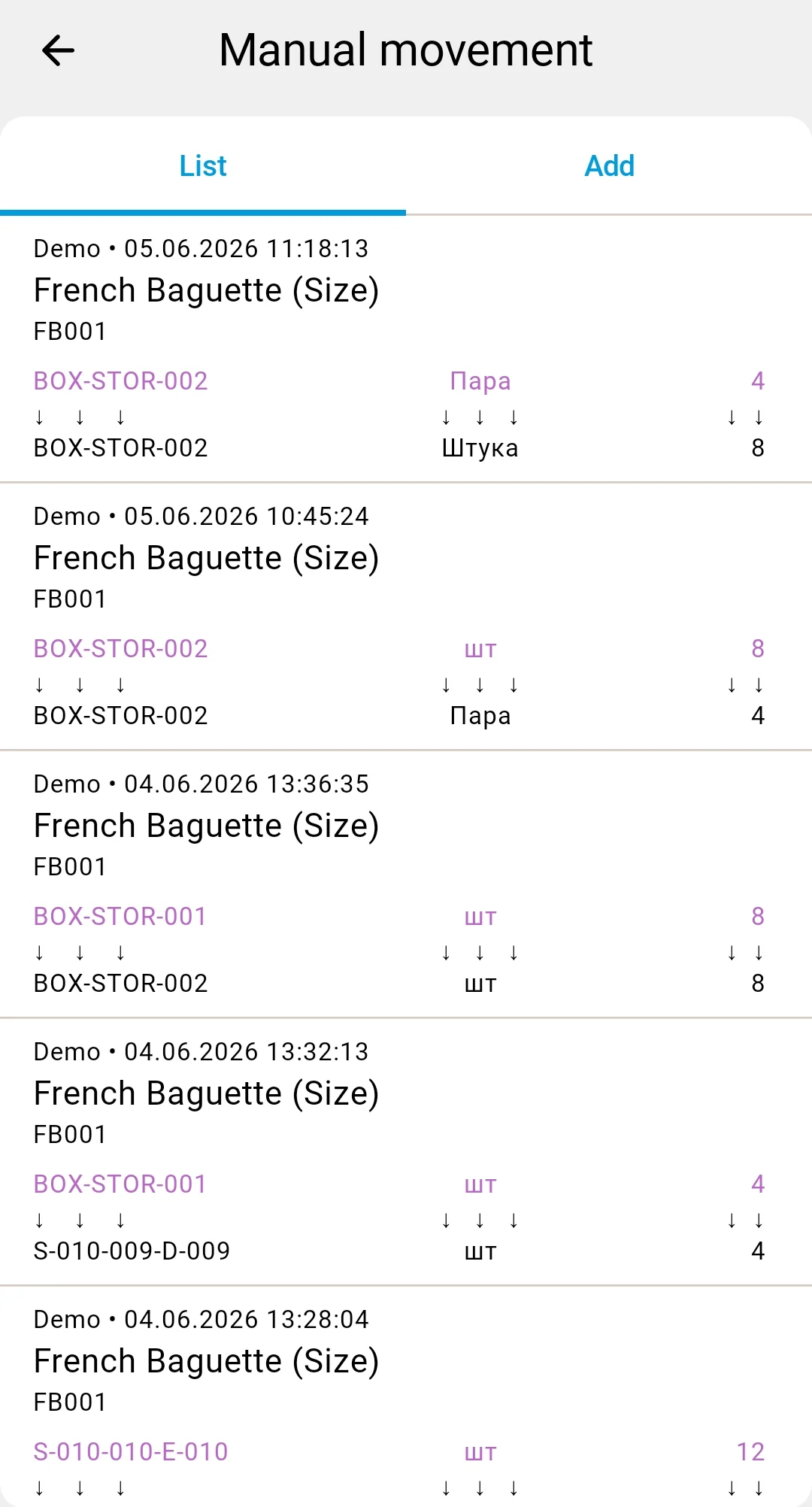
The LIST tab of the manual relocation screen shows a paginated history of the ad-hoc facts you've recently saved. Swipe down to refresh.
Don't be surprised if a fact you just saved appears under an existing document instead of a new one. The server groups ad-hoc facts within the current hour by the same operator and warehouse into one relocation document. You haven't lost anything — the fact is recorded, just attached to the existing hour's document.
Ad-hoc documents reach Completed automatically as soon as the server processes the fact. For details on each terminal status, see the Relocation statuses reference.