Quantity calculator
The quantity calculator is a helper for working out an amount that is awkward to enter by hand. It opens from the calculator button next to the quantity field on any fact form — receiving, putaway, relocation, picking, or counting — and the figure it produces is written straight back into the field.

When to use it
Typing a number is quickest when the amount is simple. The calculator earns its place when the amount is built from parts, weighed, or measured rather than counted:
- Full packs plus loose units — for example 14 full boxes of 12 plus 7 loose pieces, without doing the multiplication in your head.
- Goods received by weight — work out how many pieces a weighed amount comes to.
- Material measured by size — work out the amount of sheet or board stock from its dimensions.
The three ways to work it out
The calculator opens with three tabs across the top. Each is a different way of arriving at the same thing — the amount that returns to the quantity field. Pick whichever matches how the goods in front of you are measured; the Fact Quantity stepper at the top always shows the value the calculator will hand back.
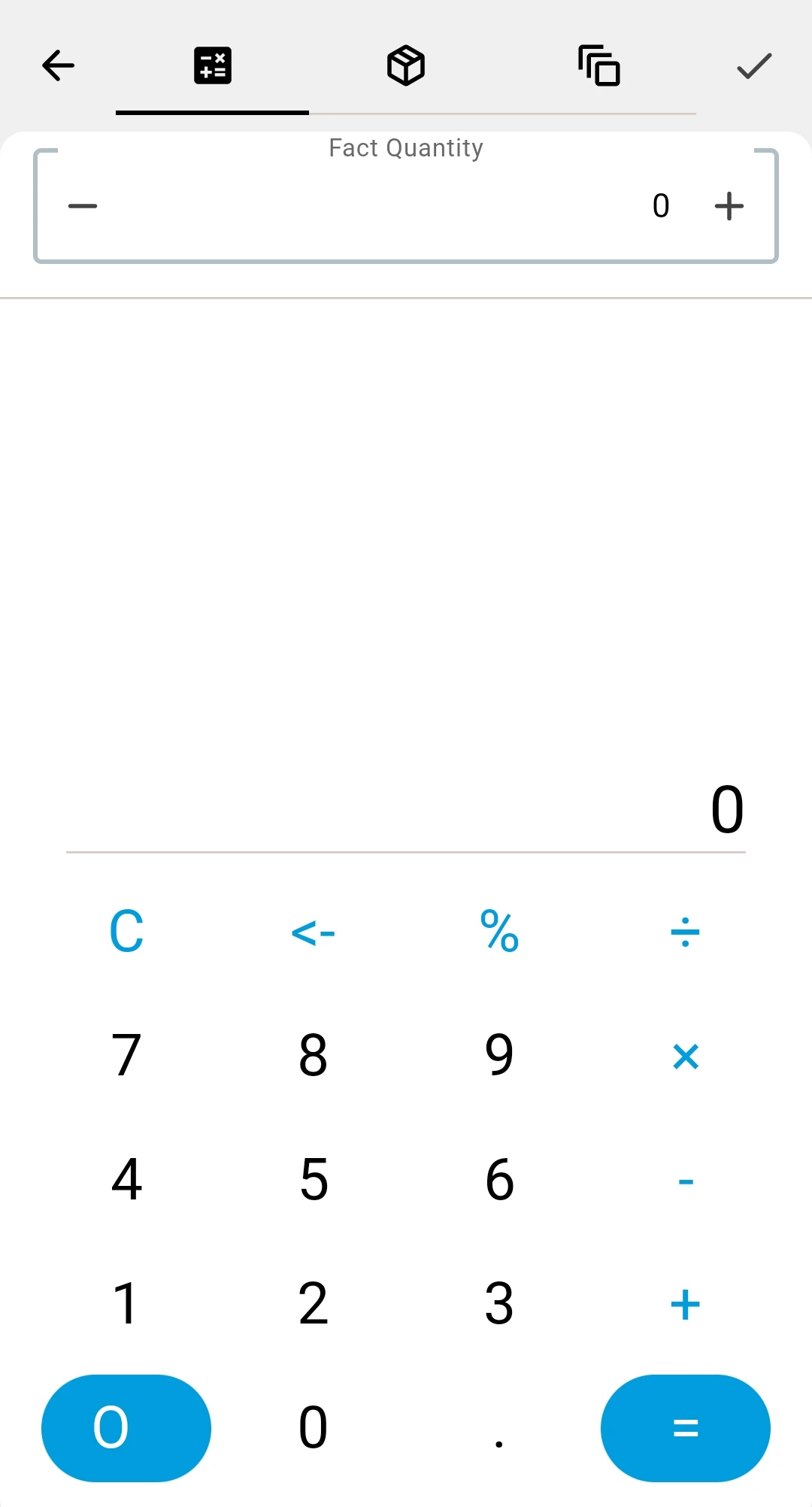
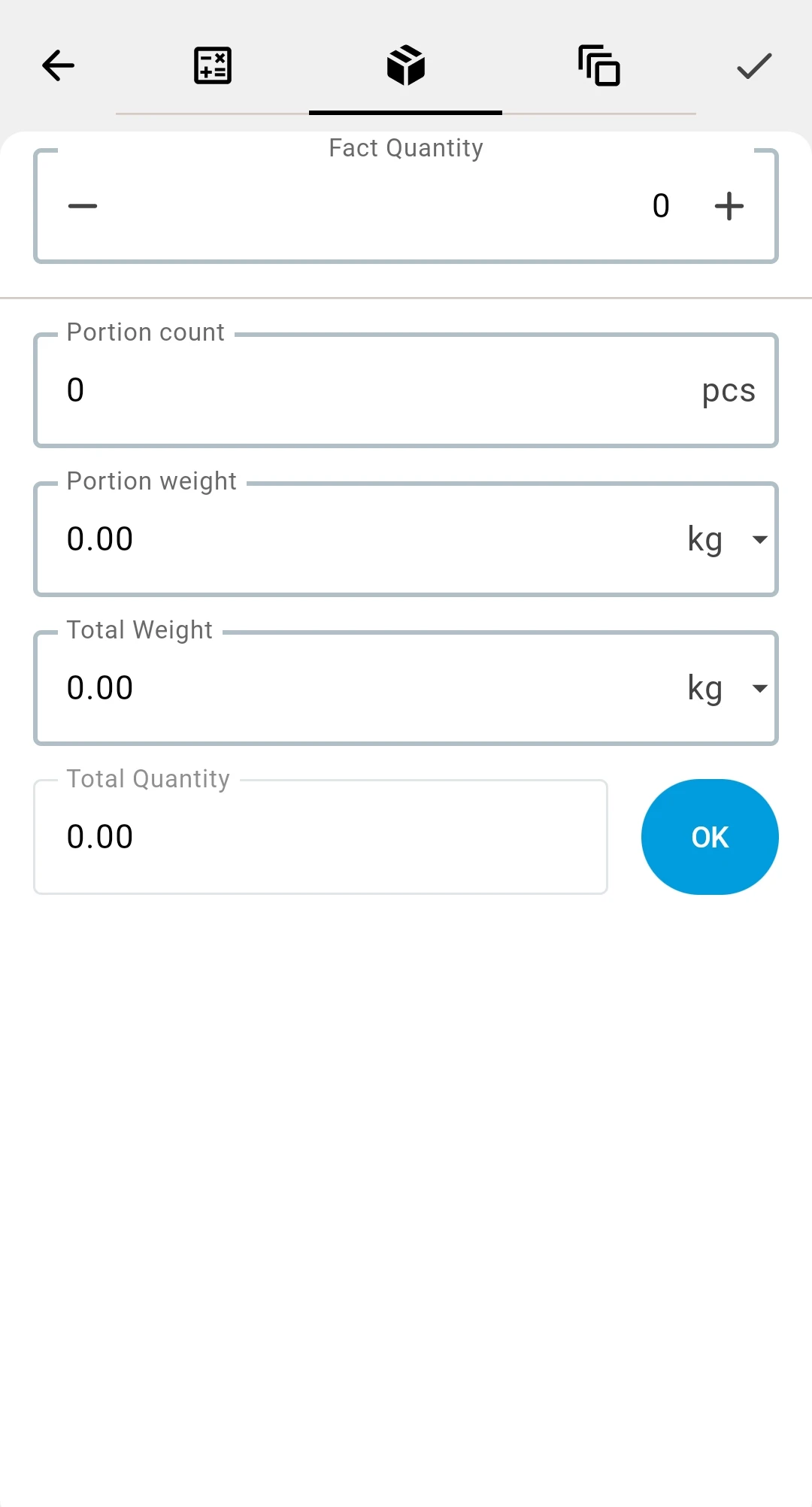
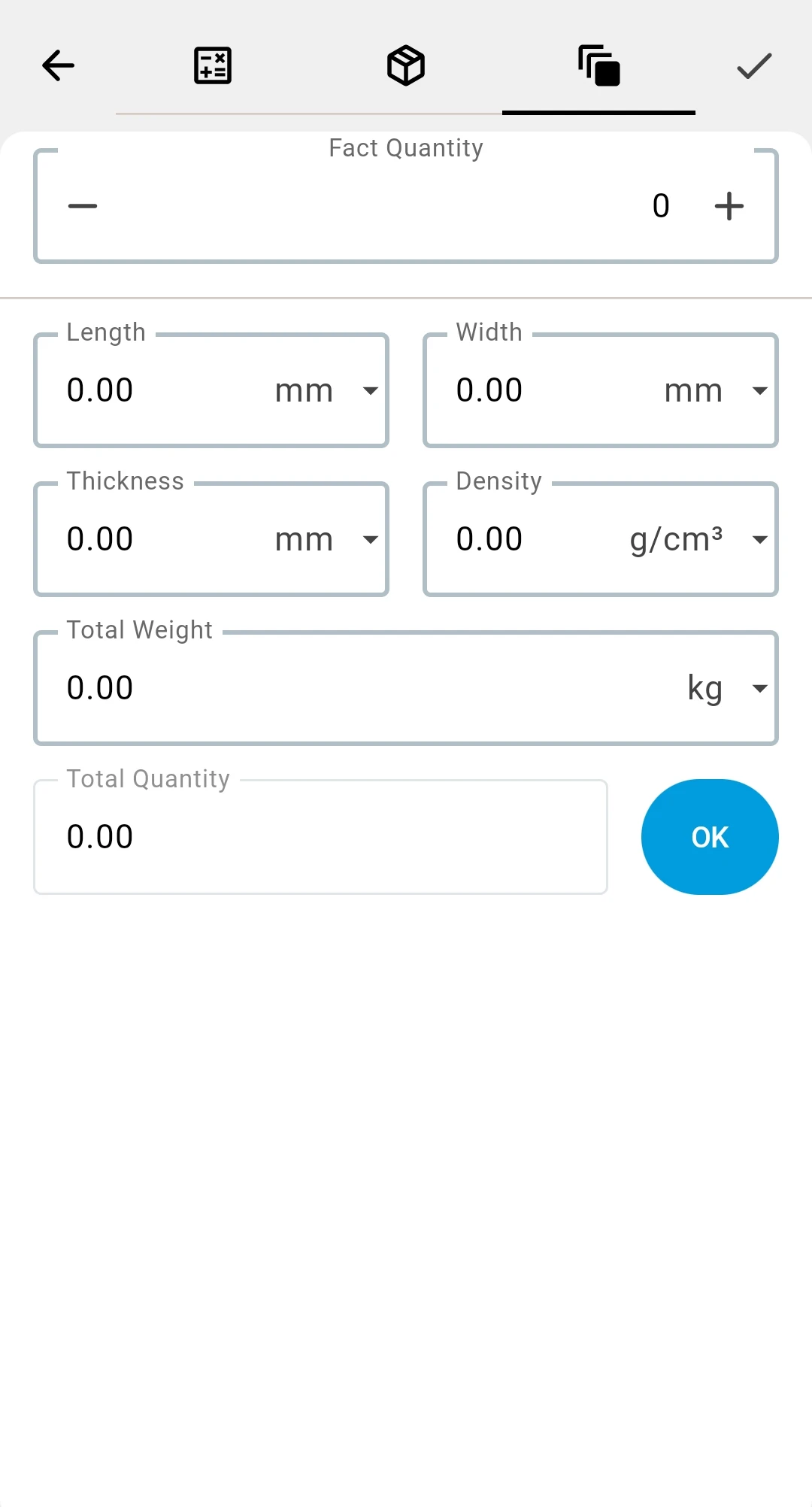
Arithmetic
A plain calculator keypad. Build the amount with the usual operations — add, subtract, multiply, divide, percent — and the running result becomes the quantity. This is the one to use for full packs plus loose units and similar sums: enter 14 × 12 + 7 and let it do the multiplication.
From weight
Work the amount out from weight instead of counting. Enter the Portion weight of a single pack and either the Portion count you have or the measured Total Weight; the calculator fills in the rest and converts it into the Total Quantity for the fact. Use it when goods arrive weighed rather than counted.
From dimensions
Work the amount out from the size of the material. Enter the Length, Width and Thickness of one piece together with the material's Density, and the calculator works out the Total Weight and the matching Total Quantity. Use it for sheet, board, or roll stock that is measured rather than counted.
What happens to the result
The operator builds the amount and accepts it. The result returns to the quantity field as the value for the currently selected pack type, exactly as if it had been typed — so the usual rules still apply: the value is checked against the flow's limit when saved and rejected if it falls outside it (see Errors and how to handle them).